Home - ajgillis04/GillisDockerDepot GitHub Wiki
Docker Home Wiki
Introduction
Welcome to the GillisDockerDepot Wiki! This repository provides a modular, multi-server framework for deploying and managing Docker services across your infrastructure.
Whether deploying on Linux, QNAP, or Windows (WSL 2), this wiki provides environment setup instructions, repository structure details, and service configuration guides.
Navigation
- Repository Architecture
- Docker Environment Setup
- Service Configuration Guides
- Essential Management Commands
Repository Architecture
GillisDockerDepot uses a modular template model to cleanly organize active services across multiple hosts (server1, server2, etc.).
GillisDockerDepot/
├── appdata/                         # Application data storage
├── compose/                         # Modular service definitions
│   ├── server1/                     # Active services running on Server 1
│   ├── server2/                     # Active services running on Server 2
│   └── templates/                   # Base reference templates (e.g., chrome.yaml, frigate.yaml)
├── scripts/                         # Shared app configs & setup examples (e.g., frigate_config_example.yml)
├── secrets/                         # Sensitive file mounts and credentials
├── shared/                          # Shared mounts across services
├── wiki/                            # Wiki documentation & screenshots
├── .env                             # Centralized port mapping, secrets, and path definitions
└── docker-compose-server1.yaml      # Master stack compose file for Server 1
How to Deploy a New Service:
- Locate the target template in
compose/templates/(e.g.,compose/templates/chrome.yaml). - Copy the template into your specific active server directory:
cp compose/templates/chrome.yaml compose/server1/chrome.yaml - Adjust environment variables, volume paths, or ports in
compose/server1/chrome.yamland.envas needed. - Launch or update the service on that host:
docker compose -p mediaserver -f docker-compose-server1.yaml up -d chrome
Docker Environment Setup
Linux Setup (Recommended)
-
Update package index and install Docker:
sudo apt update sudo apt install -y docker-ce docker-ce-cli containerd.io docker-buildx-plugin docker-compose-plugin -
Verify installation and user permissions:
docker --version
sudo docker run hello-world
QNAP Setup
- Install Container Station: Open the QNAP App Center, search for Container Station, and complete installation.
- Configure Master Stack: Upload your
docker-compose-server1.yamland.envfiles to your designated repository directory. - Launch Stack: Run your docker-compose stack via Container Station UI or SSH terminal.
Windows Setup (WSL 2)
-
Install WSL 2 & Ubuntu: Open PowerShell as Administrator:
wsl --install
wsl --set-default-version 2
wsl --install -d Ubuntu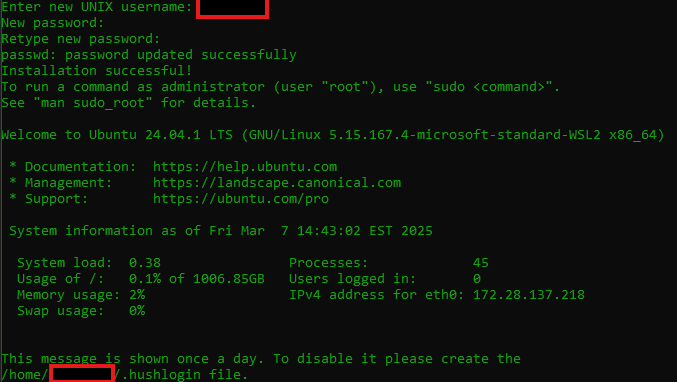
-
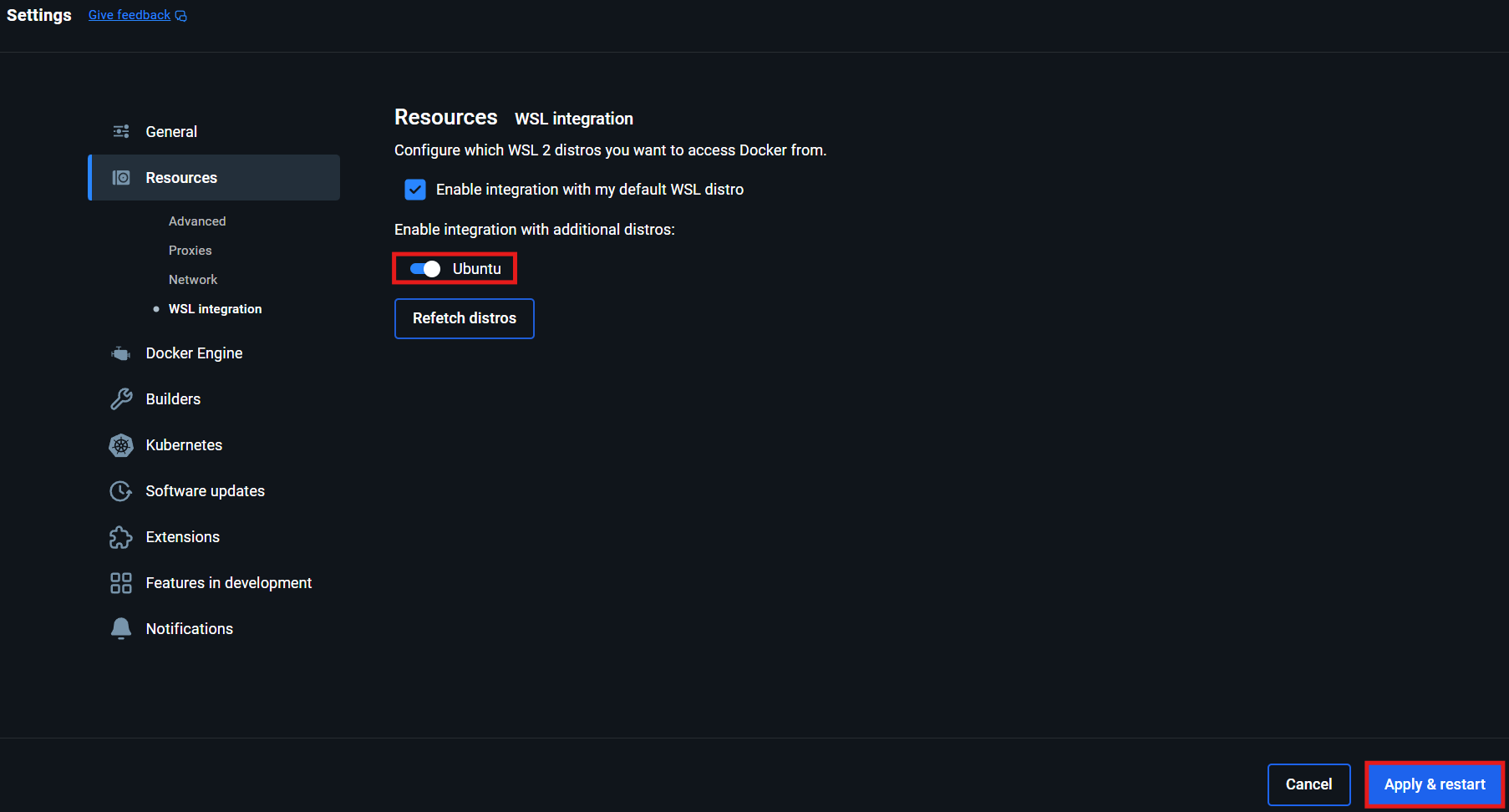
Install & Configure Docker Desktop:
- Download and run the Docker Desktop Installer.
- Open Settings -> General and enable Use the WSL 2 based engine.
- Open Settings -> Resources -> WSL Integration and enable integration for Ubuntu.
Service Configuration Guides
Media, Libraries & Automation
- Bazarr Setup Guide
- BookBounty Setup Guide
- Calibre Setup Guide
- Calibre-Web Setup Guide
- ErsatzTV Setup Guide
- Flixor Setup Guide
- Kometa Setup Guide
- Libation Setup Guide
- Lidarr Setup Guide
- Lidify Setup Guide
- Maintainerr Setup Guide
- MusicBrainz Setup Guide
- Nextcloud Setup Guide
- Nextcloud AIO Setup Guide
- NZBHydra2 Setup Guide
- Overseerr Setup Guide
- Photoprism Setup Guide
- Plex Media Server Setup Guide
- Picard Setup Guide
- Profilarr Setup Guide
- Prowlarr Setup Guide
- Radarr Setup Guide
- Readarr Setup Guide
- RetroAssembly Setup Guide
- SABnzbd Setup Guide
- Seerr Setup Guide
- Sonarr Setup Guide
- Soulseek Setup Guide
- SpotifyToPlex Setup Guide
- Tautulli Setup Guide
- Tdarr Server Setup Guide
- Tdarr Node Setup Guide
Networking, Access & Remote Tools
- Chrome Setup Guide
- Cloudflare Access: Zero Trust
- Cloudflare DDNS Setup Guide
- Cloudflared Tunnel Setup
- Guacamole Setup Guide
- Guacd Setup Guide
- Netdata Setup Guide
- OAuth Setup Guide
- Pi-hole Setup Guide
- Portainer Setup Guide
- Syncthing Setup Guide
- Tailscale Setup Guide
- Unbound Setup Guide
- Vaultwarden Setup Guide
- WireGuard Setup Guide
- Wizarr Setup Guide
Infrastructure, AI & Smart Home
- Chowdown Setup Guide
- Dozzle Setup Guide
- Frigate NVR Setup Guide
- Govee2MQTT Setup Guide
- Heimdall Setup Guide
- Home Assistant Setup Guide
- Homepage Setup Guide
- MariaDB Setup Guide
- Matter Server Setup Guide
- MineOS Setup Guide
- Mosquitto Setup Guide
- MotionEye Setup Guide
- Ollama Setup Guide
- OpenWebUI Setup Guide (WSL2 Docker)
- Orbital Sync Setup Guide
- phpMyAdmin Setup Guide
- PHP-Apache Setup Guide
- Pinchflat Setup Guide
- Traefik Setup Guide
- Traefik-Certs-Dumper Setup Guide
- Transmission-OpenVPN Setup Guide
- Uptime Kuma Setup Guide
- Watchtower Setup Guide
Essential Management Commands
Use these standardized project commands from your host terminal:
-
Validate Compose Configuration:
docker compose -p mediaserver -f docker-compose-server1.yaml config -
Start / Update Specific Service:
docker compose -p mediaserver -f docker-compose-server1.yaml up -d <service_name> -
Force Recreate Container:
docker compose -p mediaserver -f docker-compose-server1.yaml up -d --force-recreate <service_name> -
View Live Container Logs:
docker compose -p mediaserver -f docker-compose-server1.yaml logs -f <service_name> -
Prune Unused Images & Volumes:
docker system prune -a --volumes