Frigate NVR Setup Guide - ajgillis04/GillisDockerDepot GitHub Wiki
Frigate is an open-source NVR built around real-time AI object detection. It utilizes local hardware acceleration (e.g., Intel QuickSync VA-API) and GPU detectors (such as OpenVINO or Coral TPU) to analyze camera feeds with minimal CPU overhead, integrating seamlessly with Home Assistant via MQTT.
This service is deployed as a modular component within the Docker setup using Docker Compose include directives.
- Docker & Docker Compose v2.20+ (supports
includesyntax) - Hardware acceleration device passed through to Docker (e.g.,
/dev/drifor Intel iGPU) - MQTT Broker (Mosquitto) service running on your network
- IP Cameras or NVR RTSP streams reachable on your local network
- A configured
.envfile in your repository root
This guide follows the GillisDockerDepot multi-server layout. Template files live under compose/templates/ and are copied into server-specific compose directories before being pulled into the master compose file.
GillisDockerDepot/
├── .env                                      # Environment variables (copied from example)
├── docker-compose-<YOUR_SERVER_NAME>.yaml   # Master compose file (e.g., docker-compose-server1.yaml)
├── compose/
│   ├── templates/
│   │   └── frigate.yaml                      # Service template source
│   └── <YOUR_SERVER_NAME>/
│       └── frigate.yaml                      # Active service file (e.g., compose/server1/frigate.yaml)
└── appdata/
    └── frigate/
        └── config/
            └── config.yml                    # Core Frigate application configuration
Before deploying Frigate (or any other stack component), ensure your root .env file is created and updated.
If you haven't set up .env yet, copy the example environment file:
cp env.example .env # Or create .env in your repository rootEnsure the following variables match your node setup:
# *********************** SYSTEM & PATHS *************************
# Server identification
HOST_NAME=<Your Servername Here>     # Hostname for container naming (e.g., GillisNAS, Brainiac, etc.)
HOST_SUFFIX=                         # Append string for dev/test environments if needed

# User & Group Permissions
PUID=1000
PGID=100
TZ=America/Toronto

# Base Paths
BASE_DIR=/share/Docker/GillisDockerDepot
COMPOSE_DIR=${BASE_DIR}/compose/server1    # Points to active server compose directory
DOCKERDIR=${BASE_DIR}/appdata              # Appdata path mapped inside frigate.yaml (${DOCKERDIR}/frigate)
SECRETSDIR=${BASE_DIR}/secrets

# Ports & Networks
SERVER_IP=<Your Server IP here>
FRIGATE_WEB_PORT=5000
FRIGATE_RTMP_PORT=1935Copy the base Frigate template into your specific target server's compose folder:
cp compose/templates/frigate.yaml compose/<YOUR_SERVER_NAME>/frigate.yamlNote: Replace
<YOUR_SERVER_NAME>with your specific target server directory (e.g.,server1,server2,server8,media-node).
Next, review and customize compose/<YOUR_SERVER_NAME>/frigate.yaml. Ensure shared memory (shm_size: "2048m") is allocated, your hardware rendering device (/dev/dri) is passed through, and environment variables align with your .env:
# ------------------------------------------------------------------------------
# Frigate - NVR with AI Object Detection
# ------------------------------------------------------------------------------
# Provides real-time object detection, recording, and MQTT events for HA.
# Uses RTSP streams from DVR/IP Cameras, publishes detections via MQTT.
# ------------------------------------------------------------------------------

services:
  frigate:
    container_name: frigate.${HOST_NAME}
    hostname: frigate.${HOST_NAME}.lan
    image: ghcr.io/blakeblackshear/frigate:stable
    privileged: true
    shm_size: "2048m"   # Crucial shared memory allocation for multi-stream FFmpeg processing
    devices:
      - /dev/dri:/dev/dri
    environment:
      PUID: ${PUID}
      PGID: ${PGID}
      TZ: ${TZ}
      DOMAINNAME: ${DOMAINNAME}
      HOST_NAME: frigate.${HOST_NAME}.lan
      OPENVINO_AUTO_HARDWARE_ACCEL_DEVICE: "AUTO"
    networks:
      - mediaserver
    ports:
      - "${FRIGATE_WEB_PORT}:5000"
      - "${FRIGATE_RTMP_PORT}:1935"
    volumes:
      - ${DOCKERDIR}/frigate/config:/config
      - ${DOCKERDIR}/frigate/media:/media/frigate
      - /etc/localtime:/etc/localtime:ro
    restart: unless-stopped
    logging:
      driver: "json-file"
      options:
        max-size: "50m"
        max-file: "3"
    labels:
      - "com.centurylinklabs.watchtower.enable=true"
      - "homepage.group=Infrastructure"
      - "homepage.name=Frigate"
      - "homepage.icon=camera.png"
      - "homepage.href=https://frigate.${DOMAINNAME}/"
- "homepage.description=AI-powered NVR and object detection"In your master server compose file (e.g., docker-compose-server1.yaml), include the service YAML using the ${COMPOSE_DIR} path variable or a relative path:
include:
- ${COMPOSE_DIR}/frigate.yamlTo help you get started, a complete reference configuration featuring 4K stream setups, hardware acceleration, and zone alerts is available in the repo:
# Copy the example configuration to your active appdata directory
cp scripts/frigate_config_example.yml ${DOCKERDIR}/frigate/config/config.yml
Important: Open
${DOCKERDIR}/frigate/config/config.ymland replace the placeholders (<nvr-ip>,<user>,<password>,<your-mqtt-broker-ip>) with your actual network details.
This setup uses global Intel VA-API hardware decoding, OpenVINO GPU detection, native high-res detection (subtype=0), and built-in AI features like Face Recognition and Semantic Search.
version: 0.17.2

logger:
  default: info
  logs:
    frigate.ffmpeg: warning

model:
  path: /openvino-model/ssdlite_mobilenet_v2.xml
  width: 300
  height: 300
  input_tensor: nhwc
  input_pixel_format: bgr
  labelmap_path: /openvino-model/coco_91cl_bkgr.txt

detectors:
  ov:
    type: openvino
    device: GPU

mqtt:
  host: <your-mqtt-broker-ip>
  port: 1883
  topic_prefix: frigate
  client_id: frigate

# GLOBAL HARDWARE ACCELERATION (Applies Intel VA-API decoding to all streams)
ffmpeg:
  hwaccel_args: preset-vaapi

birdseye:
  enabled: true
  mode: objects
  width: 1280
  height: 720

detect:
  enabled: true
  stationary:
    interval: 10
    threshold: 50

record:
  enabled: true

semantic_search:
  enabled: true
  model_size: small

face_recognition:
  enabled: true
  model_size: small

# ------------------------------------------------------------------------------
# CAMERAS CONFIGURATION
# ------------------------------------------------------------------------------
cameras:

  # ---------------------------
  # CHANNEL 1 — FRONT YARD (4K High-Res Detection)
  # ---------------------------
  channel_1:
    ffmpeg:
      inputs:
        - path: rtsp://<user>:<password>@<nvr-ip>:554/cam/realmonitor?channel=1&subtype=0
          roles:
            - detect
            - record
          input_args: preset-rtsp-restream
    detect:
      enabled: true
      width: 3840
      height: 2160
      fps: 5
    motion:
      contour_area: 100
      threshold: 25
      improve_contrast: true
      # mask: <optional-mask-coordinates-from-ui>
    snapshots:
      enabled: true
      timestamp: true
      bounding_box: true
      quality: 100
    objects:
      track: [person]
      filters:
        person:
          min_score: 0.70
          threshold: 0.60
          min_area: 3000
    zones:
      FrontYard:
        coordinates: <add-your-zone-coordinates-via-ui>
        inertia: 3
        loitering_time: 0
        objects: person
    review:
      alerts:
        required_zones: FrontYard

camera_groups:
  Birdseye:
    order: 1
    icon: LuAccessibility
    cameras:
- channel_1Setting up masks and zones optimizes performance and ensures you only receive alerts for areas that matter.
- Motion Masks: Prevent Frigate from spending processing cycles on constant, irrelevant movement (e.g., swaying trees, street traffic, or timestamp text).
-
Detection Zones: Define specific areas (e.g.,
FrontYard,Driveway,Lawn) where object detection should trigger events, alerts, or Home Assistant automations. -
Required Zones (
review -> alerts -> required_zones): Tells Frigate to only generate an Alert item in the UI when a tracked object enters that specific zone. Objects detected outside required zones will either be categorized as general Detections or ignored depending on your review settings.
Best Practice: Always draw masks and zones directly in the Frigate Web UI rather than attempting to guess coordinate numbers by hand.
- Open the Frigate Web UI (
http://<YOUR_SERVER_IP>:5000). - Navigate to Settings -> Mask / zone editor and select your target camera.
- Click the + icon under Motion Mask or Zone.
- Use your mouse on the live preview to draw your polygon.
- Click Save — Frigate automatically updates your
config.ymlfile with the generated coordinates. - Restart Frigate from the UI to apply the changes.
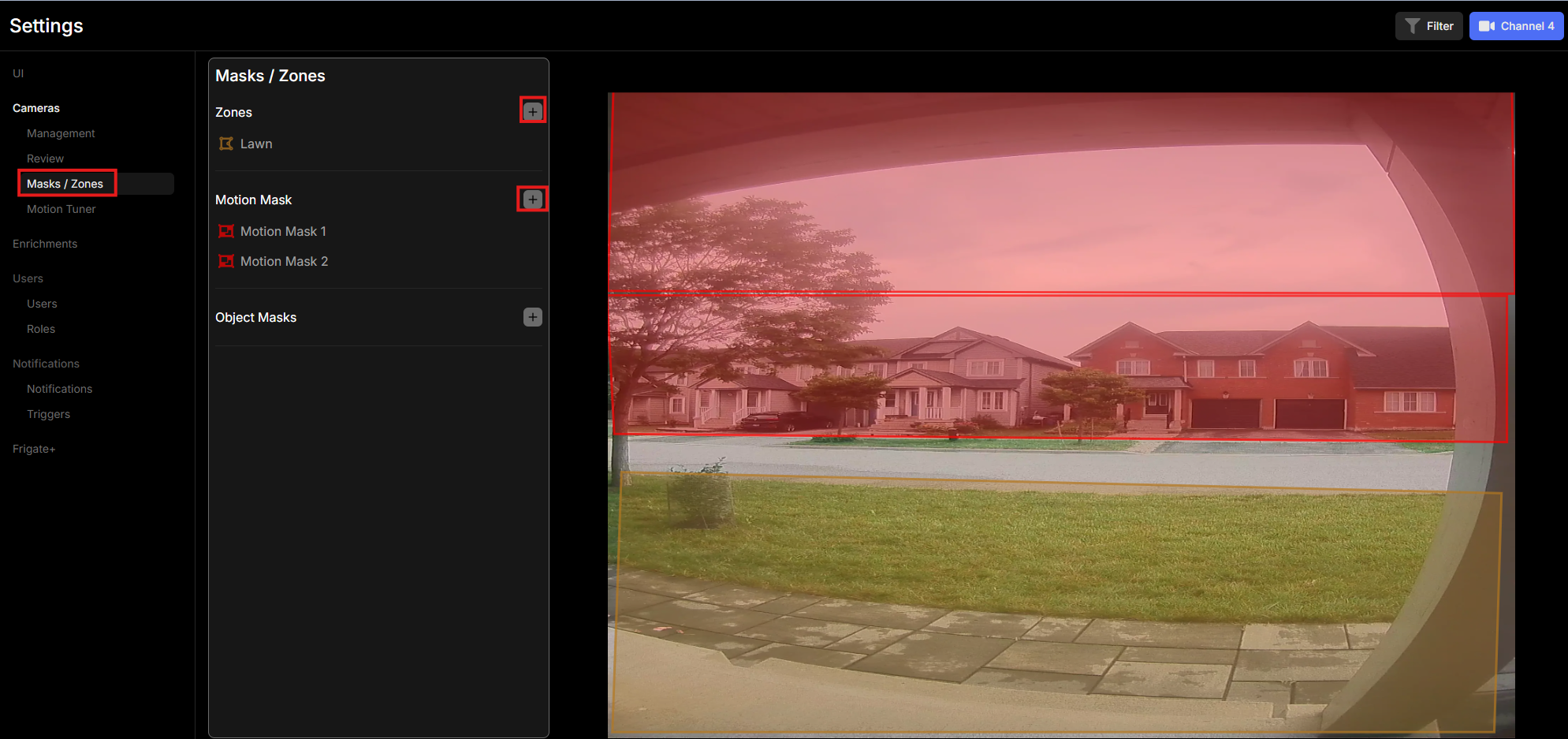
Deploy the Frigate container using project name scoping (-p mediaserver) with your master server compose file:
# Bring up the entire stack
docker compose -p mediaserver -f docker-compose-<YOUR_SERVER_NAME>.yaml up -d

# Or bring up ONLY the Frigate service
docker compose -p mediaserver -f docker-compose-<YOUR_SERVER_NAME>.yaml up -d frigateTo avoid getting spammed with repeated MQTT notifications while a person is moving inside a zone, set up a Home Assistant automation using mode: single with a - delay: step at the end of the action block:
- id: frigate_doorbell_person_alert
  alias: Frigate - Doorbell Person Alert
  mode: single

  trigger:
    - platform: mqtt
      topic: frigate/events

  condition:
    - condition: template
      value_template: >
        {{
          trigger.payload_json.after is defined
          and trigger.payload_json.after.camera == 'channel_4'
          and trigger.payload_json.after.label == 'person'
          and trigger.payload_json.after.has_snapshot == true
          and 'Lawn' in trigger.payload_json.after.current_zones
          and 'Lawn' not in trigger.payload_json.before.current_zones
        }}

  action:
    - action: notify.your_device
      data:
        title: "Doorbell Alert"
        message: "Person detected at the door"
        data:
          image: "http://<your-frigate-ip>:5000/api/events/{{ trigger.payload_json.after.id }}/snapshot.jpg"
          duration: 15
    # Cooldown delay drops follow-up MQTT updates while the person remains in the zone
- delay: "00:01:00"-
Resolution Matching: Always ensure
detect:widthandheightmatch the input stream assigned to thedetectrole. Mismatched resolutions force CPU rescaling before object detection runs. -
Shared Memory (
shm_size): Allocate at least2048min Docker Compose for multi-channel 4K streams. Default Docker shared memory (64m) will cause FFmpeg crashes on high-res streams. -
Single High-Res Stream Strategy: Feeding primary high-res streams (
subtype=0) to bothdetectandrecordeliminates stream-sync delays and drastically improves face recognition/semantic search accuracy.
Back up your configuration files weekly:
${DOCKERDIR}/frigate/config/config.yml
-
Include Service: Add
${COMPOSE_DIR}/frigate.yamlto your server's master compose file (docker-compose-<YOUR_SERVER_NAME>.yaml). -
Restore Config: Copy your backed-up
config.ymlinto place:
sudo cp /path/to/backup/config.yml ${DOCKERDIR}/frigate/config/config.yml- Start Service: Bring up the container stack and verify GPU detection in the System Settings page:
docker compose -p mediaserver -f docker-compose-<YOUR_SERVER_NAME>.yaml up -d frigate-
FFmpeg Crashes / High CPU Usage: Verify
hwaccel_args: preset-vaapiis working and/dev/driis correctly mapped inside the container. -
Notification Flooding: Confirm the HA automation is using
mode: singlewith a- delay:step at the bottom of your actions list. - Logs: Inspect system logs inside the Frigate UI via System Settings -> Logs -> frigate.ffmpeg.