Inpatient Admission Profile Dashboard - hmislk/hmis GitHub Wiki
Inpatient Admission Profile (Dashboard)
The Admission Profile is the central dashboard for a single BHT (admission episode). It brings together patient information, clinical actions, billing controls, room management, pharmacy, and reports in one screen. Almost every inpatient workflow is launched from or returns to this page.
Page: Inpatient → Admissions Search → select patient or navigated to automatically after admitting a patient
XHTML: /inward/admission_profile.xhtml
Controller: BhtSummeryController.navigateToInpatientProfile()
Patient Identity Banner
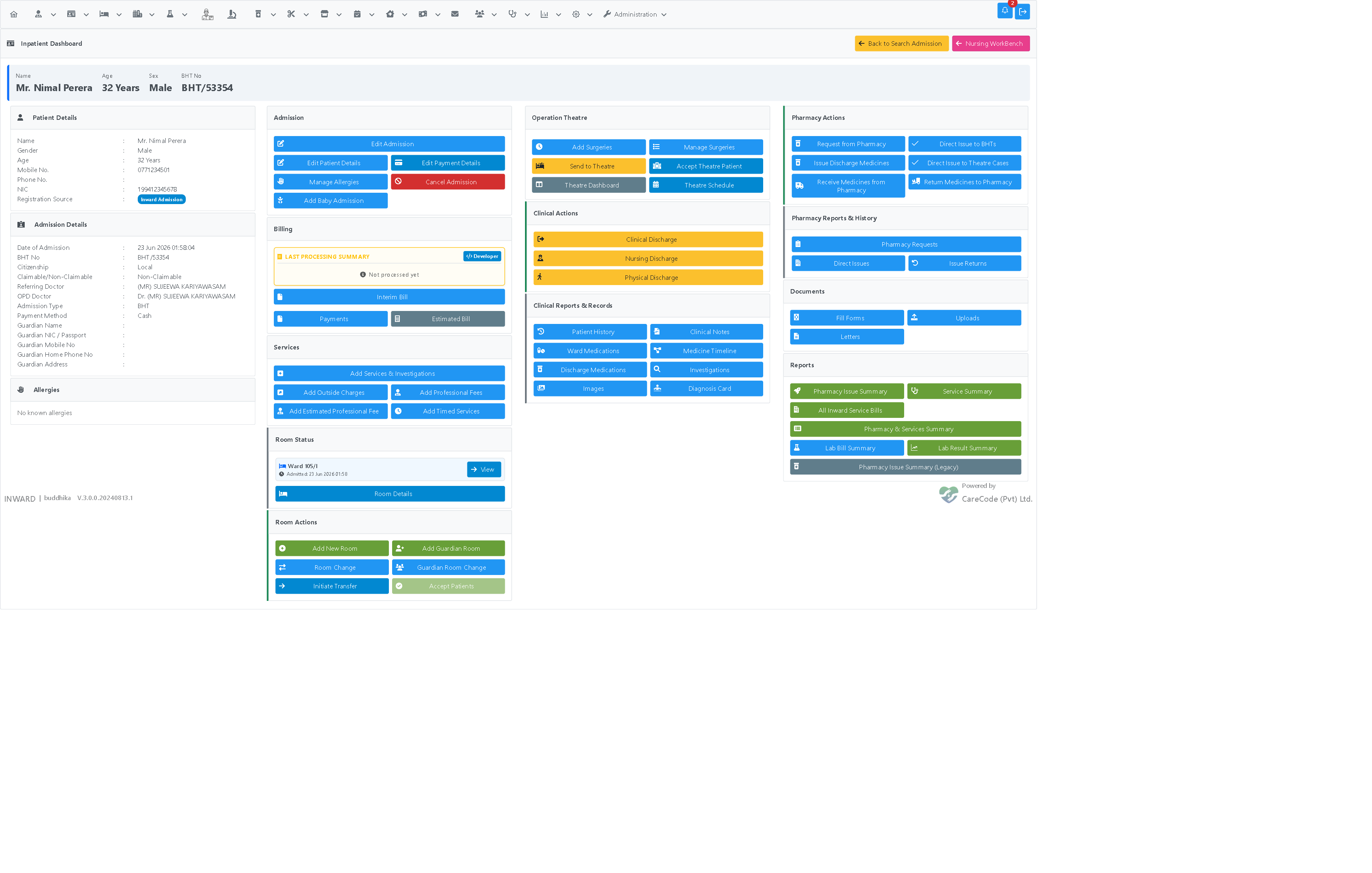
A prominent strip directly under the page title always shows the patient's Name, Age, Sex, and BHT No in large text, so the most important identifying details are visible at a glance without scanning the smaller Patient Details panel. Any encounter flag (e.g. On Admission Death, Rapid/Temp A&E pending completion) is also shown here as a badge.
Layout Overview
The dashboard is organised into four columns. Within each column, panels that mix stateful actions (things that change data) with read-only reports/history (things you look up) are split into separate sub-panels — Actions panels use a green accent, Reports/Status panels use a grey accent — so it's clear at a glance which buttons do something and which ones just show something.
| Column | Contents |
|---|---|
| 1 — Patient | Patient details, admission details, allergies panel |
| 2 — Admission / Billing / Services / Room | Admission actions, billing actions, service ordering, Room Status (grey) + Room Actions (green) |
| 3 — Surgeries / Clinical Data | Surgery list, Clinical Actions (green) + Clinical Reports & Records (grey) |
| 4 — Pharmaceuticals / Reports / Discharge | Pharmacy Actions (green) + Pharmacy Reports & History (grey), other reports, deposit and discharge controls |
Column 1 — Patient Details
- Admission details panel — admission type, BHT number, consultant, medical officer, payment mode, admission time
- Allergies panel — lists all recorded allergies as amber alert badges. If no allergies are recorded, displays "No known allergies". See Inpatient EHR — Allergies
(Name, gender, age, mobile, phone, and NIC remain listed here too as secondary reference fields — the primary Name/Age/Sex/BHT No are in the banner above.)
Column 2 — Admission, Billing, Services, Room
Admission Panel
- Edit Admission — correct admission details (Inpatient — Edit Admission Details)
- Edit Patient Details — update patient demographics
- Edit Payment Details — change payment mode or credit company
- Manage Allergies — add/remove allergy records (Inpatient EHR — Allergies)
- Cancel Admission — void the admission (Inpatient — Cancel Admission)
- Add Baby Admission — create a linked newborn admission (Inpatient — Baby Admission) — only shown when the current BHT is not a baby admission itself
- Mother's Inpatient Profile — navigate to the mother's dashboard — only shown when the current BHT has a parent admission
Billing Panel (hidden for baby admissions that have a parent BHT)
- Last Processing Summary (users with the
Developersprivilege only) shows Total, Discount, Patient Paid, Credit Company Paid and Due Amount, with who processed them and when. Whenever a bill has been added to the BHT since the last calculation (a deposit, payment, refund, cancellation, service, professional fee or pharmacy issue), opening the dashboard recalculates the figures first. You no longer need to open the Interim Bill to bring them up to date. If nothing new was billed, the previous figures and their Last Processed time are kept. Room charges accrue with time, so the Total can still lag behind until the next bill or Interim Bill.

The panel says the totals are updated whenever a bill is added and that room charges keep accruing until the next update. The Last Processed time shows how fresh the figures are.
Once the admission's payment is finalized, the figures are no longer recalculated. The panel then shows Not Updated - Payment Finalized, and bills added afterwards (such as post-final payments) do not change these totals.

Straight after a Rs 1,000 deposit, Patient Paid shows 1,000.00 and the Due Amount has dropped by the same amount.
- Interim Bill — view the running total of all charges (Inpatient — Final Bill Generation)
- Provisional Bill — shown instead of Interim Bill when a provisional bill exists
- Final Bill — shown after discharge and payment finalisation
- Make a Payment / Make a Deposit — two side-by-side buttons for collecting money from the patient during the admission; identical form and payment methods, but tagged and numbered separately (Inpatient — Make a Payment and Make a Deposit). Make a Deposit only appears for roles granted the
InwardMakeDepositAccessprivilege. - Estimated Bill — view an estimate including professional fees
- Hold Professional Payments — blocks payout of professional/surgery fees for the whole BHT without affecting charge entry; requires
InwardHoldProfessionalPaymentsprivilege (Inpatient — Hold Professional Payments) - Professional Payments Report — lists each professional fee for this admission with individual Hold/Release controls, instead of holding the whole BHT; requires
InwardHoldProfessionalPaymentsprivilege (Inpatient — Professional Payments Report)
Services Panel
- Add Services & Investigations — order procedures and diagnostics
- Add Outside Charges — enter external charges
- Add Professional Fees — record consultant fees
- Add Estimated Professional Fee — record fee estimates
- Add Timed Services — record ongoing time-based charges (room rent, oxygen)
Package Panel
- Shows the admission's current Inpatient Package, or "No Package"
- Change Package — add, swap, or remove the package on this admission, with an audit trail of the
change (Inpatient — Change Package); disabled once the admission is
discharged; requires
InwardPackageChangeprivilege (panel itself requiresInpatientDashboardPanelPackage)
Room Status Panel (grey)
- Shows the current room assignment(s), with admission time and a View link
- Room Details — view current room assignment and history (Inpatient — Patient Room Details)
Room Actions Panel (green)
- Add New Room / Add Guardian Room — assign a room to the patient or their guardian
- Room Change — move patient to a different room (Inpatient — Room Change and Guardian Room Change)
- Guardian Room Change — move the patient's guardian
- Initiate Transfer — transfer the patient to another ward or department (Inpatient — Patient Transfer Between Wards) — visible only with
InwardRoomTransferInitiateprivilege - Accept Patient — accept this patient's incoming transfer request — visible only with
InwardRoomPatientAcceptprivilege; enabled whenever any transfer request is pending for the logged-in department (not only for this patient). To see whether this patient is waiting to be accepted, use the Pending Acceptance Banner
Column 3 — Surgeries and Clinical Data
Surgeries Panel
- Lists all surgery bills linked to this BHT
- Add Surgeries — create a new surgery record on the theatre workbench (disabled after payment is finalised)
- Manage Surgeries — view and manage the surgery list
Clinical Actions Panel (green)
Stateful workflow transitions — each button is colour-coded (amber = pending, green = done):
- Clinical Discharge — record the doctor's clinical discharge decision; requires
InpatientClinicalDischargeprivilege (Inpatient EHR — Clinical Discharge) - Nursing Discharge — requires
InwardNursingDischargeprivilege (Inpatient — Nursing Discharge) - Physical Discharge — requires
InwardPhysicalDischargeprivilege
Clinical Reports & Records Panel (grey)
- Patient History — open the patient's OPD history profile
- Clinical Notes — view the list of clinical assessments (Inpatient EHR — Clinical Assessment and Notes)
- Ward Medications — prescribe and view inpatient ward medications (Inpatient EHR — Ward Medications)
- Medicine Timeline — colour-coded timeline of ward medications (Active = green, Expired = grey, Omitted = red); requires
InpatientClinicalAssessmentprivilege - Discharge Medications — manage take-home prescriptions (Inpatient EHR — Discharge Medications)
- Investigations — view lab investigation results linked to this BHT
- Images — view radiology and clinical images
- Diagnosis Card — view/print the diagnosis card (Inpatient EHR — Clinical Data)
- Event History — full chronological story of the admission: every bill plus every recorded action (edits, room changes, discharges, credit changes, transfers, documents, allergies) with user and time, and expandable before/after details (Inpatient Event History); requires
InwardEventHistoryViewprivilege
Documents Panel
- Uploads — upload, view, download, and remove documents (consent forms, insurance letters, referral letters) attached to this admission (Inpatient — Document Upload); requires
InwardDocumentUploadprivilege - Letters — generate, edit, save, print, and download covering letters using templates or AI (Inpatient Covering Letters); requires
InpatientLetterprivilege - Fill Forms — fill, edit and delete the hospital's custom dynamic forms for this admission (Inpatient Dynamic Forms); requires
InwardFormFillprivilege - Send Email — compose and send an email (to the credit company, a referring institution, or anyone else) with optional attachments and templates (Inpatient — Send Email); requires
InwardSendEmailprivilege - Sent Emails — view every email sent for this admission (Inpatient — Send Email); requires
InwardSendEmailprivilege
Column 4 — Pharmaceuticals, Reports, Deposits, Discharge
Pharmacy Actions Panel (green)
- Request from Pharmacy — nurse raises a medicine request to the pharmacy
- Direct Issue to BHTs — pharmacist issues medicines directly (requires
PharmacySale) - Issue Discharge Medicines — issue take-home medicines at discharge (requires
PharmacyDischargeMedicineIssue) - Direct Issue to Theatre Cases — pharmacy issues to the theatre
- Receive Medicines from Pharmacy — ward confirms receipt of medicines issued by the pharmacy and brought by a porter (Ward Medicine Request, Issue, and Return Workflow)
- Return Medicines to Pharmacy — ward returns unused medicines back to the pharmacy via a porter (Ward Medicine Request, Issue, and Return Workflow)
Pharmacy Reports & History Panel (grey)
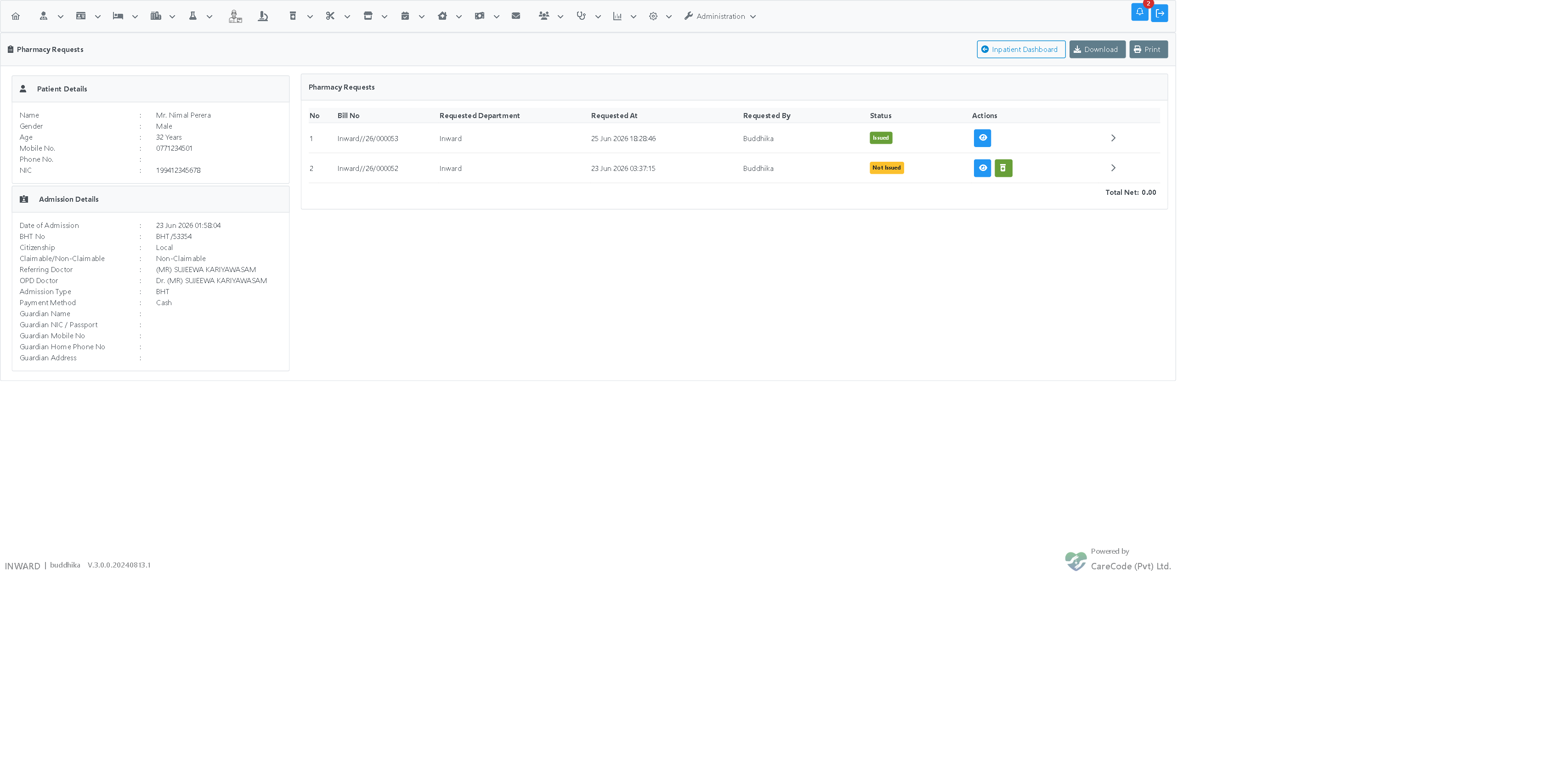
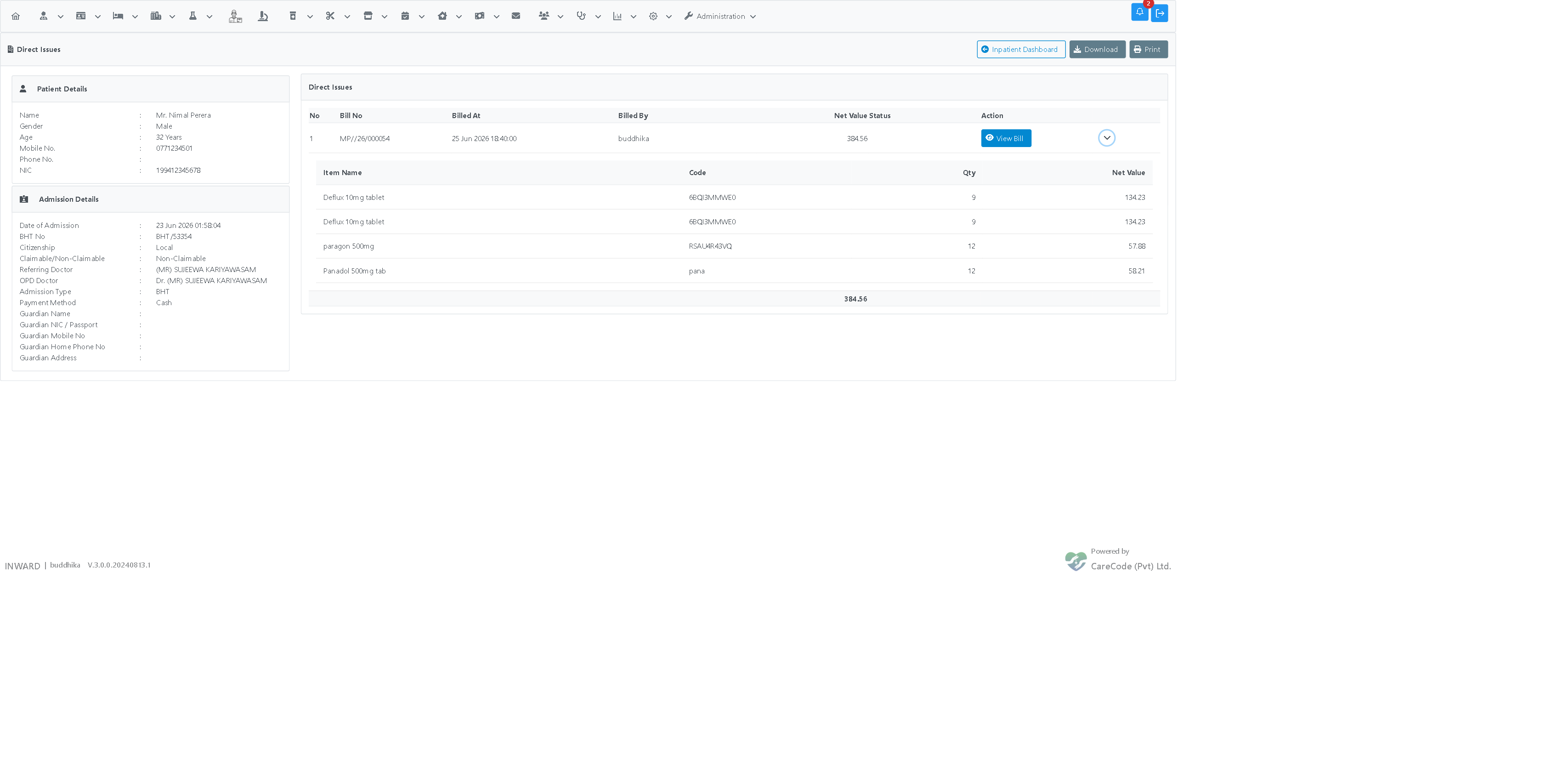
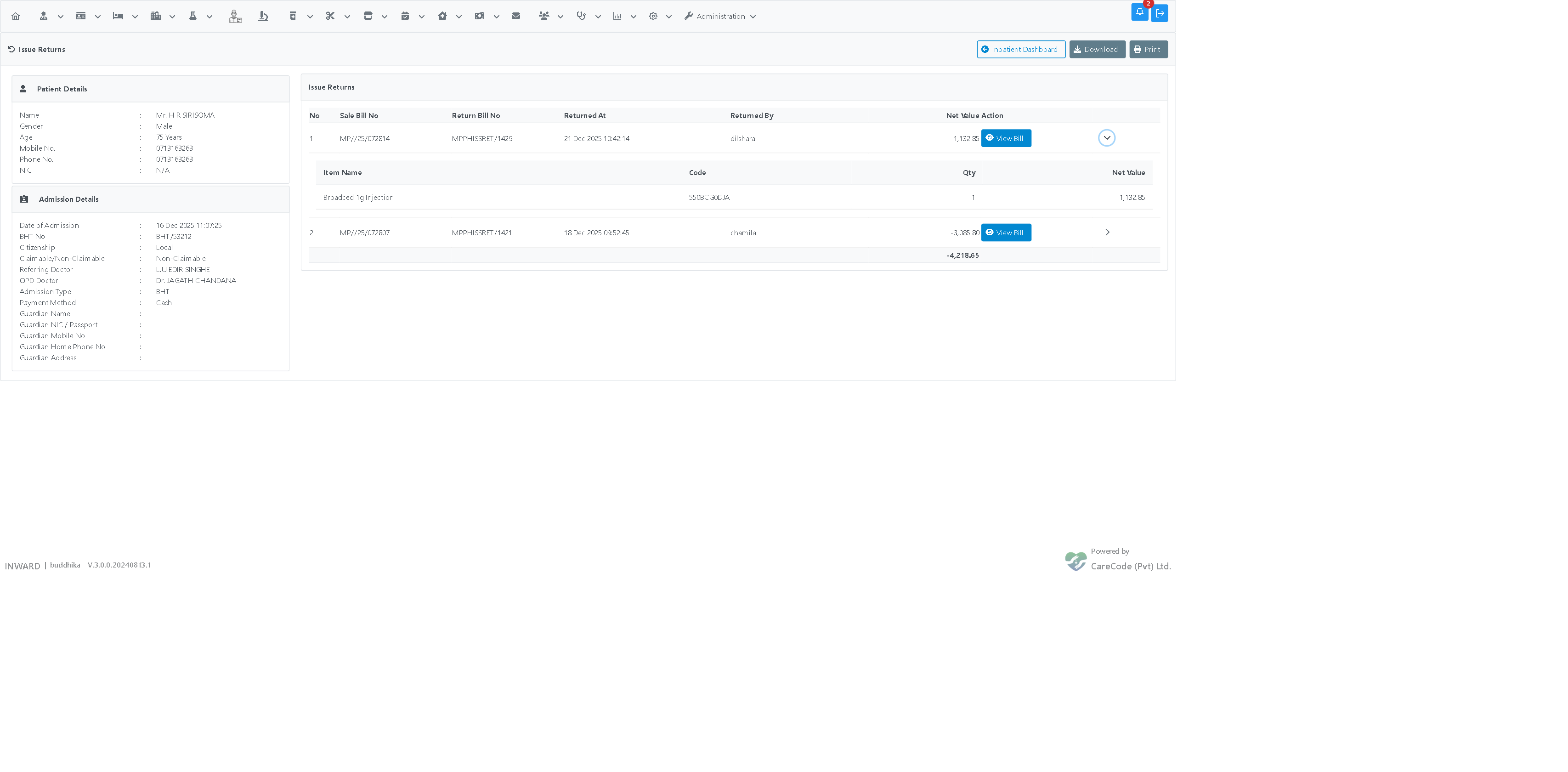
Three buttons open dedicated, encounter-scoped history pages for this BHT only — the data for this patient is already loaded when the page opens, with no date range or department filter to fill in first (unlike the general pharmacy search pages reachable from the main Pharmacy menu, which are built for browsing across all patients and always require picking a date range).
- Pharmacy Requests — every medicine request bill raised for this BHT, with an Issued/Not Issued status tag per request, an expandable row showing the bill(s) that fulfilled each request, a View Request button, and an Issue Medicines button on any request still awaiting fulfilment (requires
PharmacyBHTIssueAcceptorInwardPharmacyIssueRequestSearch). Replaces the former separate "BHT Issue Requests" and "View Pharmacy Requests" buttons. - Direct Issues — every direct pharmacy-issue bill for this BHT, with an expandable row showing the item-level breakdown (item, code, qty, net value) and a View Bill button that opens the reprint page (requires
PharmacySale). Replaces the former separate "Search Direct Issues by Bill" and "by Item" buttons. - Issue Returns — every returned pharmacy-issue bill for this BHT, showing both the original sale bill number and the return bill number, with the same expandable item-level breakdown and View Bill action (requires
PharmacySale). Replaces the former separate "Search Issue Returns by Bill" and "by Item" buttons.
For the general, all-patient pharmacy search pages (still available from the main Pharmacy menu for browsing across every BHT with date filters), see Search Inpatient Direct Issue By Bill and Search Inpatient Direct Issue Returns.
Reports Panel
- Discharge Summary — generate the discharge summary letter (Inpatient — Discharge Summary and Diagnosis Card)
- Inpatient Analytics — BHT-level analytics
Deposits Panel
- Collect Deposit — record a deposit payment against the BHT (Inpatient — Patient Deposits)
- Deposit Summary — view all deposits collected
Discharge Panel
- Room Discharge — formally discharge the patient from the room (Inpatient — Room Discharge)
- Navigation to final bill and payment is available from the Billing panel once discharge is complete
Provisional Emergency Banner
When a BHT was admitted as a Provisional Emergency Admission (demographics were incomplete at the time of admission), an amber warning banner is displayed at the top of the profile:
Provisional Emergency Admission — patient demographics may be incomplete. Please add the patient data, or change to the correct patient if this is a duplicate record.
Four action buttons are shown in the banner:
| Button | Purpose |
|---|---|
| Add Patient Data | Navigate to the Patient Edit page to fill in NIC, name, address, date of birth, and contact details |
| Edit Admission Details | Navigate to the Admission Edit page to add consultant, medical officer, payment method, room, and referral details |
| Change Patient | Reassign this BHT to a different (existing) patient record — used when the provisional patient turns out to be a duplicate. Goes directly to the change-patient form with this admission pre-selected |
| Mark as Verified | Clear the Provisional Emergency flag once all details have been confirmed. The banner disappears and the admission becomes a standard admission |
The banner is hidden automatically once Mark as Verified is clicked. See Provisional Emergency Admission for the full workflow.
Pending Acceptance Banner
When this patient is waiting to be accepted somewhere, an amber banner is shown at the top of the profile, one line per pending request. It covers four situations:
| Situation | Banner text starts with |
|---|---|
| A new admission waiting for the ward to accept the patient (only when admission and room assignment are separate steps) | Not yet accepted — New admission: … |
| A transfer to another room or ward, waiting for the receiving ward | Not yet accepted — Room transfer: … |
| The patient was sent to theatre, waiting for theatre to accept | Not yet accepted — Sent to theatre: … |
| The patient is returning from theatre, waiting for the ward to accept | Not yet accepted — Returning from theatre: … |
Each line shows the receiving room and department, and when and by whom the request was made.
If the request is for your logged-in department, the banner says Please accept the patient and shows the matching button:
| Situation | Button | Privilege needed |
|---|---|---|
| New admission / Room transfer | Accept Patient — opens the accept page for this patient | InwardRoomPatientAccept |
| Sent to theatre | Accept in Theatre — opens this patient's Theatre Status page, where the acceptance is recorded | TheatreAcceptPatient |
| Returning from theatre | Accept Return from Theatre — accepts the patient back after a confirmation | WardAcceptTheatreReturn |
If you don't have the privilege, the message is shown without the button.

If the request is for another department, no button is shown. The banner names that department and asks you to contact a user from it:
This must be accepted by THEATRE. Please ask a user from THEATRE to accept the patient.

The banner disappears as soon as the request is accepted (or cancelled). The same banner is shown on the Nursing Workbench under Selected Patient.
Navigation Buttons (Header)
- Back to Search Admission — return to the admissions search (requires
InwardSearch) - Nursing WorkBench — jump to the nursing workbench for this patient (requires
NursingWorkBench)
Related Articles
- Inpatient Module — Overview — module-level orientation
- Inpatient — Admissions Search — finding a BHT
- Inpatient EHR — Overview — overview of EHR sections
- Inpatient Dynamic Forms — creating and filling custom forms
- Inpatient — Nursing Workbench — the equivalent all-patient view for nurses/pharmacists working across many BHTs at once
- Inpatient — Hold Professional Payments — block professional/surgery fee payout for this BHT without affecting charge entry
- Inpatient — Professional Payments Report — hold/release individual professional fees for this admission instead of the whole BHT
- Inpatient — Make a Payment and Make a Deposit — collecting money from the patient during the admission
- Inpatient — Change Package — add, change, or remove the package recorded on this admission
- Search Inpatient Direct Issue By Bill / Search Inpatient Direct Issue Returns — the general, date-filtered, all-patient pharmacy search pages