Inpatient Make a Payment and Make a Deposit - hmislk/hmis GitHub Wiki
Inpatient — Make a Payment and Make a Deposit
The Inpatient Dashboard's Billing panel has two side-by-side buttons for collecting money from a patient during an admission: Make a Payment and Make a Deposit. They use the same form and payment methods, available at any point during the admission, but every bill they create is tagged and numbered separately, so cashiers, reports, and audits can always tell which is which.
They are not interchangeable once a due amount is known for the admission:
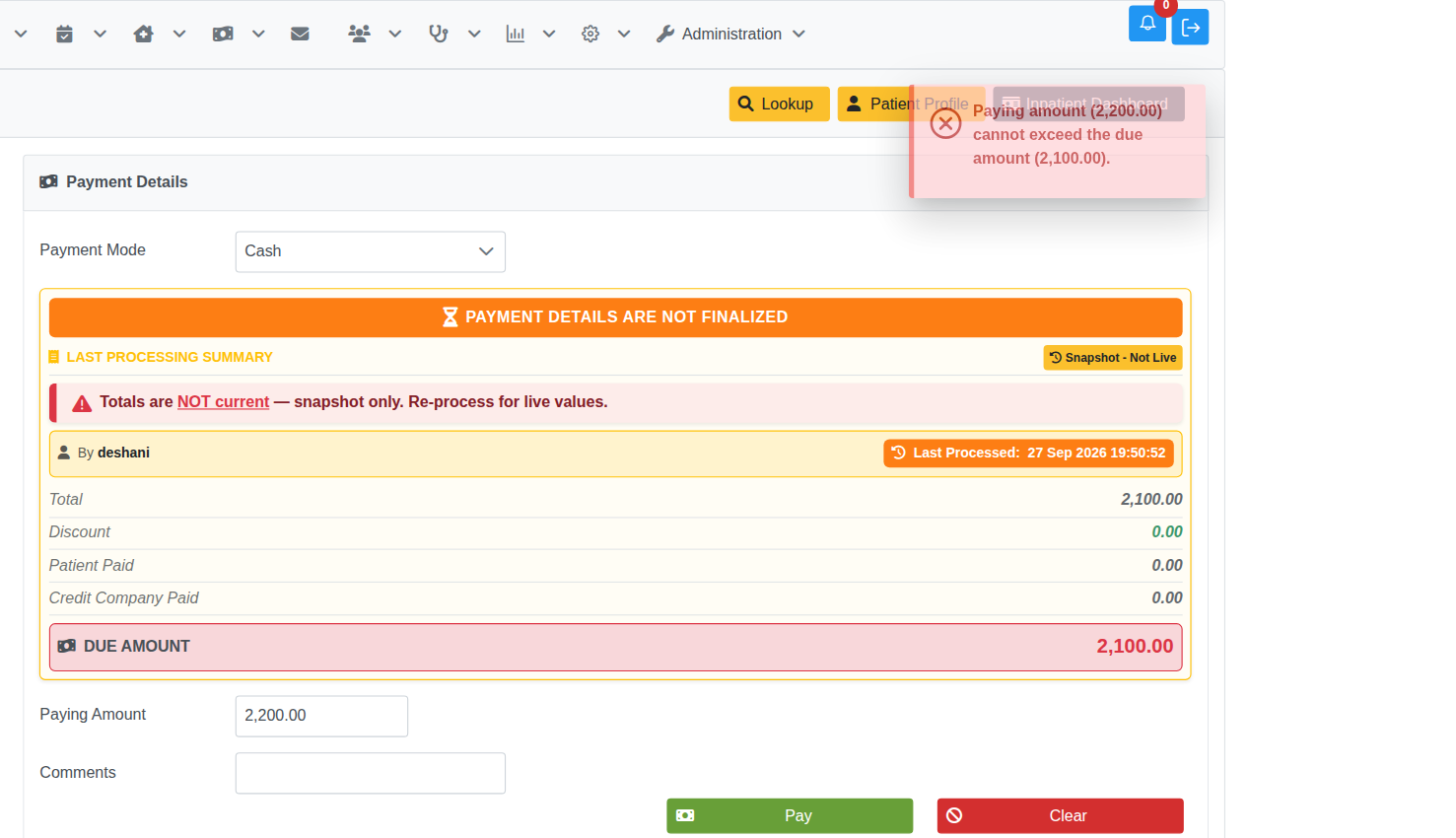
- Make a Payment is capped at the amount still due, both before and after the final bill is generated. Once the interim bill has been processed at least once (or the final bill is confirmed), entering more than the outstanding due is rejected with "Paying amount (X) cannot exceed the due amount (Y)." Before the interim bill has ever been processed, there is no due figure to check against yet, so any amount is still accepted.
- Make a Deposit has no such cap at any point during the admission — it is meant for advance money taken ahead of charges being finalized, with any excess refunded at discharge.
Do not confuse either of these with:
- Inpatient — Patient Deposits (
bht_deposit_of_admitted_patient.xhtmland related pages) — an older, separate deposit-collection feature reached from a different part of the dashboard. - Inpatient — Final Bill Payment — settling the balance due after the final bill is generated, a different screen entirely.
Where to find them
Open the Inpatient Dashboard for the admission, then look in the Billing panel (Column 2):
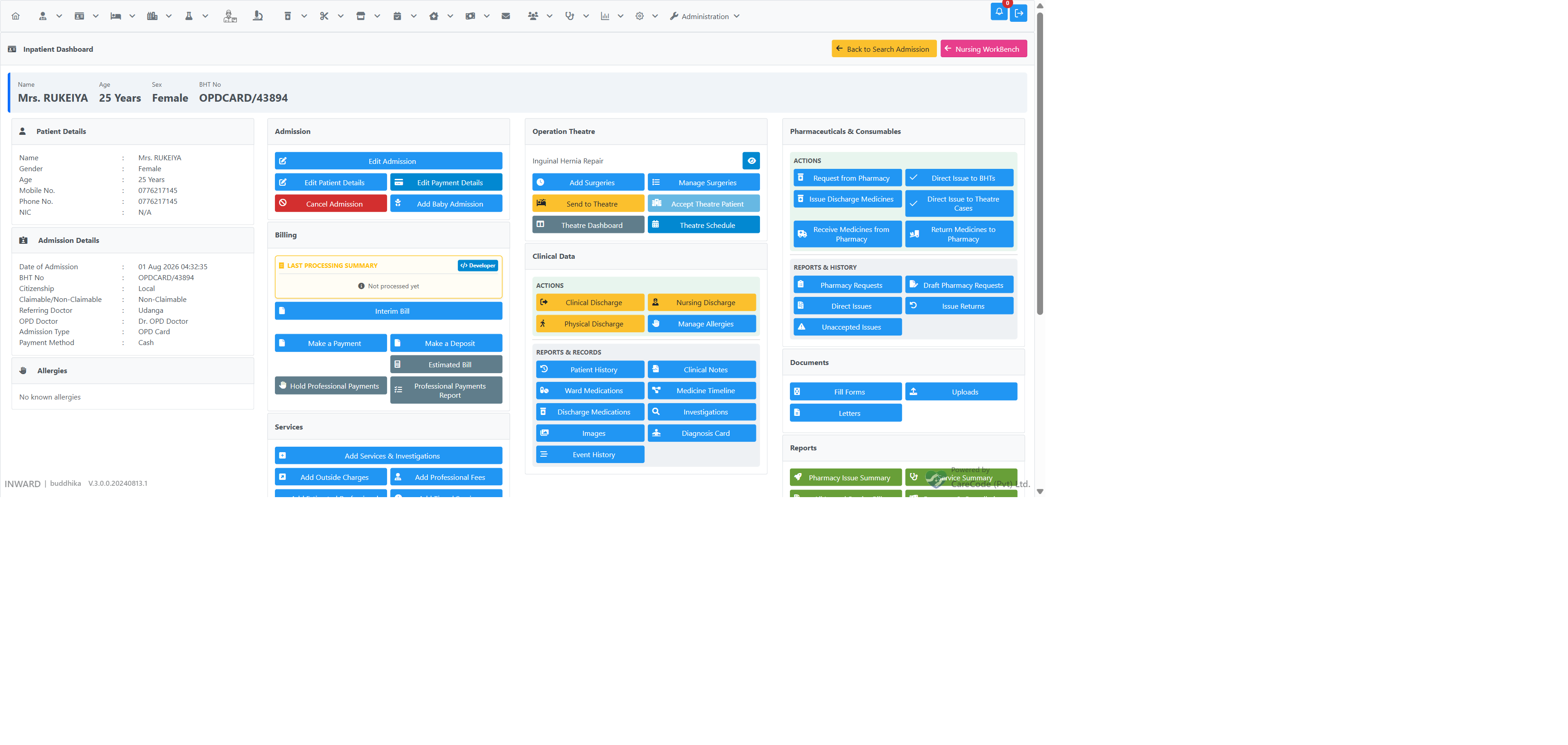
| Button | Page | Controller | Privilege |
|---|---|---|---|
| Make a Payment | /inward/inward_bill_payment.xhtml |
InwardPaymentController |
InwardDoctorPaymentAccess |
| Make a Deposit | /inward/inward_bill_deposit.xhtml |
InwardDepositController |
InwardMakeDepositAccess |
Each button is only visible to a user whose role has been granted its privilege. If Make a Deposit doesn't appear for a user who should have it, check with an administrator that InwardMakeDepositAccess has been assigned to their role — see Admin — Assigning Privileges to a Role.
Collecting a Payment or Deposit
The steps are identical for both — only the page title and heading differ.
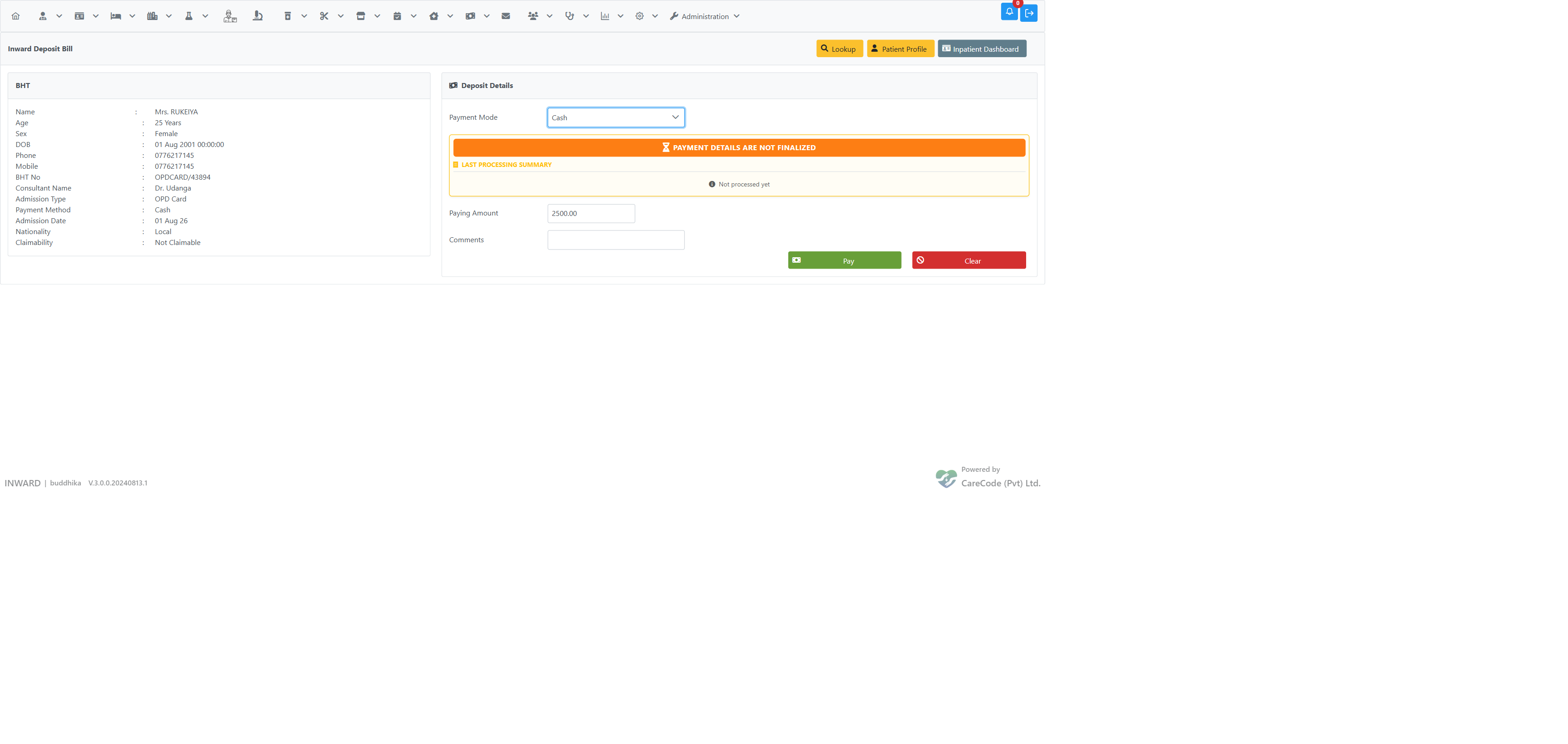
- Click Make a Payment or Make a Deposit from the Billing panel.
- The patient's BHT details are shown on the left (name, age, sex, BHT No, admission type, consultant, admission date).
- Select a Payment Mode: Cash, Credit Card, Cheque, Slip Payment, e-Wallet Payment, Patient Deposit, or Online Settlement.
- Enter the Paying Amount.
- Optionally add a Comment.
- Click Pay.
A receipt is generated and shown immediately:
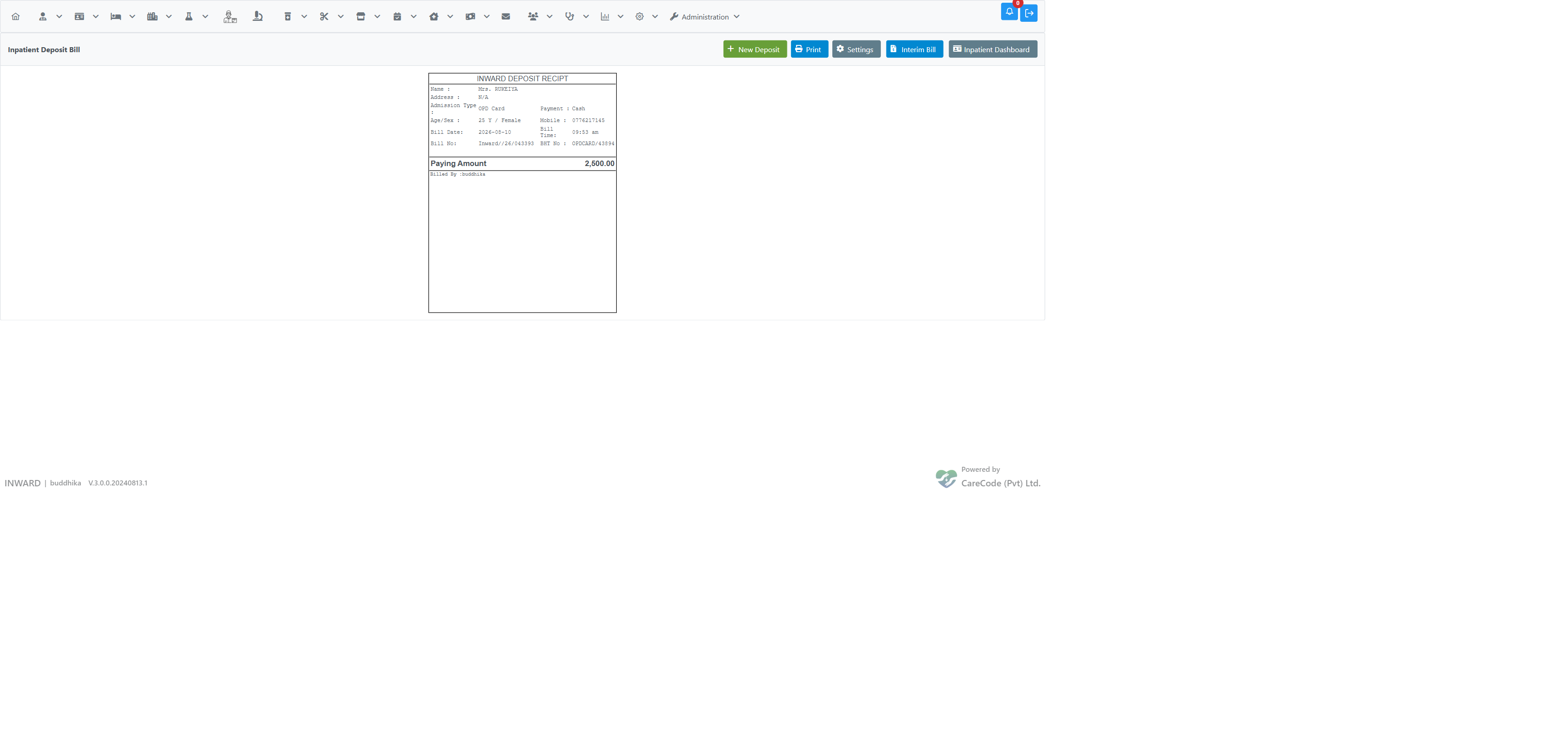
From the receipt screen you can start a new transaction (New Payment / New Deposit), Print the receipt, adjust printer Settings, jump to the Interim Bill, or return to the Inpatient Dashboard.
How they're identified separately
Every bill created by either button carries a distinct internal marker (BillTypeAtomic) so the two can never be mixed up in reports or audits, even though they share the same underlying bill category:
| Make a Payment | Make a Deposit | |
|---|---|---|
| Internal marker | INWARD_PAYMENT |
INWARD_DEPOSIT |
| Bill number sequence | Independent, resets yearly | Independent, resets yearly |
Bill numbers are formatted like Inward//26/000123 — the 26 is the year, and the numeric part increments separately for Payments and Deposits. A Payment bill and a Deposit bill taken back-to-back will not have consecutive numbers within the same sequence, because each has its own counter.
Effect on the Interim Bill and Reports
- Interim Bill balance due: both a Payment and a Deposit reduce the outstanding balance the same way — money collected through either button counts as money the patient has paid.
- Daily Return / cashier reconciliation: Payments and Deposits are combined into the same cash-collected total for the day — a cashier reconciling their drawer does not need to track them separately. The breakdown by type is available on detailed/itemised reports if needed.
Cancelling or Refunding
Both are reversed from the bill itself, not from this screen.
- Make a Payment — find the bill through Payment Search (Payments → Cash → Cash For Receive), then cancel or refund it from the bill.
- Make a Deposit — find the bill through Deposit Search, open Deposit Reprint, and use To Cancel or Refund there. Cancellation is offered while the bill is unchecked, not already refunded, and paid by cash; a refund creates a separate refund bill linked to the deposit.
Use To Cancel when the deposit should never have been recorded, and Refund when it was correct but the money is being returned. See Inpatient Bill Refunds and BHT Deposits.
Related Articles
- Inpatient Admission Profile (Dashboard) — where these buttons live
- Inpatient — Patient Deposits — the older, separate BHT deposit feature; not the same as Make a Deposit
- Inpatient — Final Bill Payment — settling the balance after the final bill is generated
- Admin — Separate Bill Number Serial Per Admission Type — optional per-admission-type numbering, now also configurable for Make a Payment and Make a Deposit
- Admin — Assigning Privileges to a Role — granting
InwardMakeDepositAccess