Inpatient Send Email - hmislk/hmis GitHub Wiki
Inpatient — Send Email
Overview
The Send Email feature lets hospital staff compose and send emails directly from an inpatient admission — to the credit company (insurer), a referring institution, a doctor, or any other recipient — with the option to attach saved documents (uploads, covering letters, diagnosis cards, filled forms) or a file from their computer. Every email sent for an admission is logged and can be reviewed later, either for that specific admission or across the whole hospital.
This replaces the older single-recipient "send mail to credit company" flow. The old per-credit-company To Send Mail button on Edit Admission still works exactly as before — it now opens this same, more capable compose page with the credit company's email pre-filled.
Page: Admission Profile → Documents → Send Email
XHTML: /inward/inpatient_send_email.xhtml
Controller: InpatientEmailComposeController
Privilege: InwardSendEmail
How to Use
Opening the Compose Page
There are two ways to start composing an email for an admission:
- From the Inpatient Dashboard — open the Admission Profile for the patient, go to the Documents panel, and click Send Email. The To/CC/BCC fields start empty.
- From a credit company — on the Edit Admission page, click To Send Mail next to a credit company row. The company's registered email is automatically added to the To field.
Adding Recipients
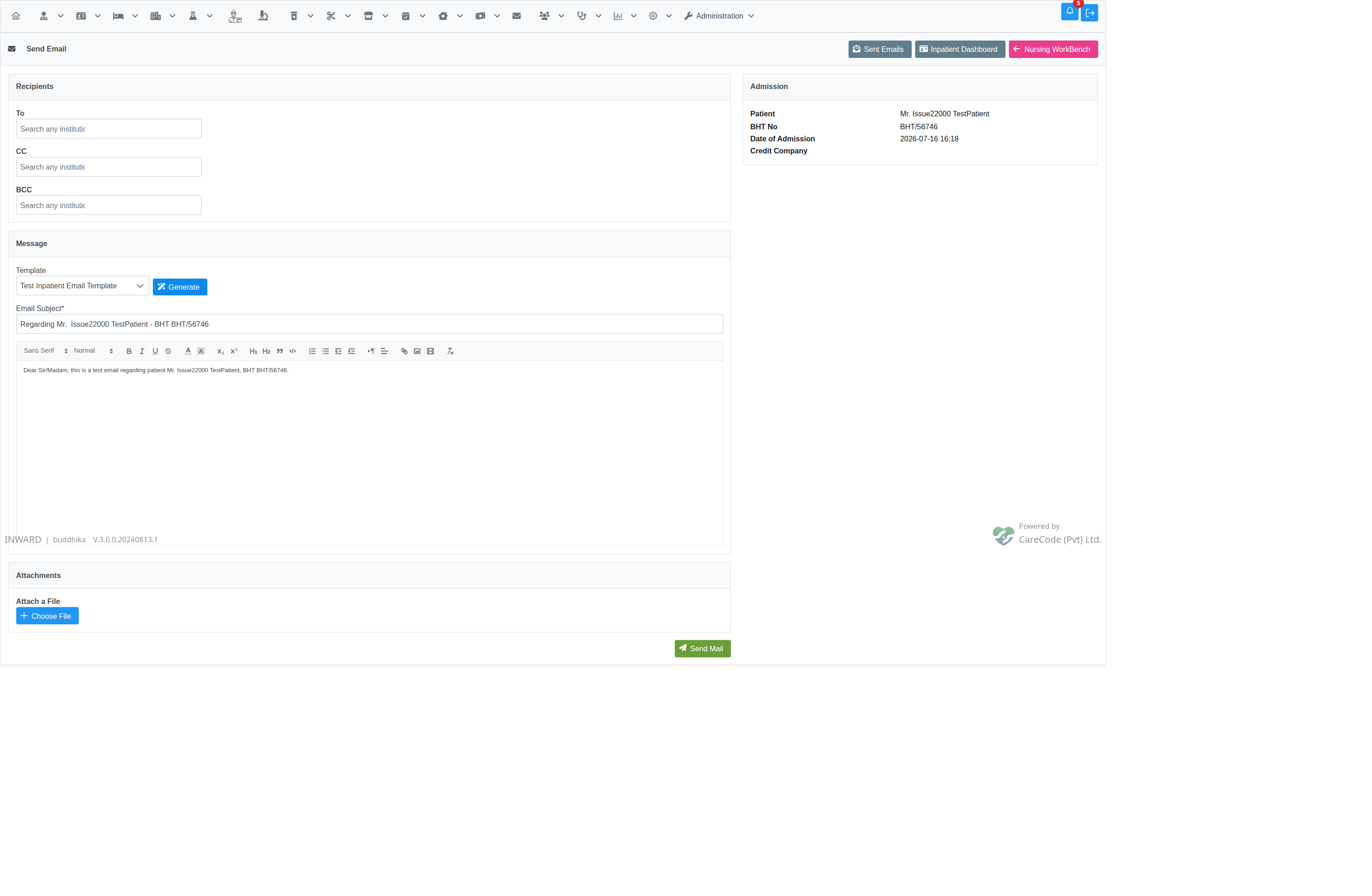
The To, CC, and BCC fields each accept any number of recipients through a search-as-you-type box:
- Start typing a name (an institution, doctor, or staff member) in the field
- Matching results — with their email address shown alongside — appear in a dropdown
- Click a result to add it as a chip; repeat to add more recipients
- Click the × on a chip to remove it
Only institutions, doctors, and staff with a registered email address are searchable, since there is nowhere to send the email otherwise.
Using a Template
- Choose a template from the Template dropdown (only templates of type Inpatient Email, configured under EMR → Settings → Document Templates, appear here)
- Click Generate
- The Email Subject and message body are filled in from the template, with placeholders (patient name, BHT number, credit company details, etc.) replaced with the actual admission data
- Edit the subject or body freely before sending — Generate never overwrites anything you haven't asked it to
If the dropdown is empty, no templates of type Inpatient Email have been configured yet — see Admin — Inpatient Module Configuration Overview or ask a system administrator to add one.
Attaching Documents
The Attachments panel lists this admission's saved documents, grouped by type:
- Saved Uploads — any files previously uploaded for this admission
- Saved Letters / Diagnosis Cards — generated covering letters and diagnosis cards
- Filled Forms — completed custom dynamic forms
Tick the checkbox next to any document to attach it. You can also attach a file directly from your computer using Choose File (PDF, JPEG, JPG, or PNG, up to 10 MB).
Sending
Click Send Mail. On success you are returned to the Admission Profile; the email is logged whether it succeeds or fails, so it always shows up in the Sent Emails list below.
Sent Emails
Every email sent — through this compose page, a credit company's To Send Mail button, or any of the document-specific email dialogs (Uploads, Letters, Diagnosis Cards, Forms) — is recorded and can be reviewed afterwards.
For a Single Admission
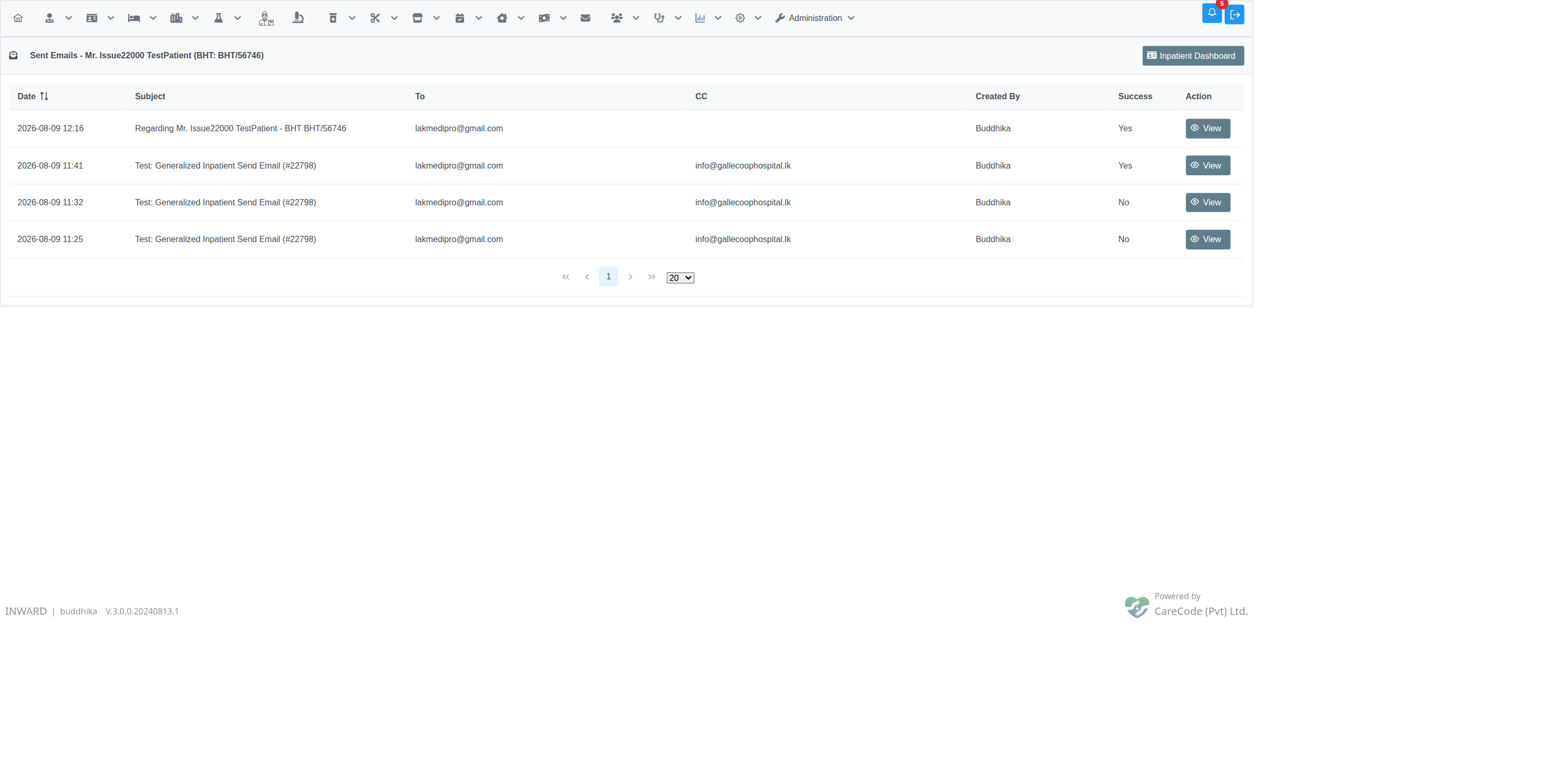
Click Sent Emails in the Documents panel on the Inpatient Dashboard to see every email sent for that admission — no filtering needed. Each row shows the date, subject, To/CC recipients, who sent it, and whether it was delivered successfully. Click View on any row to see the full subject, To/CC/BCC, attachment names, and message body.
Across All Admissions
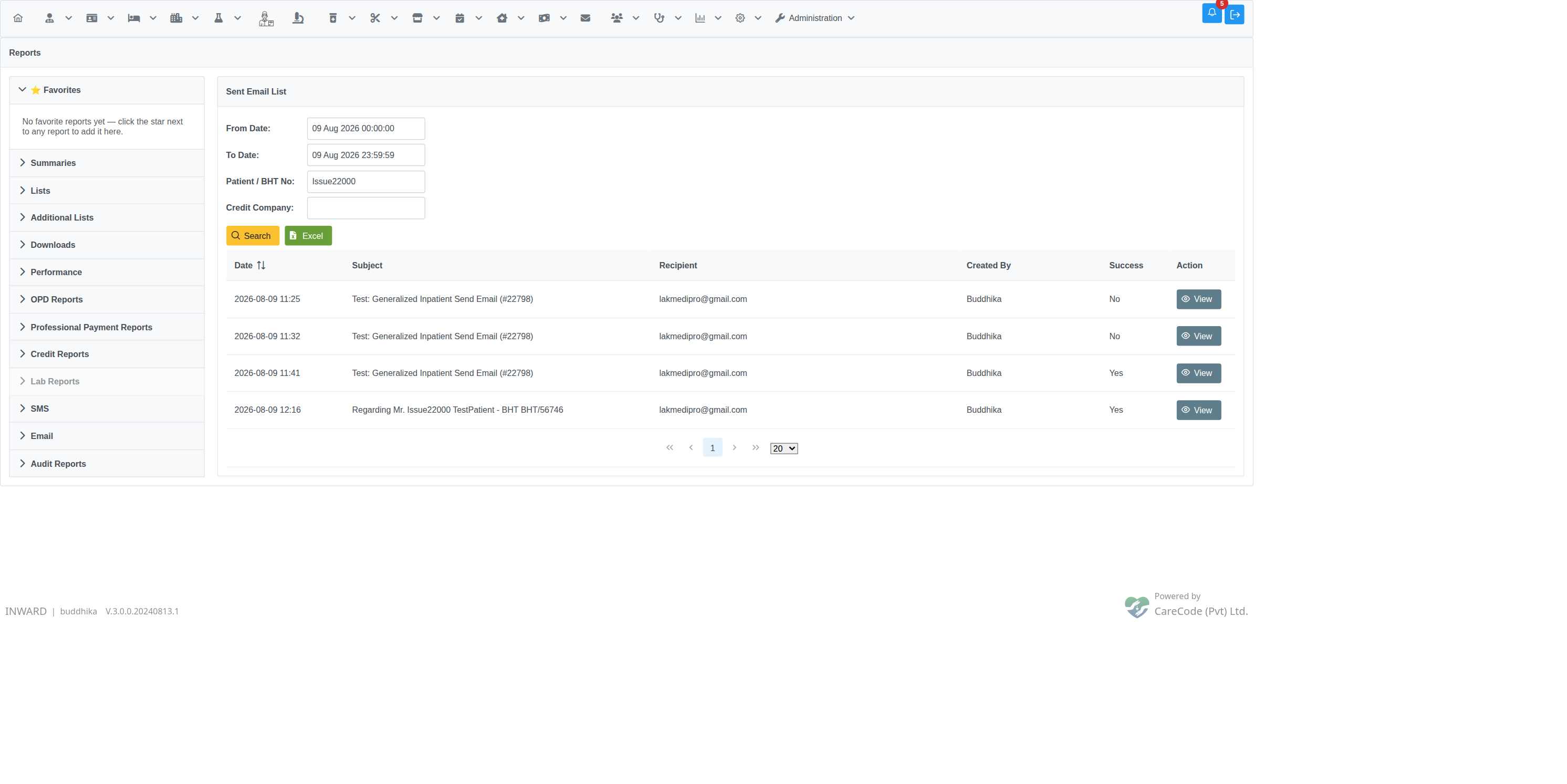
For a hospital-wide view, go to Nursing Dashboard → Payment Reports → Sent Emails Report (or Reports → Email → Email List). This lists every email sent within a date range, and can be narrowed down by:
- Patient / BHT No — matches either the patient's name or their BHT number
- Credit Company — restrict to emails sent to/via a specific credit company
Required Privilege
Both Send Email and Sent Emails on the Inpatient Dashboard require the InwardSendEmail privilege, granted the same way as any other privilege — see Add Privileges To Users By Role.