msa import menu - ajtruckle/meeting-schedule-assistant-support GitHub Wiki
Import Menu
The Import Menu provides tools for bringing congregation, publisher, and speaker information into Meeting Schedule Assistant from supported external sources.
Importing provides a way to populate or update databases using existing information from other applications.
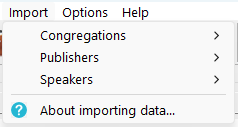
Figure 104. The Import menu.
Congregation Importers
Imports congregation information such as congregation details, meeting information, and other supported fields.
Available importers:
See the full overview: Congregation Importers
Publisher Importers
Imports publisher information from supported applications. Depending on the source, this may include roles, notes, assignment eligibility, and other optional fields.
Available importers:
See the full overview: Publisher Importers
Speaker Importers
Imports public speakers and related information from supported applications.
Available importers:
See the full overview: Speaker Importers
Import Notes
Each importer is designed for a specific application or file format. Required fields vary depending on the source, and each importer has its own dedicated help topic.
Handling Existing Publisher Data
Some publisher importers will ask how you want to handle your existing publisher database before importing.
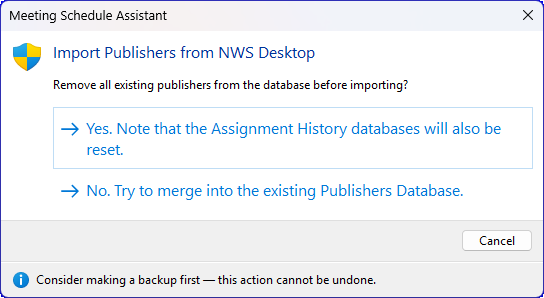
Figure 105. Reset or merge the Publishers Database before importing.
| Option | What It Does | When to Use It |
|---|---|---|
| Yes — Reset Database | Removes all publishers, memo fields, group assignments, assignment eligibility settings, and resets assignment history databases before importing. | Use when you want a completely fresh publisher list from the import file. |
| No — Merge | Preserves existing publishers and assignment history while adding or updating records from the import file. | Use when you want to add or update publishers without losing your current list. |
| Cancel | Stops the import with no changes. | Use if you selected the wrong file or want to review your data first. |
This prompt appears only for importers that modify the Publishers Database.
How the Import Process Works
Although each importer has its own details, the general workflow is the same:
- Choose the import source
- Select the CSV or export file
- Map any optional memo fields (if supported)
- Review the summary
- Complete the import
After the import finishes, a summary is displayed showing how many items were added, updated, or skipped.
Related Topics
- Congregation Importers
- Publisher Importers
- Speaker Importers
- Importing Data from CLM Explorer
- Generic Importing
Navigation
- Parent topic: Menu Bar
- Previous topic: Database Menu
- Next topic: Options Menu