msa assignment schedules - ajtruckle/meeting-schedule-assistant-support GitHub Wiki
The Assignment Schedules panel provides quick access to creating, opening, and managing schedules in Meeting Schedule Assistant.
From here, you can:
- launch the Assignments Editor
- create a new assignment schedule for a chosen date range
- open recently used assignment schedules
- switch between different schedule types for your rota workflows

Figure 10. The Assignment Schedules panel.
Click Create to open the Assignments Editor with everything prepared for your selected date range.
You can also create a new schedule from the File menu.
Click Edit to choose a schedule to open.
The selected file loads directly in the Assignments Editor.
You can also:
- click the drop‑down arrow to view up to 10 recently opened assignment schedules
- select one to open it immediately in the Assignments Editor
- open an existing assignment schedule from the File menu
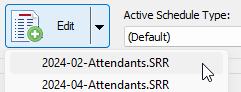
Figure 11. The recent assignment schedules list.
Schedule Types allow you to maintain different sets of program settings for your various assignment workflows. Each type stores its own configuration and is included when you perform a Backup or Restore of Meeting Schedule Assistant settings.
Select the schedule type you want to use from the dropdown list.
Schedule Types can be created, renamed, or removed from the Settings window.

Figure 12. The Schedule Type selection dropdown.
- Parent topic: Using Meeting Schedule Assistant
- Previous topic: Meeting Schedules
- Next topic: Social Icons and News Feed