The Problem List - TheThinkingHome/device_sentinel GitHub Wiki
The Problem List
This is where the integration stops watching and starts tapping you on the shoulder. It takes every frozen sensor, dying battery, and stuck signal it finds and puts them in one place you can actually act on: a standard Home Assistant To-do list (todo.device_sentinel_problem_list).
You can view it in your sidebar's To-do panel, in the companion app, or drop it straight onto a dashboard.
One Line per Device
A device appears exactly once, no matter how badly it is failing. A device that keeps dropping out and coming back is also one line, reading for example "flapping, dropped out 5 times since 7:00 AM", rather than a new line for every drop. If a temperature sensor is frozen and its battery is dead, you get one line leading with the device's name. It lists the freeze verdict first, the battery second, and the signal last.
Open items sort alphabetically by device name, so the active list reads like a roster rather than a messy timeline.
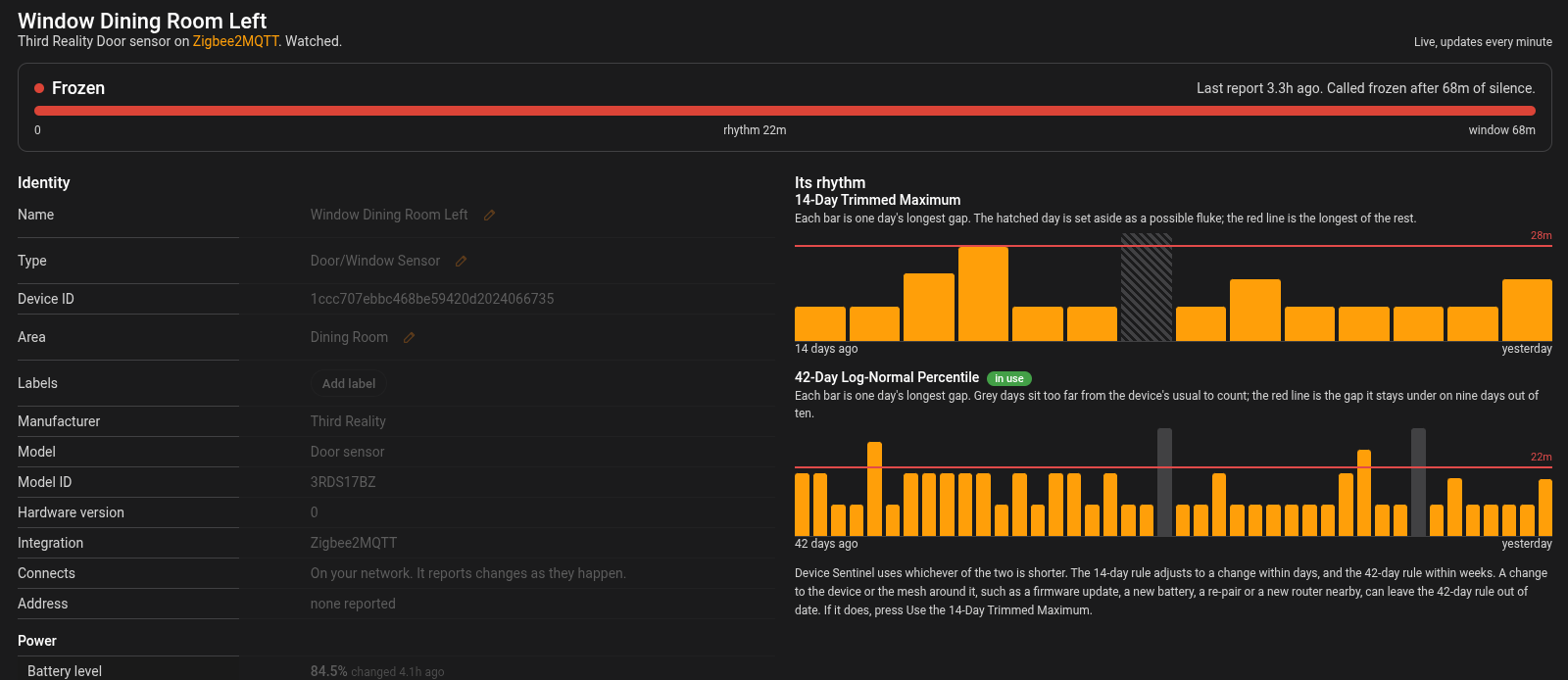
The same list is the Problem List tab on the dashboard, where each device name opens the device's own page. The page leads with the problem: what is wrong, since when, and how far past its window the device is.
When a Bridge or Broker Goes Down
When your MQTT broker crashes or your Zigbee coordinator loses power, every device behind it goes quiet in the exact same second. A standard automation would fire seventy-four alerts at your phone. Device Sentinel gives you one.
The list will carry a single row reading Zigbee2MQTT down: 74 of 74 total devices unavailable. You fix the bridge; you don't chase the devices.
Those offline devices are still being judged and recorded behind the scenes, but this list only shows you the problem you can actually solve. When the coordinator comes back, the row says so and counts your devices home: Zigbee2MQTT is back: waiting for 14 devices to reconnect, then Zigbee2MQTT recovering: 3 of the 14 devices that went down remain unavailable as they return, and the row clears when they are all back.
The same happens when your Wi-Fi network drops or a whole integration fails and stays failed: one row naming the cause. A broker outage outranks a bridge outage, because a broker that is down takes every bridge with it. The Bridge and Broker Sensors covers what each one reads.
The three exceptions
Three kinds of device keep their own rows during an outage:
- A device that was already broken. It died well before the outage, so it doesn't get to hide inside it. A device that went down only a few minutes before a router integration failed is counted in the outage, since the router often takes that long to fail.
- A device that doesn't wake up after the network returns. Everything else came back and this one didn't. This is the most useful row on the list.
- A device with a connection of its own. Some integrations, SwitchBot among them, give each device its own connection. When one of those fails, the device is named on its own row, with the reason beneath it, and stays listed through restarts until it connects again.
The Checkbox Is the Acknowledgment
Checking an item off the list means, "I see this, stop yelling at me."
The device stays on the list, marked as completed, and instantly stops buzzing your phone or cluttering the daily brief.
Imagine you put a vibration sensor in a car that is currently at the mechanic. Leave it unchecked, and your house complains about a missing sensor every morning. Check the box, and it stays quiet in the background for as long as the car is in the shop.
Recovery is automatic. Checking the box does not mean the device is fixed. Device Sentinel clears the item itself the moment the hardware actually wakes up and reports in. If an acknowledged problem suddenly gets worse, like a low-battery device freezing entirely, the system won't alert you again, because you already said you knew it needed attention.
Unchecking vs. Deleting
Unchecking a completed item pulls it back into your active alerts.
Deleting an item by hand while the hardware is still broken is a hard reset. Within a minute, Device Sentinel will see the device is still dead, realize the list is missing the warning, and fire a brand new alert at your phone.
Muting Instead of Acknowledging
An acknowledgment is for a specific, temporary problem. If you find yourself checking the exact same device off the list every week, you are using the wrong tool. Use the Exclusions and Muting screen instead. Once muted, the device drops off the list entirely and stays off. On the dashboard's Problem List tab, the mute that matches each problem sits beside it, so you can mute a device without leaving the list. A muted item leaves the list quietly, with no recovery announced.
Setting Up Your Dashboard
Drop a standard Home Assistant to-do list card on your dashboard and point it at todo.device_sentinel_problem_list. It gives you the live report and the acknowledgment checkbox in one place.
Two pro-tips for the card:
- Keep the completed section visible: This lets you see the items you have silenced.
- Avoid the "Remove completed items" menu action: This hand-deletes all your acknowledgments at once. Because the devices are still broken, the next sync will just re-add every single one of them and fire fresh notifications for the whole pile.