Freeze Detection - TheThinkingHome/device_sentinel GitHub Wiki
Freeze Detection
A frozen device is the failure no other integration or blueprint can catch: in Home Assistant, a freeze occurs when a device stops reporting and every entity continues to show the last value the device recorded. What it looks like is a temperature sensor reading 21 degrees, or a door sensor reporting closed, forever. Everything looks fine, and nothing is.
Device Sentinel catches this, along with the plainer cases where a device becomes unavailable or unknown.
1. The Four Ways a Device Can Be Down
Device Sentinel categorizes a down device into one of four states based on what its entities show and how long it has been silent:
- Frozen: The device has stopped reporting, but its entities still show their last values.
- Unavailable: Every live entity on the device reads
unavailable. - Unknown: Every live entity on the device reads
unknown. - Never reported: Since the device was first discovered by the integration, it has never shown any activity at all. This is an important category because the integration can learn no rhythm from a device with no activity.
The Liveness Rule
Underneath all of these is a single rule: if any live entity on a device reports a real value, the device is alive, no matter how many of its sibling entities have dropped. A device is only considered down when nothing on it is reporting.
If a down device shows a mix, some entities unavailable and some frozen, it takes its worst category, because a device with most of its entities unavailable is a dead device whose others simply have not caught up yet.
A device that keeps dropping out. Some devices go offline and come back again and again. Device Sentinel shows one of these as flapping: a single item on your problem list with one alert when it starts and one when it settles, instead of a new alert for every drop. It stays listed until the device holds its connection, so you know it was fixed rather than lucky. Flapping usually points at a weak route to the device, so check its signal and the router it connects through.
2. How a Device Is Judged
Device Sentinel judges each device against its own learned rhythm, never a fixed timeout you have to choose.
Device Sentinel will learn a device's reporting rhythm as soon as it is installed. A device that reports every 30 seconds is judged on a scale of minutes; a device that reports twice a day is judged on a scale of hours. No single timeout could be right for both.
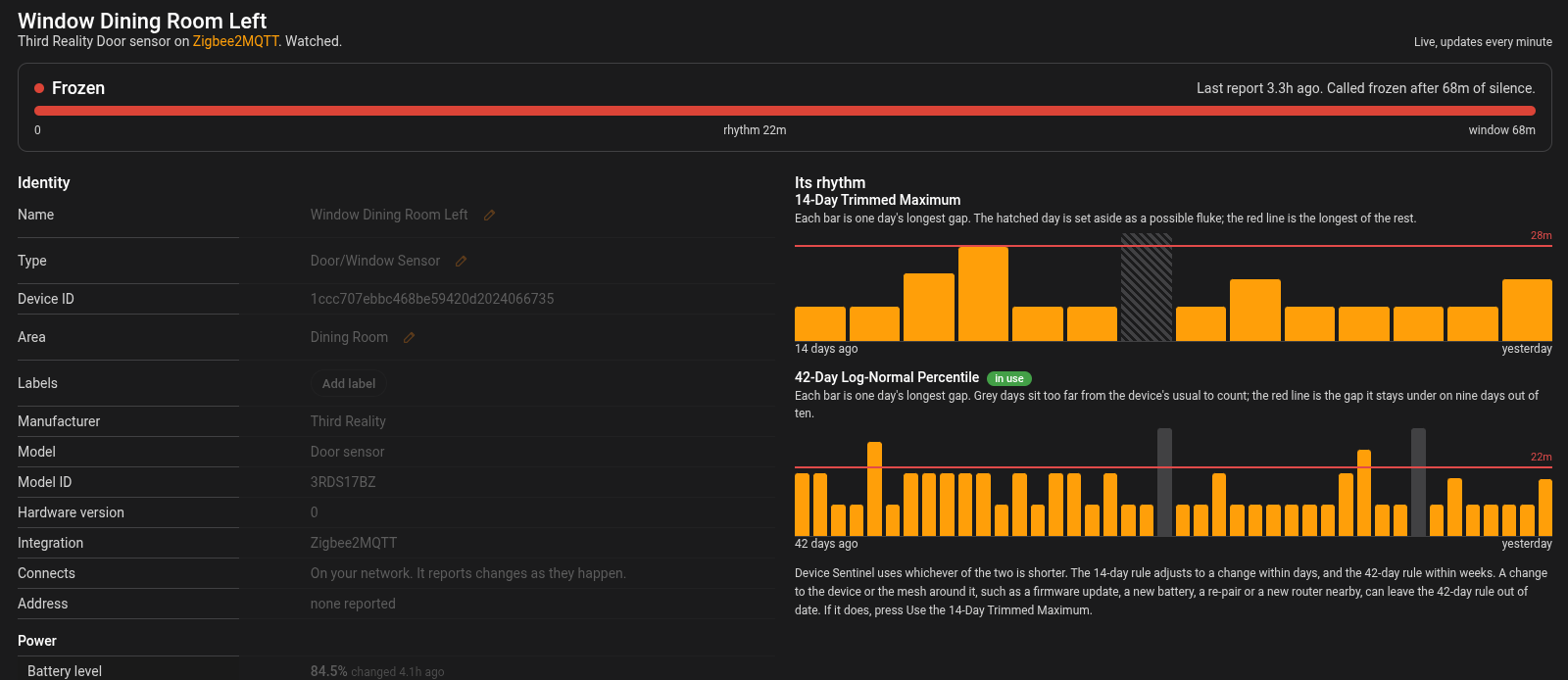
- The Freeze Window: The window is the device's learned rhythm plus a grace margin. Device Sentinel reports a device frozen when it stays silent past this window while its entities still hold their last values. The rhythm is learned two ways, described below, and Device Sentinel uses whichever is shorter.
- Arming: A device is only judged frozen once it has learned enough days to have a trustworthy rhythm. Until then, it is watched for unavailable and unknown states only, because a device with no established rhythm has no window to miss. Devices with no natural heartbeat, like buttons that only speak when pressed, learn a very long rhythm and so are effectively never called frozen for ordinary quiet.
Two Rules for the Rhythm
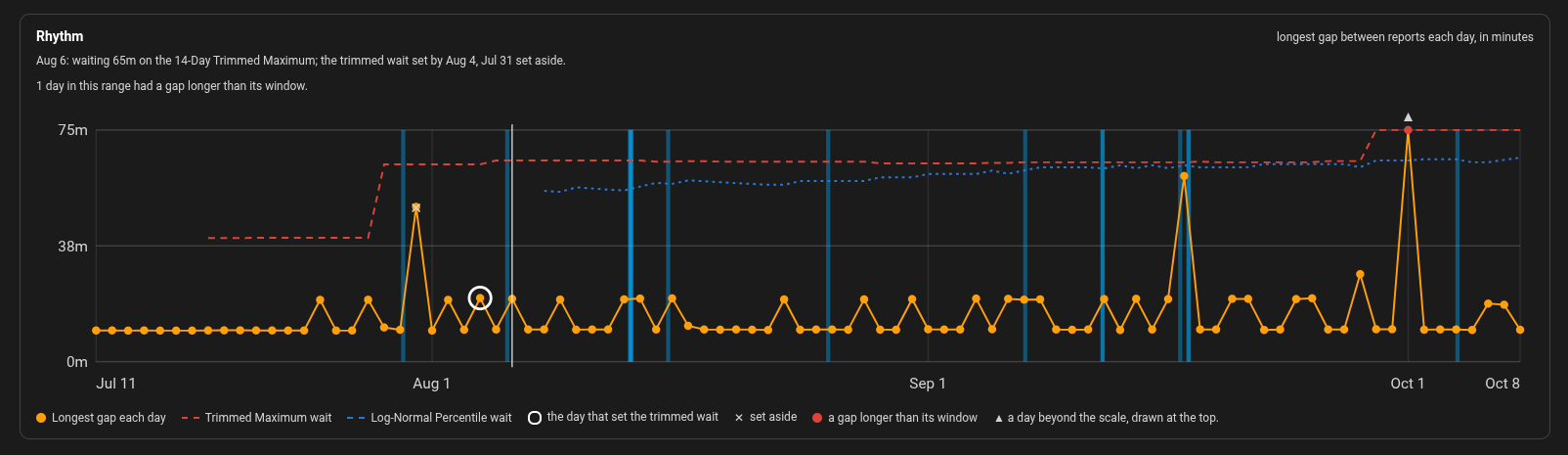
Device Sentinel learns each device's rhythm from its longest silence on each day, in two ways:
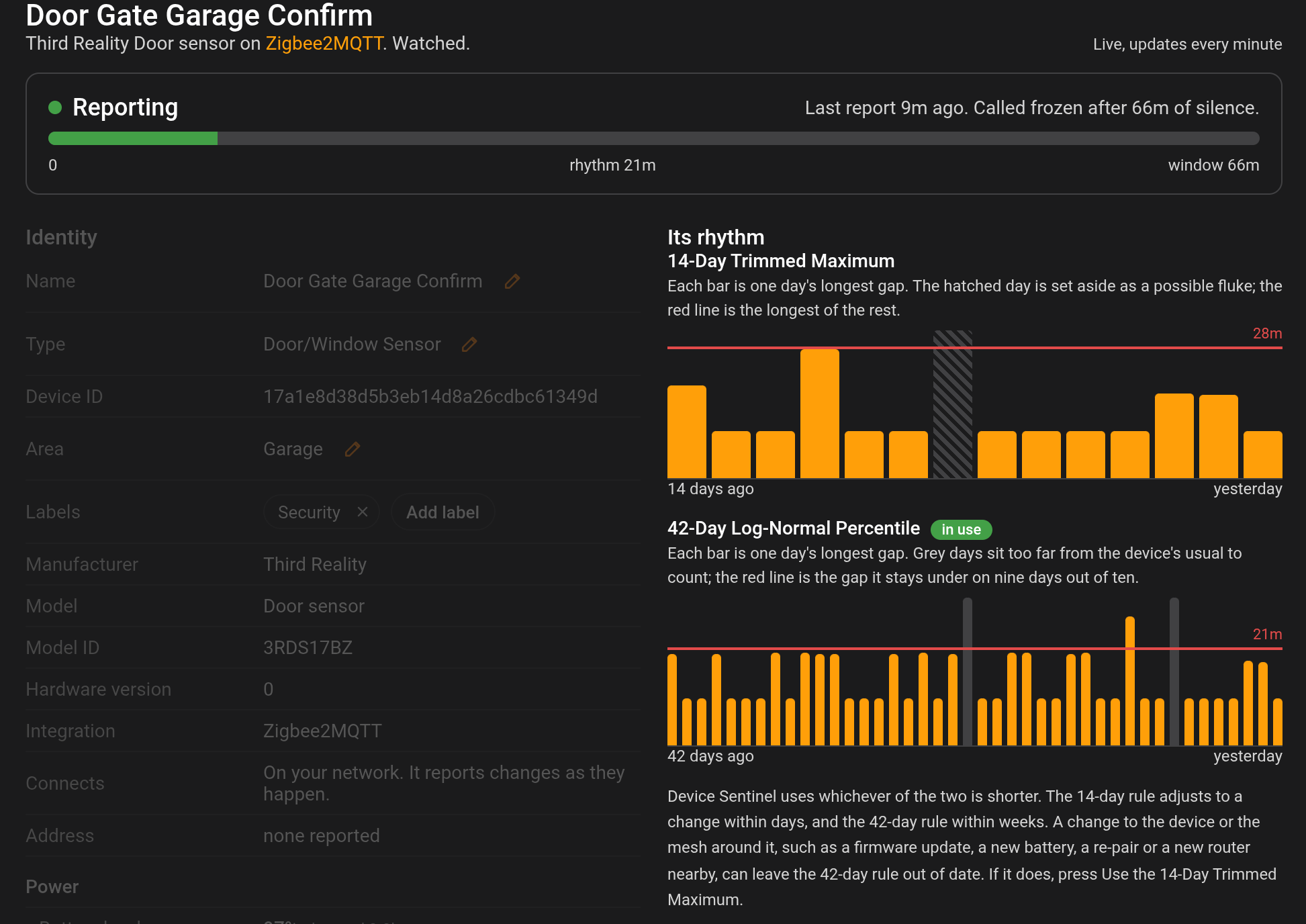
- The Trimmed Maximum reads the last 14 days, sets aside the longest as a likely odd day, and takes the longest of the rest. It follows a change in the device within days.
- The Log-Normal Percentile reads up to the last 42 days, sets aside days far longer or far shorter than the device's usual, and takes the length that nine days in ten stay under. One bad day can't move it. It starts on a device's 28th day.
From a device's 28th day, the window is built from whichever rhythm is shorter. A firmware update, a new battery, a re-pair, three days in a row longer than usual, or pressing Use the 14-Day Trimmed Maximum on the device's page returns the device to the Trimmed Maximum until it has 28 new days. The device's page on the dashboard charts both rules and tags the one in use, and the rhythm the dashboard shows is always the one in use.
3. Tuning the Window: The Grace Sliders
The grace margin added to the learned rhythm follows a curve you shape with two sliders on the Freeze Detection configuration screen. The rhythm itself is measured, never chosen; these sliders only tune how patient the integration should be past each device's own normal.
- Delta Low (1 to 8 minutes, default 3): The grace a fast device gets. This keeps a chatty device from being called dead just for missing a couple of routine reports. Raise this if a chatty device is reported frozen too soon.
- Delta High (4 to 12 hours, default 8): The grace a slow device gets. This catches the slowest devices in a bounded time. Lower this if a slow device should be caught faster.
These sliders do not just cap the ends; they shape the whole curve between them, so moving either changes the window for all your devices. At the defaults, a device whose longest usual gap is an hour gets about 80 minutes of grace on top of it before it is reported frozen.
4. The Most Accurate Clock: Last-Seen Entities
For the most reliable freeze clock, press Enable Last Seen on the device page. To switch on one device's Last Seen sensor, use its page on the dashboard; the dashboard's Recommendations tab lists the devices whose sensor is switched off.
Where a device has a last_seen entity, that entity is the clock. It is the coordinator's own record of when it last heard from the device, meaning a bridge or hub republishing a last known state cannot make a silent device look alive. Most integrations ship last-seen entities disabled by default. Turning them on, which the buttons do for you, is the single most useful action you can take for freeze accuracy.
Surviving restarts: A freeze in progress survives a restart because the silence is measured from Device Sentinel's own clock, not a value Home Assistant resets at every reboot. Detection is live: a device flagged at 11:00 AM shows at 11:00 AM, and the moment it reports again, it clears.
5. What Happens When a Device Goes Down
When a device is detected frozen, unavailable, unknown or flapping, it is added to the problem list as a new item, and a phone notification goes out if you have set one up. Its page on the dashboard leads with the problem and how far past its window it is.
Each silence past its window is recorded as a row in the silence_episodes diagnostics report, noting its duration, what ended it, and what it taught the statistics. A device that recovers on its own after being reported frozen teaches only a capped gap, so one odd silence cannot stretch its freeze window; see The Diagnostic Reports for more information.
The daily brief's "Now" section shows what is in trouble at the moment it is written, worst first, or an all-clear line.
The Count Entity: The Device: Frozen count reports how many devices are down right now, with each one's category and duration carried in its attributes. It ships disabled by default because the problem list is the intended place to read this data, but you can enable it from the entities page if you want it on a dashboard.
6. Freeze Muting
This configuration screen carries a freeze mute list using the same tiers as the others: by integration, by label, or by single device. You can also mute a device for freeze from its page on the dashboard, or with Mute freeze beside it on the dashboard's Problem List tab.
A freeze-muted device keeps its clock and its learned rhythm, because it is still watched and re-including it is instant. It is simply never given a freeze, unavailable, unknown, or never-reported verdict in any report or notification.
In the Learned Statistics report, a muted device's STATUS reads "Muted (FRZ)".
How it interacts: When you mute at a broader level, like an integration, everything it covers disappears from the narrower lists.
Versus Exclusions and Muting: A globally muted device is judged by nothing at all and does not even appear in the freeze lists. Use freeze muting when you want a device watched for battery and signal but not called down; use Exclusions and Muting when you want it left alone entirely.