Low Battery - TheThinkingHome/device_sentinel GitHub Wiki
Low Battery
Device Sentinel watches the batteries it finds automatically. New devices with batteries are picked up the moment they appear in Home Assistant; there is nothing to register or manually configure when adding a new device or sensor.
This screen allows you to define what counts as a low battery and configure muting for devices whose battery levels you do not want reported.
Discovery and Election
Each device gets one battery entity. When a device reports both a percentage battery and a binary low-battery flag, the percentage is used because it tells the integration how low the battery is, rather than it just being low.
Battery is judged at the device level and not by the specific entity. This means the judged entity can change over a device's life, which is why there is no per-entity mute list on this screen: a device-level mute cannot be bypassed just because the underlying entity changed.
How a Battery Is Judged
Device Sentinel reports a battery when its level is at or below your threshold.
- Low Battery Threshold (default 15 percent): Any device battery reporting at or below the set value is reported as low. Cells often live comfortably between 15% and 20% for a long time, which is why the default sits where it does. Raise it if you would rather be told earlier.
- Persistence: The moment a battery crosses the threshold, its timestamp is saved. It is retained across restarts, so a battery that has been low since Tuesday reports so.
- A New Battery: When a level jumps by 25 points or more from one day to the next, or a cell at or below 90% lands at 95% or higher, Device Sentinel knows the battery was changed. The next day's reading confirms it, and the battery's history starts again from that day, so its trend and forecast describe the cell in the device now, not the one you took out.
- Batteries That Count to 200: Some Zigbee devices report their battery from 0 to 200 while labelling it a percentage, so 178 means 89%. A device that reads over 110 on two different days is recognized as one of these, its history is converted, and it reads correctly from then on. It is checked again after a battery change or a firmware update.
The Second Question: Which Batteries Are Decaying Rapidly
The threshold answers which cells are low. It cannot answer which are about to be.
One morning a soil sensor read 82 percent and a door sensor 24 percent. The percentages say the soil sensor is in better shape. But the door sensor had about a week left and the soil sensor had two months, and Device Sentinel said so on the problem list while the door sensor still read a comfortable-looking 24 percent.
This happens because different battery chemistries decay differently. While an alkaline battery decays at a steady, uniform rate, a lithium battery (like a common CR2032 coin cell) will hold almost full charge for its entire life. When a lithium battery is near its end, it decays rapidly, from 95% down to 0% in a matter of a week.
If you strictly watch a lithium battery by waiting for it to cross a flat threshold, you will often miss the drop entirely. This is why watching how fast a battery is falling matters more than where it stands.
Days Till Empty Warning (range 7 to 30 days, default 30) is the setting for that, and it sits on this screen beside the threshold. A cell projected to reach empty inside this setting is reported, so it becomes a line in the problem list, your daily brief and your phone the same way a low battery does. Because Device Sentinel watches the rate of decay, it catches those lithium coin cells dropping in time to give you plenty of notice.
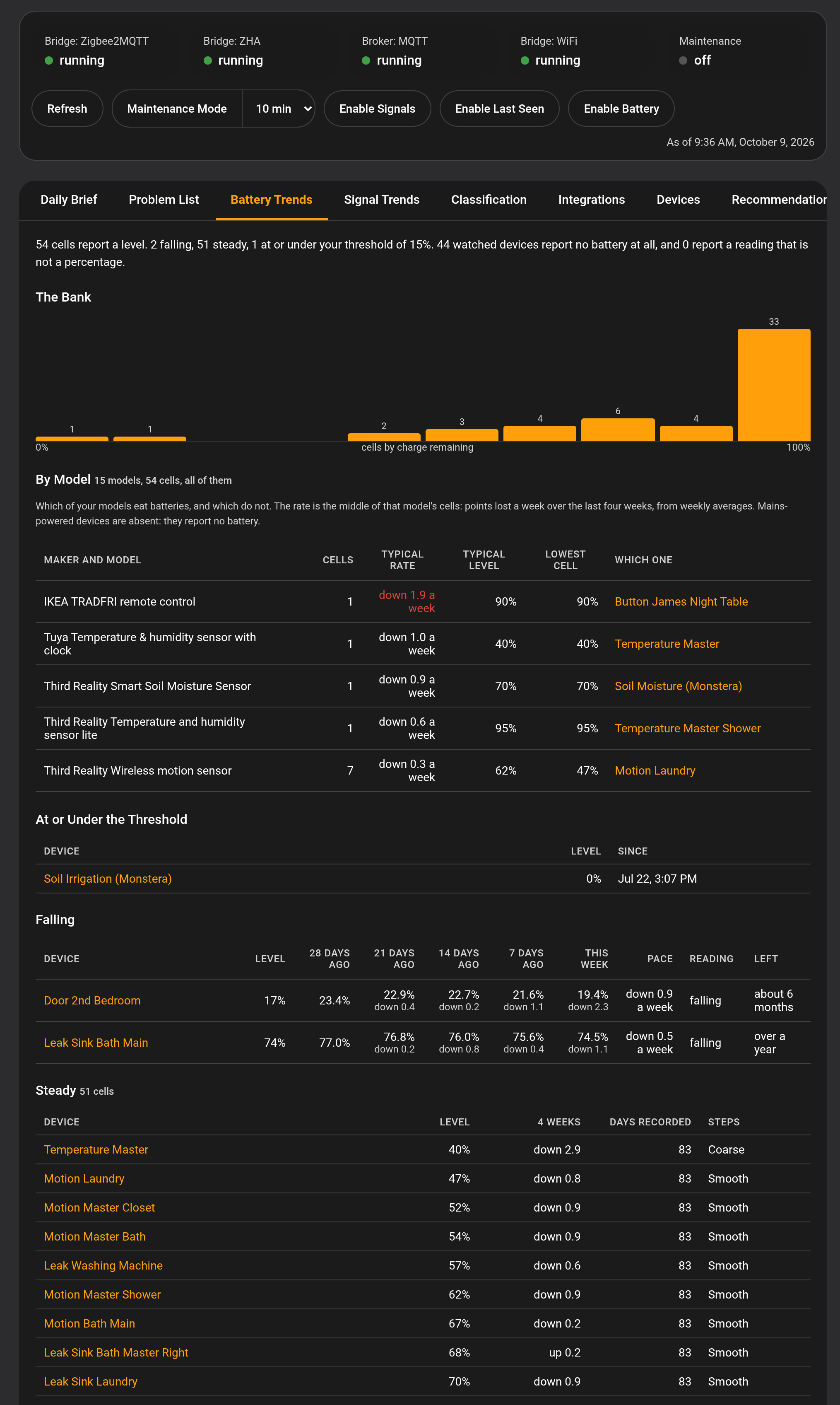
A reported cell reads "empty in about 2 weeks". It says the time in words rather than a count of days on purpose, because the projection moves as the battery reports. Its page on the dashboard shows the weekly averages behind it, leaving out any day Device Sentinel didn't hear the device, and Battery Trends shows every battery at once.
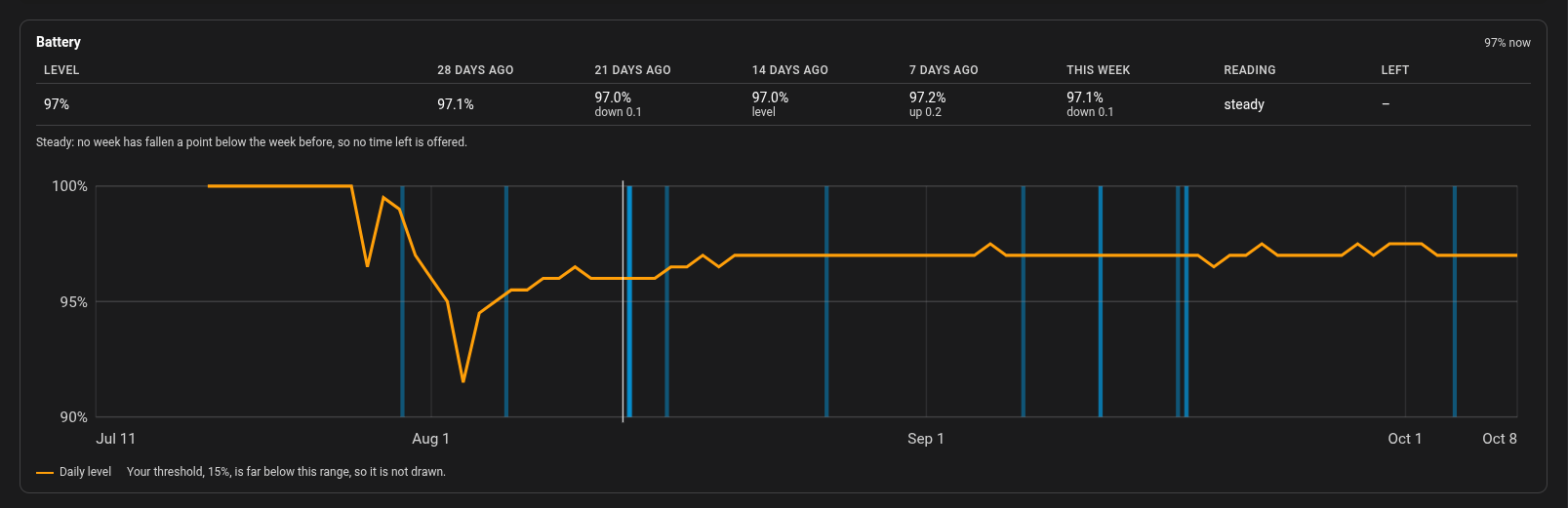
A cell that is not moving is never reported here, so healthy batteries stay quiet. And a cell already below the threshold is not reported twice: when both apply, one item reads "battery 16%, empty in about 2 weeks".
Some batteries report only in big steps, such as 40, 30, 20. One step can't tell how fast a battery like that is falling, so it gets no forecast, and after a second big step its page marks it Coarse and your threshold alone judges it.
Which Battery It Takes
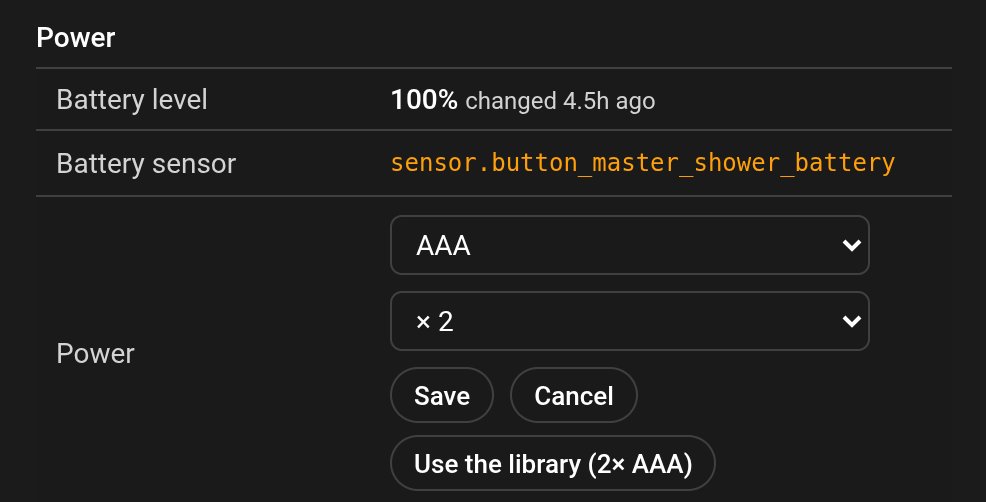
A low battery names the battery to buy, such as "battery 12%, 2× CR2032", on the problem list, the dashboard and in your daily brief. Device Sentinel reads it from the Battery Notes device library that comes with it, whether or not you run Battery Notes. If the library doesn't know a device, or has it wrong, set it yourself with the pencil on the device's page on the dashboard: a common battery and how many, or Mains Powered, USB Powered, USB Direct to Server, PoE Powered or your own words. What you set covers all devices of the same model, and it is kept in its own file, device_sentinel.answers, with a last-good copy beside it.
Where It Is Visible
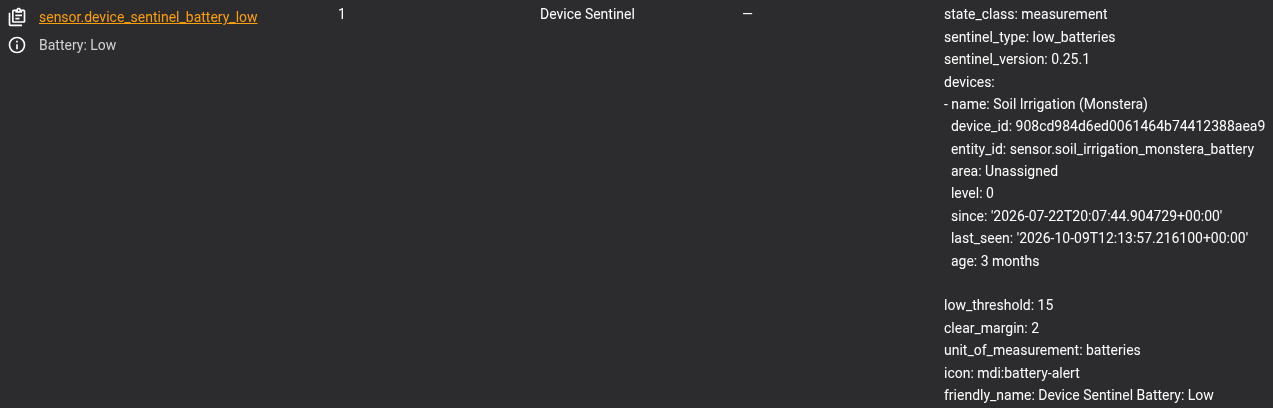
You will see low batteries on the problem list (for example, "Soil Irrigation: battery 0%, 4× AA"), where they can be acknowledged to silence notifications. They also appear on the dashboard's Battery Trends tab and each device's page, in your daily brief, and in the Learned Statistics report, described in The Diagnostic Reports. That report records battery levels day by day, so a cell's drain over the past couple of weeks is visible. The Battery: Low sensor counts them, and its attributes name each device, its level and how long it has been low.
On Battery Trends, click a type in any row to see only that type, such as every door sensor at once.
Battery Muting
Muting a battery on this screen stops battery reports for that device only. Everything else about the device, like whether it has frozen or fallen offline, stays watched. If you want to drop a device from all reporting entirely, use the Exclusions and Muting screen instead. You can also mute a device's battery from its page on the dashboard, or with Mute battery beside it on the dashboard's Problem List tab.
The three lists run broad to narrow, appearing as Integrations, Labels and Devices Muted for Battery Reporting. They interact exactly like the global lists: if you mute at a higher level and save, everything it covers disappears from the narrower lists below. The narrow picks are removed, not set aside: if you later undo a broad mute, re-pick any narrow items you still want muted.