msa database publishers - ajtruckle/meeting-schedule-assistant-support GitHub Wiki
The Publishers Database is the central place for managing publisher information in Meeting Schedule Assistant. From here you can add and edit publishers, manage assignment availability, configure field service groups, record notes, and import or export publisher information.
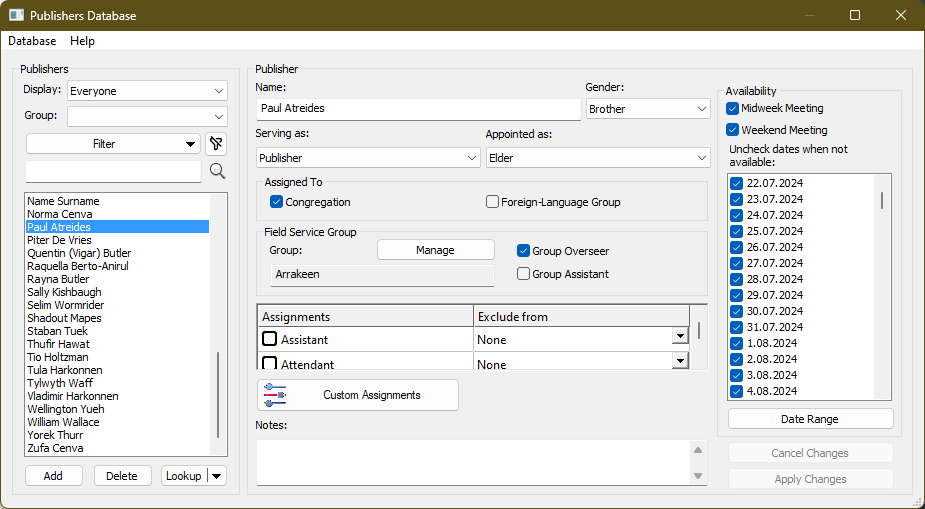
Figure 47. The Publishers Database window
You can open the Publishers Database by either:
- Selecting Database > Publishers.
- Clicking the Publishers button on the toolbar.
Meeting Schedule Assistant can import publisher information from several supported applications. Select one of the available importers below for detailed instructions.
The Import from CLM Explorer command opens the Importing Students from CLM Explorer window, allowing you to populate the publisher database automatically from CLM Explorer.
See also: Importing Data from CLM Explorer.
The Export Publishers command lets you export a list of publisher names to a simple XML file for use with other applications or for reference.
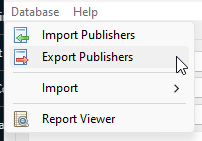
Figure 48. Selecting Export Publishers from the Database menu.
For example:
<?xml version="1.0" encoding="utf-8" standalone="yes"?>
  <Names xmlns="http://www.publictalksoftware.co.uk/msa">
  <Name>Publisher 1</Name>
  <Name>Publisher 2</Name>
  <Name>Publisher 3</Name>
  <Name>Publisher 4</Name>
</Names>The following sections describe each area of the Publishers Database window.
The Publisher List displays every publisher currently stored in the database.

Figure 49. The Publishers panel
From this panel you can:
- Select a publisher to edit their information.
- Add a new publisher.
- Delete the selected publisher.
- View the publisher's assignment history.
The Lookup button displays congregation assignment history by default. Use its drop-down arrow to switch between Congregation and Foreign-Language Group assignment history.
Several filters are available to help you locate publishers quickly.
Choose one of the following:
- Everyone — Displays every publisher.
- Congregation — Displays only congregation publishers.
- Foreign-Language Group — Displays only foreign-language group publishers.
Use the Group filter to display:
- All field service groups.
- Unassigned publishers.
- A specific field service group.
Additional filter options can be combined to further narrow the list.
Click Clear Filter to remove all active filters.
Use the name filter to locate publishers quickly. Searches are case-insensitive and match text anywhere within a publisher's name.
Note
The publisher list is temporarily disabled while you are editing a publisher.

Figure 50. The Publisher Details panel.
Use this section to enter and maintain a publisher's information.
Enter the publisher's name, then choose the appropriate values from the available lists.
Gender
- Brother
- Sister
Serving As
- Unbaptised Publisher
- Publisher
- Regular Pioneer
- Other
Appointed As
- Not Appointed
- Ministerial Servant
- Elder
Specify whether the publisher belongs to the Congregation, the Foreign-Language Group, or both.
Use the Notes field to record any additional information about the publisher.

Figure 51. The Field Service Group section.
Click Manage to open the Field Service Group Manager, where you can create groups, edit existing groups, and assign publishers.
You can also indicate whether the publisher serves as:
- Group Overseer
- Group Assistant
Only appointed brothers can be assigned as Group Overseer.
See also: Field Service Group Manager

Figure 52. The Publisher Assignments section.
The Assignments list displays all standard and custom assignments available in Meeting Schedule Assistant.
Use Exclusion Defaults to specify assignments that the publisher would not normally receive. For example, a brother serving as Watchtower Conductor might normally be excluded from assignments such as Reader or Microphones.
Student assignments include both Student and Assistant roles for Bible Reading, Discussion, and Talk. Default assignment exclusions are applied only when creating new schedules and only for the currently active Schedule Type.
See also: Schedule Types
Custom assignments allow you to create congregation-specific assignments that are not included in the standard assignment list. Once created, they become available alongside the built-in assignments when configuring publisher availability.
Use General Settings to specify which custom assignments are included in each schedule.
See also: General
Publisher availability controls when a publisher can be scheduled for assignments.
Specify whether the publisher is available for:
- Midweek meetings
- Weekend meetings
The list displays the next twelve months of meeting dates.
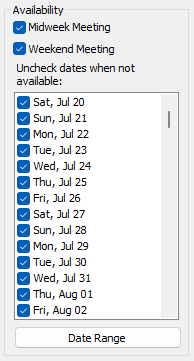
Figure 53. The Availability section.
Clear the check box beside any date when the publisher will be unavailable. Those dates are excluded from both manual and automatic scheduling.
To update a range of consecutive dates, click Date Range.
Dates are displayed using your configured custom date format, if one has been specified in Options.
When creating schedules, Meeting Schedule Assistant checks publisher availability in the following order:
- Dates Not Available
- Meeting Availability
- Assignment Exclusion Defaults
A publisher must satisfy all three conditions before being considered available for an assignment.
Use the Notes field to store additional information about the publisher.
Publisher notes can also be used when filtering the list of available students in the Meeting Editor.
You can open the Report Viewer from the View menu on this window. The Report Viewer lets you generate, preview, print, and export reports.
See also: Report Viewer
- Parent topic: Database Menu
- Previous topic: Congregations
- Next topic: Field Ministry Manager