msa database specialevents vconf - ajtruckle/meeting-schedule-assistant-support GitHub Wiki
On occasion, congregation meetings may be replaced by special videoconference events, such as Circuit Assemblies or Regional Conventions. The Videoconferencing window lets you configure the text and image displayed for these events.
The window is divided into two panels. The left panel lists the event details such as text fields and type selection. The right panel contains the image settings, where you can select and preview the image displayed on the schedule.
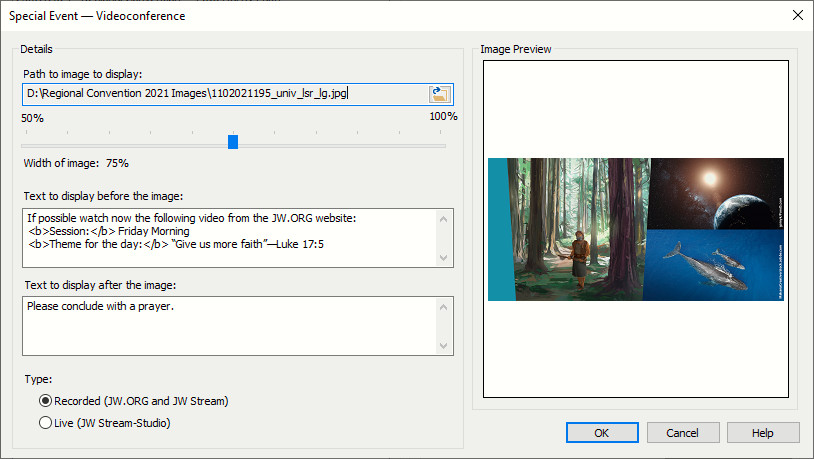
Figure 94. Videoconferencing window
You can access this feature from:
- Special Events → Videoconferencing
- Meeting Editor → Special Events → Edit Videoconferencing Info
Two types of videoconference events are supported.
The option you choose affects how the information is displayed on the schedule.
| Type | Description |
|---|---|
| Recorded (JW.ORG and JW Stream) | Used for Circuit Assemblies with Branch Representative or Regional Conventions. These events are pre‑recorded and preceded by the Watchtower Study. |
| Live (JW Stream‑Studio) | Used for Circuit Assemblies with Circuit Overseer. These events are streamed live. |
You can include optional text before and after the image on the schedule.
-
Text Before Image – Appears above the image.
Default wording: Please now watch the following video from JW Stream: -
Text After Image – Appears below the image.
Default wording: Please conclude with a prayer.
💡 Tip: You can use basic HTML formatting in these text fields.
The right panel lets you select and preview the image that appears on the schedule.
- Image Path – Click Browse to select an image file (BMP, GIF, JPG, PNG, TIF).
- Image Width – Adjust the slider to set the image width between 50 % and 100 %. The default is 80 %.
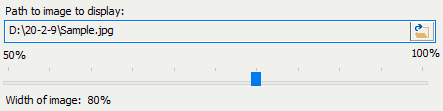
Figure 95. Adjusting image width and selecting the image file
- Image Preview – Displays the selected image as it will appear on the schedule.
You can also edit Videoconferencing details directly in the Meeting Editor.
Click the Calendar button and choose Edit Videoconferencing Info from the context menu.
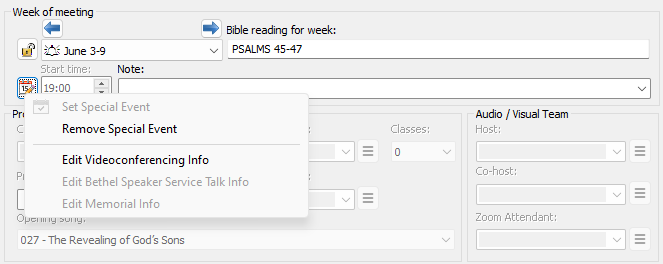
Figure 96. Calendar menu showing the Videoconferencing option.
This makes fine-tuning easier because you can see the results immediately on the schedule.
Here is an example of a videoconference event using the supplied Workbook-S-140 templates:
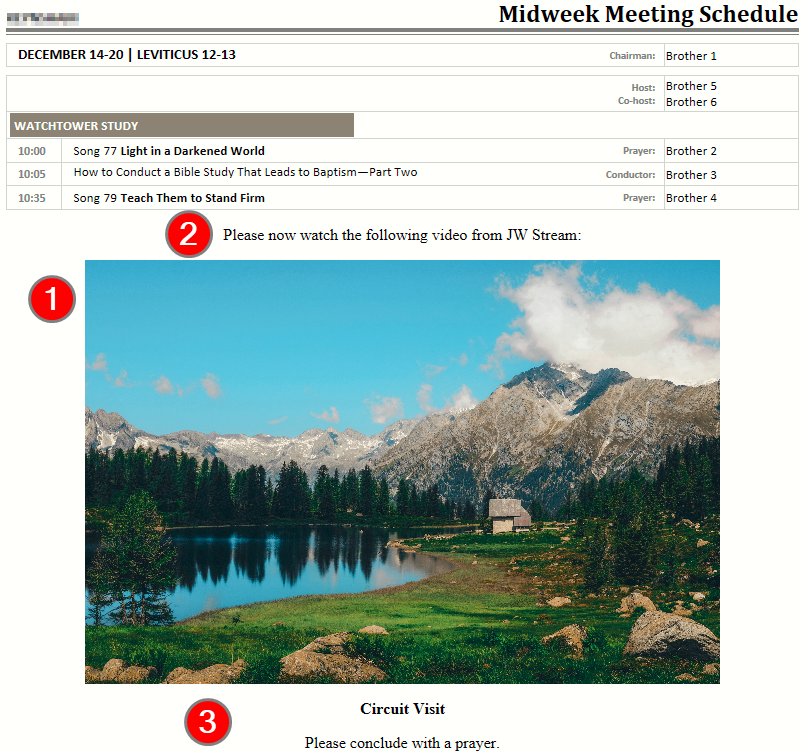
Figure 97. Sample Videoconference layout.
- Parent topic: Special Events
- Previous topic: Memorial