Manual Workspaces - ShadobaDev/Platemaker-qt GitHub Wiki
A workspace is a single .platemaker.json file holding everything about one comic —
its chapters, profiles and settings. Opening, saving and closing it are on the File menu.
- The projects (chapters), with their input files, ordering and per-project settings
- The canvas profiles and output profiles shared across the whole workspace
- Each project's selected output profile and output directory
It does not hold your images. It stores their paths, not their pixels.
Use one workspace per series, not per chapter. That is what the design assumes. The one caveat is scale: the workspace is a single JSON file, so a series of a thousand chapters may eventually load and save slowly. If it ever starts to drag, split it into a second workspace — where the practical limit sits has not been measured yet.
Every workspace owns the folder its .platemaker.json sits in: that is where its overlays,
templates and thumbnail cache live too. Because of that, Platemaker keeps one workspace per
folder:
- New and Save as refuse a folder that already holds a different workspace, and offer to create a subfolder named after the new file instead.
-
Open refuses a folder holding more than one
.platemaker.json— this is how a synced drive's conflict copy shows up. It lists every workspace found (file name, last saved, projects, objects) so you can tell the original from the copy, and asks which one to keep; the other goes to the Recycle Bin. Cancelling changes nothing.
If you (or a collaborator) already have this workspace open in another window — on this computer or another one on the network — opening it again tells you so instead of quietly racing the other window's writes:
- Another window on this machine: "Already open in another Platemaker window."
- Another computer: "Open on <host> since <time>.", with a Take over option for when that computer is off or has crashed. Taking over means the other window stops being able to save the moment it next tries — it is told, and offered Save as… to a different folder or to close without saving.
There is nothing to configure here; it works the same whether the folder is local or on a synced drive such as Google Drive. See Workspace on Drive.
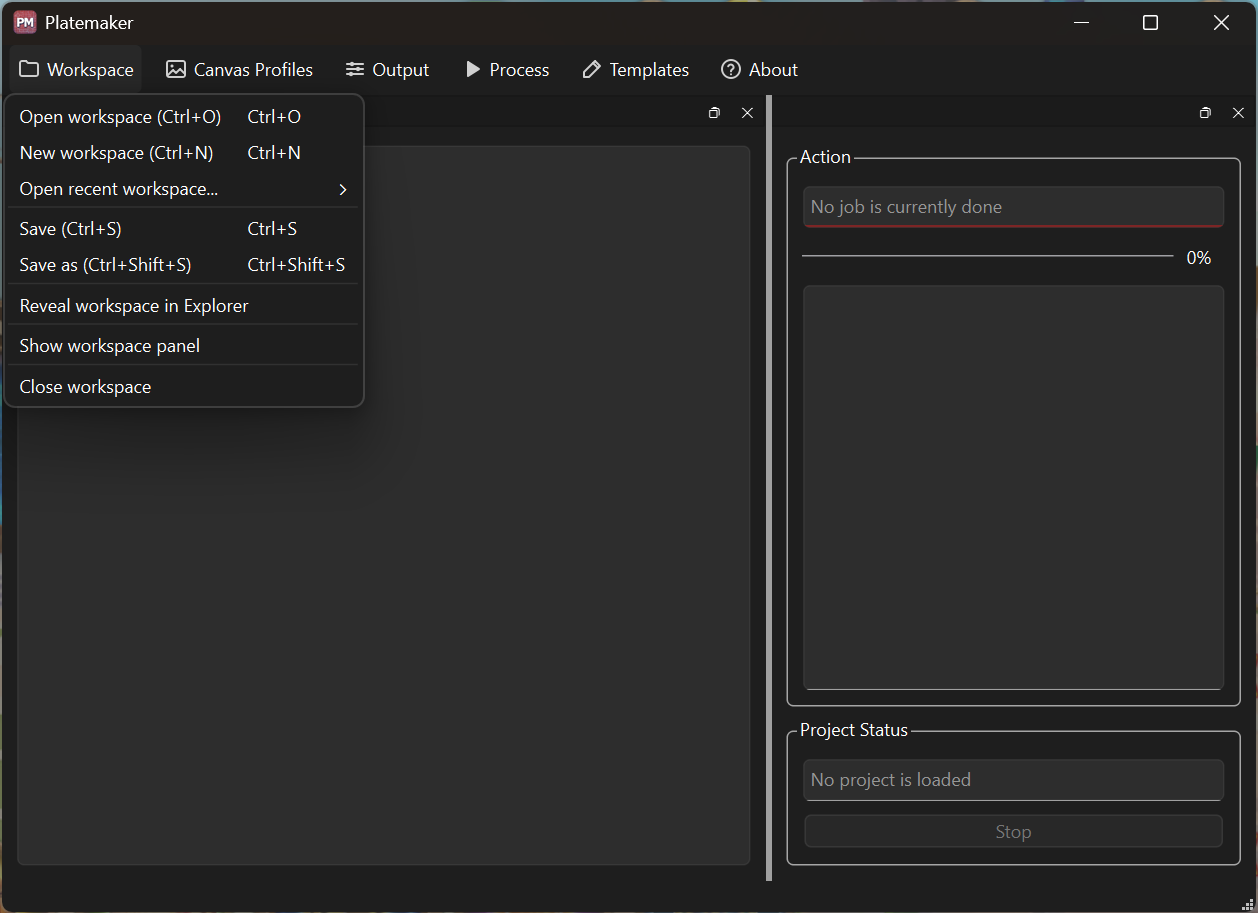
File → New workspace… (Ctrl+N). You choose where the .platemaker.json goes, and
that location matters: any templates you generate are written in a templates folder next to
it. See Templates.
File → Open workspace… (Ctrl+O), then pick a .platemaker.json.
File → Open recent lists workspaces you have opened before.
How many entries are kept, and what happens when a listed workspace has been moved or deleted, is still to be tested.
Save is Ctrl+S; Save as is Ctrl+Shift+S.
File → Close workspace prompts you if there are unsaved changes. File → Exit closes the application the same way — both ask about unsaved changes before anything is lost.
File → Reveal in Explorer opens the folder containing the .platemaker.json.
The workspace is plain-text JSON. It is safe to back up and to keep in version control, and it holds paths to your images rather than the images themselves.
Deleting a workspace means deleting this file, its overlays and templates folders and its
thumbnail cache — none of which is your artwork. Your drawings and rendered output are never
inside it.
Moving or renaming your source image folders breaks the stored paths. Inputs will show as missing — see File statuses.
Safe. Every file Platemaker writes for a workspace — the balloons and pictures in overlays, the
files in templates — is recorded both by its full path and by its path relative to the
.platemaker.json beside it. Move the folder, rename it, zip it and unzip it somewhere else: on
the next open, Platemaker finds everything by the relative path and every object is there,
editable, exactly as it was. Only your source image folders have to stay put — see above.
While you work, nothing under overlays or templates is ever deleted — undo may still need a
file you removed a moment ago. Instead, each time a workspace opens, Platemaker checks which
of its own files nothing references any more (a deleted bubble's picture, a deleted template, a
re-lettered picture's earlier file) and moves them to the Recycle Bin. It reports how many in the
status bar and lists each one in the Action log, whose right-click menu offers Show Recycle
Bin. Nothing of yours is a candidate — only files Platemaker itself created.
If the folder has no Recycle Bin to move files into (a network share, some removable drives), you are asked once per open whether to delete them for good; declining asks again next time.
A workspace can carry its own fonts, active only while it is open — like Adobe InDesign's Document Fonts. Nothing is installed on your system; a font works in this workspace's bubbles and nowhere else, until you choose to install it.
- Any
.ttf,.otfor.ttcyou (or Tools → Fonts…) put in the workspace'sfontsfolder is available the next time the workspace is open, and overrides a system font of the same name while it is. -
Tools → Fonts… lists these fonts, whether each is also installed on your machine, and
separately lists which fonts your lettering uses but your computer does not have. Add font…
copies a file in and activates it at once; Show folder opens
fontsin Explorer. - Install copies a selected font into your own Windows account (no administrator rights needed) so other programs — and Platemaker outside this workspace — can use it too. Already-running programs, Platemaker included, only see it after a restart; this workspace keeps working with its own copy in the meantime.
-
fontstravels with the workspace: it is copied by Save as and included whole in an exported package. It is never touched by the cleanup described above.
To hand a chapter to another person or computer with nothing to fix on arrival — rather than moving or syncing the folder, which keeps working too — use File → Export package…. See Packages.
Unsaved changes are shown by a * after the workspace filename in the title bar. See
Main window.
Introduced in 1.1.0. When Platemaker finds two profiles sharing an internal identifier on
load, it gives one of them a new identifier and shows a dialog explaining what changed.
Nothing is lost — your profiles, their settings and their project assignments are unchanged.
Afterwards some projects may show as out of sync; render them, or run
Refresh all projects (F6), to settle it. See Rendering.
See also: Concepts · Projects · Packages · Workspace on Drive