Manual Main Window - ShadobaDev/Platemaker-qt GitHub Wiki
Main window
A tour of the application shell — what each panel is for and how to rearrange them.
Layout overview
The window has three regions plus the menu bar across the top.
| Region | Contains |
|---|---|
| Menu bar | Workspace · Canvas Profiles · Output · Process · Templates · About |
| Left dock | The Workspace panel — the list of projects |
| Centre | The open project, with its Input and Output tabs |
| Right dock | The Action panel and the Project Status panel |
The workspace's filename sits in the window title bar, with a trailing * while there are
unsaved changes.
The interface is always dark. Since 1.3.0 it forces its own dark scheme regardless of your operating system's light/dark setting — before that, a light OS theme could leave text unreadable.

Workspace panel
The left dock, titled Workspace, lists the projects in the open workspace. Double-click a project to open it in the centre.
This is also where projects are managed — there is no project menu on the menu bar. Right-click empty space for New; right-click a project for Rename, Delete and New. See Projects.
Project area
The centre shows the open project as Input and Output tabs. Switching projects in the workspace panel switches what this area shows.
→ Projects
Action and Project Status panels
The right dock holds two groups:
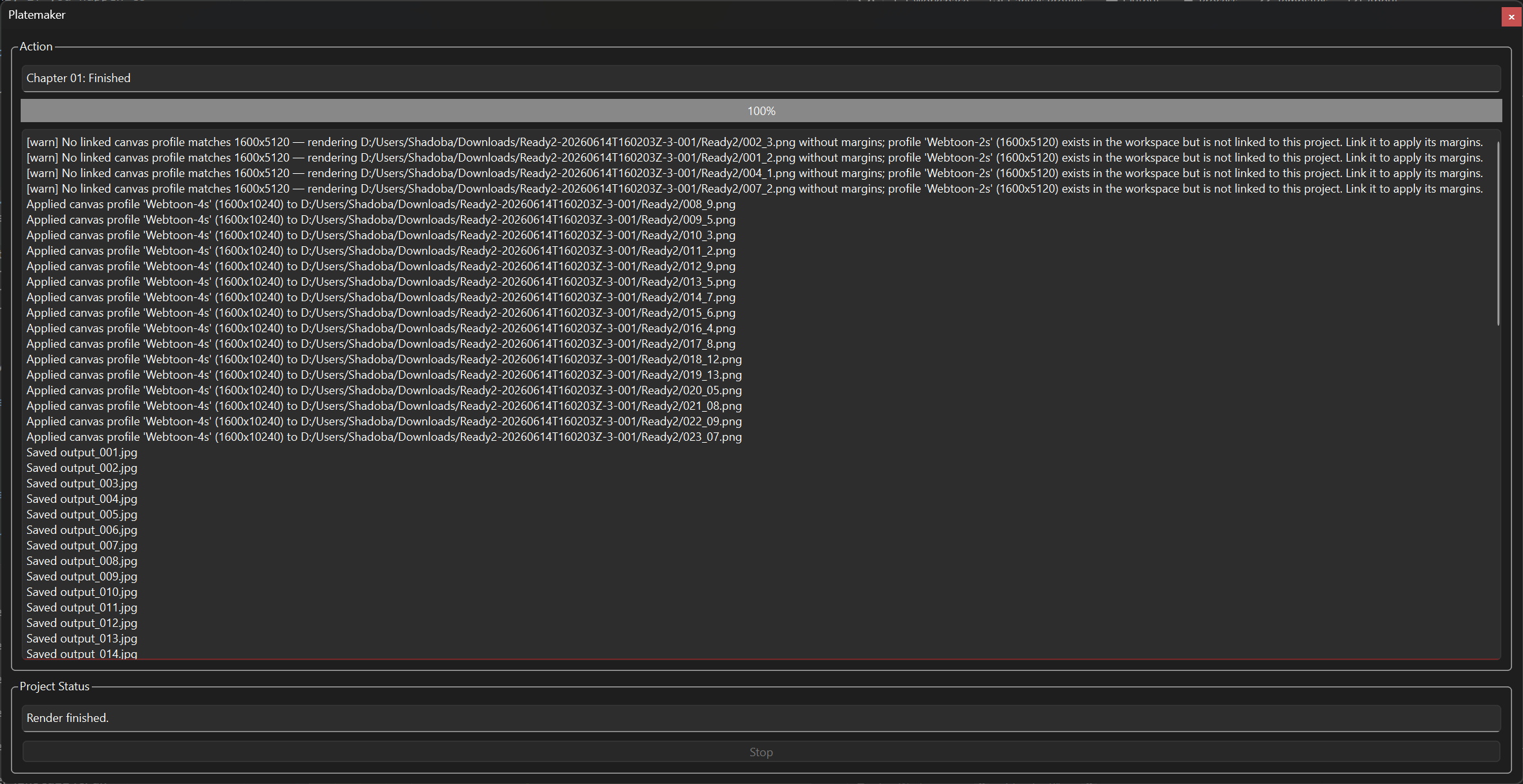
- Action — a status line ("No job is currently done" when idle), a progress bar showing percent complete (red if a render fails or is stopped), and a scrolling log that fills with per-slice detail, any warnings, and a summary when the render finishes. Right-click the log for copy / save / clear and to open the output or log folder.
- Project Status — a one-line status for the open project ("No project is loaded" when none is), and the Stop button, which is enabled only while a render is running.
Unsaved changes
There is no status bar. The only unsaved-changes indicator is the * after the filename in
the title bar.
Panels and session state
Workspace panel in the View menu brings the left dock back if you have closed it.
Platemaker always opens with its default layout. Opening a workspace does not reopen the project tabs you had open last time — you open each project again from the workspace panel.
See also: Menu reference · Projects · Rendering