Manual Templates - ShadobaDev/Platemaker-qt GitHub Wiki
Templates
A template is generated from a canvas profile, at that profile's full absolute size and resolution, with the margins filled in semi-transparently. It is a margin overlay, nothing more: it shows you where the margins begin.
It comes in two forms:
- PSD (the default) — open it in your drawing app and it is the canvas: exactly the profile's size and resolution, with the template on its own layer. There is nothing to place, so nothing the app can resize by a pixel on the way in.
- PNG — one transparent image, to import into a canvas you have already created at the profile's absolute size.
When you need one
Only if your canvas profile defines margins. A template generated from a profile with no margins is an empty transparent image the size of the canvas — correct, but of no use to anybody.
If you do draw with margins, the template is what tells you where they are. Without it you would be guessing at the boundary of the area that survives the render, and anything you place inside a margin is cropped away.
The usual sequence:
- Define the canvas profile in Platemaker, with its margins
- Generate its template (PSD)
- Open the PSD in your drawing app — that is your canvas, the template already on its own layer
- Draw underneath it, keeping anything that matters clear of the shaded margins
With a PNG template, steps 3–4 become: create a canvas at the profile's absolute size, import the template into it and keep it on its own layer.
Templates play no part in matching. Platemaker matches your exported page to a canvas profile by the page's own pixel dimensions — whether or not a template was ever generated. See Canvas profiles.
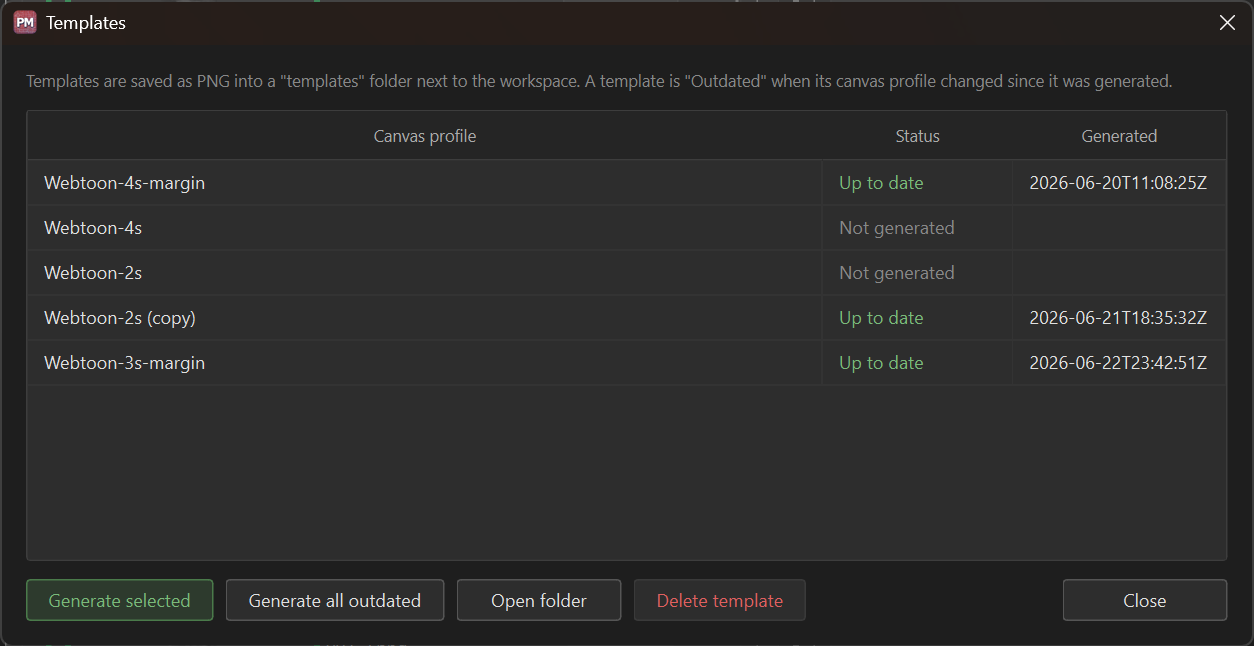
The template manager
| Column | Shows |
|---|---|
| Canvas profile | The profile this template belongs to, with a PSD or PNG chip for the generated file |
| Status | Whether the template is current — see below |
| Generated | When it was last written |
Template settings
Below the table, for the selected profile:
| Setting | Meaning |
|---|---|
| Format | PSD (opens as the canvas) or PNG (an image to place). Saved with the profile. |
| Empty layer above the template | PSD only: adds an empty layer named Layer above the template, ready to draw on |
| Resolution | The profile's resolution, shown here; it is set in the canvas profile, because the template is an image of that canvas |
A PSD whose canvas is larger than 16384 px on a side gets a warning: Procreate does not open canvases that large (and some devices allow less). The file is still written — other apps open it.
Status column
| Status | Meaning | What to do |
|---|---|---|
| Not generated | No template exists for this profile yet | Generate it |
| Up to date | The template matches the profile's current canvas | Nothing |
| Outdated | Something changed since the template was made — the reason follows (see below) | Regenerate |
| File missing | The template was recorded but the file is gone from disk | Regenerate |
Outdated always says why: the first reason in the column, every reason in its tooltip.
| Reason | Meaning |
|---|---|
| Canvas width 1600 → 1800, Resolution 25.4 → 300 dpi, … | A setting of the profile changed — old value, new value |
| Changed outside Platemaker | The file is not the one Platemaker wrote |
| Overwritten by another … | A different profile of the same name wrote its own template over this one's file; regenerating gives each its own file |
The status bar says the same for the profiles of the chapter you have open, with a button to this dialog. A template you never generated is not reported.
Status tracks the canvas — its dimensions, margins, template colours and resolution — and the template settings: a PNG on disk is Outdated once the profile asks for a PSD, and a PSD once its empty layer is switched. Nothing in your output profile affects it, because a template contains nothing derived from the output profile.
Each profile keeps one template per format: generating in the other format writes a new file next to the old one, and both stay — each with its own chip by the profile's name and its own state in the chip's tooltip. The row's status is about the format the profile currently asks for.
Generating a template
Select a row and press Generate. There is a second way in that skips this dialog entirely: Generate template from selected… in Canvas → Manage profiles… — it writes the same file, with the profile's template settings.
A template shows your margins and nothing else. It carries no slice guides — that was an early idea that was dropped, so where the strip gets cut is not represented on the template.
Generating all
Regenerate all is for changing every template at once: it applies the settings shown for the selected profile (format, empty layer) to all canvas profiles, after asking, and regenerates every template — up to date or not.
Regenerating
Deleting a template
Clears the record — the profile itself is untouched — but the file is not removed immediately, so the delete stays undoable. Platemaker removes unused template files (and unused overlay files) the next time the workspace opens. See Workspaces.
Where templates are stored
Templates live in a templates folder next to your workspace file:
<folder containing your .platemaker.json>/
└── templates/
    └── <profile name>.psd   (or .png)
Two profiles may share a name. Their files are then named after what sets them apart —
3p-m_2000x8080.psd — so neither overwrites the other, and your drawing app tells them apart too. Two
profiles identical in every setting share one file, which would be the same either way.
The Open folder button opens this directory in your file manager.
Using a template in your drawing app
See also: Canvas profiles · Concepts · Menu reference