Inpatient Sending a Patient to Theatre - hmislk/hmis GitHub Wiki
Inpatient — Sending a Patient to Theatre
Sending an admitted patient to theatre moves them through a tracked journey — sent → received in theatre → in theatre (procedure active) → procedure completed → returned to ward — recorded against the admission without disturbing the patient's ward room. The ward bed stays assigned for the whole journey, so bringing the patient back afterwards never means re-admitting them to a room.
There are two ways to run this workflow, and they work on the same records:
| One patient at a time | All theatre patients at once | |
|---|---|---|
| Where | The patient's own Inpatient Dashboard (or Nursing WorkBench) → Operation Theatre panel | Theatre Dashboard — a hospital-wide worklist |
| How to get there | Open the patient (Inpatient → Search → Admissions, or the ward bed board) | Main menu → Inpatient → Theatre Dashboard |
| Who normally uses it | Ward nurses working with the patient in front of them | Theatre reception / theatre nursing staff handling many patients from several wards |
| Scope | Only the selected patient | Every patient currently in the theatre workflow, across all wards |
Anything you do on one view appears immediately on the other — accept a patient on the Theatre Dashboard and the ward's Theatre Status page shows the new milestone, and the other way round.
Route 1 — Managing one patient from the patient's dashboard
Open the patient's Inpatient Dashboard (or the Nursing WorkBench for the ward) and use the Operation Theatre panel. The panel carries the whole per-patient journey:
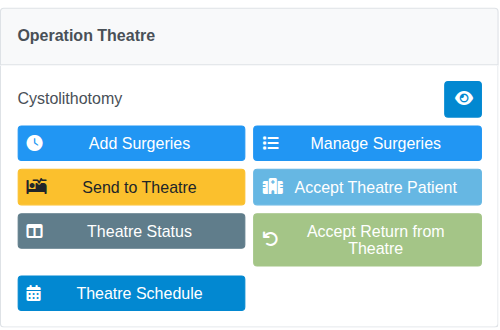
| Button | What it does |
|---|---|
| Send to Theatre | Starts the theatre journey for this patient |
| Theatre Status | Shows this patient's theatre progress and the next action |
| Accept Return from Theatre | Brings this patient back onto the ward's books after surgery |
| Accept Theatre Patient | For theatre staff — opens the queue of patients sent to this theatre department |
| Theatre Schedule | The theatre booking calendar |
| Add / Manage Surgeries | Surgery billing and clinical records (see the Theatre module articles) |
Send to Theatre
Privilege: TheatreSendPatient
- Open the patient's Inpatient Dashboard and click Send to Theatre in the Operation Theatre panel.
- Choose the Theatre Room (the list shows the theatre rooms configured for the institution).
- Optionally choose the Surgery this transfer is for, and add notes.
- Click Send to Theatre.
The patient's theatre status becomes Sent to Theatre, waiting for theatre staff to accept them. The button is disabled for discharged patients.
Theatre Status — this patient only
Privilege: panel visibility InpatientDashboardPanelOperationTheatre; each action has its own privilege (below)
Theatre Status shows only the currently selected patient — name, age, sex, BHT, a milestone stepper, the theatre room, the surgery, the time sent and time elapsed — plus the single action that is relevant right now:
| Current status | Action shown | Privilege |
|---|---|---|
| Sent to Theatre | Accept in Theatre | TheatreAcceptPatient |
| Received in Theatre | Mark In Theatre | TheatreAcceptPatient |
| In Theatre | Proc. Done | TheatreReturnPatient |
| Procedure Completed | Return to Ward | TheatreReturnPatient |
| Return requested, ward not yet accepted | Accept Return to Ward | WardAcceptTheatreReturn |
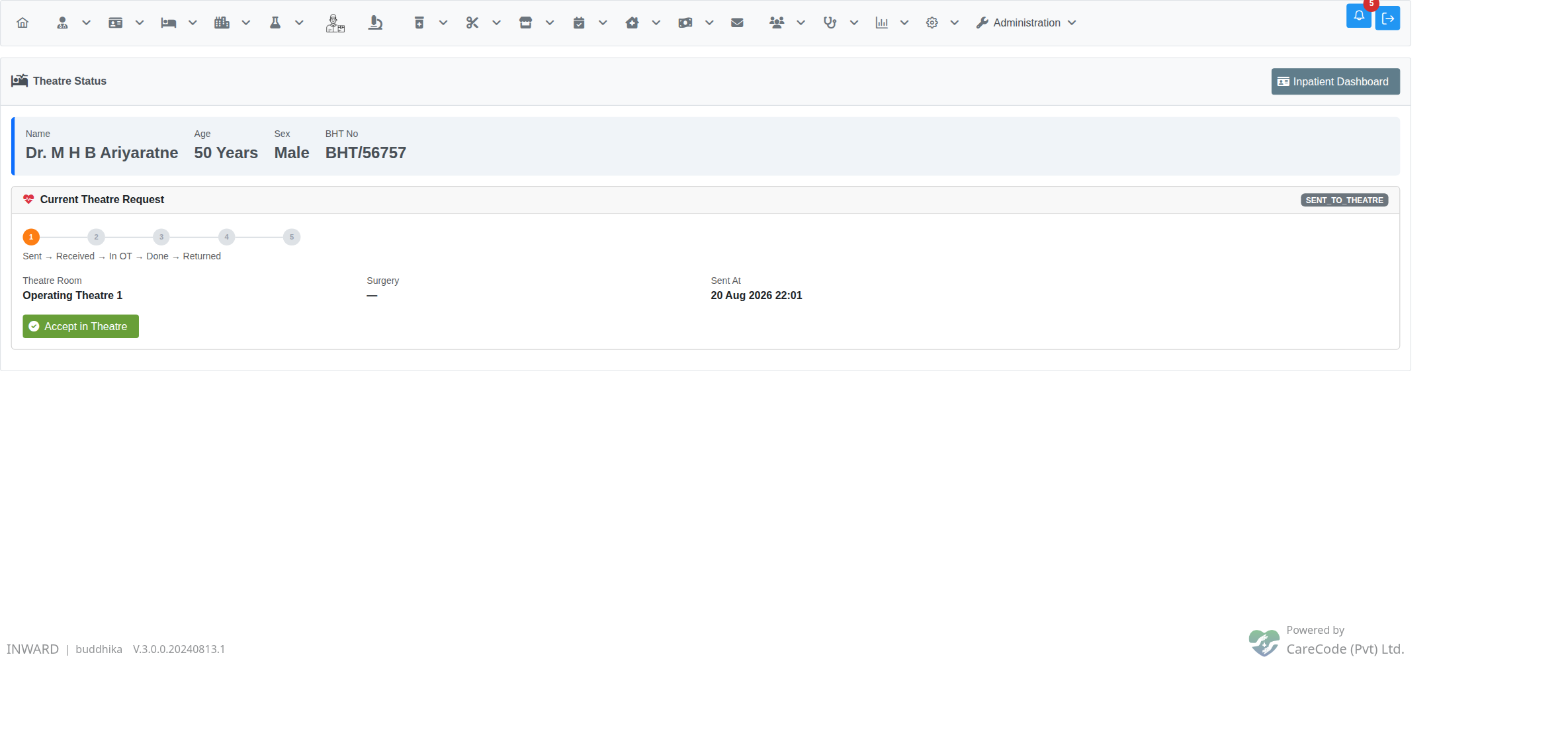
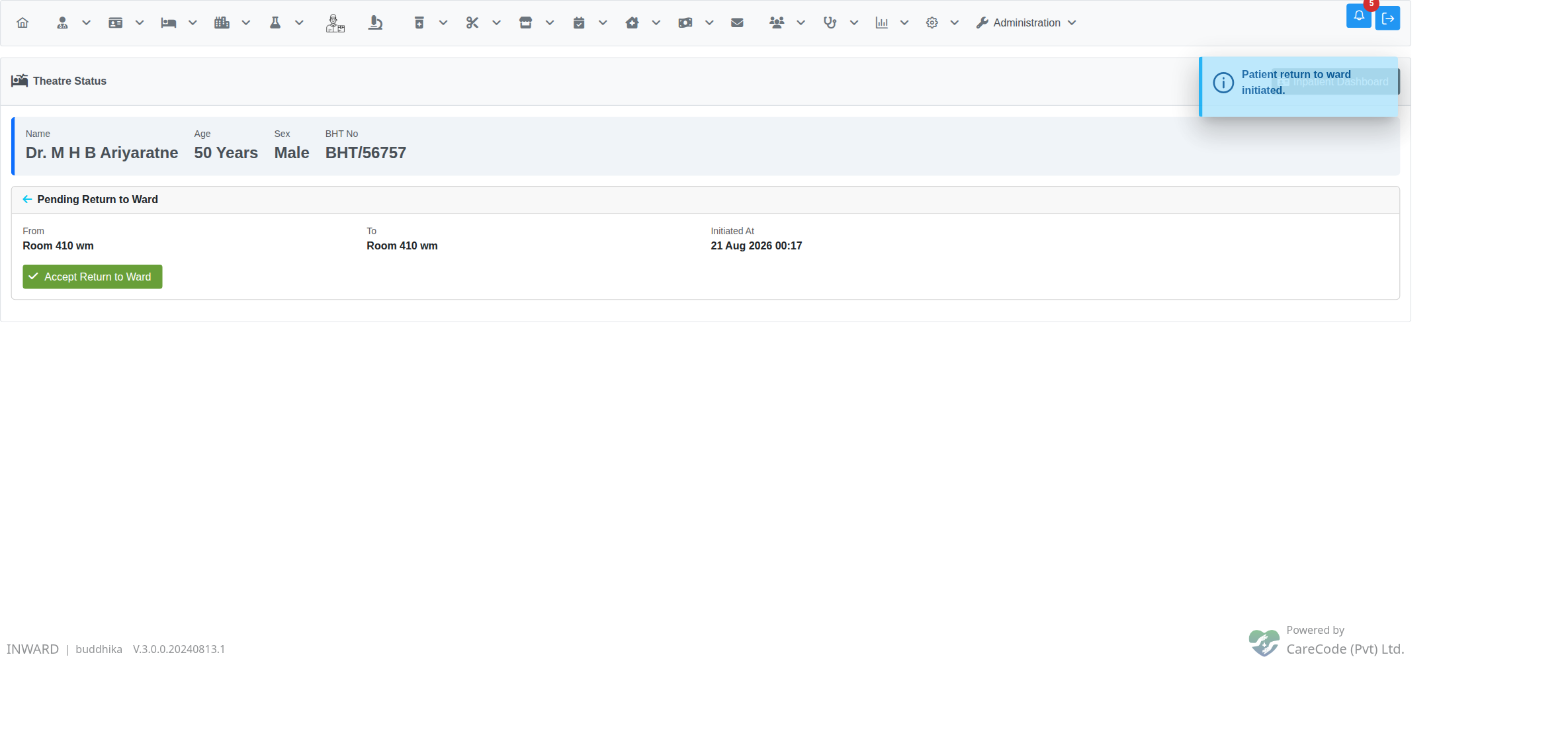
If the patient has never been sent to theatre, the page shows "No active theatre transfer for this patient" with a Send to Theatre shortcut. Use Inpatient Dashboard in the page header to go back to the patient.
Theatre charges run until the patient is returned
When theatre accepts the patient, the theatre's charge starts running (by the hour, or as set for that theatre) and appears on the interim bill. It stops only when theatre clicks Return to Ward. A patient left In Theatre by mistake keeps being charged, so the ward room and nursing discharge are both blocked until the return is done. The Theatre Dashboard's Currently in Theatre list shows how long each patient has been there.
By default theatre time is added to the bill's Room Charges. Hospitals can bill it under Operation Theatre Charges instead — see Inpatient Interim Bills.
Accept Return from Theatre
Privilege: WardAcceptTheatreReturn
When theatre marks the patient as returning, ward staff complete the loop from the patient's own dashboard — no need to open the hospital-wide dashboard. The Accept Return from Theatre button stays greyed out until a return is actually pending for that patient; clicking it asks for confirmation, then puts the patient back on the ward's active list.
Route 2 — Managing everyone from the Theatre Dashboard
Getting there
Main menu → Inpatient (bed icon) → Theatre Dashboard
The Theatre Dashboard sits in the Inpatient menu, at the same level as Nursing WorkBench and Inpatient Analytics — not under the Theatre (surgery) menu, which holds surgery billing and clinical pages. Theatre Schedule sits right below it in the same menu.
The two menu items appear for users who hold TheatreAcceptPatient or TheatreSendPatient (and access to the Inpatient menu itself). If a theatre nurse cannot see them, that privilege is the first thing to check.
The dashboard is also reachable from the Back to Workbench / Refresh buttons within the theatre pages themselves, and from Theatre Schedule.
What the dashboard shows
Along the top, four live counters: Awaiting Acceptance, In Theatre, Pending Return to Ward, and Today's Cases for the institution.
Below them, the working sections:
| Section | Contents | Actions available |
|---|---|---|
| Theatre Room Status | One card per theatre room — available, or occupied with the patient's details | — (view only) |
| Awaiting Theatre Acceptance | Patients sent from wards: BHT, patient, theatre room, surgery, sent by, sent at | Accept |
| Currently in Theatre | Patients accepted into theatre, with elapsed time | In Theatre, Proc. Done, Return to Ward |
| Pending Return to Ward | Patients theatre has sent back, waiting for ward acceptance | Accept Return |
| Today's Theatre List | All of today's theatre cases with their current status | — (view only) |
Header buttons give Refresh, Theatre Accept (the theatre department's acceptance queue), Theatre Schedule, and Back to Workbench.
If "No theatre rooms configured" appears, theatre rooms have not been set up yet — see Add a Theatre.
Which route to use
- Ward staff, one patient in front of you — stay on the patient's dashboard: Send to Theatre, check Theatre Status, Accept Return from Theatre.
- Theatre reception, patients arriving from several wards — work from the Theatre Dashboard: accept incoming patients, progress the milestones, send them back.
- Either way the same record is updated, so wards and theatre always see the same status.
Privileges at a glance
| Privilege | Allows |
|---|---|
TheatreSendPatient |
Send a patient to theatre; see the Theatre Dashboard / Schedule menu items |
TheatreAcceptPatient |
Accept a patient in theatre and mark them In Theatre; see the Theatre Dashboard / Schedule menu items |
TheatreReturnPatient |
Mark the procedure done and return the patient to the ward |
WardAcceptTheatreReturn |
Accept a patient back onto the ward after theatre |
InpatientDashboardPanelOperationTheatre |
See the Operation Theatre panel on the Inpatient Dashboard |
Related Articles
- Inpatient — Patient Transfer Between Wards — the equivalent ward-to-ward transfer workflow
- Inpatient Nursing Workbench — the ward-level view carrying the same theatre buttons
- Theatre Management Module — Overview — surgery billing and clinical documentation
- Add a Theatre — configuring theatre rooms
- Admin — Theatre Privileges and Access — configuring who can send, accept, and return theatre patients