Usage ‐ Colonisation Tracking - aussig/BGS-Tally GitHub Wiki
Colonisation
The Colonisation feature was inspired by DaftMav's Colonisation spreadsheet and Kajoj's Colonisation plugin. It now also integrates with the excellent Raven Colonial site.
DaftMav's spreadsheet is excellent for planning and Kajoj's plugin is great for tracking commodity deliveries. BGS-Tally Colonisation brings both features together, and adds a number of extras. It's built as part of BGS-Tally because that already tracks carrier cargo, market data, and provides a range of other utilities capabilities.
Features
Its purpose is to enable the planning, and tracking, of Colonisation activities. To that end it provides two main views: system planning and build progress tracking.
Planning
Accessed from a Colonization icon this creates a window that
- Has a tab for each system with a row for each base.
- Tab icons indicate current progress and tracking state.
- Retrieves system bodies, population, economy, and security information from EDSM and Spansh and displays it.
- Provides detailed list of system bodies and their features.
- Provides a table of all base types, their costs, benefits and system effects.
- Notes can be recorded for each plan.
- Each build row shows tier point cost/reward, prerequisites, commodity cost, pad size, economy, and system impacts of the base.
- Automatically identifies new systems and bases when you visit them.
- Totals the system impacts for all planned and completed builds.
- Progress tracking can be turned on and off for each build.
Progress
Displayed in the ED:MC window only if builds are being tracked.
- Lists required commodities sortable numerically, alphabetically, or by category as station markets do.
- Togglable between showing all commodities, just those still required, or just those currently relevant.
- Shows user selection of required, delivered, remaining, purchase, cargo, or carrier quantities either in tonnes or ship loads.
- When docked at a station or carrier highlights required commodities available at that station or carrier.
- Indicates when a commodity has been fully delivered or purchased.
- Left clicking on the build name copies a discord formatted string of requirements to the clipboard
- Left clicking on a commodity links to Inara commodity search for nearest source or displays a Raven Colonial markets popup window, right clicking copies the commodity name to the clipboard.
- Commodities are colour coded.
- UI Default – more of this commodity is still required.
- Gray – commodity has been fully delivered.
- Green – there is sufficient on the carrier plus in the cargo hold.
- Bold Green – there is sufficient in the cargo hold.
- Blue – this market sells the commodity.
- Bold Blue – this market sells the commodity, you still need it, and you have cargo space.
- Gold – this carrier sells the commodity.
- Bold Gold – this carrier sells the commodity, you still need it, and you have cargo space.
Overlay
The BGS-Tally overlay supports colonisation showing the currently chosen build and its requirements.
Raven Colonial
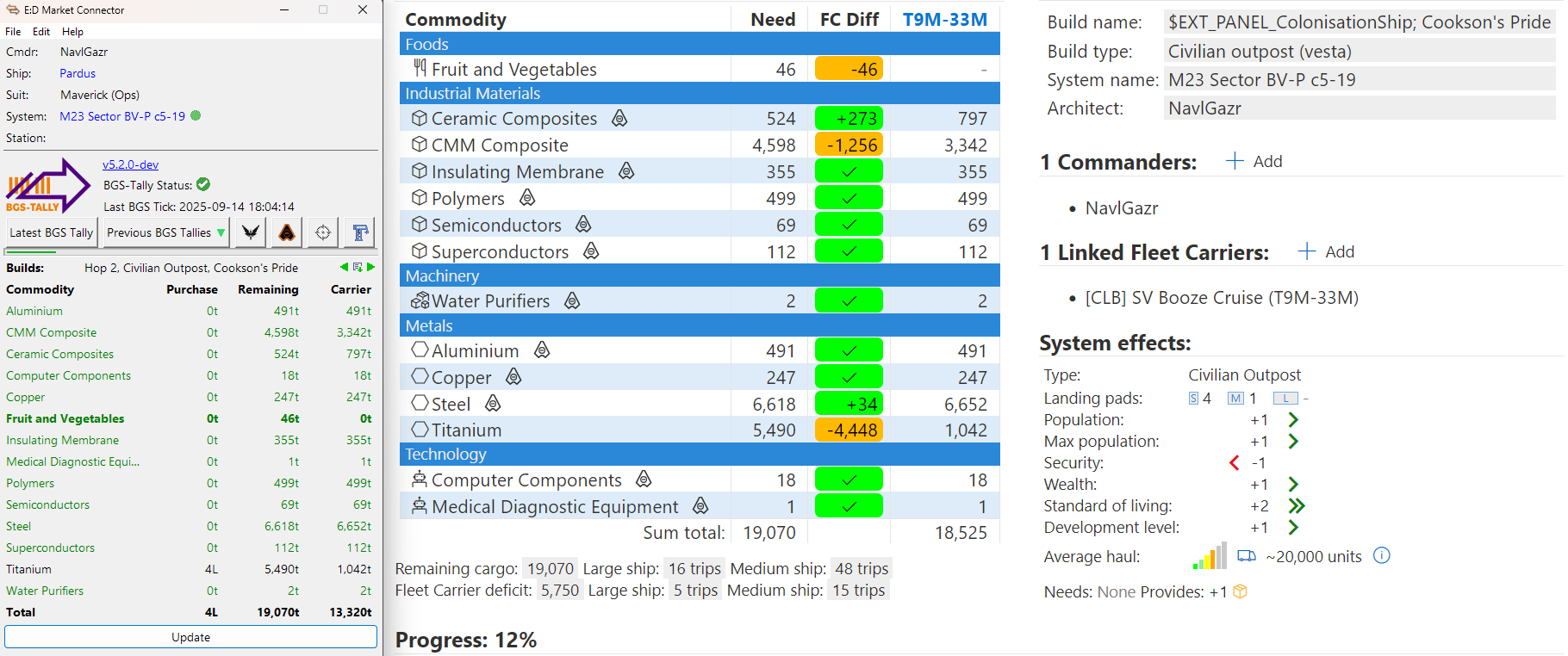
The plugin provides deep integration with Raven Colonial including:
- Bi-directional, real-time plan synchronisation
- Importation of existing system plans
- Creation of Raven Colonial system plans and projects from Colonisation
- Bi-directional synchronisation of project progress
- Synchronisation of fleetcarrier cargo
- Per-plan activation/deactivation of synchronisation at anytime
- Raven Colonial markets popup window
For a detailed description covering how BGS-Tally interacts with Raven Colonial, and a How-To guide on how to get it working, see this page →
Planning
In the planning window you can plan out multiple system builds seeing their effects on the system as well as their requirements.
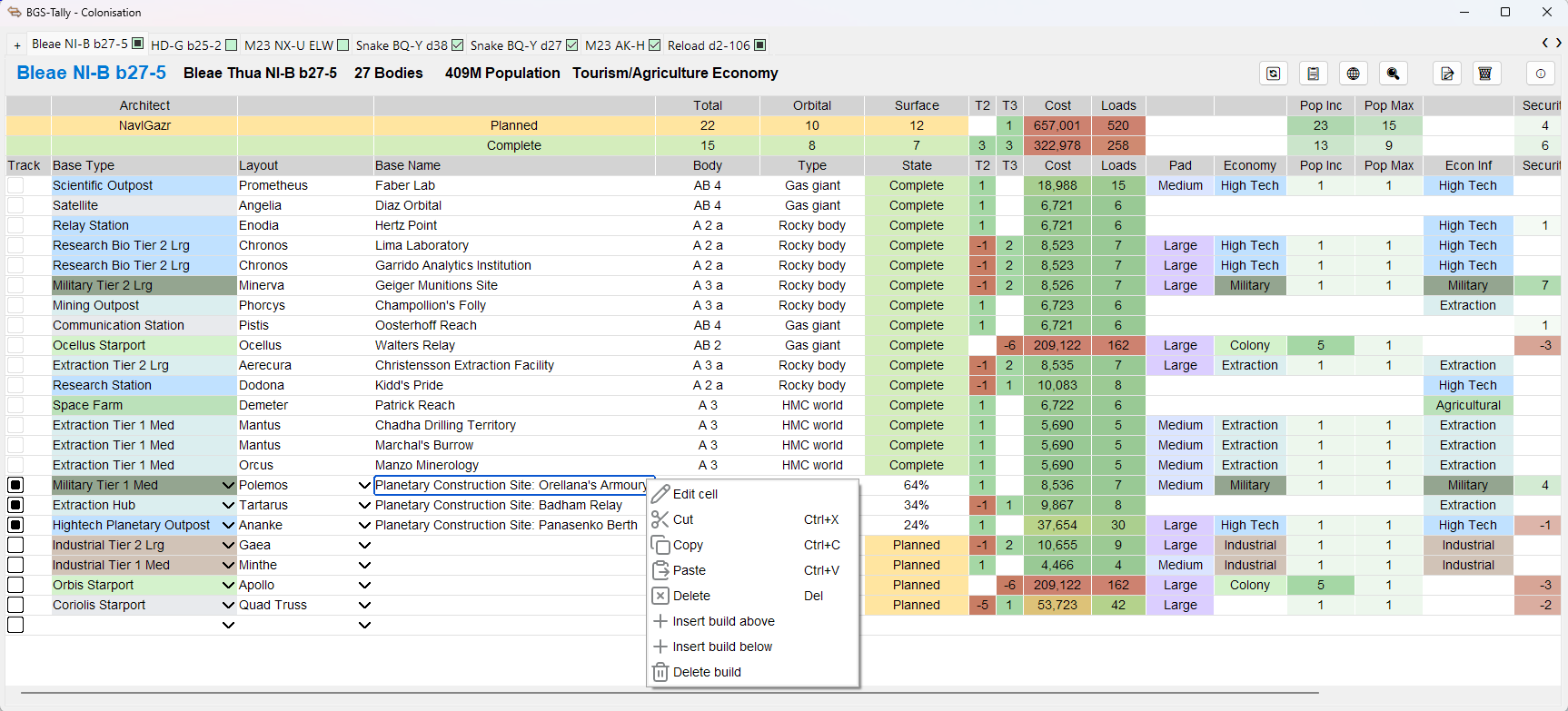
Creating a plan
- The "+" icon let's you name and create a new plan, give it a name and optionally which system it is for.
- Each plan tab has its name and an icon indicating the current state of the plan (in progress, outstanding planned builds, complete).
- If the name of the star system has been entered Colonisation will retrieve information about the system from Spansh and EDSM and track its progress.
- Plans can be modified, renamed, hidden, and deleted.
- Each plan has its own tab that includes the number of system bodies, population, economy, and security information if available.
- Tracking, base type, name, and body are user entered while the remaining columns are calculated automatically.
- Selecting or clearing the base type will add or remove a build.
- The right click context menu has build insertion and deletion options.
- Once a build is completed the tracking status, type, name and body become read only.
- Clicking on the status will toggle it between planned and completed allowing manual modifications to builds.
- When you visit a completed base, colonisation ship, or a construction depot the system will automatically read and update the current status and progress of the corresponding build.
- Details of all the columns are described in detail in the legend popup.
- When you create a plan you can choose to synchronize with Raven Colonial. Enter your Raven Colonial API key in the BGS-Tally configuration.
System bodies
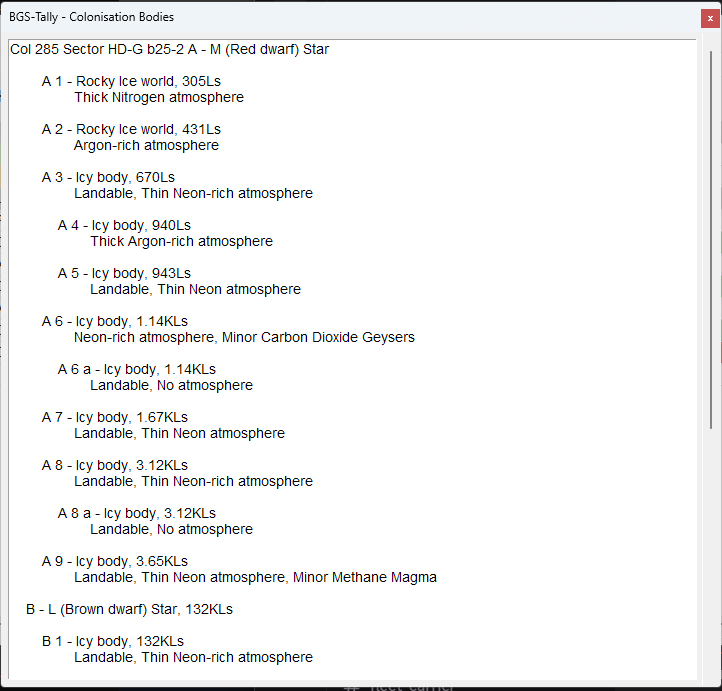
The bodies popup provides a detailed list of all the system bodies and their types.
Notes
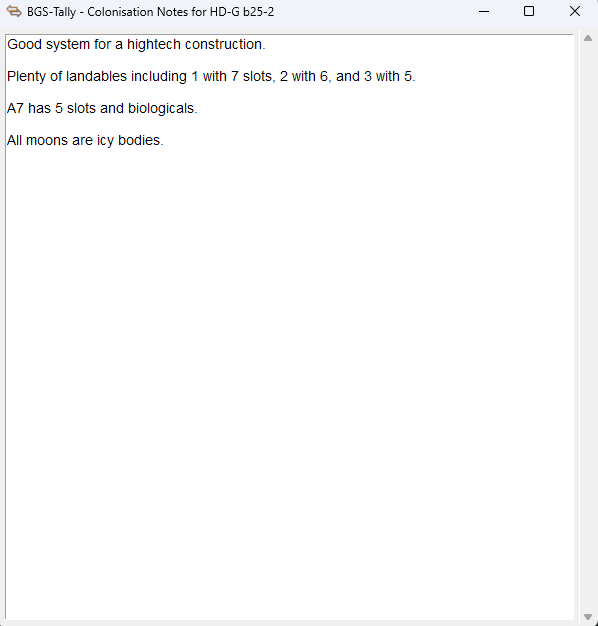
The notes popup lets you keep records, thoughts and ideas.
Base Types
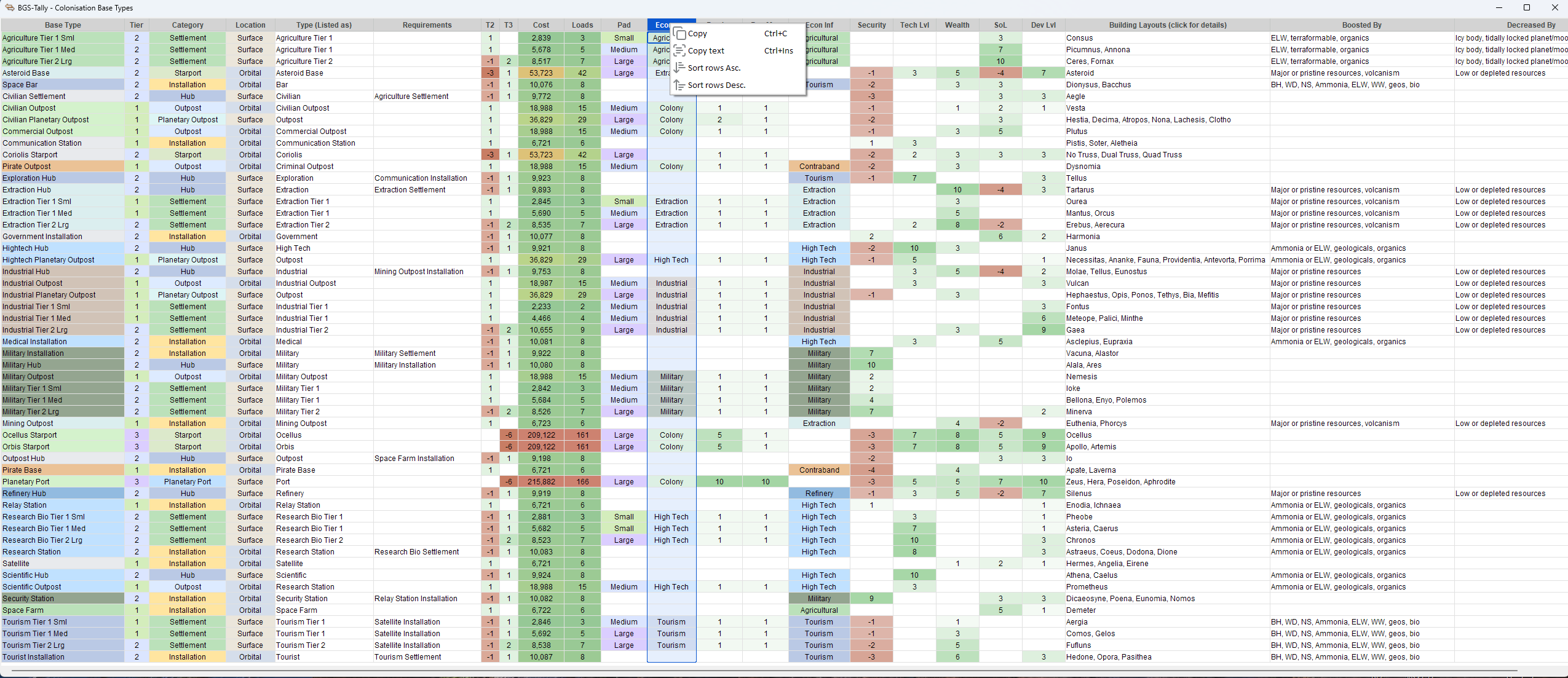
The base types popup provides detailed and sortable information about each possible base and its attributes to aid in planning. Base layouts link to Raven Colonial's base details including an image.
Tracking
Progress
Shows the commodity requirements and current progress in the main ED:MC window.
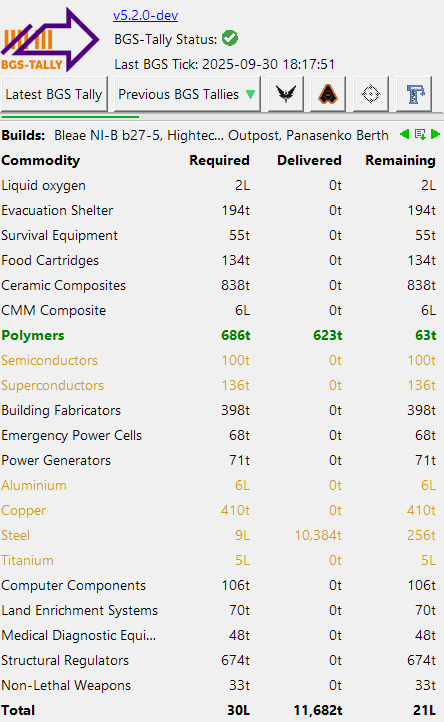
- The commodity requirements for builds that in progress or that you choose to track will be displayed in the main ED:MC window.
- The number of commodity rows is limited. How many it will display is a configuration option. The default is 20 rows and no single build requires more than 19 different commodities.
Customization
What is displayed is configurable as follows.
- The green left and right arrow icons cycle through your tracked builds.
- If you have more than one build an "All" option is added.
- The details icon cycles between the level of detail shown – all commodities, those left to be delivered, those still to be purchased, and none.
- The table headings are also clickable:
-
Commodities – cycles the sort order between alphanumeric, category, quantity, and none. When at a commodity market the order will switch to category in order to better match the market's ordering and return when you undock.
-
Quantity options – there are three quantity columns each of which can show any of the following. Left clicking on the header cycles through the options. Right clicking toggles between tonnes and loads (except for cargo where the maximum would be one load)
- Required – full amount of commodity originally required
- Delivered – amount that has been delivered so far
- Remaining – amount remaining to be delivered
- Purchase – amount still to be purchased i.e. amount remaining minus amount on carrier and in cargo
- Cargo – amount in current cargo
- Carrier – amount in fleet carrier cargo
-
Availability
- Clicking on a commodity name or quantity displays market availability.
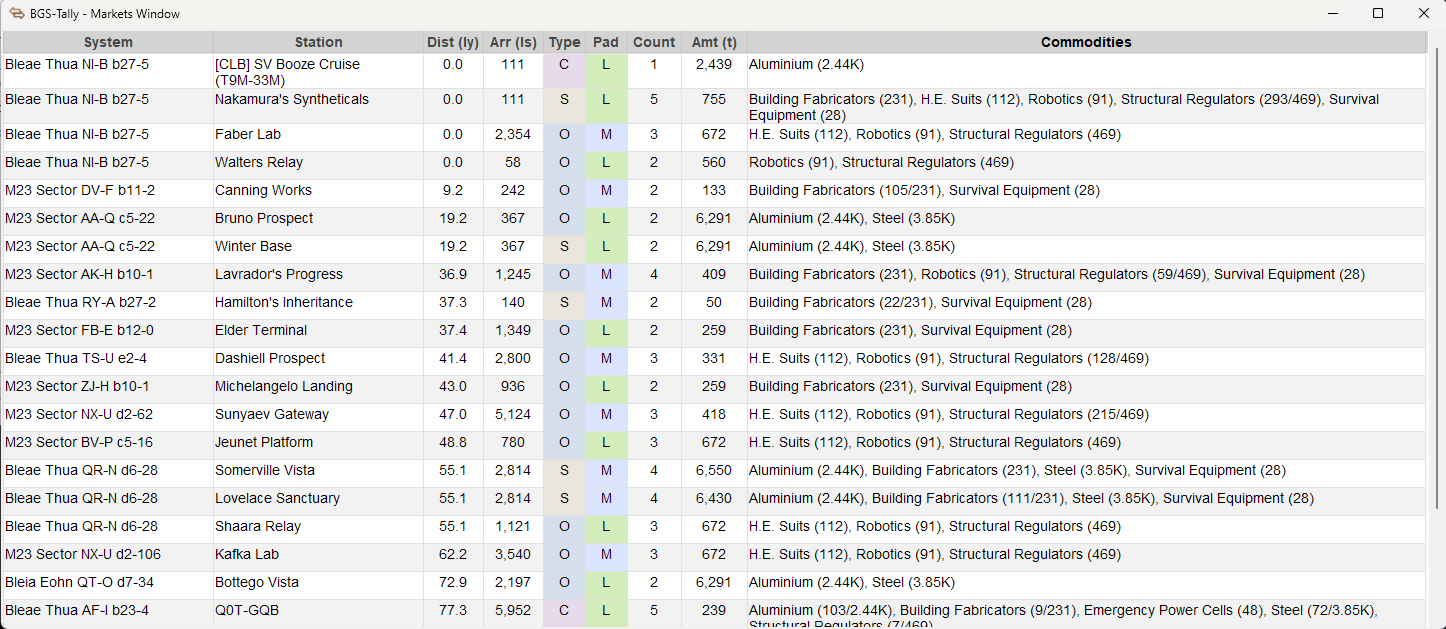
- If a Raven Colonial project is in progress for the site it will open a popup with market details and quantities
- If not it will link to Inara. Left click uses the system location as the source, middle click uses current location as the source.
Tips and Tricks
Due to journal file limitations, when builds are renamed, BGS-Tally Colonisation may create a duplicate entry. This can usually be avoided by renaming the build in the plan before visiting the base. The strong recommendation is that if you rename a base, or if E:D renames a base upon completion, you manually change its name in BGS-Tally to match.
Also due to journal limitations, often it is not possible to identify the type of an imported build and these must be entered manually.
ED:MC limits how often the Frontier CAPI can be queried and the API itself can return out of date information so the carrier cargo can get out of date especially if you have multiple commanders loading or unloading your carrier. Visiting your carrier commodity trading configuration may bring it up to date.