Usage ‐ Commander Tracking - aussig/BGS-Tally GitHub Wiki
Reviewing Targeted Commanders
BGS-Tally tracks interactions with other CMDRs in game, when one of the following happens:
- You target another commander (only in their own ship, not a taxi / dropship)
- You receive a friend request
- You add a friend
- You are interdicted by a commander
- You receive a message from a commander in local chat
- You are invited to a team
- You are killed by a CMDR
- You are killed by a team
Access the list of tracked commanders from the main EDMC window:
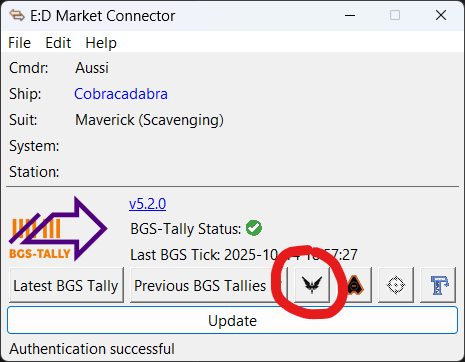
Commander List Window
The CMDRs are presented in a list, showing some information about the CMDR as well as where, how and when you interacted with them:
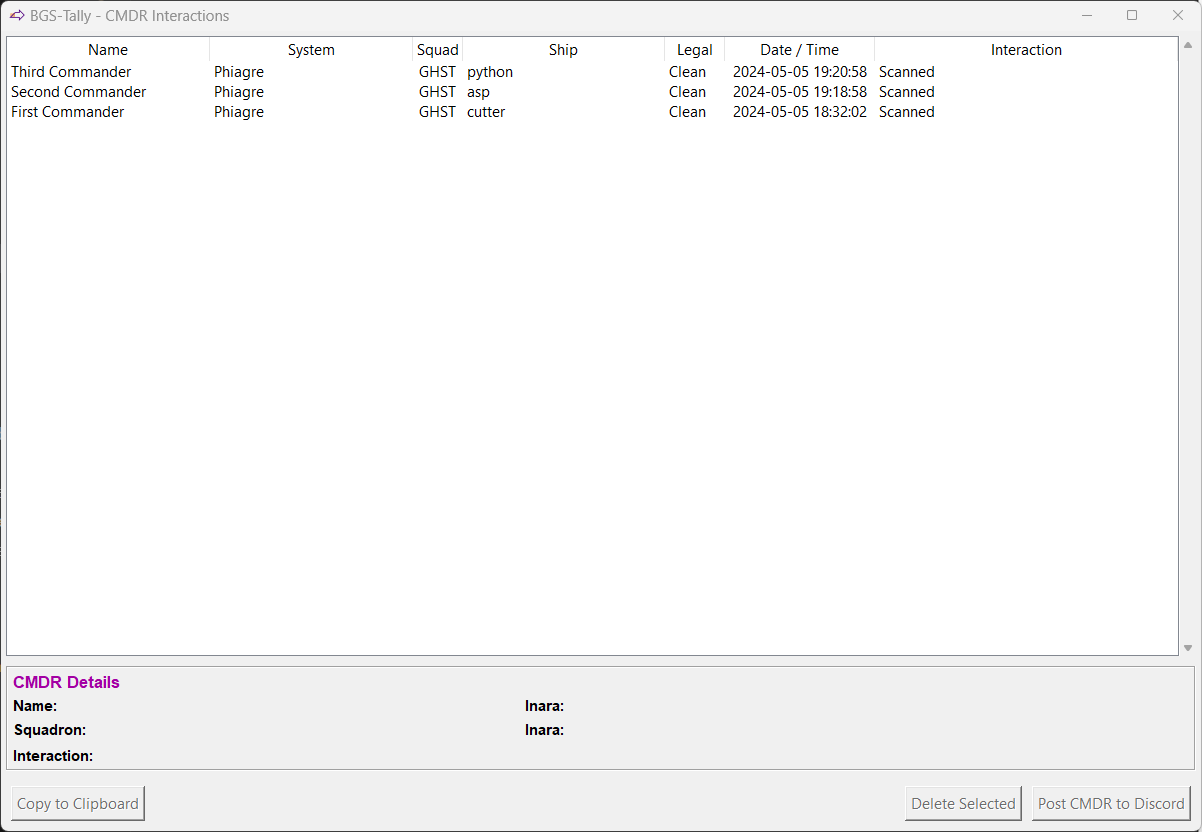
Commander Details
When you select a CMDR, some further information is shown at the bottom:
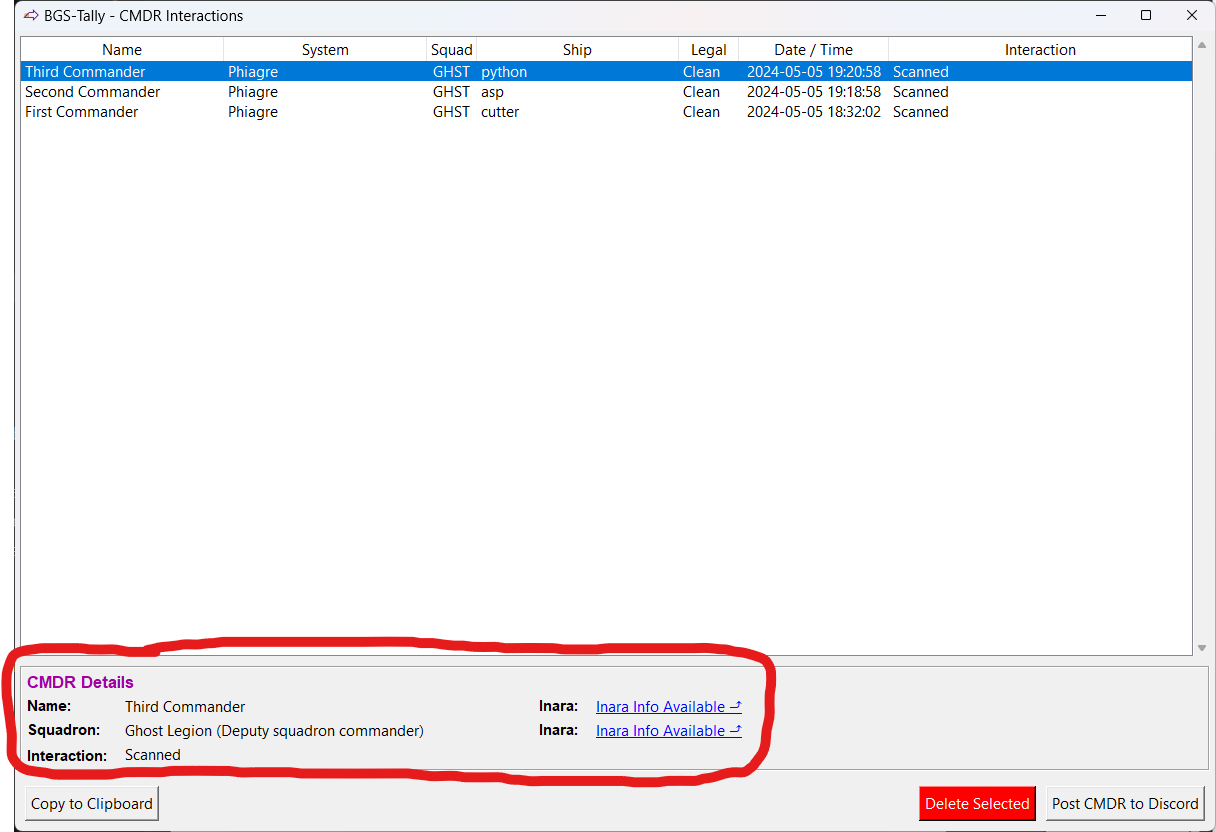
Some of this information is automatically gathered from Inara. If the CMDR has an Inara profile, a link is shown which will take you straight there. If the CMDR is in a squadron that has an Inara profile, another link is shown which will take you there.
Actions Available for a Commander
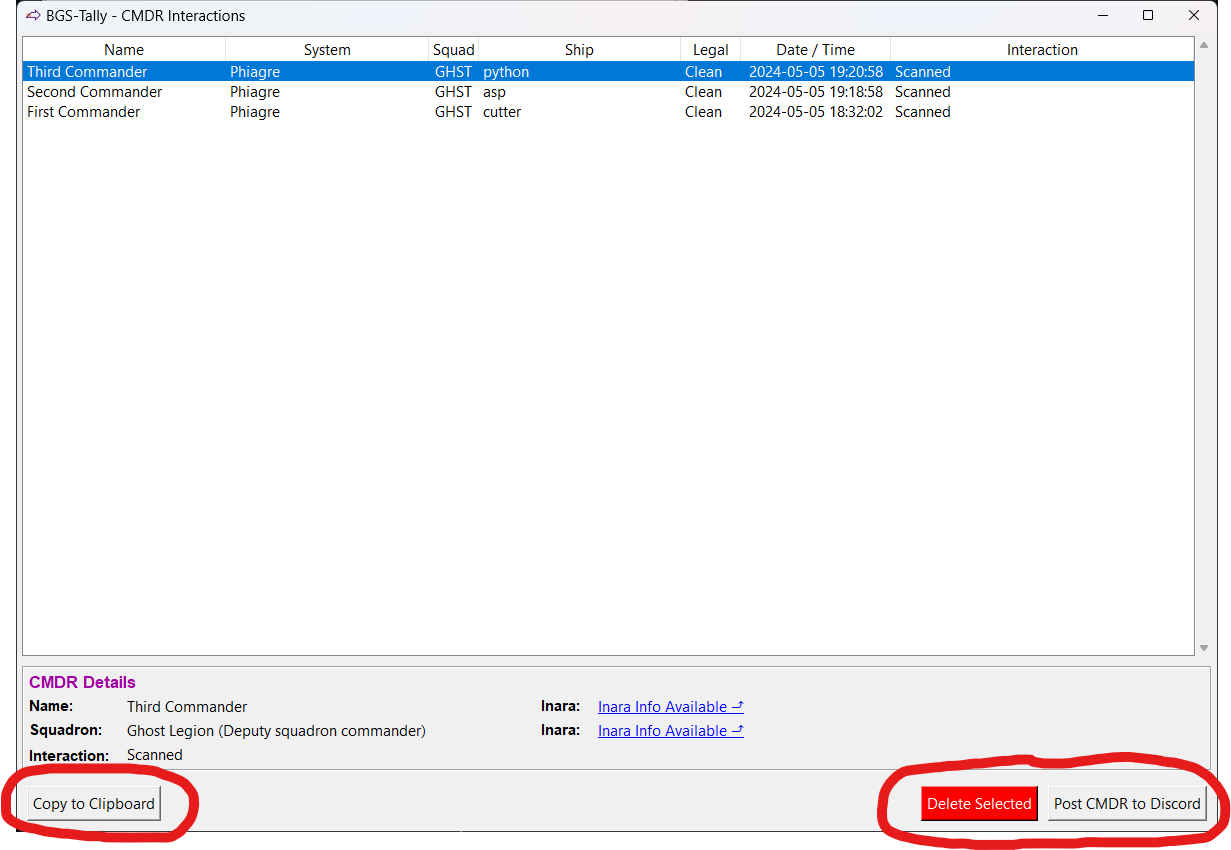
With a CMDR or multiple CMDRs selected, three buttons become available at the bottom of the window:
- The Delete button allows you to remove this record, if you are not interested in a specific CMDR. Note that any CMDR interactions older than 90 days are automatically removed.
- With a single CMDR selected, the Post CMDR to Discord button automatically posts full information about them to the Discord channel associated with the webhook in the settings. This button will not appear if you have not set up the webhook. More information on setting up the Discord webhook is available here →.
- With multiple CMDRs selected, the Post CMDR List to Discord button posts a concise list containing abbreviated information for all selected CMDRs.
- The Copy to Clipboard button copies the selected CMDR information to the clipboard.