Usage ‐ BGS and TW Tracking - aussig/BGS-Tally GitHub Wiki
Your activity is separated into the current session (activity since the last tick) and previous sessions.
Each of these is shown in its own window - access them both from the main EDMC window:

The panel also shows whether the plugin is currently active, and also when the last tick was.
The current and previous activity windows work in exactly the same way.
At the top of the window are a set of tabs, one for each system you have visited during the session. Flip between systems by clicking the tabs.

The tabs have indicators alongside the system title:
-
 - You have logged BGS activity in the system but are not reporting it
 -
 - You have logged BGS activity in the system and are reporting it
 -
 - You have logged BGS activity in the system but are only reporting some of it
 -
 - You have not logged any BGS activity in the system and reporting is off
 -
 - You have not logged any BGS activity in the system and reporting is on
 -
 - You have not logged any BGS activity in the system and reporting is partly on
Below the tabs are the currently selected system title with links to view the system on Inara and on EDGIS.

On the right-hand side is a checkbox that allows you to permanently pin this system to the in-game overlay so your work is always displayed in-game (providing you have installed the EDMCOverlay Plugin - instructions are here).
The factions in the selected system are listed below in a table, with the following columns:
-
State The state the faction is currently experiencing
-
INF Pri The primary Influence you have accumulated for this faction through missions. "Primary" means the mission originated for this faction.
Note that the plugin will honor
INFvalues if they are present for completed missions in the player journal. However, if noINFvalue is reported and the faction is in Elections, non-violent mission types are counted and reported. Similarly if noINFvalue is reported and the faction is at War or Civil War, violent mission types are counted and reported. -
INF Sec The secondary Influence you have accumulated for this faction through missions. "Secondary" means this was usually influence gained because this was the target (destination) faction for the mission.
Note that secondary
INFcan be excluded from reports if you wish (see the Discord section below). -
Trade Purch The value of commodities purchased - this is accumulated for the controlling faction of the station where the goods were bought, and tracked and reported against the levels of demand: 🅻 / 🅼 / 🅷.
-
Trade Prof The +ve or -ve trade profit for this faction - this is accumulated for the controlling faction of the station where the goods were sold, and tracked and reported against the levels of demand: 🆉 / 🅻 / 🅼 / 🅷 (🆉 is zero demand, i.e. when you sell cargo that the market doesn't list).
-
Trade BM Prof The +ve or -ve Black Market trade profit for this faction - this is accumulated for the controlling faction of the station where the goods were sold.
-
BVs Accumulated Bounty Vouchers handed in for the faction.
-
Expl Exploration data sold - this is accumulated for the controlling faction of the station where the data was sold.
-
CBs Combat Bonds handed in for the faction.
-
Fails Missions failed for the faction.
-
Murders On-foot and ship murders for the faction.
-
Scens Megaship and Space Installation scenarios won for the faction.
Note that the plugin will attempt to automatically determine megaship scenarios and count them. However, there is no way of knowing whether you have won a scenario, so we assume you'll win and count the megaship scenario if you fight there. Space installation scenarios must be tallied manually by you because they are not included in Elite's Player Journal, so there is no way of automatically working out whether they have been fought at.
-
Space CZs Low, Medium and High in-space Conflict Zones completed for the faction, as well as side objectives for Capital ships, spec ops wings, enemy captains and enemy propaganda wings.
Note that the plugin will attempt to automatically determine the type of in-space CZs and count them. However, there is no way of knowing whether you have won a CZ, so we assume you'll win and count the CZ if you fight there. Also note the following on side objectives:
- Capital ship defeats 👑 should be 100% reliable
- Spec ops wing kills 🔠 are tallied as soon as BGS-Tally finds the first detectable kill in the spec ops wing. This may not be the first spec ops kill you make because the order of events logged by the game is not predictable, so we need to tally as soon as we spot a kill. Just make sure you finish off those spec ops wings CMDRs!
- Enemy captain kills 👨
✈️ will sometimes be tallied and sometimes not, for the same reason. - Enemy propagandist wing kills ✒️ are also tallied as soon as BGS-Tally spots the first detectable kill in the propagandist wing, for the same reason.
-
On-foot CZs Low, Medium and High on-foot Conflict Zones completed for the faction.
Note that the plugin will attempt to automatically determine the type of on-foot CZs and count them. However, there is no way of knowing whether you have won a CZ, so we assume you'll win and count the CZ if you fight there.
If you have fought at on-foot CZs, the settlement names are listed below the faction.
Some of the above have manual controls for adjusting your count:
- In the case of in-space installation scenarios, manual is currently the only way to tally them.
- In the case of
INF, the game can be inaccurate when calculating it (for example, none is logged when doing missions for NPCs standing in stations, and -ve INF is sometimes not associated with a faction for some mission types). Note that the manual INF adjusters are applied after any automatically tallied INF, so they will show '0' even if you have handed in some missions. - In the case of
Expl, the game sometimes simply doesn't log it, so this allows you to tweak the tally.

The Discord report builds up in this panel as you accumulate activity. The Discord text includes formatting that means the message is coloured when shown in Discord, and this colouring is simulated in the preview panel.

Each faction in the table has a check-box alongside, which can be used to omit this faction from the Discord report. If all factions are switched off, the whole system is omitted.
Warning
The above checkboxes only exclude the factions from the Discord report. If you have set up an API connection then all data is sent via the API, irrespective of the checkboxes.
There is also a 'notes' field for your own comments and text, which will be included in the Discord report:

There are six settings for adjusting the report:

- The Abbreviate Faction Names option, when enabled abbreviates all faction names to their initials.
- The Show Detailed INF option, when enabled adds a detailed breakdown into your INF reports, split by each mission reward level ➊, ➋, ➌, ➍, ➎.
- The Include Secondary INF option, when enabled includes secondary INF in the report and adds 🅟 and 🅢 markers to your primary and secondary INF (secondary INF is influence gathered by the destination faction of missions, as opposed to the originating faction).
- The Show Detailed Trade option, when enabled adds a detailed breakdown of your trade purchases and profit, split by supply / demand level at the market 🆉 / 🅻 / 🅼 / 🅷 (zero, low, medium, high).
- The Report Newly Visited System Activity By Default option, when enabled will always report all activity in all systems you visit, but when disabled will initially switch off reporting in any new systems you visit (your work is not lost - reporting can later be manually switched back on for those systems if you wish).
- The Show Powerplay Merits Gained option, when enabled includes your Powerplay merits for this tick.
If you have set up a Discord webhook in the settings, you will see two buttons at the bottom of the activity windows:

The Copy to Clipboard button does just that - copies the contents of the Discord report field into your clipboard so you can then paste it manually into a channel. Note that this uses the legacy 'text only' post format.
The Post to Discord button automatically posts your activity to the BGS and TW Discord channels associated with the webhook(s) in the settings. This button will not appear if you have not set up any webhooks. More information on setting up Discord webhooks is available here →.
Alongside the Post to Discord button there is a drop-down allowing you to choose whether to post only BGS, only TW or all activity.
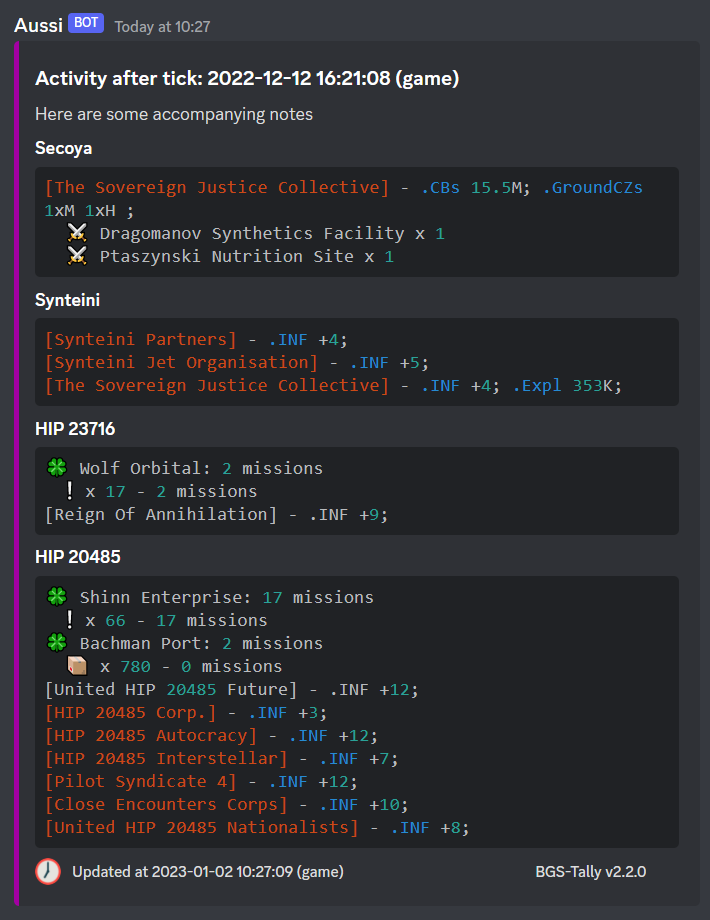
If you have already posted in the same session, your previous Discord message will be automatically updated to reflect your latest BGS work, and Discord will show the message as edited.