msa help check for update - ajtruckle/meeting-schedule-assistant-support GitHub Wiki
Use this feature to check whether a new version of Meeting Schedule Assistant is available in your current interface language.
An active Internet connection is required.
If an update is found, it will be downloaded and the installation process will begin automatically.
When a newer version is available, the Check for Update window displays the latest version number along with a list of changes included in the release.
Click Yes to download and install the update, or No to cancel.
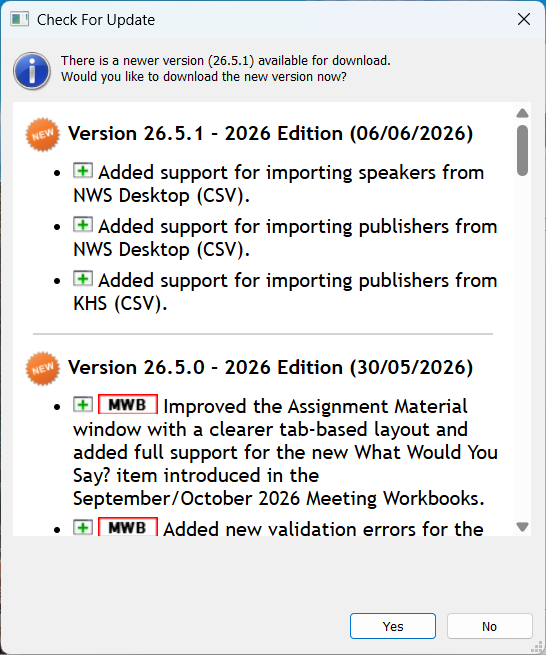
Figure 177. Update available window showing the latest version and changelog.
Occasionally, major changes may prevent older saved reports from opening in the new version. If this occurs, you will be notified before installation. Your data file is rarely affected, so re-entering information is unlikely to be necessary.
If you are already using the latest version, a confirmation window is displayed.
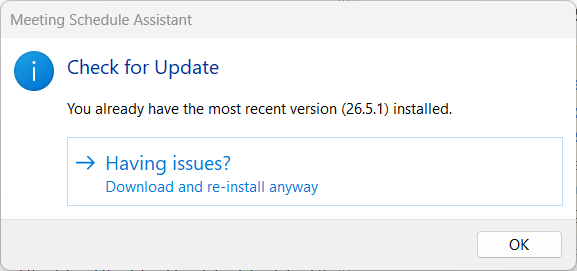
Figure 178. Up-to-date confirmation window.
The window also includes a Download and re-install anyway link. This can be useful if:
- You are participating in beta testing and need to reinstall the current build.
- You suspect the installation has become corrupted.
- You want to replace files that may have been modified or damaged.
You can configure the application to check for updates automatically via:
Menu Bar → Options → Settings
See Check for Update Settings for more information.
- Parent topic: Help Menu
- Previous topic: Check for Latest Schedule Information
- Next topic: Subscribe to the Newsletter