Getting Started - JRAdams472/LENA2 GitHub Wiki
Getting Started
Signing in
LENA offers Sign in with Google plus OAuth sign-in with Apple, Discord, Microsoft, or Facebook — there's no separate password to remember.
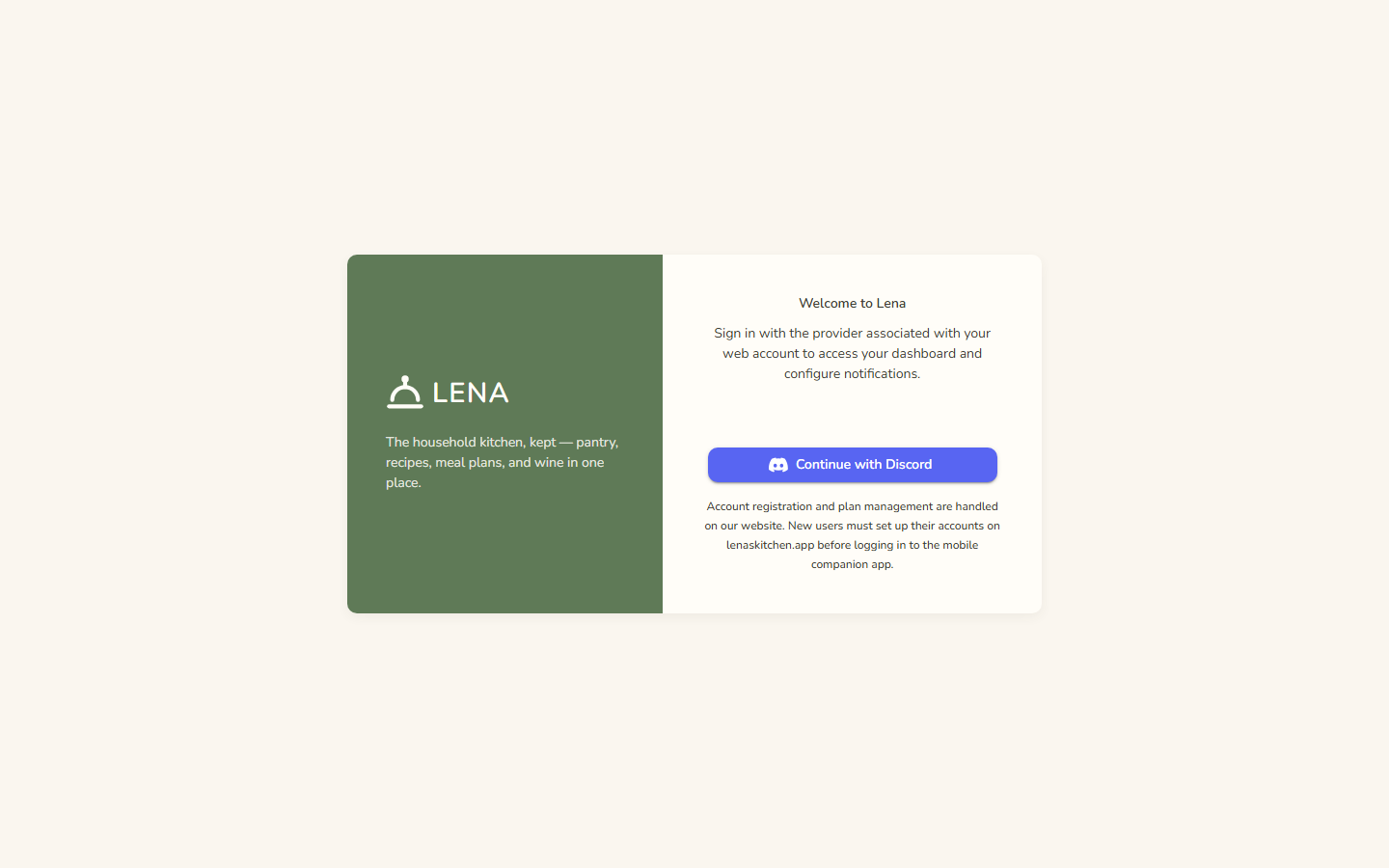
- Web: open the app URL and click your provider's sign-in button (each button appears when the instance admin has configured that provider's app).
- Mobile: the companion app's login screen offers the same providers stacked vertically. Google uses the system sign-in; on iOS, Sign in with Apple runs the native sheet (Apple doesn't appear on Android); Discord, Microsoft, and Facebook open the provider's page in a secure browser and return to the app automatically. The app is login-only: accounts are created on the website, and its footer says exactly that. Buttons only render for providers the app was built with — an unconfigured provider simply doesn't appear.
LENA follows your device's light/dark setting by default. On web, flip modes with the sun/moon button in the header or choose Light / System / Dark under Profile → Appearance; on mobile the same three options live under More → Appearance.

The first time you sign in, LENA creates your account automatically.
Access approval
On most deployments, a new account isn't active right away — it lands at an approval barrier while an administrator reviews the request. You'll see an "Access request sent" screen on both web and mobile; every active admin is notified and can approve or deny you from the Users page. Once approved, your next sign-in lands you straight in the app. If a request is denied, signing in shows an "Access not granted" screen instead. (Deployments can turn the barrier off — self-hosted instances with LENA_REQUIRE_MEMBER_APPROVAL=false admit everyone immediately, and the very first sign-in on a fresh install always bootstraps as admin so a new deployment can't lock itself out.)

Once signed in, you stay signed in — LENA keeps your session alive for up to 30 days and refreshes it in the background, so you don't have to re-authenticate every hour. Signing out ends the session on that device.
Multiple sign-ins, one account
A LENA account can link more than one login — for example both a Google account and a Discord or Microsoft account. The account-linking API is in place and a settings UI for it is planned. LENA never merges accounts by matching email addresses: linking is always something you do deliberately while signed in, so a lookalike email can never take over your household.
Set up your profile
Go to Profile (web) and fill in:
- First name / Last name — shown to your household members.
- Backup email — only used if your sign-in email ever fails.
- Birthdate — optional; unlocks the wine pairing and cocktail suggestions (the server checks 21+).
- Appearance — Light / System / Dark for the web app (see Themes).
- Allergies & dietary restrictions — your records, which drive the cooking warnings (see Allergy Tracking); each household member keeps their own.
- "Let other users find me by name or email" — turn this on if you want family members to be able to search for you and send you a household invite. If it's off, nobody can invite you.
Tip: everyone who will share a household needs this toggle on to be found — at least until they've been invited.
Your household
Everything in LENA — recipes, meal plans, grocery lists, pantry stock, wine — belongs to a household. When you create your account you're placed in a household of your own.
Two paths from here:
- You're starting fresh: keep your own household and invite your family. See Households & Members.
- You're joining someone else's household: ask them to invite you (make sure your discoverability toggle is on). The invite appears on your Dashboard and on the Household page — accept it there, and your meal plans, grocery lists, and events move with you into the shared household.
Where things live
The web app's left sidebar is split into two zones. On a phone-sized screen the sidebar collapses into a hamburger menu, tables stack into cards, and dialogs go full-screen — the web app stays usable, though the mobile app remains the better phone experience (a one-time banner suggests it; dismiss it and it never comes back on that device).
The top zone is your day-to-day kitchen work:
| Section | What you'll find |
|---|---|
| Dashboard | Today's meals, recipe recommendations, incoming invites |
| Meal Planning | Weekly Plan, Events, Grocery Lists |
| Recipes | Your recipe collection and (admins) categories + pending reviews |
| Inventory | The item catalog: items — plus (admins) brands, categories, ingredients, allergens, allergen suggestions, nutrition, and flavor profiles |
| Wine | Bottles — plus (admins) the wine reference catalogs |
Pinned to the bottom of the sidebar are two captioned groups:
| Section | What you'll find |
|---|---|
| Administration (admin) | Users, Pending Items |
| Account | Household (members, invites, roles), Profile (name, backup email, discoverability) |
Items marked (admin) — the whole Administration group, Recipes' Categories and Pending Reviews children, and every catalog entry under Inventory and Wine except Items and Bottles — only appear for household admins. Standard members who visit an admin URL directly are shown a Forbidden notice instead.


Ask Dot, the free-form assistant that can look up your pantry, plans, recipes, and cellar, isn't in the sidebar — it's the ✨ link on the second row of the header (see AI Assistant).
Notifications
The bell icon in the web header shows an unread count. You'll be notified when someone in your household changes shared things — a meal plan update, a new grocery list, an event change, or an invite. Click a notification to jump straight to the thing that changed.
On mobile, the unread count rides on the Household tab badge.
Delete your account
If you ever want out, Profile → Danger zone holds Delete my account — and the mobile app carries the same control at the bottom of the Household tab. Deletion is permanent: your profile, sign-ins, notifications, memberships, and allergy records go with it, and so does every household only you belong to (with its pantry, cellar, plans, lists, and events). Households you share keep their content and members — your seat just empties. Approved recipes and catalog items you contributed stay public, no longer tied to you.
Because there's no undo, the button only works after you type DELETE into the confirmation dialog.


First five things to do
- Fill in your profile and turn on discoverability.
- Invite your household (or accept their invite).
- Add a few recipes — or snap a photo of a recipe card and let the importer do the typing.
- Create this week's meal plan and generate a grocery list.
- Open the mobile app on your phone and try scanning a barcode in your pantry.