Input - wildware-uk/composegl GitHub Wiki
Four calls in, one answer out.
interface InputSink {
    fun onPointer(event: PointerEvent): Boolean
    fun onKey(event: KeyEvent): Boolean
    fun onText(event: TextEvent): Boolean
    fun onGamepad(event: GamepadEvent): Boolean
}
That is the entire contract between your engine and the toolkit. Your backend translates whatever it has into these; the toolkit answers did I use that? so your game can take whatever is left.
There is no dependency on LibGDX, GLFW, Android or SDL anywhere in it. That is also why the toolkit tests without a window: a test hands it the same events a keyboard would.
override fun onKey(event: KeyEvent): Boolean {
    if (ui.onKey(event)) return true    // a text field ate it
    return world.onKey(event)           // otherwise it is the game's
}
Write it that way and a player typing a save-game name does not also strafe.
Three pieces, each doing one job:
val focus = FocusManager(host.root)
val pointer = PointerRouter(host.root, focus)   // what is under the pointer, and what is a click
val keys = KeyRouter(focus, host.root)          // keys to the focused node, then outwards
val pad = GamepadNavigator(focus, onBack = { back() })
Behind one sink:
class GameInput(root: UiNode) : InputSink {
    private val focus = FocusManager(root)
    private val pointer = PointerRouter(root, focus)
    private val keys = KeyRouter(focus, root)
    private val navigate = KeyNavigator(focus, onBack = { back() })
    private val pad = GamepadNavigator(focus, onBack = { back() })

    override fun onPointer(event: PointerEvent) = pointer.onPointer(event)

    // The router first, always: a field that wanted the key has consumed it by the
    // time the navigator is asked. That is the whole of "a field takes the keys it needs".
    override fun onKey(event: KeyEvent) = keys.onKey(event) || navigate.onKey(event)

    override fun onText(event: TextEvent) = keys.onText(event)
    override fun onGamepad(event: GamepadEvent) = pad.onGamepad(event)

    fun frame(timeMillis: Long) {
        focus.refresh()       // focus may have been on a node that no longer exists
        pad.frame(timeMillis) // a held direction repeats
    }
}
Then point your engine's translator at it. With LibGDX:
Gdx.input.inputProcessor = InputMultiplexer(
    GdxPointerInput(input, { viewport }),
    GdxKeyboardInput(input),
)
GdxGamepadInput(input).start()
Call input.frame(...) once a frame, after layout — focus is worked out from where
things actually are.
Hand events over on the thread the interface lays out and draws on. The routers are not thread-safe, and a key handed over from a game-update thread races the frame being drawn. Most engines update and draw on one thread, so there is nothing to do; Kool on the desktop does not, by default — see Kool.
Focus is the cursor for anybody without a cursor. It moves by geometry: press down
and the nearest focusable thing below takes it. A direction never lands on a box that
already holds the focused widget — a focusable panel, a scrolling area, a pan-and-zoom
canvas — because that is where the player already is, not somewhere to move to. Say
focusOrder if you want a direction to reach the box around you anyway.
Button("LAUNCH", onClick = { }, initialFocus = true)

Modifier.focusable()
Modifier.focusRequester(callsign)     // …and focus.focusOn(callsign) to send it there
Modifier.focusOrder(down = mapTab)    // override the geometry where it guesses wrong
Modifier.focusTrap()                  // a dialogue keeps focus inside itself
Modifier.onReveal { child -> scrollTo(child) }
focus.refresh() once a frame is what stops a menu ending up open with nothing
selected: when the node that had focus disappears, something real takes it. It
has to run after the layout, so UiRenderer will do it for you — ui.focus = focus — and outside a renderer, host.settle(viewport, focus, nanos) is the
same three calls in the same order. Keep calling refresh yourself if your game
has two trees and two managers: the renderer only knows about one.
Calling it every frame costs nothing on a still screen. The tree counts its own
changes — a node added, removed or given a different modifier, a layout that moved
a box — and refresh returns at once when neither that count nor focus has moved
since a call that found nothing to do. The one change it cannot see is a node moved
by setting its x or y yourself. In a tree you build and place by hand, such as a
TestTree, call invalidate() on the node afterwards:
screen["third"].y = 30f
screen["third"].invalidate()   // the next focus.refresh() looks again
On a composed screen, do not set x or y by hand at all. The move lasts only until
a layout places that node again, and focus is never told about it. Move the node with
a Modifier.offset that reads state.
When a whole screen's layout is the exception — not one node, which focusOrder
already covers — focus.focusSearch swaps out the scoring itself. Subclass
BeamFocusSearch and override accepts (what counts as being in the direction
pressed) or beats (which of two candidates wins).
focus.focusSearch = object : BeamFocusSearch() {
    override fun accepts(direction: FocusDirection, source: Rect, dest: Rect) =
        super.accepts(direction, source, dest) ||
            (direction == FocusDirection.Down && dest.centre.y > source.centre.y)
}
When focus goes somewhere you did not expect, turn on FocusOverlay(enabled = debug):
it draws an arrow from the focused widget to wherever each direction goes, outlines what
can be focused, shades traps and tints where clicks land, hitShape holes included. See
Debugging.
The toolkit never plays audio, but it knows when something happened. Hand it your sounds once, round the whole screen:
ProvideUiSounds(object : UiSounds {
    override fun hover() = audio.play("tick")        // the mouse came onto a control
    override fun press() = audio.play("click")       // a control went down: mouse, Enter, Space or South
    override fun focusMove() = audio.play("move")    // arrows, Tab, d-pad or stick stepped focus
    override fun change() = audio.play("toggle")     // a checkbox, switch, radio button, slider, stepper or tab changed
}) {
    MainMenu()
}
Every method does nothing unless you override it, so name only the sounds you have.
No widget has sound code in it. The pointer router hears every hover and press and
the focus manager hears every step, so a control you build yourself out of
clickable and focusable ticks exactly like a Button. The rules:
-
Only usable things sound: enabled and
clickable, or enabled andfocusable. A disabled button is silent, and so is a panel that only watches the pointer. - One hover per arrival. Moving inside a button is silent; moving onto a button inside a clickable card ticks once, for the button.
- Press on the way down, as a real button clicks. Dragging off and back on does not press again, and letting go does not hover again — unless you let go over a different button, which ticks for that one.
- Focus moves the player asked for. A click focusing what it clicked, the first frame's auto-focus and a dialogue handing focus back are all silent. So is Left on a slider, which is a change, not a move.
- A slider changes once per step as its knob lands, and a continuous one plays a single change when it is let go, not a buzz every frame.
- A stepper changes once per step, whether the step came from a key, the pad, a click or an arrow held down and repeating. Pushing against an end is silent.
- Tabs change when you pick a different tab. Picking the one already showing only presses, like a radio button that is already chosen.
ProvideUiSounds nests: the pause menu and the HUD behind it can sound different.
A control of your own that changes a value reports it the same way the stock ones do:
val sounds = LocalUiSounds.current
Box(Modifier.focusable().clickable { sounds.change(); level++ })val source = InputSourceTracker()
val sink = SourceAware(source, toolkit) // wraps; the answers underneath are unchangedThen:
source.current          // Mouse, Touch, Keyboard or Gamepad
source.isPointing       // there is a cursor to draw
source.showsFocusRing   // there is not, so draw the ring instead
A focus ring drawn while somebody is using a mouse is a second highlight fighting the hover, which is why interfaces that draw it unconditionally look wrong on a desktop. This is the answer to that, and it changes the moment somebody picks up a pad.
It is also what PromptGlyph reads:
PromptGlyph(Action.Interact) // E … or Ⓐ … or ✕Action is a value class over a string, so your own actions cost nothing:
val Vent = Action("vent")
prompts.bind(Vent, PromptStyle.Xbox, Prompt(key = "pad.west", label = "X"))
A skin with a button atlas names its regions after those keys and gets real buttons; a skin with none gets the label in a box, which is readable everywhere and wrong nowhere.
ProvideGamepadKeyboard reads it too: a TextField focused from a pad opens an
on-screen keyboard, and one focused by a mouse or Tab does not. See
Widgets for the keyboard itself.
A small bump back from a control makes it feel physical. Ask for one by what happened, not by how a motor should move:
LocalHaptics.current.perform(Haptic.Failure) // not enough goldLightTap, MediumTap, HeavyTap, Tick, Success, Warning, Failure.
Buttons, tick boxes, switches and radio buttons already give a LightTap when
clicked. A slider gives a Tick for each notch it moves, and a stepper for
each option it steps to. Anything else is
yours to ask for.
Provide the platform's, the same way as the clipboard:
| where | what | plays |
|---|---|---|
| Android | AndroidHaptics(view) |
the phone's own tap, confirm and reject effects. No permission needed |
| iPhone | UiKitHaptics() |
UIKit's impact, selection and notification generators |
| LibGDX, anywhere | GdxHaptics(source = source) |
a touch buzzes the phone; a pad rumbles the pad; a mouse or keyboard moves nothing |
| KorGE |
KorgeBackend's haptics, a KorgeHaptics. ComposeGlView gives it the input source |
the phone's own feedback. A pad does not rumble: KorGE has no call for it |
| browser |
DomHaptics(), made for you by WebGlBackend
|
navigator.vibrate on a phone, and the first pad's rumble where it has one |
| LWJGL3, headless | nothing |
Haptics.None. GLFW has no rumble |
val haptics = GdxHaptics(source = source)     // the same tracker the input goes through
ProvideHaptics(haptics) { Hud() }
Pass the tracker. Without it GdxHaptics cannot tell what is in the player's
hand, so it asks both motors, and a mouse click hums the pad lying on the desk.
Nothing reports whether anything moved. A phone with vibration switched off answers the same as one that buzzed, and that is the player's choice.
In a test, HeadlessBackend records every request:
val felt = RecordingHaptics()
uiTest(backend = HeadlessBackend(haptics = felt)) { Shop() }.use { ui ->
    ui.click("buy")
    assertEquals(listOf(Haptic.LightTap, Haptic.Failure), felt.performed)
}Focus hopping is right for a menu and wrong for a world map, a drag and drop inventory
or a skill tree. There is nothing to hop between on a map. For those screens, wrap the
screen in VirtualCursor and the pad drives a pointer instead:
VirtualCursor(enabled = onMapScreen, speed = 900f, snapToTargets = true) { MapScreen() }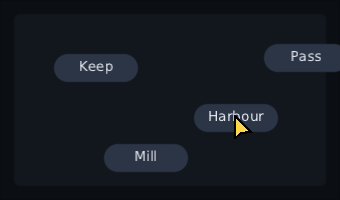
- The left stick (or the d-pad) moves a drawn arrow. A small push is slow aim; a full push crosses the screen in about a second and a half.
- South is the mouse's left button. Hover, press, drag and click all work, because the screen hears ordinary pointer events. A screen written for a mouse works as it is.
- The right stick turns the wheel under the cursor.
- With
snapToTargets, the cursor slows over anything clickable, and a stick let go near a button glides onto its middle. - The arrow only shows while the player is on the pad, so picking up the mouse never
leaves two cursors. While it is on,
source.isPointingis true, so focus rings hide. - Leaving the screen, or pulling the pad out, cancels a drag instead of dropping it.
The cursor itself is made once, next to the navigator, and asked first:
private val cursor = GamepadCursor(root, pointer)   // the router itself, not the SourceAware sink

override fun onGamepad(event: GamepadEvent) = cursor.onGamepad(event) || pad.onGamepad(event)

fun frame(timeMillis: Long) {
    focus.refresh()
    cursor.frame(timeMillis)   // where the cursor actually moves
    pad.frame(timeMillis)
}
and provided to the interface with ProvideGamepadCursor(cursor) { ... }. While no
VirtualCursor is on, the cursor takes nothing and the navigator gets every event.
cursor.area keeps it over part of the screen, and cursor.moveTo(point) puts it
somewhere to begin with, like the player's marker when the map opens.
Escape, the pad's B button and Android's back gesture are the same question: what is open?
ProvideBackStack(backs) {
    Screen()
}

// anywhere inside
OnBack(enabled = inventoryOpen) { inventoryOpen = false }
The innermost one wins: the stack asks the most recently added handler first, and
the most recently added is whatever opened last. Dialog puts itself on the stack,
so Escape and B close it without you wiring anything.
Ask the stack first and let the screen handle what nothing wanted:
GamepadNavigator(focus, onBack = { if (!backs.back()) state.back() })A key goes to the focused widget first, then outwards to its parents. Ctrl+S has to save from anywhere, and "anywhere" is not inside the thing that saves. So a widget can ask for the keys nobody around focus wanted:
val save = remember {
    KeyHandler { event ->
        (Modifiers.Primary + Key.S).matches(event).also { if (it) save() }
    }
}
Box(Modifier.onShortcutKey(save)) { Editor() }
KeyRouter offers a key here after the walk from focus found no taker, and before
KeyNavigator moves focus. Three rules:
- Last. A text field that uses Ctrl+A keeps it.
- Inside the dialogue. Only nodes inside the innermost focus trap hear it, so a shortcut does not fire through an open dialogue.
- Seen. A faded-out panel's shortcuts are off.
Modifiers.Primary is Command on a Mac and Control everywhere else.
KeyShortcut.label writes it the way that machine does: Ctrl+S, Cmd+S.
Modifier.onShortcutGamepad is the same for a pad button, asked before
GamepadNavigator acts. A MenuBar uses both; see Widgets.
Slot(Modifier.clickable(
    onDoubleClick = { equip(item) },       // open a save, equip an item
    onLongPress = { showActions(item) },   // context actions, hold to confirm
) { select(item) })

Box(Modifier.repeatingClickable(initialDelayMillis = 400, intervalMillis = 60) { count++ }) {
    Text("+")
}
Think of a doorbell. A tap rings once. Holding it down is a different message. Two quick taps is a third.
-
Double click. The first click fires
onClickstraight away. A second press within 300ms firesonDoubleClickinstead of a secondonClick. So "select, then equip" needs no waiting. A third click is a plain click again. -
Long press. Held for 500ms,
onLongPressfires once, while still held. The release after it is not a click. Sliding off first cancels it, even if you slide back. -
Hold to repeat. A tap is one step, on release. Held, it steps after
initialDelayMillis, then everyintervalMillis, until you let go. Sliding off pauses it. A long stall steps once, not in a burst.
All three work the same from a mouse, a finger, Enter, or the pad's South button. Enter's own key repeat is ignored, so the two don't add up. Moving focus away while holding Enter counts as sliding off.
Timings run on a Clock (Clock.Ui unless you pass clock =), advanced by the
host each frame. Put a world panel's buttons on Clock.World and a hold pauses with
the game. It also means a test runs a two-second hold by advancing frames.
A clickable with no onDoubleClick or onLongPress is timed by nothing, so a
held plain button still costs no frames.
A widget with a Modifier.contextMenu and no onLongPress of its own opens that
menu on a long press instead, and so does a plain button inside it. Only a
pointer's hold does that: a held Enter or South stays a click, and a press that
moves stops being a hold. A right-click opens it too, and so do Shift+F10 and a
pad button on the focused widget. See Widgets.
A window by its frame, a map being panned, an item picked up out of a slot:
var at by remember { mutableStateOf(Offset.Zero) }

Panel(
    Modifier
        .offset(at.x, at.y)
        .draggable(
            onDragStart = { grabbedAt -> },
            onDragEnd = { snapToSlot() },
            onDragCancel = { at = home },   // defaults to onDragEnd
        ) { delta -> at += delta },
) { … }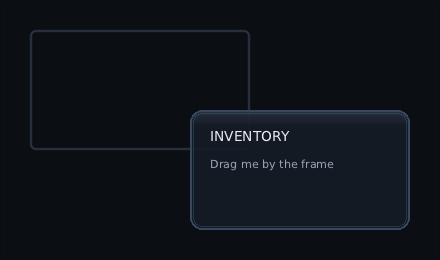
Every hand-written drag gets one of these slightly wrong, so draggable does them once:
-
Slop. Nothing happens until the pointer is more than 8 units from the press
(
slop =to change it). ThenonDragStartgets where the press was, and the firstonDragcarries the whole way from there, so the item is never behind the pointer. A press that stays inside the slop is still a click. - Capture. The drag carries on outside the widget and outside the window. A drag is never a click, wherever it is let go.
- A widget that moves. A window following the pointer moves exactly as far as the pointer does. Deltas are in the widget's own units, so a half-size map pans at the speed it looks like it should.
-
Cancel. The platform taking the gesture away calls
onDragCancel, neveronDragEnd, so the item can go home instead of being dropped. - Things inside. A button in a draggable window is clicked by a steady press. Drag from it instead and the button lets go — no click — and the window moves. A slider in the window keeps its own drags: it is using the pointer, so it keeps it.
-
Holds. A press that becomes a drag is no longer a hold. A long press or a
repeatingClickableunder it never fires, however long the drag lasts.
It is the primary button or a finger. Two fingers drag two things at once. A disabled
draggable does not take the press at all, and turning one off mid-drag cancels it.
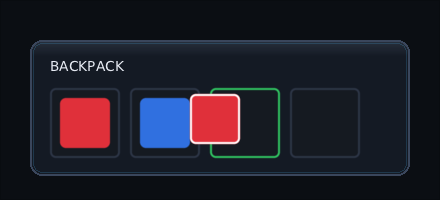
Moving an item from the backpack to the hotbar. One slot hands over a payload, another takes it:
DragAndDropHost {                       // once, round the screen
    Inventory()
}

// a slot with something in it
Slot(Modifier.dragSource(payload = item) { ItemIcon(item) })

// a slot that can take something
val look = remember { DropTargetState() }
Slot(Modifier.dropTarget<Item>(
    state = look,                        // isHovered, isRefusing, isOffered
    accepts = { it.fits(slot) },
    onDrop = { move(it, slot) },
))
Think of carrying a cup across a kitchen. You pick it up in one place, you can see it in your hand the whole way, and the counter you put it on either has room or does not.
- The picture. The trailing lambda is what is carried. The host draws it over everything, held where it was grabbed, so it never jumps under the pointer.
-
The targets. The one under the pointer is the one on top, the same one a click
there would reach.
state.isHoveredlights it;isRefusingsays "not here";isOfferedis every slot that would take it, for a hint while carrying. -
Types.
dropTarget<Item>refuses anything that is not anItemwithout askingaccepts, so a sword slot and a spell slot sit side by side. -
Letting go. Over a target that accepts: its
onDropruns. Anywhere else, or a cancel, or Escape: nothing moves. The source'sonDragEnd(dropped)hears which. - A pad. South on a slot picks the item up. Move focus as usual; the picture floats over whatever has focus, a slot or a plain button. South on a slot drops it; on a button it is still a click, and the item stays in hand. East, or South on the slot it came from, puts it back. Enter and the arrow keys do the same on a keyboard.
Both modifiers make the node focusable, so a pad can reach it. If the widget reads its
focus from its own InteractionState, pass it as interaction =, or write your own
focusable(state) before them in the chain and they share it. A slot that is a source
and a target stays focusable while either is on, so a locked slot can still be emptied. The pointer side is a
draggable underneath, with its slop, capture and cancel.
South reaches a slot through Modifier.onActivate { … }, which you can use yourself: it
is asked when South or Enter comes up on the focused node, before the click. Return
true and there is no click.
A whole bag of these — squares, stacks that merge and split, items bigger than one square, and a chest to drag them into — is InventoryGrid, built on exactly this.
When a widget needs more than a click or a drag:
Modifier.onPointer { event ->
    when (event) {
        is PointerEvent.Press -> { drag.start(event.position); true }
        is PointerEvent.Move -> { drag.to(event.position); true }
        is PointerEvent.Release -> { drag.finish(); true }
        is PointerEvent.Cancel -> { drag.abandon(); true }
        else -> false
    }
}
A layer that only wants to know what the pointer did asks with watchPointer instead:
val where = remember { PointerWatcher { if (it is PointerEvent.Move) at = it.position } }
Box(Modifier.fillMaxSize().watchPointer(where)) { … }
The difference is what it cannot do. A full-screen onPointer is the topmost thing the
pointer finds, so nothing under it is hovered any more even when the handler returns
false — right for a scrim over a dialogue, wrong for a card that hangs beside the
cursor. A watcher is told the same events in the same coordinates and is never hovered,
never pressed and can never consume, so the slots underneath carry on as before.
Capture does not apply to it. A press a button underneath takes, every move while that
button holds the gesture, the release that ends it and the Exit when the mouse leaves
the window all reach the watcher — it is not competing for the event, so there is
nothing for a capture to keep from it. A card that hangs beside the cursor is still
beside it half way through a drag, and knows to put itself away when the mouse has gone.
A pad does not bubble through widgets on its own: the navigator turns South into a press and the d-pad into a focus move. A control that wants the raw buttons — a key binding button waiting for "any button" — asks for them first:
Modifier.onGamepadEvent { event ->
    event is GamepadEvent.ButtonDown && listening   // true: the navigator never sees it
}
It walks out from the focused node like a key. Take an up only when you took its down, or the navigator is left holding a button that never comes up. A left stick coming back to rest is the exception: you can take it, but the navigator lets go of a push it was holding either way, so a push that moved focus onto a control that takes every stick event does not keep stepping focus back out.
A control that holds on to a button or a stick push of its own will not hear it let go
if the pad is unplugged, so every handler on that walk is also told
GamepadEvent.Disconnected. Nothing can take it — the navigator lets go either way —
but it is the moment to stop whatever the held button was doing. The same goes for
focus moving away: the release goes to wherever focus went, so let go then too.
Cancel is the one people forget. The window lost focus, the platform started a
system gesture, a finger lifted outside the screen — whatever had the pointer must
let go without firing a click. Handle it and a dragged slider does not stick.
For your own 3D scene in a panel, SceneView takes onPointer, onKey and onPad
itself, with positions already in the picture's pixels and the up-without-a-down rule
handled for you. See Scene view.
A click finds a widget by its rectangle. For a round button, a diamond or a honeycomb cell that is too generous: the empty corner of one rectangle sits over the middle of its neighbour, so the click goes to whichever happened to be drawn last, and the widget the player can plainly see they aimed at loses.
val round = remember(radius) {
    { p: Offset ->
        val dx = p.x - radius
        val dy = p.y - radius
        dx * dx + dy * dy <= radius * radius
    }
}
Modifier.hitShape(round)
remember because a shape written inline is a new lambda every recomposition, and a
modifier chain that never compares equal makes the widget re-resolve and redraw every
frame. The same caveat applies to clickable and drawBehind.
The rectangle is still asked first and the shape only ever narrows it. Say no and the click carries on to whatever is underneath, which is the point — in a honeycomb the pointer falls through the corner it was handed to the cell that really owns it. Hover asks the same question, so a panel is hovered only where it would have been clicked.
p arrives in the widget's own coordinates — the same ones onPointer gives you, with
any scale divided back out, so the shape survives the widget growing. It speaks for
its own widget only; a child that wants the same shape asks for it itself.
An I-beam over somewhere to type, a hand over a link, an arrow over an edge that drags:
Modifier.pointerHoverIcon(PointerIcon.Hand)The router shows the icon of the topmost thing under the mouse. Something that asks for
nothing shows its nearest ancestor's, so an icon on a panel covers every button inside
it — and something drawn on top of the panel hides it, the same way it would take the
click. TextField asks for PointerIcon.Text already; put your own on its modifier and
yours wins.
Hand the router the backend's cursor and it keeps the shape right:
val pointer = PointerRouter(host.root, focus, backend.cursor)| icon | |
|---|---|
Default |
the arrow |
Text |
an I-beam |
Hand |
a pointing hand |
Crosshair |
a thin cross |
ResizeHorizontal, ResizeVertical
|
two-way arrows |
ResizeTopLeftBottomRight, ResizeTopRightBottomLeft
|
the corners |
Move |
four-way arrows |
NotAllowed |
a circle with a line through it |
The rules, all of them things you would otherwise find out by accident:
- A drag keeps its shape. While a press is held the icon stays whatever it was when the press began, so a resize arrow does not flick back to the arrow when a fast drag outruns its edge.
- An icon takes no clicks. It makes a node findable, not pressable: a crosshair laid over a map still lets the press through to the map.
- Only a mouse or a stylus changes it. A finger has no cursor and a ray in the world is not the one on the desktop.
- The backend is asked when the shape changes, never per mouse move.
- The shape is read when the mouse moves or presses. A field switched off under a still mouse keeps its I-beam until the mouse next twitches or clicks, and a drag always starts with the shape of what the press landed on.
pointer.pointerIcon says what the shape should be, for a game that draws its own
cursor. GdxBackend, Lwjgl3Backend, WebGlBackend and KorgeBackend change the real one; on Android and iOS there
is nothing to change and the call does nothing. A backend that cannot show a shape
shows the arrow.
Modifier.onTextEvent { event -> buffer.insert(event.text); true }Text is separate from keys on purpose: a key is a physical button, and text is what
the platform decided those buttons meant — which depends on layout, modifiers and
the input method. TextField already does all of this.
Those languages are not typed one key at a time. You type ni, the input method
holds it as provisional text — shown underlined, not decided yet — and offers
you に, 二, 荷 to choose from. A phone's autocorrect is the same machinery:
the keyboard keeps a word open and commits something other than what you pressed.
A stream of characters cannot express that, because both go back and edit text they already sent. So a backend can drive a field directly instead:
// desktop
ProvideTextInput(GlfwTextInput(window)) { Hud() }

// Android
ProvideTextInput(AndroidTextInput(activity) { Gdx.app.postRunnable(it) }) { Hud() }
Pass nothing and you get TextInput.None, which is key events alone — correct for
any language you can type one key at a time, and what everything did before this
existed.
-
Widgets —
TextField,Sliderand what they do with input; Game widgets —Hotbar - Backends — the translators that ship, and writing your own
- Split-screen — several players in one window, each pad routed to its own interface
- Testing — handing the toolkit events with no window anywhere