Example use - piotrulos/MSC-Mods GitHub Wiki
This is documentantion for Mods Shop
Accessing below functions are through instance of Shop class
Shop shop = ModsShop.GetShopReference();CreateShopItem(Mod mod, string itemID, string itemName, float itemPrice, bool multiplePurchases, Action<Checkout> purchashedAction, GameObject itemObject, SpawnMethod spawnMehod)
CreateShopItem(Mod mod, string itemID, string itemName, float itemPrice, bool multiplePurchases, Action<Checkout> purchashedAction, GameObject itemObject, SpawnMethod spawnMehod, bool excludeFromShoppingBag)This fuction creates shop item
- mod - your mod instance
- itemID - create unique itemID for your product
- itemName - item name, this name is displayed when you mouse over display item.
- itemPrice - actual purchase price per signle item
- multiplePurchases - can this item be bought more than once? (true/false)
- purchashedAction - function that is executed after someone bought this item
- itemObject - actual functional object to spawn after this item is bought
- spawnMehod - how shop should spawn this item.
- excludeFromShoppingBag - Exclude this item from being added to the shopping bag
- SpawnMethod.Instantiate - whatever was put in itemObject will get Instantiated, so chosing this method you can just provide raw prefab as itemObject
- SpawnMethod.SetActive - whatever was put in itemObject will be just "spawned" using "gameObject.SetActive(true)", only available if multiplePurchases is set to false
- SpawnMethod.Custom - custom is total freedom, itemObject is ignored (you can set it to null) and do whatever you want in purchashedAction you can spawn something big outside shop, or just do a service, creativity is your limit. (This spawn method automatically ignores Shopping bags)
CreateShopItem() returns a ItemDetails that is required for AddDisplayItem()
if multiplePurchases is set to false, don't create item again that was already purchased, so make sure to load your save first to check if products have been purchased.
ModsShop doesn't save anything - saving is up to you.
SpawnMethod.Instantiate and SpawnMethod.SetActive items will be packaged in shopping bag (if someone bought at least 3 items not excluded from shopping bag), any items excluded from shopping bag will spawn by default on cashiers desk.
AddDisplayItem(ItemDetails itemDetails, GameObject displayObject, SpawnMethod displayObjectSpawnMethod)
AddDisplayItem(ItemDetails itemDetails, GameObject displayObject, SpawnMethod displayObjectSpawnMethod, Vector3 rotation, int gap = 2)
This function creates a display item that is automatically put on shelf.
- itemDetails - whatever you created using CreateShopItem()
- displayObject - display object to put on shelf (more info below)
- displayObjectSpawnMethod - how shop should spawn this item.
- (optional) rotation - rotation eulerAngles correction for displayItem
- (optional) gap - gap behind last item (there is default gaps between mods)
- SpawnMethod.Instantiate - whatever was put in displayObject will get Instantiated.
- SpawnMethod.SetActive - whatever was put in itemObject will be just "spawned" using "gameObject.SetActive(true)".
- SpawnMethod.Custom - Not used in AddDisplayItem().
displayObject can be anything to show your item on shelf, this object doesn't require anything special. Make sure it has no logic or physics attached.
displayObject prefab should only contain BoxCollider set as trigger on root GameObject. Do not attach Rigidbody or custom MonoBehaviours to it, it's only for display and should be as performance friendly as possible.
Make sure you read how it works before you copy/paste code like a monkey.
void Mod_OnLoad()
{
    //Load your assets first and save file

    //(...)

    //Simplified code example

    //myProduct - spawnable final product (after it's purchased)
    GameObject myProduct = ab.LoadAsset<GameObject>("product.prefab");

    //myProduct_display - simplified display version of product (only mesh and box trigger, no logic and physics)
    GameObject myProduct_display = ab.LoadAsset<GameObject>("product_d.prefab");

    //Check if mod is installed
    if (ModLoader.IsModPresent("ModsShop"))
    {
        //if shop is optional mod, use separate function to load it's stuff.
        LoadShopStuff();
    }

}

void LoadShopStuff()
{
    //if shop is optional mod, best way is to not use global namespace "using ModsShop;"

    //Get Shop reference
    ModsShop.Shop shop = ModsShop.ModsShop.GetShopReference();

    //Create your item (as explained before)
    ModsShop.ItemDetails myItem = shop.CreateShopItem(this, "myProduct1", "This is test item", 500f, false, AfterPurchased, myProduct, ModsShop.SpawnMethod.Instantiate);

    //Add display item (that will be displayed on shelf
    shop.AddDisplayItem(myItem, myProduct_display, ModsShop.SpawnMethod.Instantiate, Vector3.zero);
}

void AfterPurchased(ModsShop.Checkout item)
{
    //Here you can do something after your item was purchased
    //You can use same function for multiple items. (you can filter them by item.itemID)

    GameObject boughtItem = item.gameObject; //item.gameObject retrns spawned item

    //Stuff useful for SpawnMethod.Custom
    string boughtItemID = item.itemID; //item.itemID - returns your itemID of purchased item
    //item.spawnLocation - recommended spawn point for SpawnMethod.Custom (optional)
    Vector3 prefferedSpawn = item.spawnLocation;
}Custom Shelf is a place where you can add multiple items, or bigger items that doesn't fit in auto-populated shelf. You can add items any way you want, but please don't use custom shelf to add single small object, number of custom shelfs is limited.
To create custom shelf you need to download template ufirst, it's unity package project that has prepared shelf prefab and example scene for you. All below example is based on that template (you can import it to your current assetbundle project)
Download latest unity package from releases tab
Open above template and open scene named Custom Shelf Example it should look like this:
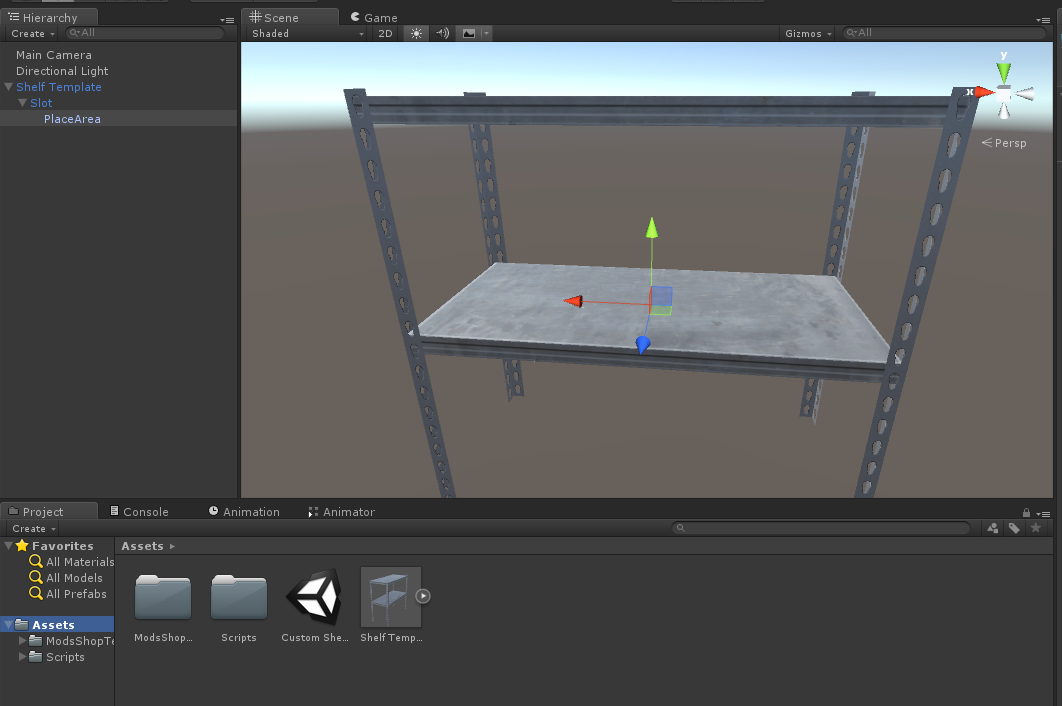
Place your products on shelf, your products should be a child item of PlaceArea GameObject, like this:
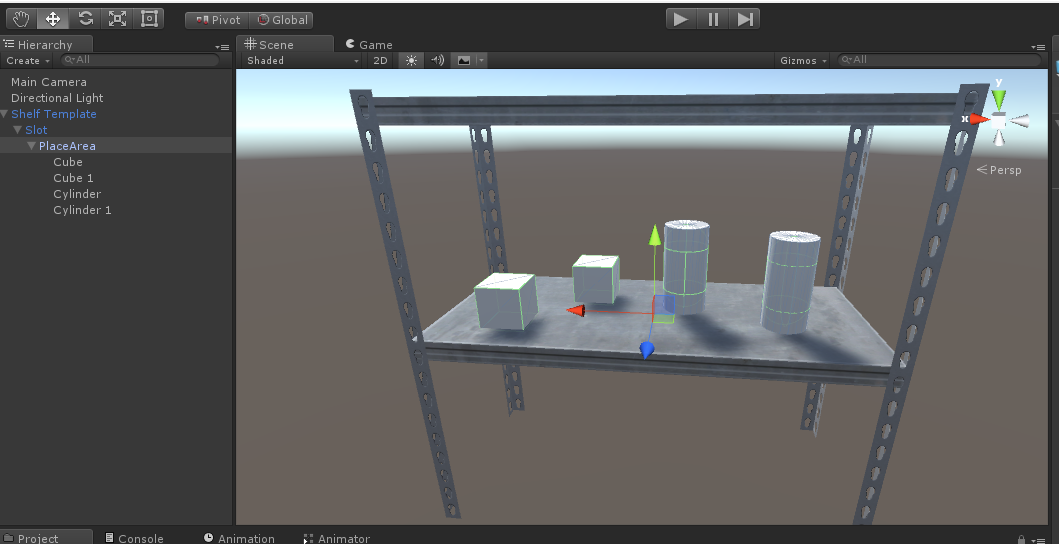
All your products need to have a trigger (any shape).
Signle shelf is considered single slot, do not go outside the area of single slot.
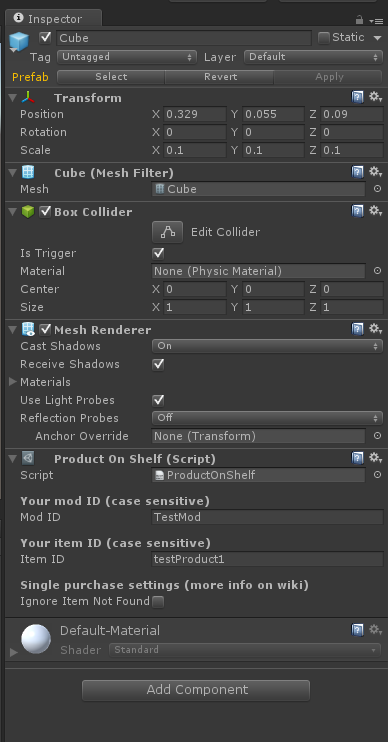
Then add to each product a Product On Shelf component (by clicking add component and typing product on shelf, if nothing shows make sure you installed tempalte package)
and fill it's values:
Mod ID - your mod ID (Case sensitive)
Item ID - itemID of product created using CreateShopItem() (Sase sensitive)
Ignore Item not found - It's a checkbox that should be checked if your item is single-purchase only, so if product is purchased and next time you load mod it doesn't throw error when you don't use CreateShopItem() for that id.
Drag PlaceArea into assets to create prefab from it (AND GRAB ONLY PlaceArea as a prefab with all your child objects), and add it to assetbundle like usual (you can rename that prefab)
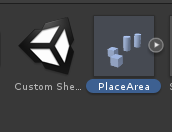
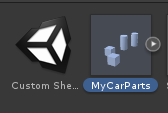
You can now add your PlaceArea renamed prefab to your assetbundle
AddCustomShelf(GameObject customShelfPrefab)Adding custom shelf in code is simple, Crete all items that are in the shelf first, and then use AddCustomShelf() to add custom shelf prefab (do not instantiate the prefab)
void LoadShopStuff()
{

    //Get Shop reference
    ModsShop.Shop shop = ModsShop.ModsShop.GetShopReference();

    //Simplified example

    //Create your items first (as explained before)
    shop.CreateShopItem(this, "testProduct1", "This is test item 1", 500f, true, AfterPurchased, myProduct, ModsShop.SpawnMethod.Instantiate);
    shop.CreateShopItem(this, "testProduct2", "This is test item 2", 500f, true, AfterPurchased, myProduct, ModsShop.SpawnMethod.Instantiate);

    if (!test2alreadyBought)
    {
        shop.CreateShopItem(this, "testProduct3", "This is test item 3", 500f, false, AfterPurchased, myProduct2, ModsShop.SpawnMethod.Instantiate);
        shop.CreateShopItem(this, "testProduct4", "This is test item 4", 500f, false, AfterPurchased, myProduct2, ModsShop.SpawnMethod.Instantiate);
    }
    //Load your shelf prefab from assetbundle
    GameObject shelf = ab.LoadAsset<GameObject>("MyCarParts.prefab");

    //Add shelf to prefab
    shop.AddCustomShelf(shelf);
}