Theatre Surgery Workbench - hmislk/hmis GitHub Wiki
Theatre — Surgery Workbench
Overview
The Surgery Workbench is the central screen for managing all activity related to a single surgery. From one place, staff can see the patient's details, the surgery name, running charge totals, and quickly navigate to add any type of theatre charge — services, medicines, timed services, or professional fees.
When to Use
- After adding a surgery to an inpatient, to begin recording charges
- During the surgical episode to add services or issue medicines
- After the procedure to add professional fees and review the surgery summary
- Any time you need to review what has been charged against a surgery
Required Privilege
TheatreAddSurgery or TheatreBilling
Navigating to the Surgery Workbench
From the Theatre menu:
- Click Theatre → Add Surgeries
- Search for and select the patient
- If a surgery already exists, click on it — the Workbench opens for that surgery
After adding a surgery:
- The Workbench opens automatically when a new surgery is saved
From the Inpatient Dashboard:
- Click the Theatre or Surgery Workbench button on the admission profile
Workbench Layout
The Surgery Workbench is divided into three panels:
Left Panel — Patient and Surgery Summary
Shows read-only patient and admission information:
- Patient name, age, gender
- Mobile number, NIC
- BHT number, room, discharge status
- Surgery name (procedure)
- Surgery start and end times (once recorded)
Centre Panel — Quick Actions
When a surgery is selected, the action buttons appear:
| Button | Action |
|---|---|
| Add Services & Investigations | Charge theatre services to this surgery |
| Direct Issue Medicines | Issue pharmacy items to this surgery |
| Add Timed Services | Record duration-based charges (OT time, etc.) |
| Add Professional Fees | Add surgeon, assistant, or anaesthetist fees |
| Add Outside Charges | Add an ad-hoc charge for an item sourced from outside the hospital (e.g. an instrument or consumable not in the regular catalog) against this surgery's admission |
| View Professional Fees List | See all professional fee bills for this surgery |
| Clinical Details | Record operative notes and surgical team |
| Edit Surgery | Change the surgery procedure name |
| Surgery Bill Summary / Validate | Review/check every bill under this surgery and lock it once billing is confirmed |
Right Panel — Surgery Summary Tabs
Shows all charges already recorded, organised by type:
| Tab | What It Shows |
|---|---|
| Professional Fees | All fee bills with role, doctor name, and amount |
| Timed Services | Timed service records with start/stop times and totals |
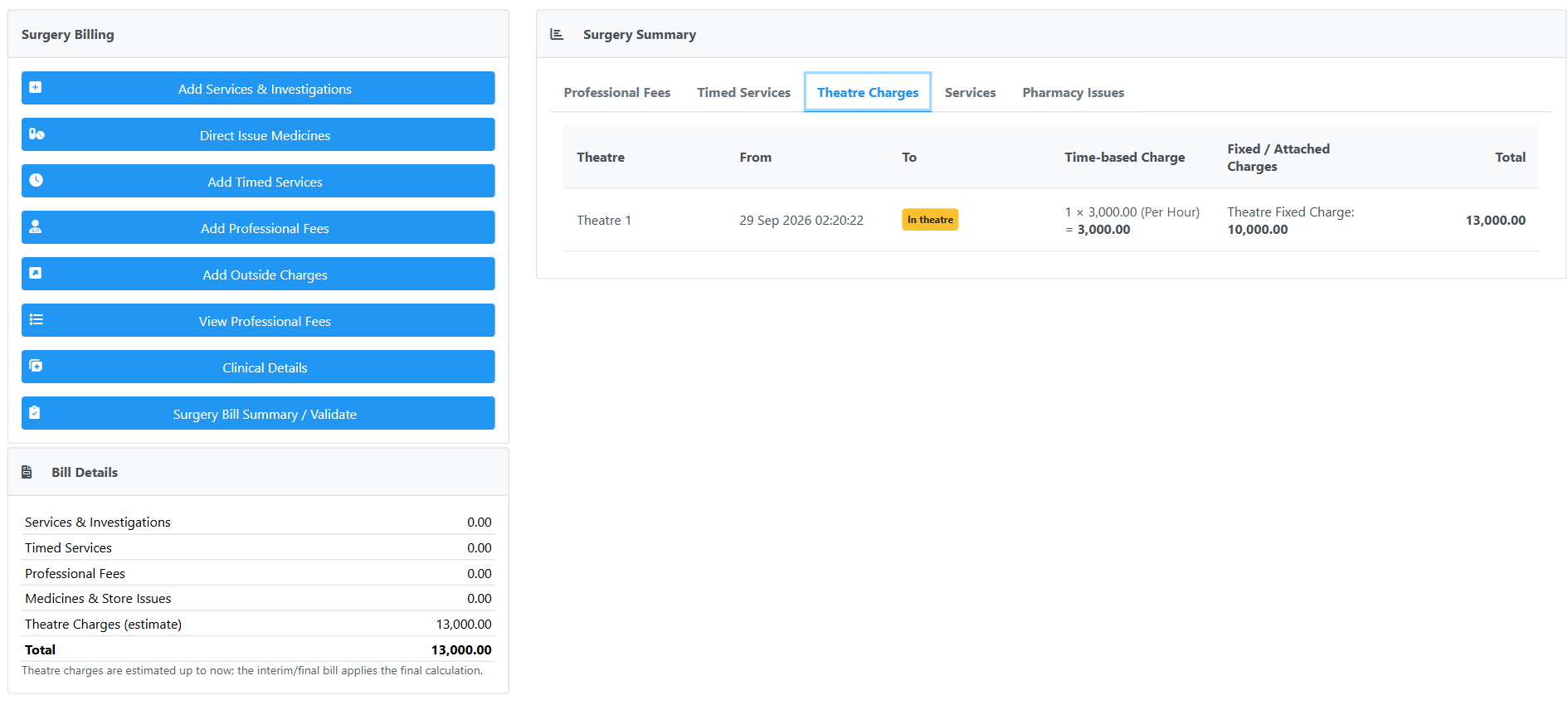
| Theatre Charges | Each theatre stay for this surgery (theatre room, time accepted into theatre, time returned or In theatre), its time-based charge (blocks × rate) and the fixed charges attached to the theatre room, with a total per stay |
| Services | Theatre service items grouped by department |
| Pharmacy Issues | Medicines and consumables issued to this surgery |
Bill Details — Running Totals
Below the action buttons, Bill Details shows what the surgery has cost so far, by charge type:
- Services & Investigations
- Timed Services
- Professional Fees
- Medicines & Store Issues
- Theatre Charges (estimate)
- Total
Theatre charges are calculated up to the current time while the patient is still in theatre, so the figure grows with the length of the stay. The interim and final inpatient bills apply the final calculation (including any room price matrix adjustment), so the billed amount can differ slightly from the estimate.
Theatre charges appear only when the patient was sent to theatre with this surgery selected on Send to Theatre, and has been accepted by the theatre.
Bill Details, and the amount columns in the Timed Services and Theatre Charges tabs, are shown only to users with the NursingIPBillingViewRates privilege. Users without it can still add and review the items, but can't see the amounts.
Working with the Workbench
To Add Services
Click Add Services & Investigations → the theatre service billing page opens with the surgery pre-loaded. See Adding Theatre Services to a Surgery.
To Issue Medicines
Click Direct Issue Medicines → the pharmacy issue page opens. See Pharmacy Issues for Theatre.
To Add Timed Services
Click Add Timed Services → the timed service entry page opens. See Timed Services in Theatre.
To Add Professional Fees
Click Add Professional Fees → the professional fee entry page opens. See Managing Professional Fees.
To Add Outside Charges
Click Add Outside Charges → the Add Outside Charges page opens with this surgery's admission pre-loaded, so an ad-hoc charge for an outside item (instruments, consumables not in the regular catalog) can be added without leaving the theatre workflow to find the admission from the general Inpatient Dashboard. Requires the Inward Add Outside Charges privilege. The button is disabled once the surgery is marked completed. See Add Outside Charges.
 The Surgery Billing panel with the new Add Outside Charges button, alongside the other billing actions for the surgery.
To Record Clinical Information
Click Clinical Details → the clinical details page opens where you can record operative notes, surgery timing, and the surgical team. See Recording Clinical Details.
To Edit the Surgery Name
Click Edit Surgery → you can change the procedure. This is disabled once the admission is finalised.
To Review, Check, and Validate Billing
Click Surgery Bill Summary / Validate → every bill under the surgery is listed for review. Once all bills are checked, the surgery can be validated, locking out further additions until an authorised user reverts it. See Surgery Bill Summary / Validate.
Navigation Links
From the Workbench, you can also navigate to:
- Inpatient Dashboard — return to the full admission profile
- Nursing Workbench — switch to the nursing management screen
- Patient Profile — view the patient's full history
Understanding Messages
- "Admission has been finalised" — Charges can no longer be added. The patient's bill has been closed.
- Surgery action buttons are hidden when the admission is finalised.
Best Practices
- Use the Surgery Workbench as your starting point for all theatre activity — it keeps all charges visible in one place
- Check the Summary tabs before settling any bill to ensure all charges have been captured
- Record Clinical Details early — operative notes should be entered while the procedure is still fresh
Related Features
- Theatre — Adding a Surgery — How to create the surgery first
- Surgery Bill Summary / Validate — Reviewing, checking, and locking a surgery's billing
- Recording Clinical Details
- Adding Theatre Services to a Surgery
- Timed Services in Theatre
- Pharmacy Issues for Theatre
- Managing Professional Fees
- Theatre Management Module Overview