Finance Starting and Ending a Shift - hmislk/hmis GitHub Wiki
Starting and Ending a Shift
Introduction
A shift is the unit of work for a cashier. Every payment transaction belongs to a shift. Starting a shift records the opening cash (float), and ending a shift produces the shift-end summary for reconciliation and handover.
Navigation
Main Menu → Financial Transaction Manager → Shift tab
Starting a Shift
- In the Shift tab, click Start Shift. The Start Shift page opens.
- Under Add Funds, choose the Payment Method (usually Cash).
- Enter the opening float amount handed to you at the start of your shift. You may also enter the denomination breakdown (see Denomination Management).
- Click + Add — the amount appears in the Funds List and Total Funds updates.
- Click Start Shift. Your shift is now open, the drawer balance is set, and the initial fund receipt prints.
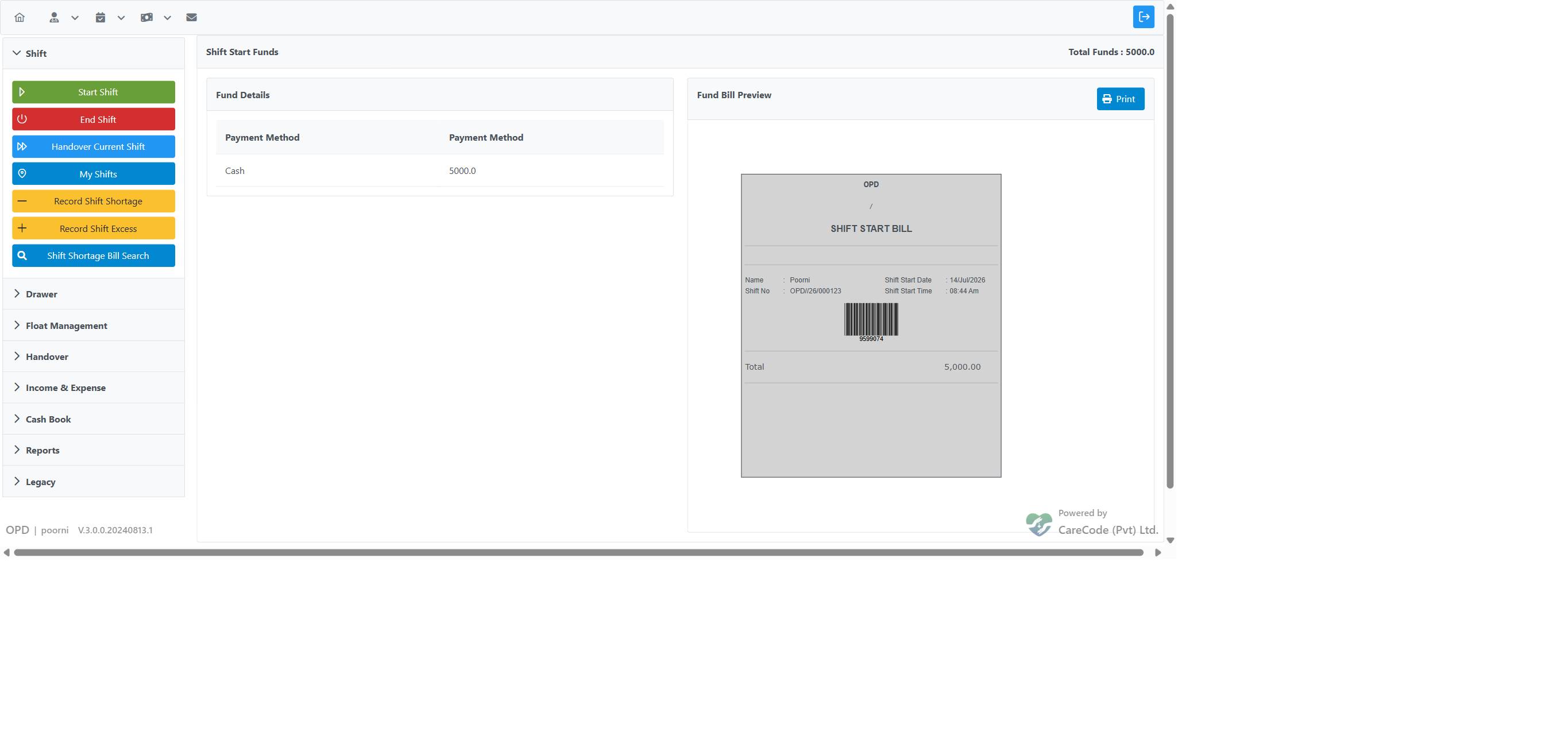
Tip: You can start a shift with a zero opening float, but the recommended practice is to record the actual cash you were handed so your drawer reconciles correctly at shift end.
If you try to process a payment before starting a shift, the system displays a visual alert on the Financial Transaction Manager dashboard.
Fields on the Initial Fund Bill Page
| Field | Description |
|---|---|
| Date/Time | Auto-set to current time |
| Opening Amount | Total opening cash float |
| Denomination breakdown | Enter quantity of each note/coin denomination |
| Department | Your assigned department (auto-populated) |
| Notes | Optional remarks |
Ending a Shift
- In the Shift tab, click End Shift.
- The system calls
navigateToCreateShiftEndSummaryBillForHandover()and generates the Shift End Summary Bill. - Review the summary: collections grouped by payment method (Cash, Card, Credit, Voucher, etc.), total transactions, total amount.
- If the shift end involves a handover to another cashier, proceed to Shift Handover.
- Click Confirm to close the shift.
When You Cannot End Your Shift: Settlement Awaiting Approval
If you have submitted a Non-Cash Settlement that has not yet been approved or rejected, the system will not let you end your shift or create a handover. End Shift and Handover Current Shift show a message naming the request:

End Shift is refused while settlement request NCSET-… is still waiting for approval.
To continue, ask an approver to approve or reject the request, or withdraw it yourself from Settle Non-Cash Payments → My pending settlement requests. No configuration option overrides this block.
Shift End Summary Pages
| Page | Purpose |
|---|---|
shift_end_summery_bill.xhtml |
Summary by payment method |
cashier/shift_end_summary_bill_list.xhtml |
Bill-by-bill listing |
shift_end_summery_bill_by_bills.xhtml |
Alternative bill grouping view |
shift_end_print.xhtml |
Print the shift end summary |
shift_end_cash_in_hand_print.xhtml |
Print physical cash breakdown for handover |
Recording Cash in Hand at Shift End
If configured, a Record Shift End Cash in Hand button appears in the Shift tab. This screen lets the cashier declare what they are actually handing over for every payment method used during the shift, not only cash — each row shows the system-expected value next to an editable Actual Handover field the cashier fills in:
- Click Record Shift End Cash in Hand.
- Enter the actual Cash you counted. By default this is a single total amount; if the config key "Shift End Cash Handover - Require Denomination Breakdown" is turned on, a per-denomination note/coin table is shown instead (see Denomination Management).
- Under Other Payment Methods, enter the actual amount handed over for each non-cash method that had activity during the shift (Card, Cheque, Slip, e-Wallet, Voucher, Credit, Staff, IOU, Agent, Online Settlement, Patient Deposit, etc.) — the Expected column shows the system-computed figure for reference.
- Total Collected Value updates live as you enter each amount.
- Click Record Shift End Cash in Hand to save. This creates a record used during handover verification and prints a receipt breaking the total down by payment method.


Viewing My Shifts
Click My Shifts in the Shift tab to open cashier/initial_fund_bill_list.xhtml. This shows all shifts you have started: date, opening amount, and status (open or closed).
Legacy Shift End
A legacy End Shift (OLD) button appears when the configuration key "Legacy Handover is enabled" is true. This uses navigateToCreateShiftEndSummaryBill() without the new handover integration. Use the standard End Shift button unless your administrator directs otherwise.
Technical Reference
| Item | Detail |
|---|---|
| Controller | FinancialTransactionController |
| Start method | navigateToCreateNewInitialFundBill() |
| End method | navigateToCreateShiftEndSummaryBillForHandover() |
| Record cash method | navigateToRecordShiftEndCash() |
| My shifts method | navigateToMyShifts() |
| Page: initial fund list | cashier/initial_fund_bill_list.xhtml |
| Config key | "Legacy Handover is enabled" (boolean) |
| Config key | "Shift End Cash Handover - Require Denomination Breakdown" (boolean, default false) — when off, cash is entered as a single total instead of per-denomination |