05 Selection Clipboard - grymmjack/DRAW GitHub Wiki
What you'll learn: Every selection tool DRAW offers, how selections clip drawing tools, the full clipboard vocabulary, and the Stroke Selection effect.
🎯 Goal: Select regions for editing and manipulation.
A selection in DRAW does two things at once: it defines a region for clipboard operations, and it clips every drawing tool so paint only lands inside the marching-ants outline.
| Variant | Icon | What it does |
|---|---|---|
| Rectangle |  |
Drag to draw a rectangular selection. |
| Ellipse |  |
Oval / circular selection area. |
| Freehand |  |
Draw the selection boundary by hand. |
| Polygon |  |
Click each vertex; close with Enter. |
| Magic Wand |  |
Click to select contiguous same-color pixels. |
The shared modifier vocabulary works across every selection tool:
-
Shift+drag/click — add to the existing selection (union). -
Alt+drag/click — subtract from the existing selection.
After a selection exists you get resize handles on its edges; drag inside the marquee to translate the selection (with Move semantics); arrow keys nudge by 1 pixel (10 with Shift).
-
Shift+Click— add to selection. -
Alt+Click— subtract. -
Hold
Fand click — instant flood fill with FG, no selection step. This works across ALL layers. -
Hold
Eand click — instant erase to transparent. This works across ALL layers. -
Hold
Wand click — sample from the merged composite of all visible layers, not just the active one.
| Command | Shortcut |
|---|---|
| Select All | Ctrl+A |
| Deselect | Ctrl+D |
| Invert Selection | Ctrl+Shift+I |
| Expand / Contract | Image / Select menu |
| Selection from current layer | (non-transparent pixels) |
| Selection from selected layers | union mask |
🎯 Goal: Master clipboard operations.
DRAW has more clipboard verbs than most editors because it cares about both layer-aware and pixel-aware semantics:
| Action | Shortcut | Notes |
|---|---|---|
| Copy | Ctrl+C |
Selection → clipboard. |
| Cut | Ctrl+X |
Copy + clear. |
| Paste | Ctrl+V |
Floats the clipboard centered on the canvas and auto-engages the Move tool — drag to reposition (Alt+drag stamps copies), then deselect / switch tool / Enter to commit. |
| Paste in Place | Edit menu | Paste at the exact original position. |
| Copy Merged | Ctrl+Shift+C |
Copies the visible composite, not just the active layer. |
| Copy to New Layer | Ctrl+Alt+C |
One-step "duplicate selection onto a new layer above". |
| Cut to New Layer | Ctrl+Alt+X |
Same, but removes from the source. |
| Paste from OS Clipboard | Ctrl+Shift+V |
Brings in any image you copied from another application. |
| Clear / Erase |
Ctrl+E or Delete
|
Clears the selection (or the whole layer if no selection — no prompt). |
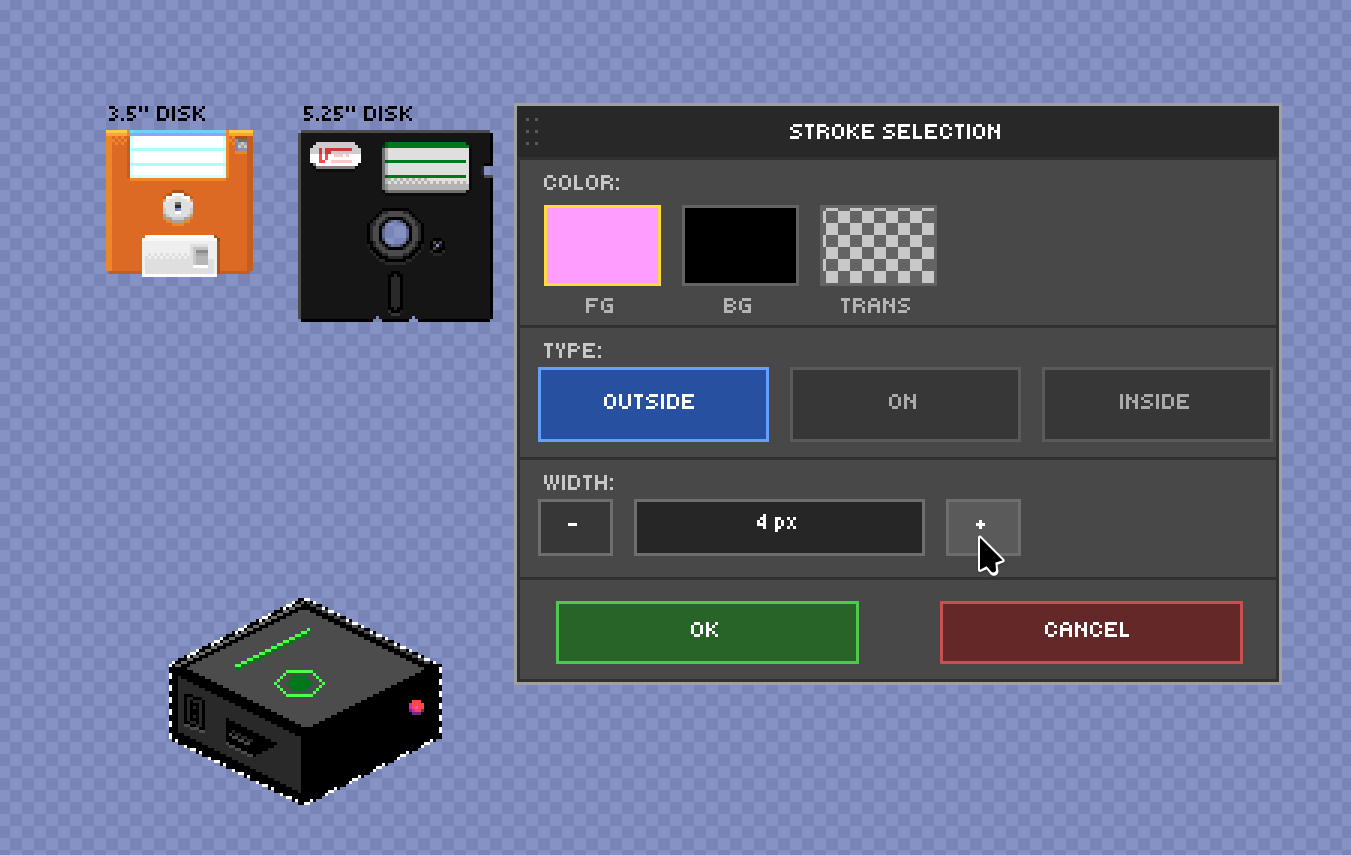
Edit → Stroke Selection adds a stroke around the selection boundary. You can configure:
- Width in pixels.
- Position — inside, outside, or centered on the boundary.
- Color — current FG, or a custom value.
This is the cleanest way to outline finished sprites in a uniform thickness.