install snapserver - fcorthay/RPi-multiroom-audio GitHub Wiki
This documentation bases on the Snapcast documentation.
Multiroom audio is implemented through Snapcast.
In order to stream the music, install the Snap server:
sudo apt install -y snapserver
sudo chgrp users /etc/snapserver.conf
sudo chmod 664 /etc/snapserver.conf
Allow streaming to both IPV4 and IPV6:
ORIGINAL='#bind_to_address = 0.0.0.0'
REPLACEMENT="$ORIGINAL\nbind_to_address = ::"
sudo sed -i "s/$ORIGINAL/$REPLACEMENT/" /etc/snapserver.conf
The basic source for snapserver is a FIFO.
However we will be using the capture from ALSA,
using the loopback device.
The reason for this is that one cannot mix mopidy together with the snapcast receiver, snapclient,
onto the same soundcard, using the ALSA dmix mechanism (at least not to my knowledge).
The solution to this is to disconnect mopidy from the soundcard,
connect it to the ALSA Loopback device, subdevice SNAPSERVER_LOOPBACK_SUBDEVICE,
have snapserver stream this audio to the Ethernet port, and have snapclient receive it and send it to the soundcard.
This audio path also allows other devices on the same Ethernet network to receive and play the same music as the RPi.
If we consider to later also redirect the snapclient output via the Loopback,
in order to have some signal processing right before the loudspeakers,
the subdevice SNAPSERVER_LOOPBACK_SUBDEVICE, defined in configuration.bash,
should not be 0 as snapclient only uses subdevice 0 (at least as to my knowledge).
Hence the choice of the subdevice 1.
With this, we can change the audio stream source in the snapserver configuration:
source ~/.bash_aliases
ORIGINAL='source = pipe:///tmp/snapfifo?name=default'
REPLACEMENT="#$ORIGINAL\nsource = alsa:///?name=Loopback&device=hw:$ALSA_LOOPBACK_PLAYBACK_DEVICE,$SNAPSERVER_LOOPBACK_SUBDEVICE"
ORIGINAL=${ORIGINAL////\\/}
REPLACEMENT=${REPLACEMENT//&/\\&}
REPLACEMENT=${REPLACEMENT////\\/}
sudo sed -i "s/$ORIGINAL/$REPLACEMENT/" /etc/snapserver.conf
Change the audio sample format to math the one in the configuration:
ORIGINAL='#sampleformat = 48000:16:2'
REPLACEMENT="$ORIGINAL\nsampleformat = $AUDIO_RATE:$AUDIO_BIT_NB:2"
sudo sed -i "s/$ORIGINAL/$REPLACEMENT/" /etc/snapserver.conf
Add the snapserver user to the audio group:
SNAPSERVER_USER=`cat /lib/systemd/system/snapserver.service | grep ^User | cut -d '=' -f 2`
sudo usermod -a -G audio $SNAPSERVER_USER
cat /etc/group | grep ^audio
Restart the service:
sudo service snapserver restart
Check how it is working:
ps aux | grep snap | grep -v grep
sudo service snapserver status | cat
Connect the mopidy output to the Loopback device:
ORIGINAL="output = alsasink device=dmix:$AMPLIFIER_SOUNDCARD"
REPLACEMENT="#$ORIGINAL\noutput = audioresample ! audioconvert"
REPLACEMENT+=" ! audio\/x-raw,rate=$AUDIO_RATE,channels=2,format=S${AUDIO_BIT_NB}LE"
REPLACEMENT+=" ! alsasink device=dmix:$ALSA_LOOPBACK_CAPTURE_DEVICE,$SNAPSERVER_LOOPBACK_SUBDEVICE"
sudo sed -i "s/$ORIGINAL/$REPLACEMENT/" /etc/mopidy/mopidy.conf
sudo service mopidy restart
With this, the mopidy audio should now pay on the audio receiver device.
Note : Mopidy can also stream
to a FIFO.
For this, the /etc/mopidy/mopidy.conf sink should be filesink location=/tmp/snapfifo
and the /etc/snapserver.conf source should be pipe:///tmp/snapfifo?name=Mopidy.
Whilst this doesn't make use of ALSA, which was the original aim,
it comes in handy on a Linux PC with higher level sound frameworks such as pipewire
which grab the access to the ALSA devices for themselves.
Allowing mopidy to write to the fifo might require: echo "fs.protected_fifos = 0" | sudo tee /etc/sysctl.d/snapcast-unprotect-fifo.conf
For a quick test, install Snapcast on Android or Snapcast on iOS.
Play a file on the Loopback device :
alias play2loop="SDL_AUDIODRIVER='alsa' AUDIODEV='dmix:$ALSA_LOOPBACK_CAPTURE_DEVICE,$SNAPSERVER_LOOPBACK_SUBDEVICE' ffplay -ar $AUDIO_RATE -autoexit -nodisp -loglevel quiet"
play2loop ~/Music/someFile.flac
Check the RPi's address:
ifconfig | grep -A 2 eth0
Specify the snapcast server on the mobile device accordingly and play what is being streamed.
Snapcast can be controlled per JavaScript Object Notation - Remote Procedure Call (JSON-RPC).
For complex objects to be displayed in a terminal, install jq:
sudo apt install -y jq
Making a JSON-RPC request can be done using curl in a terminal.
The Snapcast Application Programming Interface (API) is documented in the GitHub documentation.
Getting the server status allows, among others, to get the client ids:
curl -s -d '{"jsonrpc":"2.0", "id":1, "method":"Server.GetStatus"}' -H 'Content-Type: application/json' http://localhost:1780/jsonrpc | jq
The client ids seem to be their MAC address.
The client locally playing has "id": "00:00:00:00:00:00".
Get a client's volume:
curl -s -d '{"jsonrpc":"2.0", "id":1, "method":"Client.GetStatus", "params":{"id":"00:00:00:00:00:00"}}' -H 'Content-Type: application/json' http://localhost:1780/jsonrpc | jq | grep -A 3 volume
Set a client's volume and mute status:
curl -sw "\n" -d '{"jsonrpc":"2.0", "id":1, "method":"Client.SetVolume", "params":{"id":"00:00:00:00:00:00", "volume":{"muted":false, "percent":75}}}' -H 'Content-Type: application/json' http://localhost:1780/jsonrpc
Set a client's volume only:
curl -sw "\n" -d '{"jsonrpc":"2.0", "id":1, "method":"Client.SetVolume", "params":{"id":"00:00:00:00:00:00", "volume":{"percent":50}}}' -H 'Content-Type: application/json' http://localhost:1780/jsonrpc
Mute a client's sound (adapt id):
curl -sw "\n" -d '{"jsonrpc":"2.0", "id":1, "method":"Client.SetVolume", "params":{"id":"00:00:00:00:00:00", "volume":{"muted":true}}}' -H 'Content-Type: application/json' http://localhost:1780/jsonrpc
Remove a client (adapt id):
CLIENT_ID='00:00:00:00:00:00'
curl -sw "\n" -d "{\"jsonrpc\":\"2.0\", \"id\":1, \"method\":\"Server.DeleteClient\", \"params\":{\"id\":\"$CLIENT_ID\"}}" -H 'Content-Type: application/json' http://localhost:1780/jsonrpc
Here a Python example for a Snapcast request:
#!/usr/bin/env python3
import json
import requests

SNAP_SERVER_NAME='localhost'
SNAP_SERVER_PORT=1780

url = "http://%s:%d/jsonrpc" % (SNAP_SERVER_NAME, SNAP_SERVER_PORT)
request_id = 0
payload = {'jsonrpc': '2.0', 'id': request_id}

payload['method'] = 'Server.GetStatus'
response = requests.post(url, data=json.dumps(payload)).json()
request_id = request_id + 1

groups_info = response['result']['server']['groups']
for group_info in groups_info :
    for client_info in group_info['clients'] :
        client_name = client_info['host']['name']
        client_id = client_info['id']
        print("%s : %s" % (client_name, client_id))
In the repository:
-
Snapcast/getStatus.bashperforms the above request with additional bells and whistles -
Snapcast/setVolume.bashallows to change the volume of one of the snapserver's clients
~/.bash_aliases (adapt the path):
source ~/Documents/RPi-multiroom-audio/configuration.bash

alias getsnapserver='SNAPCAST_SERVER=`cat /etc/default/snapclient | grep ^SNAPCLIENT_OPTS | sed "s/.*--host\s*//" | sed "s/[ \"].*//"`'
alias volume='getsnapserver && $AUDIO_BASE_DIR/Snapcast/setVolume.py -s $SNAPCAST_SERVER -c $(hostname)'
alias snapstatus='getsnapserver && $AUDIO_BASE_DIR/Snapcast/getStatus.py -s $SNAPCAST_SERVER'
Check the audio path:
$AUDIO_BASE_DIR/Management/showInstallation.bash
See the devices served:
$AUDIO_BASE_DIR/Snapcast/getStatus.py
Change the volume on the current machine:
$AUDIO_BASE_DIR/Snapcast/setVolume.py 20
Change the volume on one of the devices:
$AUDIO_BASE_DIR/Snapcast/setVolume.py -c AudioAmp 20
The present installation is presented hereafter:
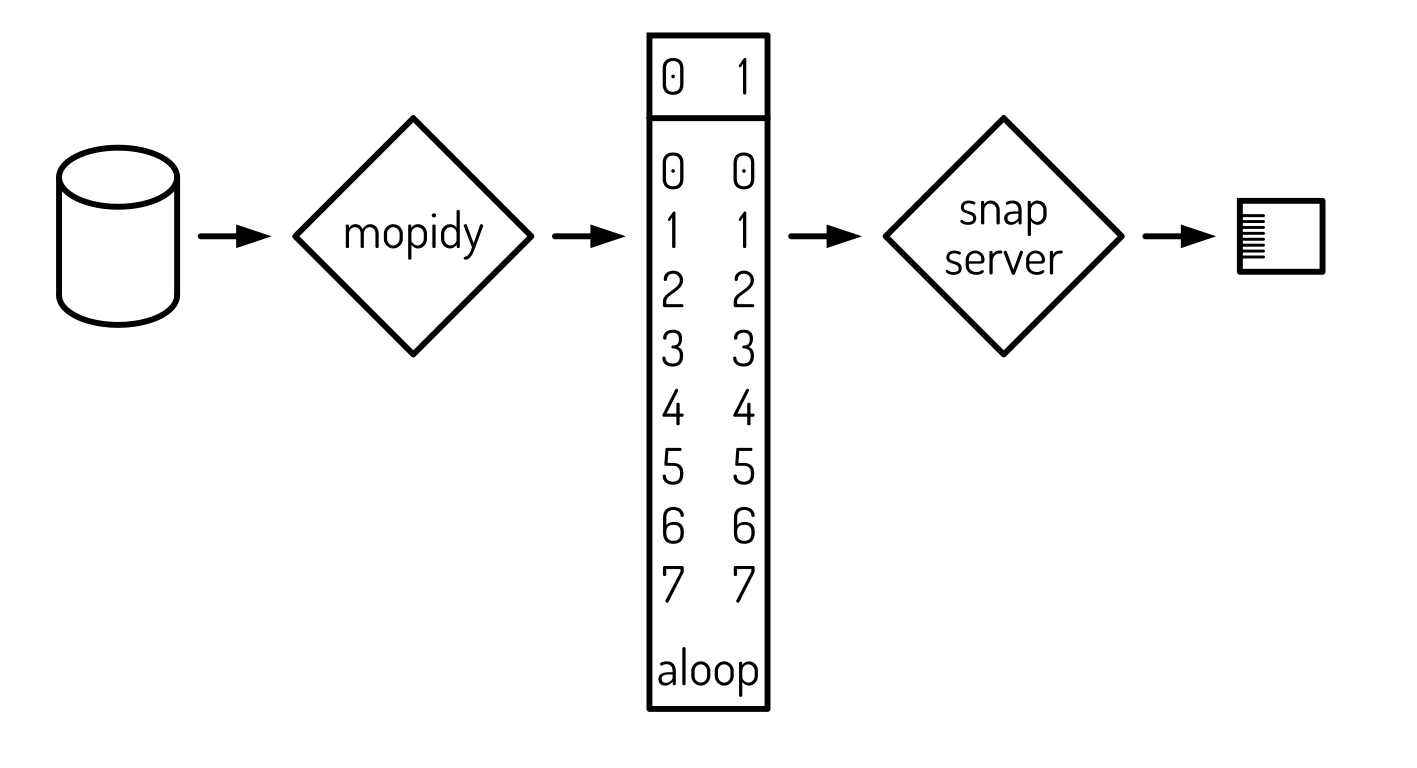
Mopidy reads music from the disk and sends it to the the loopback device. Snapserver reads music from the loopback device and sends it to the Ethernet port. And indeed : there is no more sound from the RPi, yet one can listen to the music on another device.
Continue the installation process.