Advanced - aussig/BGS-Tally GitHub Wiki
Advanced Functionality
This page describes advanced functionality of the plugin that you don't need to be aware of in normal use.
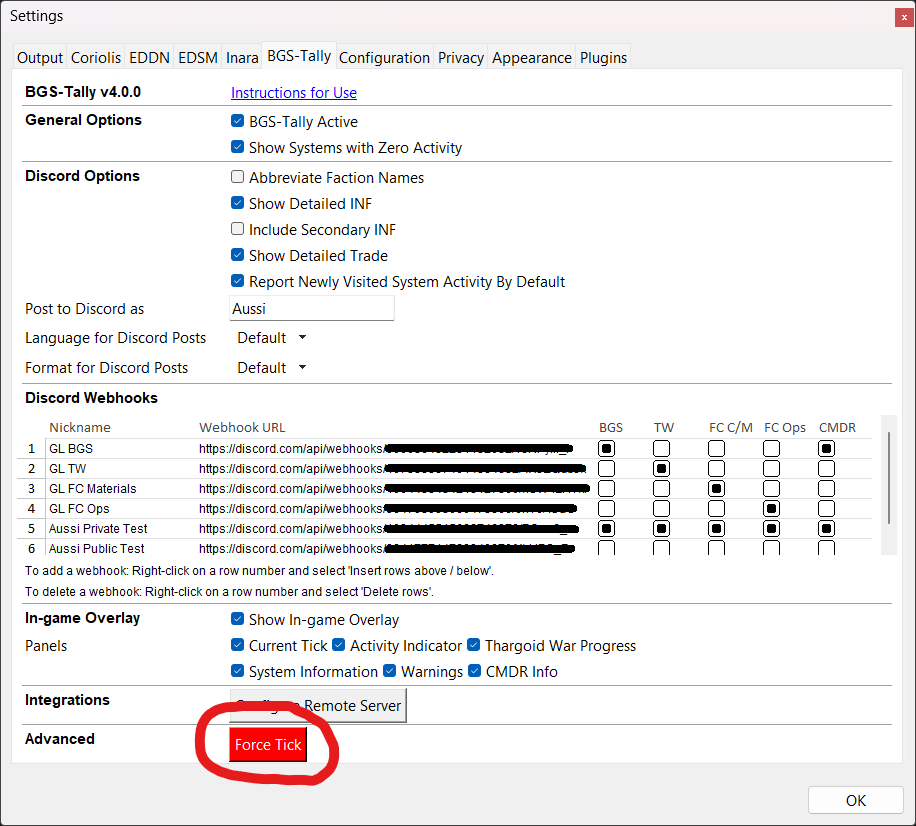
Forcing a Tick
In certain rare circumstances, only usually observed when either a new major game update is released or if CMDR Zoy's tick detector (used by BGS-Tally to track ticks) is down, you may need to force BGS-Tally onto a new tick.
Only do this if you know for certain that a tick has happened, but CMDR Zoy's Detector and therefore BGS-Tally are not showing it.
The function is available in the BGS-Tally settings panel:
Configuring Overlay
The in-game overlay displays various panels of information as you play the game. You can override global settings for these panels, as well as individual panel positions, for example if you don't like the positioning or if they overlap with other plugins. To change these settings, follow these steps:
- Locate your BGS-Tally plugin folder. You can find it in the Plugin Settings panel in EDMC: See Steps 5-7 in the Installation instructions page for info on how to do this.
- Locate the
configfolder inside your BGS-Tally folder. - Locate the
userconfig.template.inifile inside theconfigfolder. - Make a copy of this file, and rename it to
userconfig.ini. - Edit the contents of
userconfig.inito use your own preferred settings.
[!WARNING] DO NOT EDIT
config.ini,config.template.inioruserconfig.template.inias any changes you make will be wiped out on the next plugin update.
The global settings that affect all panels are configured in the [overlay] section at the top of the file, which you usually don't need to change as the overlay code standardises the virtual window size to 1280x960 pixels to cover the entire game window. However, this standard size has been seen to change in certain unusual MS Windows configurations. The available settings are:
width(default1280) - The overall width in virtual pixels of the overlay window.height(default960) - The overall height in virtual pixels of the overlay window.character_width_normal(default4) - The width in virtual pixels of a character in standard font.character_width_large(default7) - The width in virtual pixels of a character in large font.line_height_normal(default14) - The line height in virtual pixels of a line in standard font.line_height_large(default20) - The line height in virtual pixels of a line in large font.max_lines_per_panel(default30) - The maximum number of lines to display in any panel. Text is truncated if it exceeds this number of lines.
Each panel is configured in its own section of the file, with the section title in square brackets. For example the [overlay.frame.cmdr_info] section controls the panel showing information about CMDRs you interact with in-game. The available panels are:
[overlay.frame.cmdr_info]- Information about CMDRs you interact with in game.[overlay.frame.colonisation]- Panel showing information relating to your colonisation builds.[overlay.frame.indicator]- Small rectangular indicator that flashes up whenever you do any BGS or TW activity.[overlay.frame.info]- Panel that shows general information about the BGS-Tally plugin, for example on startup.[overlay.frame.objectives]- Panel showing your objectives. Objectives are only available if you have connected BGS-Tally to a server that supports them.[overlay.frame.system_info]- Panel showing information about the system you have just done BGS or TW work in.[overlay.frame.system_tick]- Panel showing the time of the last tick for the current system (if it is a populated system).[overlay.frame.tick]- Panel showing the time of the last tick.[overlay.frame.tickwarn]- Panel showing warning or info messages about the tick (for example if it's imminent or overdue).[overlay.frame.tw]- Panel showing information about the Thargoid War progress in the current system.[overlay.frame.warning]- Panel showing warning messages, for example when you have targeted a friendly ship in a CZ.
The available settings for each panel are:
border_colour- The colour of the border of the panel. Can beNonefor no border, a basic colour name such asred, or a hex colour value such as#020202.fill_colour- The background fill colour of the panel. Can beNonefor no border, a basic colour name such asred, or a hex colour value such as#020202. Note that solid fills can be unreliable as they can sometimes obliterate the contents of the panel. Use with caution.text_colour- The colour of the text in the panel. Can beNonefor no border, a basic colour name such asred, or a hex colour value such as#020202.title_colour- The colour of the text title of the panel. Can beNonefor no border, a basic colour name such asred, or a hex colour value such as#020202.x- The x-position of the panel. Ifx_centerisFalsethen this is the number of pixels from the left edge of the screen. Ifx_centerisTruethen this is the number of pixels from the center of the screen (and can be negative). The total horizontal pixels is standardised at 1280 irrespective of the resolution you have your monitor set to.y- The y-position of the panel. Ify_centerisFalsethen this is the number of pixels from the top edge of the screen. Ify_centerisTruethen this is the number of pixels from the center of the screen (and can be negative). The total vertical pixels is standardised at 960 irrespective of the resolution you have your monitor set to.w- The width of the panel. The total horizontal pixels is standardised at 1280 irrespective of the resolution you have your monitor set to.h- The height of the panel. The total vertical pixels is standardised at 960 irrespective of the resolution you have your monitor set to.x_center- Set toTrueif the panel should be horizontally centered on the screen.y_center- Set toTrueif the panel should be vertically centered on the screen.ttl- The "Time to Live" (in seconds) when data is displayed in the panel before the panel automatically disappears.text_size- Set tolargeif the panel text should be in a large font, ornormalfor the normal sized font.
Note that if you remove a panel configuration section from the file, or omit any settings from within a section then those settings will revert to the defaults.
Also note that some values are automatically set by BGS-Tally and cannot be overridden - for example the colour of the text in the tick warning panel is automatic (it changes based on the relationship between the current time and the tick time), as is the TTL for the tick panel (as it is always visible).