msa week overview - ajtruckle/meeting-schedule-assistant-support GitHub Wiki
The Week Overview panel gives you a concise summary of the midweek and weekend meetings for the currently selected week. It also highlights any special events, adjustments, or exceptions that may affect the congregation’s schedule. As you navigate through different weeks, the panel updates automatically to reflect the relevant information.
You can resize the main window to enlarge the summary panel for improved readability.
The Week Overview panel combines navigation controls and a summary of meeting details. Use the
The panel lists midweek and weekend meeting assignments for the selected week, including dates, times, and assigned brothers. This data is sourced from the Assignment History database and provides a convenient snapshot of the congregation’s schedule without opening the Meeting Editor.
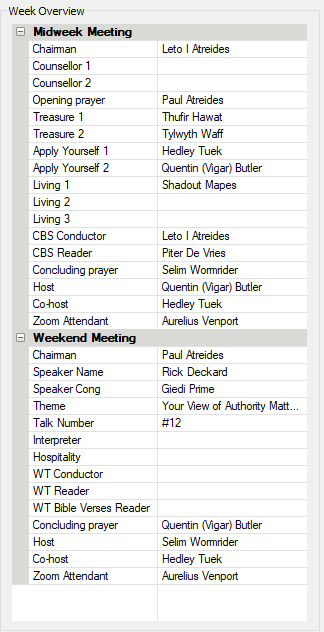
Figure 14. The Week Overview panel.
- Meeting dates and times
- Assigned brothers
- Special items or variations
- Notes or exceptions for the week
This allows you to confirm the schedule at a glance without opening the Meeting Editor.
If a special event affects the congregation’s schedule — such as a Circuit Assembly, Special Talk, or Memorial — it will appear in the Week Overview panel. This makes it easy to identify weeks that differ from the standard meeting pattern.
You can update the Meeting Attendance for each meeting directly from the Week Overview panel. This allows you to keep attendance records current without opening the Meeting Attendance manager.

Figure 15. Editable attendance fields in the Week Overview panel.
When you change any attendance values, the updates are not saved immediately. Instead, a confirmation message appears asking whether you want to save the updated information to the database. This prompt only appears if you have made changes, and it is shown when you:
- navigate from one week to another
- choose a different week via the calendar
- close the application

Figure 16. The confirmation prompt for unsaved attendance changes.
Only after you confirm are the updated attendance values saved to the database.
If you navigate to a week where the Assignment History database has not yet been upgraded, a message appears informing you that an update is required. This ensures that features such as Meeting Attendance work correctly and that all assignment data is stored in the latest format.

Figure 17. The Assignment History upgrade notification.
If you click Find out more, the message expands to show additional details about why the upgrade is needed and how to complete it. This helps you understand the steps required to bring your data up to date.
If you tick Don’t show this message next time, the notification will be suppressed and will not appear again. This option is useful if you are already aware of the required upgrade and prefer not to be reminded.
- Parent topic: Using Meeting Schedule Assistant
- Previous topic: Social Icons and News Feed