msa talkdb manage pt update - ajtruckle/meeting-schedule-assistant-support GitHub Wiki
Submitting Talk Updates
The Talk Update window is used to create or edit an update for a specific public talk outline.

Figure 74. Submit Update window
How to Access
- Double‑click a talk in the list
- Or choose Add Update for This Talk… from the Talk Updates menu
- Or choose Edit Update for This Talk… for an existing pending update
- Or click the Talk Updates menu button directly (equivalent to double‑clicking the selected talk)
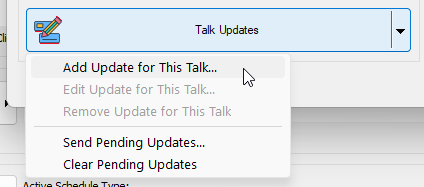
Figure 75. Talk Updates menu button
[!NOTE] Updates remain pending until you send them using Talk Updates → Send Pending Updates….
How to Submit an Update
Fill in all the relevant information for the update you are submitting.
Talk Number
Displays the number of the outline you are updating.
This field is read‑only.
Language
Shows the language of the outline.
Outline Date
Displays the official issue date of the outline.
Category
Shows the outline’s category as defined on the S‑99a document.
Theme
Displays the outline’s theme.
Message
Describe the update you are submitting.
Examples include:
- A revised outline date
- A new outline number
- A change in category
- Notes about an officially released revision
If a new outline has been issued, include the new outline number in this field.
[!IMPORTANT]
- Only submit updates after you have been officially informed by the branch office.
- Updates are sent by email, so ensure your email settings are correctly configured.
After Saving
Once you save an update:
- The update becomes part of your pending updates list
- You can review, edit, or remove it using the Talk Updates menu
- When ready, choose Send Pending Updates… to submit all pending updates at once
[!NOTE] Talks with pending updates are shown with a pencil symbol next to the outline title.
Related Topics
- Database menu — Public Talks
Navigation
- Parent topic: Public Talk Manager
- Previous topic: Filtering Options