Repairs - TheThinkingHome/device_sentinel GitHub Wiki
Repairs
If Device Sentinel runs into a problem with itself, it will tap you on the shoulder using Home Assistant's built-in Repairs panel (under Settings).
Your devices never appear here. A frozen motion sensor, a dying battery, or a weak radio link belongs on The Problem List. If a sensor breaks, you check your to-do list. If Device Sentinel's own gears get jammed, you check Repairs.
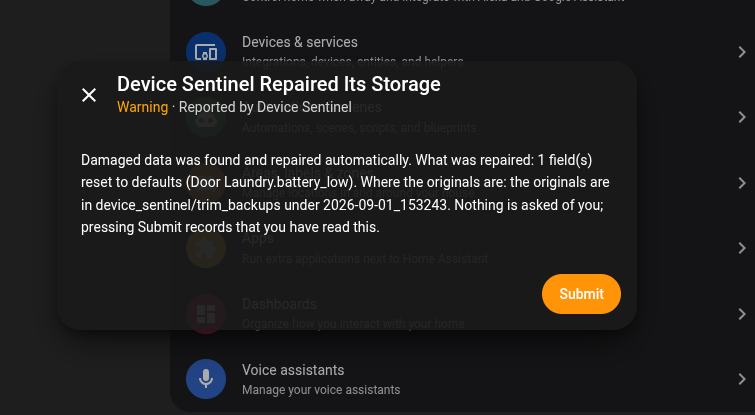
Here are the issues you might see, and what to do about them.
The Issues
Device Sentinel Repaired, Restored or Repaired the Structure of Its Storage
Device Sentinel fiercely protects its own memory. If a sudden power cut or a failing drive corrupts the file where it stores your home's rhythms, it doesn't crash. It catches the damage, repairs the file, or restores itself from an automatic last-good backup.
When it does this, it raises a Repair card to tell you exactly what it rescued and where it put the damaged original, a copy in config/device_sentinel/trim_backups. Nothing is asked of you. You don't need to fix anything. Just press Submit to acknowledge it and clear the card. The same protection covers device_sentinel.answers, the file that holds the battery, power and type answers you set with the pencils: it keeps a last-good copy, and a repair or restore of it is noted in the daily brief.
The third card covers the same protection at a different level: part of the file held the wrong kind of value, which would have stopped Device Sentinel from starting, so it was repaired before anything else ran. It also names what was repaired and where the original went, and asks nothing of you.
Activity Clocks Were Reset
If the small file that holds each device's last report time is missing or damaged when Home Assistant starts, Device Sentinel restarts every clock from that moment and tells you so. Nothing it has learned is lost: each device simply counts its silence from the restart. If it happens more than once, check the storage on your Home Assistant host.
The System Clock Was Reset or Paused
If Home Assistant's clock jumps, because someone set it by hand or the machine was paused or suspended (a virtual machine paused for a backup, for example), every device's silence reads wrong at once: far too long if the clock jumped forward, and blind if it jumped back. Device Sentinel notices a jump of more than five minutes within a minute, restarts every device's clock from that moment, and raises this card naming when it happened and how far the clock moved. A device already known to be frozen keeps its verdict. Nothing is asked of you.
Device Sentinel Cannot See Everything It Watches
Device Sentinel cannot learn from what it cannot see. Many integrations ship with their diagnostic entities, like battery percentages, signal strengths, or last_seen timestamps, disabled by default. If those are switched off, Device Sentinel will raise a card letting you know you are flying blind. The card names the devices it would change, up to ten of each kind, then how many more.
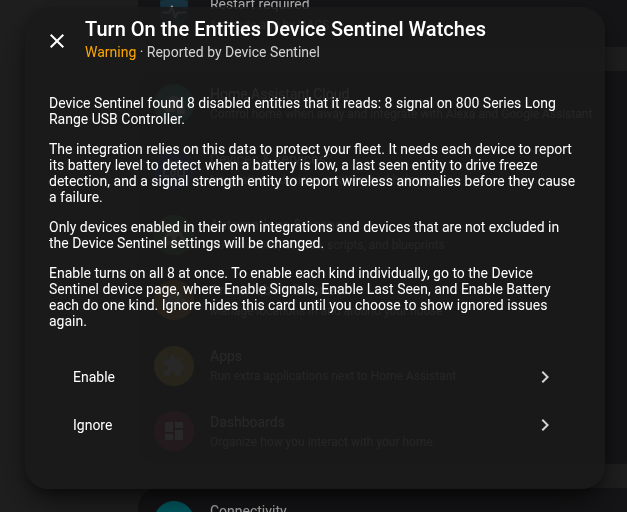
- Fix: Click Enable to turn on the missing entities across your watched devices.
- Ignore: If you disabled those entities on purpose, click Ignore. Device Sentinel will keep monitoring those devices for whatever else it can see, and the card will stay hidden.
A Device Sentinel Notification Target No Longer Exists
You told Device Sentinel to send alerts to a specific phone or companion app, but that service no longer exists in Home Assistant (usually because the app was removed or the phone was renamed). Device Sentinel is currently shouting alerts into the void, and its messages are failing.
- Fix: Click Remove Them to wipe the dead targets from Device Sentinel's settings.
- Ignore: Hides the card.
Device Sentinel Has Nowhere to Send Anything
If Device Sentinel has been running for a week and you still haven't given it a place to send alerts or the daily brief, it will politely raise a card. It is watching your house, but it has no way to tell you if something goes wrong.
There is no "Fix" button for this, because where your alerts go is your decision. Head to Settings > Devices and Services > Device Sentinel > Configure > Notifications and Daily Brief to set up a target.
How Repairs Work
- They clean up after themselves. An issue is deleted the exact moment its cause clears. If you add a missing notification target, the Repair card instantly vanishes. A card never outlives the problem it describes.
- They don't nag during reboots. Everything in Home Assistant screams at once during a restart. Device Sentinel waits until the startup dust settles before evaluating if a Repair is actually needed.
- You are never trapped. Every issue with a "Fix" button also offers an "Ignore" option inside the fix screen. You are never left with a card you can only clear by accepting a change you didn't want.