Tray and Desktop Controls - TechDaddyKB/tdsblive GitHub Wiki
Find TDSBLive, open the editor and quit
This page describes 1.0.1. Use the guide bundled with your download if you keep an older version.
TDSBLive runs in the background while OBS uses its chat and overlay pages. Its small tray icon gives you a way to find it again and stop it when you finish. Closing the editor's browser tab leaves TDSBLive running.
Start it on Windows
- Open TDSBLive from your installed shortcut, or double-click
TDSBLive.exein the fully extracted application folder. - Wait for the editor to open in your normal browser.
- Look beside the clock on your taskbar for TDSBLive's blue icon with a white T. If you cannot see it, click the up arrow to show hidden icons.
If you chose start at login during installation, signing in starts the app quietly. Use Open editor from its tray menu when you want the editor. This setting does not start an OBS broadcast.
Start it on Linux
Extract the complete Linux application archive and open its TDSBLive launcher. On the first launch, follow Wine setup or Proton/UMU setup. Keep your existing runner, prefix and saved setup if you are updating. Later launches reuse those choices and open your normal Linux browser.
Look for the blue T in your desktop panel. Right-click it for the same three actions shown below. Its position and menu appearance depend on your desktop. The Linux launcher does not automatically start when you sign in. Its optional applications-menu shortcut opens it when you choose that shortcut.
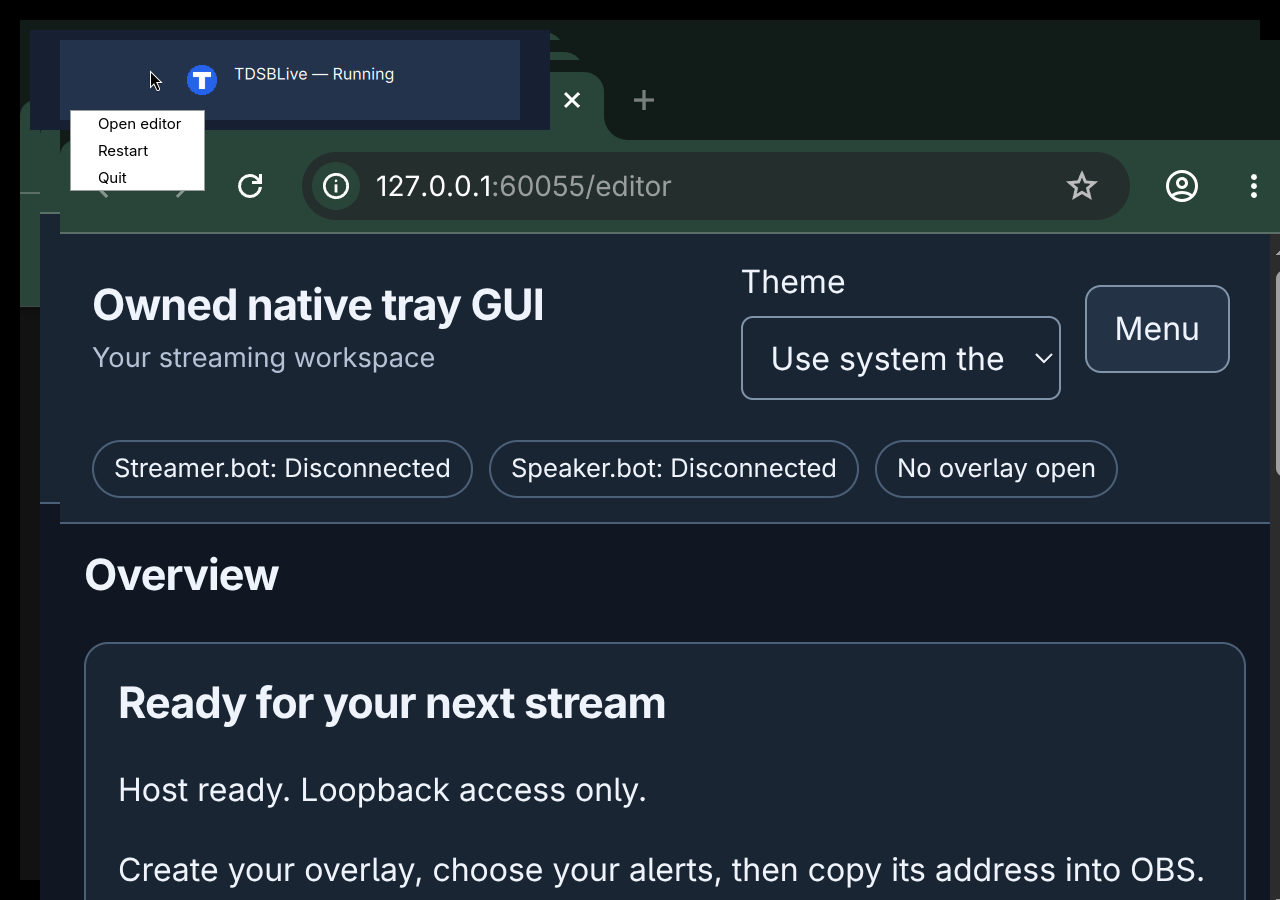
This Linux picture uses an isolated example panel and sample setup. Your desktop panel can place the icon elsewhere; the three action names remain the same.
On KDE Plasma, hold your pointer over the icon to see whether TDSBLive is running.
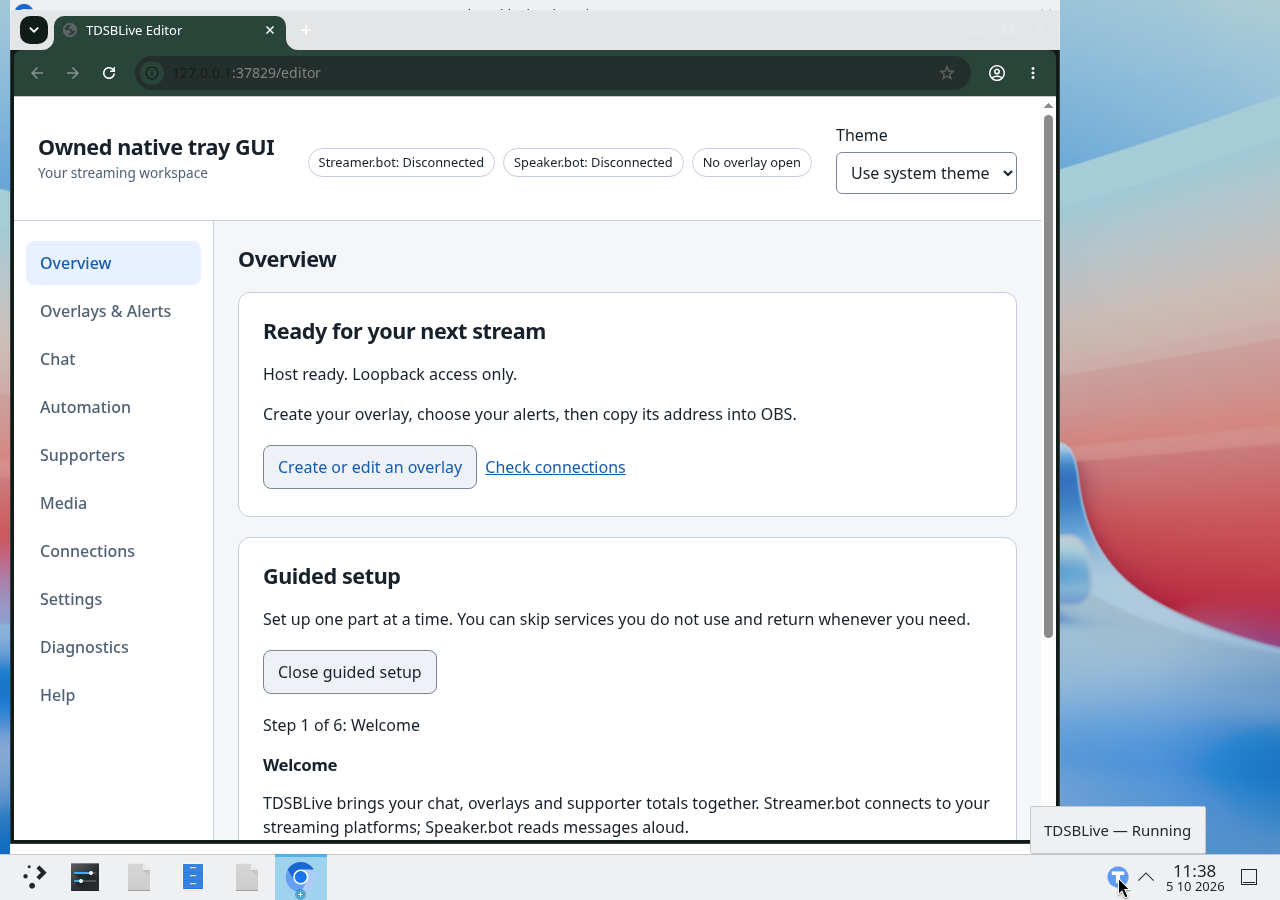
This picture shows a qualification build with sample settings on an isolated KDE desktop. The blue T beside the clock is TDSBLive's icon.
Choose a tray action
Right-click the TDSBLive icon to open its menu.
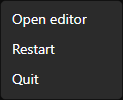
| Choose | What happens |
|---|---|
| Open editor | Opens the editor in your normal browser, using the app's current address and port. |
| Restart | Asks for confirmation, stops TDSBLive briefly and starts it again with your saved setup. Your overlays pause while it restarts. |
| Quit | Asks for confirmation and stops TDSBLive. Its pages stop working until you start the app again. |
Opening your TDSBLive shortcut again also asks the running copy to open its editor. You do not need to start several copies to find the editor.
Restart without losing an unfinished edit
- Save your changes in the editor and wait for its save status.
- Right-click the tray icon and choose Restart.
- Read the message. Choose Cancel if you still have something to save.
- Choose Restart when you are ready for the brief pause.
- Check your editor and OBS pages after the app starts again.
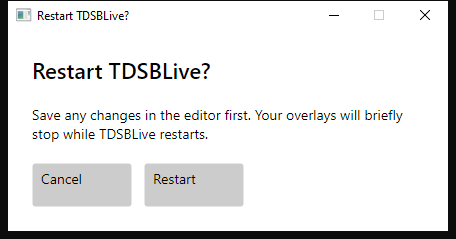
Cancel receives keyboard focus first. Pressing Enter at that point cancels. Pressing Escape or closing the confirmation also cancels. Use Tab to move to the action you intend before activating it.
Restarting does not save unfinished browser forms for you. Saved settings and overlays remain available. Session-only connection secrets need to be entered again after a restart.
Finish a stream
- End your broadcast using OBS's normal controls.
- Save any final editor changes. Make a backup after important changes.
- Right-click TDSBLive's icon and choose Quit.
- Choose Quit in the confirmation.
The TDSBLive tray icon disappears when the app has stopped. Quitting TDSBLive does not close OBS, Streamer.bot or Speaker.bot. Start TDSBLive again using its shortcut when you next need it.
If there is no tray icon
On Windows, first check the hidden-icons up arrow. On Linux, check your desktop panel's tray area. GNOME may need its AppIndicator extension to show tray icons; you can use the control window without adding an extension. When the tray is unavailable, TDSBLive offers a small TDSBLive is running window with the same three buttons.
If your Linux panel closes and no control window appears, use the editor's Backup and recovery controls to restart or quit TDSBLive.
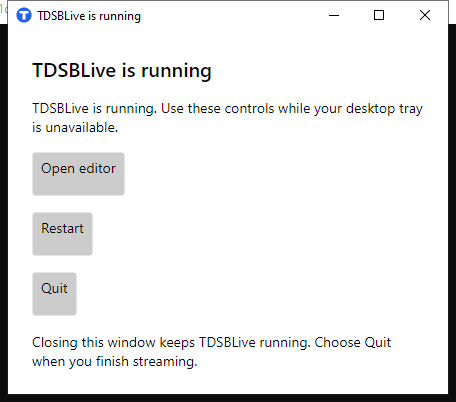
If the tray icon returns, you can close the control window and use the icon again. Closing this window leaves the background app running. Choose Quit to stop it. The editor's Backup and recovery controls remain another way to restart or quit when the editor still works.
If desktop controls say TDSBLive stopped unexpectedly, check whether the editor still works. If it does, use its application controls. If it does not, choose Close desktop controls, then open TDSBLive from your shortcut. On Linux, opening the shortcut while stopped controls are still open brings that same window forward. It does not start another copy. Keep the same saved setup when you reopen the launcher. See Troubleshooting if it cannot start; do not stop other applications or delete your data to clear an unknown port conflict.
For the older public v0.1.0 download, use the manual sections of the Wine/Bottles or Proton/UMU guides. Bottles remains a separate backend workflow; native-companion support for Bottles is not qualified. A fully native Linux backend is a separate project.
Linux tray memory use and KDE's panel-only disappearance remain accepted issues for future investigation. See release limitations.
Next: Everyday use, or Backup and recovery.