Backup and Recovery - TechDaddyKB/tdsblive GitHub Wiki
Backup and recovery
A backup is a saved copy you can return to after an unwanted change or a problem. Make one while the application is working, before you need it.
Choose the right kind of copy
An application backup protects the application's supported saved data, including overlays, assets, history and supporter information. Newer custom-widget builds also include their supported stored widget state. It is the right starting point for recovery or moving your setup.
A portable overlay or widget package shares a design. It intentionally leaves out credentials, private user data, revision history and stored widget state. It is not a full recovery backup. Read Custom widgets and portable packages.
A connection-settings export is another separate item. It is not a full application backup. Importing settings applies safe defaults, including disabled imported connections and LAN access; review them afterward.
1. Download a backup
- Open the editor's Backup and recovery page.
- Choose Download backup.
- Save the ZIP in a backup folder outside the running program folder.
- Rename your saved copy with a useful date and description, without changing its
.zipextension. - Keep an additional copy on another drive if you want protection against drive failure.
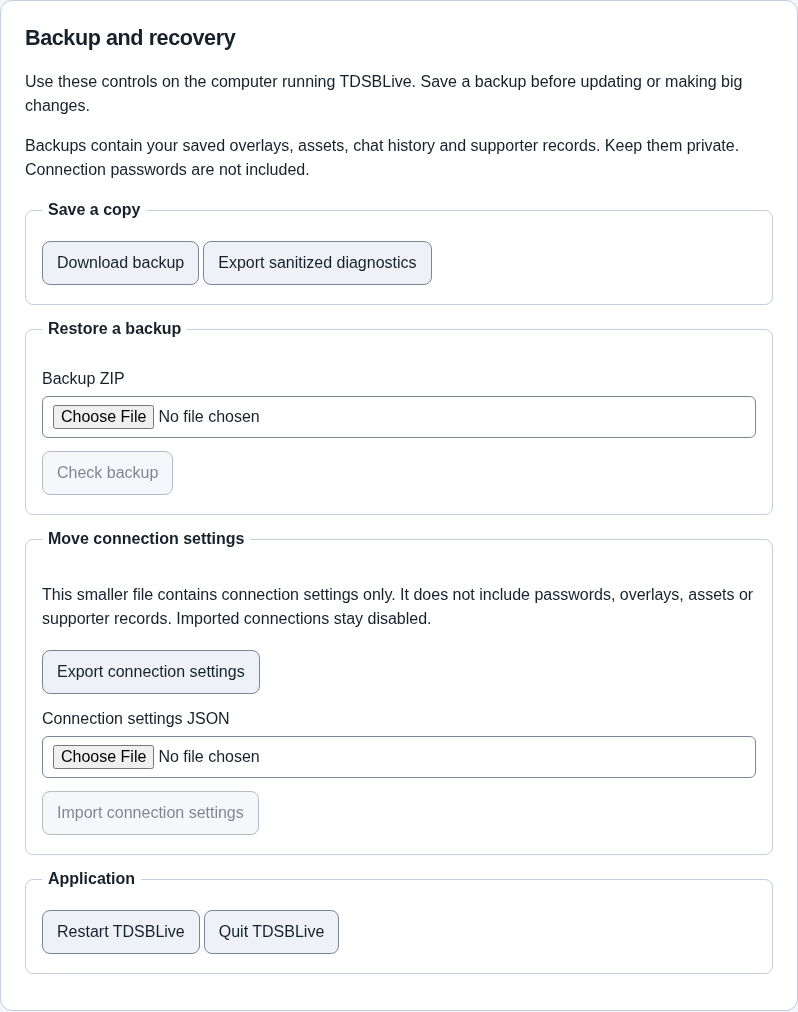
The screenshot shows the backup area. Read the result and validation messages when using your own copy.
Backups can contain private chat or supporter information. Keep them private. They do not include connection passwords or credentials, so plan to enter those again after recovery.
2. Validate before restoring
A restore changes your current setup. First download a fresh backup of the current state, even if you intend to replace it.
- Choose the backup file in Backup and recovery.
- Use Check backup and read the result.
- Review the preview: check that it is the backup you intended and that it is compatible with this version.
- Resolve any validation problem before continuing. Do not edit a ZIP to force a rejected restore.
- Select I want to replace my current saved data with this backup, then choose Restore checked backup only after reviewing its effect.
A backup from a newer application may not work with an older one. Keep the original program version and its backup when updating.
3. Reconnect safely afterward
Restoring returns the application to a safe state. Integrations and automation rules are paused or disabled as required, and previous viewing tokens are revoked. That means a restore can succeed even though chat, speech or an old shared viewing link no longer works immediately.
Re-enter connection secrets, check the services you use, and enable only the rules you intend to run. Create new viewing links if needed. Check a message and the actual OBS preview before a broadcast.
4. Protect a Wine or Proton environment too
On Linux, application data normally lives inside the prefix or bottle. After quitting its applications, copying that entire environment can preserve runner-specific setup in addition to the app's backup. Keep track of which environment contains which application.
A full environment copy can contain credentials and other private data, so treat it as private. Do not upload it as a support attachment. Do not delete an original environment until the destination works.
Restart and quit controls
Use the application's own local Restart TDSBLive or Quit TDSBLive controls when needed. Closing a browser window only closes your view of the app. Remote LAN access deliberately does not expose every local recovery or process-control operation.
TDSBLive 1.0.1 also offers Restart and Quit in its desktop tray or fallback control window. Save your changes first: these controls cannot save an unfinished browser form. The confirmation starts on Cancel; choose the matching Restart or Quit button only when you are ready. Pressing Enter while Cancel is selected leaves the app running. Escape or closing the confirmation also cancels.
A successful restart or restore keeps the same application data folder. On Linux, keep using the same runner and prefix that hold your working setup. Do not switch to an empty prefix to recover a missing icon. The tray guide explains recovery when desktop controls disappear.
Next: Everyday use, or Troubleshooting.