Overworld - KristalTeam/Kristal GitHub Wiki
Relevant files: map.lua, world.lua
Making rooms
Kristal uses the tool Tiled for making rooms for the overworld. They have in-depth docs describing how to use them. For making a new room for usage in Kristal:
Step 1: New Map and New Tileset
In Tiled, go to File -> New -> New Map (Ctrl+N), and create a new map with the room width and height that you want (though this can be easily adjusted later, through Map -> Resize Map). The minimum recommended room size is 16x12, which fills exactly 1 screen. Make sure to change Tile Size to be 40px by 40px, as this is the standard tile size for Deltarune.
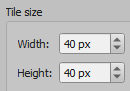
Once this is done, you'll need to either create a new tileset or use an existing one. You can create a new tileset through File -> New -> New Tileset. Make Tile Width and Tile Height 40, and disable Embed in map if you want to reuse the tileset in multiple rooms. If you want to use Deltarune tilesets, don't use directly exported sprites, as they are formatted differently; you can download properly formatted Deltarune tilesets here. Custom tileset images should go in assets/sprites.
After clicking Save As, it will prompt you to save your tileset. Tilesets should be saved to scripts/world/tilesets. Additionally, make sure to export the tileset too, through File -> Export, and export a .lua file with the same name as the tileset file in scripts/world/tilesets as well.
When making future rooms, instead of making a new tileset for each room, you can use tilesets you've already made by going to Map -> Add External Tileset. You can also have multiple tilesets for one room by repeating the above process for making or adding a tileset.
Step 2: Room Layout
Using the tileset(s) made before, construct the room however you like. The Stamp Brush tool (B) is the recommended tool to use for painting tiles.
Step 3: Layers
Kristal maps use layers to store all object data for maps. There are several different layers used to store different data.
To make a new layer, go to the Layers tab (if it's not visible, enable it in View -> Views and Toolbars -> Layers), and click the New Layer button. For most layers, you'll want to select Object layer (sections will specify whether it should be a different type).
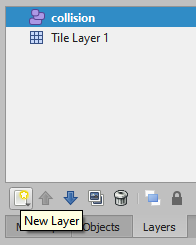
When creating a layer, keep its position in mind: layers that are above others will also be visually above the layers below it in Kristal. This allows you to control the depth of layers; for example, if you want to have a tile layer that renders above the party, you can make a tile layer and make sure its position is above the objects layer in the order.
Layers are usually used by applying the available shape tools. These tools are Insert Rectangle (R), Insert Point(I), Insert Ellipse (C), and Insert Polygon (P). Some layers or objects require specific shapes to function. By default, tools will not snap to any grid; you can hold Ctrl to snap to the tile grid, and Ctrl+Shift to snap to 1/4th tile grid.
Additionally, most shapes placed will need properties changed or defined for them. To edit a shape's properties, select it if it's not selected (shapes will be automatically selected when you first place them), go to the Properties tab (if it's not visible, enable it in View -> Views and Toolbars -> Properties), and either change the field you need to change if it already exists, or right click in the Custom Properties section and select Add Property. Adding a property prompts you to choose the name of the property, as well as its type. Once it's added, you can edit it like any other properties.
The following subsections describe the names of layers that Kristal will read from, and what they do. As long as a layer name starts with one of the following names, it will be recognized as a layer of that type (eg. objects_enemies will be recognized as an objects layer).
collision
Defines the solid collision of the room. All shapes on this layer will be solid to all characters.
markers
Used to indicate significant points for rooms, such as room transition entry points, the start position when you spawn in the room or load the room from a save, and others. Each marker should be either a rectangle or a point. If the position is a rectangle, the position will be the center of the rectangle; otherwise, it'll be placed at the point.
The spawn point object used to indicate the starting position of the room when loaded via entering the mod or from loading a save must be called spawn. All markers other than this initial spawn point can be named whatever you like; the name will be referenced later by other objects.
objects
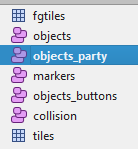
All Events go on this layer. Events are essentially what every significant object in the overworld is; buttons, cutscene scripts, NPCs, and transitions are all examples of Events. Thus, every map will likely need to define an objects layer. The party is also spawned on this layer, matching its depth. If there are multiple objects layers defined, the party will spawn on the objects layer that is above the markers layer (eg. in the image below, the party would spawn on the objects_party layer).
controllers
Similarly to objects, this layer is used to spawn controller objects that can control behavior in a room (see Controllers for more detail). The positioning of shapes does not matter on this layer, as controllers often do not need to know their own position.
paths
Defines paths that objects and cutscenes can use to assist movement. Any shapes on this layer will define a path, with its name to be referenced by other objects.
enemycollision
Defines solid collision for specifically enemies.
battleareas
Defines areas where bullets will spawn, triggering certain visual effects. See Battle Areas for more detail.
battleborder (Tile Layer)
Defines tiles that will appear during battle areas on the overworld. See Battle Areas for more detail.
blockcollision
Defines areas where PushBlocks are not allowed to be pushed.
Step 4: Properties
You can define properties of a room by going into Map -> Map Properties and changing its properties or adding custom properties like you would for an object. Custom properties that can be defined are:
name: Name of the room used when the game is saved.
music: File path to the audio file used as music for the room, relative to assets/music.
light: A boolean property that defines whether the room is considered a light world room or not (affecting elements like inventory and UI). False by default.
Step 5: Exporting
Once your room is finished, you can export it for usage in Kristal. Go to File -> Export As, and export the file as a .lua file (see below for where to export it to). After you've done this once, you can then do File -> Export (Ctrl+E) to export the map without having to specify the location.
Using rooms in your mod
Map files can be stored for a mod in 2 different ways. These methods are:
- The exported map.lua file goes in
scripts/world/maps, and its file name is the name of the room. - The exported map.lua file goes in
scripts/world/maps/[roomname], and the file is nameddata.lua; the folder name is the name of the room. If you put amap.luafile in the same folder, it will load code from that file when the room is loaded (see the Map Class documentation below for more detail).
To indicate the room that your mod initially loads into, you can set the map field in your mod's mod.json file to be the name of the room. Other rooms can be referenced by objects like transitions, or other code.
The Map Class
As mentioned earlier, some methods of saving a room allow for loading code from a file for a room. The code in this file should be in the form of extending the Map class; each room is a Map instance, and by creating this file, you can extend or override functions for the room.
A basic map file looks something like this:
local RoomName, super = Class(Map)

function RoomName:load()
  super:load(self)
  print("room "..self.name.." loaded!")
end

return RoomName
Map classes have a lot of variables and functions available; however, they are not Objects, so they don't have everything Object classes have. The variables and functions available for usage are:
name: The name of the room.
width, height: The width and height of the room, in tiles.
markers: A table containing all markers, with indexes being names of markers, and values being tables containing the data for the markers. Each marker contains the fields x, y, width, height, center_x, and center_y, . x and y refer to the coordinates of the marker, width and height refer to its width and height if the marker was a rectangle (and are both 0 otherwise), and center_x and center_y refer to the center of the marker if it was a rectangle (and refer to x and y otherwise).
timer: An instance of a Timer object.
setFlag(flag, value): Sets a save data flag for the current room to the specified value. See Save Data for more detail.
getFlag(flag, default): Gets a save data flag for the current room, returning default if the flag doesn't exist.
getMarker(name): Returns the coordinates of the marker with the specified name.
getEvent(id): Returns an event with the specified ID.
getEvents(id): Returns a table of all events with the specified ID.
Additionally, some functions can be overridden for extra functionality:
load(): Called when the map is first loaded. Responsible for loading everything in a room; make sure to call super:load(self) if overridden.
onEnter(): Called after the map has been fully loaded. Code that should be run upon entering a room should be called here.
onExit(): Called upon exiting a map.
update(): Called every frame, before any objects have been updated.
draw(): Called every frame, after all objects have been drawn.
loadObject(name, data): Called for every object in the objects layer of a room. name is the name of the object, and data is a list of all of its properties. Returns the object that was loaded, if it loaded successfully. Responsible for loading all objects in a room; make sure to call super:loadObject(self, name, data) if overridden.
onFootstep(chara, num): Called each time a character takes a step. chara refers to the Character instance that is stepping, and num is a number that alternates between 1 and 2 each step.
Game.world Functions
Game.world is a globally existing instance of the World object, responsible for keeping track of everything overworld related. It too has several variables and functions for usage; these functions can be called anywhere in the overworld.
map: Refers to the Map instance for the currently loaded room.
width, height: The width and height of the current room, in pixels.
camera: The Camera instance used for the room. See Camera below for more detail.
camera_attached_x, camera_attached_y: Whether the camera is currently panning to the party leader in the specified axis.
shake_x, shake_y: The amount the camera should shake.
fader: A Fader instance used for the room.
player: The current Player instance. See Characters for more detail.
soul: The current Soul instance, if the player is in a battle area.
timer: An instance of a Timer object.
cutscene: The current Cutscene instance if one is active.
heal(target, amount): Heals a Character by the specified amount.
hurtParty(amount): Hurts all party members by the specified amount.
openMenu(menu, layer): Sets the world state to MENU (locking overworld movement), and sets World.menu to the provided object. If menu is not defined, then it will use createMenu(). layer is an optional string or number referring to the layer the menu should display at (defaulting to WORLD_LAYERS["ui"]. Returns the World.menu object.
closeMenu(): Removes the current World.menu object, and sets the world state to GAMEPLAY.
createMenu(): Returns either a DarkMenu or LightMenu instance, depending on whether the current map is light or not.
showHealthBars(): Shows the health bar UI for each party member at the bottom of the screen.
hideHealthBars(): Hides the health bar UI for each party member if it previously existed.
startCutscene(group, id, ...), showText(text, after): See Starting Cutscenes.
stopCutscene(): Stops any currently playing cutscene.
hasCutscene(): Returns whether a cutscene is currently active.
spawnObject(obj, layer): Adds an object to the world. obj refers to an instance of an object, and layer is either a number or a string referring to the layer to set the object to (passed into parseLayer()). If layer is not provided, the object will be set to the objects layer.
parseLayer(layer): Receives a string and converts it into a layer value for an object. This string can either refer to an index in WORLD_LAYERS, or a layer name in the room's Tiled layers system; for example, objects will give a layer at the same layer as the map's object's layer.
spawnBullet(bullet, ...): Spawns an overworld bullet. See Battle Areas for more detail.
spawnPlayer(x, y, chara), spawnPlayer(marker, chara): Spawns a party leader, removing the previous one if one existed. x and y refer to the coordinates that the player should spawn at, or marker refers to the marker the player should spawn at, and chara is either a string referring to an actor ID, or a table of actor data.
spawnFollower(chara, options): Spawns a follower. chara is either a string referring to an actor ID, a table of actor data, or a Follower instance, and options is a table of extra information for spawning the follower. Returns the Follower instance. options can define the following fields:
x,y: The coordinates the follower should initially spawn at. If unspecified, the follower will spawn at the party leader's coordinates.index: The party index the follower should spawn into. If undefined, the follower will be at the end of the party order.temp: If undefined or true, the follower will disappear at the next room transition; if false, the follower will persist between rooms.
removeFollower(chara): Removes a follower from the party. chara is either a string referring to the actor ID or the table of actor data for a current follower, or a current Follower instance.
spawnParty(marker, party, extra, facing): Spawns the party. marker is either a string referring to a room marker or a table of 2 values referring to coordinates, party is an optional table of strings referring to party member IDs defining who should be in the party (defaulting to Game.party), extra is an optional table of actor IDs for extra followers to be spawned for the current room, and facing is an optional string defining which direction the party should be facing when spawning.
spawnNPC(actor, x, y, properties): See Events for more detail.
getCharacter(id, index): Returns a Character instance that matches the specified ID. id is a string referring to an actor ID that the character uses, and index is an optional number that will specify which instance of the character to return (eg. if there are 3 Ralseis in the room and you call cutscene:getCharacter("ralsei", 2), it will return the second Ralsei).
getPartyCharacter(party): Returns the Character in the party that matches the specified party member. party is either a PartyMember instance or a string referring to a party member ID.
getActorForParty(chara): Returns the actor of the provided party member. If the room is a light room, and the party member has lw_actor defined, it will return that; otherwise, returns the party's actor.
getEvent(), getEvents(): See the respective Map functions above.
detachFollowers(): Makes followers stop following the party leader.
attachFollowers(return_speed): Makes followers start following the party leader. return_speed is a number defining how fast the followers should walk to their intended position.
attachFollowersImmediate(): Immediately makes all followers start following the party leader and move to their intended position.
mapTransition(...): Transitions to a new room. This function can take arguments in multiple different ways:
map,x,y,facing:mapis either a string referring to a room ID or a Map instance,xandyare optional coordinates to spawn the party at (defaulting to the position of thespawnmarker in the new room), andfacingis an optional string to define the initial facing direction of the party.map,marker,facing:mapis either a string referring to a room ID or a Map instance,markeris an optional string referring to a marker in the new room to spawn the party at, andfacingis an optional string to define the initial facing direction of the party.data:datais a table defining properties of the transition, including the fieldsmap,x,y,marker, andfacing.
loadMap(...): Same as mapTransition(), but occurs immediately, without fading the screen.
Camera
Kristal implements a global Camera class that's used for overworld rendering. (The class is technically also used in battles, but since the camera doesn't move, it doesn't serve a purpose there.) All of camera's positional variables are relative to the topleft of the currently loaded room. Camera has some functions that may be useful to use:
getBounds(): Returns the x, y, width and height of a rectangle defining the region the camera is locked to.
setBounds(x, y, width, height): Sets the bounds of the region the camera is locked to. If no arguments are provided, the camera's bounds are reset to match the room width and height.
getRect(): Returns the x, y, width and height of the rectangle that the camera's view currently covers.
getPosition(): Returns the position of the camera. Its position is considered to be the center of the screen.
setPosition(x, y): Sets the position of the camera, ensuring it stays within its bounds.
getOffset(): Returns the x and y offset the camera has from its position.
setOffset(x, y): Sets the offset the camera will have from its current position.
getZoom(): Returns the zoom factor the camera is at (1 by default).
setZoom(zoom): Sets the zoom factor of the camera.
approach(x, y, approach): Approaches the x and y of the specified position by the specified amount while ensuring it stays within its bounds.
approachLinear(x, y, approach): Approaches the specified position linearly by the specified amount while ensuring it stays within its bounds.
panTo(x, y, time, ease, after), panTo(marker, time, ease, after): Pans the camera to the specified position over a period of time. x and y are coordinates to move to, or marker is a marker name to move to the position of; time is the amount of time, in seconds, it will take to move to the destination, ease is an optional string defining the ease type to use for the movement, and after is an optional function that will be called once the camera reaches its destination.
panToSpeed(x, y, speed, after), panToSpeed(marker, speed, after): Pans the camera's x and y to the specified position at a specific speed. x and y are coordinates to move to, or marker is a marker name to move to the position of; speed is a number referring to how fast the object will approach its destination in pixels per frame at 30fps, and after is an optional function that will be called once the object reaches its destination.