Broadcast Director - Keenny38/ModernTinyPedals GitHub Wiki
Broadcast Director
The Broadcast Director casts a race of Le Mans Ultimate: live (driving, or spectating an online race) or in a replay. It shows every car with live timing, puts the game camera on the car you choose (or lets an automatic director do it), lists race events for the commentators, and feeds TV graphics to your streaming software. rFactor 2 is not supported.
Open it with the Broadcast entry of the navigation bar, Tools > Broadcast Director, or the command palette (Ctrl+K). The game must be running: cars, cameras and race events come from its REST API (nothing to set up, see Game Setup).
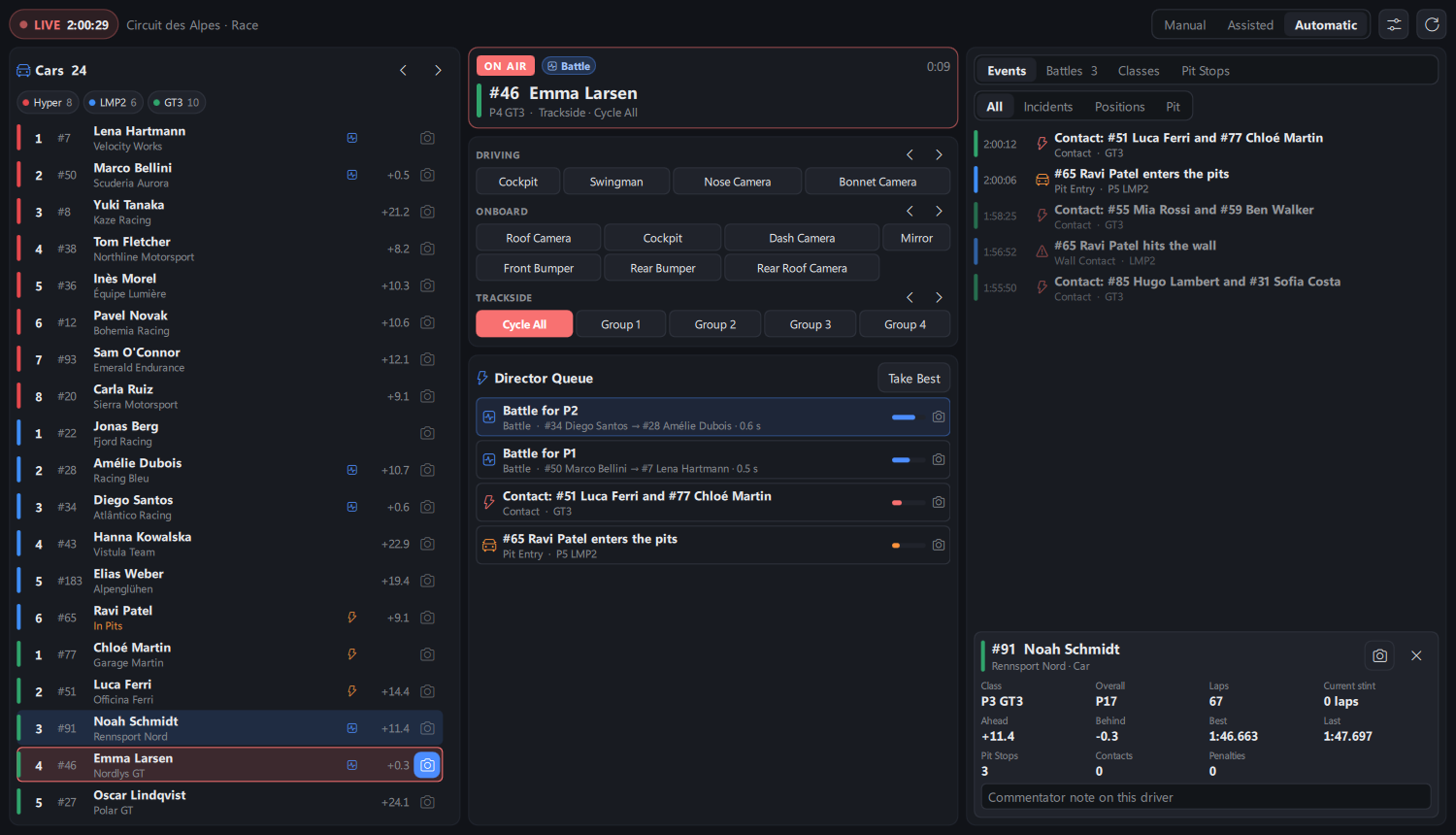
Page layout
The page has three columns.
- Cars (left): every car by place, with class place, number, team, interval to the car ahead in its class (
+0.8,+2 Laps: measured from track position, so it stays right for cars laps behind the leader, where the game gives no time), places gained or lost in the class since the start, and marks for battles, contacts and pit lane. Car logos and pictures of the game are shown. Click a car to open its sheet, double-click (or the camera button) to put it on air.Left/Right: previous / next car. Type a number or a driver name in the search field and pressEnterto put that car on air. - Camera desk (middle): the car on air, why it was chosen (story of the director, operator cut, chosen in the game) and for how long, and every camera of the game in one click (
Driving,Onboard,Tracksidegroups), with arrows for the previous / next angle. The eye button ofGame HUDshows or hides the game UI as in the replay tab of Results & Replays:Show / Hide Game UIhides or shows everything for clean pictures (top bar, standings, replay bar and HUD), as a middle click in the game does (game on this computer only),Show HUD/Hide HUD, or the HUD parts one at a time (chat, MFD, car HUD, timing, track map), checked as the game shows them. Replay controls come up while a replay is open (back and forward 10 s, play / pause, slow). - Commentator screen (right): race events with their time, battles with gap, trend (change per lap) and duration, class leaders and best laps, pit stops with time in the pit lane and stint length, and the sheet of the selected car.
The header shows the session state (LIVE or REPLAY) and the weather: full course yellow, air and track temperatures, rain and wet track. Click the weather for the weather forecast of the session.
The switch at the top left turns the director on or off (on by default, kept for next time). While the page is open, even hidden behind another page, the director asks the game about every second. Turned off, it asks the game nothing, cuts no camera, leaves an instant replay for the live session, turns Automatic back to Assisted, turns spectate mode off (overlays back on your car, whether the Spectate page or Overlays follow the car on air turned it on) and empties the broadcast graphics. Director hotkeys then act as with the page closed. Events, battles and notes of the session are kept; turn it back on with the switch, the Turn On Broadcast Director button, the director_toggle hotkey or the command palette (Ctrl+K, Broadcast Director (On)). Graphics and director settings can still be changed while off. Turned off and hidden behind another page for 10 minutes, the page is closed to free memory, like any page, and opens again from the navigation bar (turned on, it stays open to follow the session).
While the page is open, its Broadcast entry of the navigation bar has a dot (green: on, grey: off) and the Broadcast Director On notice shows at the bottom of the main window while on (click it to show the page; Config > Notification to hide it). Hidden behind another page with nothing needing fresh answers (assisted or manual mode, no graphics source showing, overlays not following the car on air, events log off), the director asks the game every 5 seconds instead of every second, and every second again as soon as the page shows, a graphics source connects or automatic mode starts.
Director
The director watches every car and finds the stories worth showing: battles (two cars of a class within 1 s, adjustable), overtakes, lead changes, contacts, stopped cars, slow cars, yellow flags in a sector, full course yellow and green flag, the race start, pit stops, fastest laps, finishes, retirements and penalties.
Choose the mode at the top of the page:
| Mode | What happens |
|---|---|
Manual |
You cut alone. |
Assisted |
The stories are listed by interest in the director queue: click one, or Take Best (Enter). 1 to 6 take that suggestion. |
Automatic |
The director cuts by itself, with a camera suited to each story. |
How the automatic director cuts:
- A shot lasts at least the shortest shot (8 s by default) and at most the longest shot on one story (30 s by default). Only an urgent story (contact, stopped car, slow car, lead change, win) cuts sooner. A bar shows when the director may cut.
- A car just shown is not shown again at once; when nothing happens, cars are shown in turn. Incidents already shown are less wanted, and cars climbing through the field are followed more.
- Each kind of story has its cameras (for example trackside for contacts, onboard for fastest laps);
Director camerasin the settings can also keep to trackside cameras, to onboard cameras, or leave the camera as it is. An overtake coming (very close and closing fast) is shown from the bonnet camera of the car behind. - A car or camera chosen by hand, here or in the game, holds the director for 20 s. When another app also moves the game camera, turn off
Pause the director when the camera changes in the gamein the settings. - Lock (button of the car on air) keeps the car on air: the automatic director waits until you unlock it.
- The page never opens in
Automaticmode: left inAutomatic, it opens inAssisted.
Contact severity is measured from the speed the cars lose: a contact that costs a car most of its speed (or stops it) comes first, a touch both cars drive away from is a minor story. It also works as online spectator, in replays and from another computer. Slow cars are found by comparing their speed with the usual speed at that place of the track, learned from the other cars.
Live timing and car sheet
- Intervals and battle gaps turn amber under 0.5 s and red under 0.3 s.
- Sectors of each car are colored as on TV: purple for the best of the class, green for a personal best, yellow when slower.
- Cars in the pit lane show their time there as it goes, and the time stopped in the pit box.
- Pit radar: while the car on air is in the pit lane, the cars near it show with their distance,
Alongsidein red. - Tyres of every car (front and rear), with the game on this computer.
- Sheet of the selected car: intervals ahead and behind, laps, current stint, best and last lap, pit stops, contacts, penalties, tyres, energy used per lap over 3 and 5 laps and the laps left, and your note on the driver (kept between sessions).
- Driver history in the sheet: races, class wins and podiums, best finish on this track, last races, and the races with the cars ahead and behind, from the game results files (see Results & Replays).
- Lap history of any car (right-click it, or
Lapsin its sheet): every lap seen with its sectors colored, pit laps, energy used and class place.
Timing table
Timing above the car list opens a full timing table, with three views: Race, Qualifying and Pit Stops. Each view has its own columns: drag a column title to move it, right click to show or hide columns. Sectors and laps are colored, battles show their trend, the car on air is in red, slow cars in amber, with tyres, energy and penalties.
Events and replays
- Click an event to put the camera on its car. In a replay, the replay goes there a few seconds before, camera on the car.
- Instant replay (replay button of an event) in a live session, also as online spectator: the game replays the moment a few seconds before, then goes back to live by itself, or with
Back to Live. - Incidents not seen yet are marked and counted until shown on air or looked at.
- Export Events saves every event as a CSV file.
- Events log (optional, in the settings): every event written to a CSV file as it happens, one file per session in the
broadcast_logsfolder, for race control.
Settings
The sliders button opens the director settings: shortest and longest shot, battle gap, replay seconds before an event, instant replay seconds after the event, director cameras, Game computer (address of the computer running LMU, empty for this one: direct from a second computer), the events log, Pause the director when the camera changes in the game and Overlays follow the car on air (spectate mode on the car on air: your overlays and stream overlays show that car).
Broadcast graphics
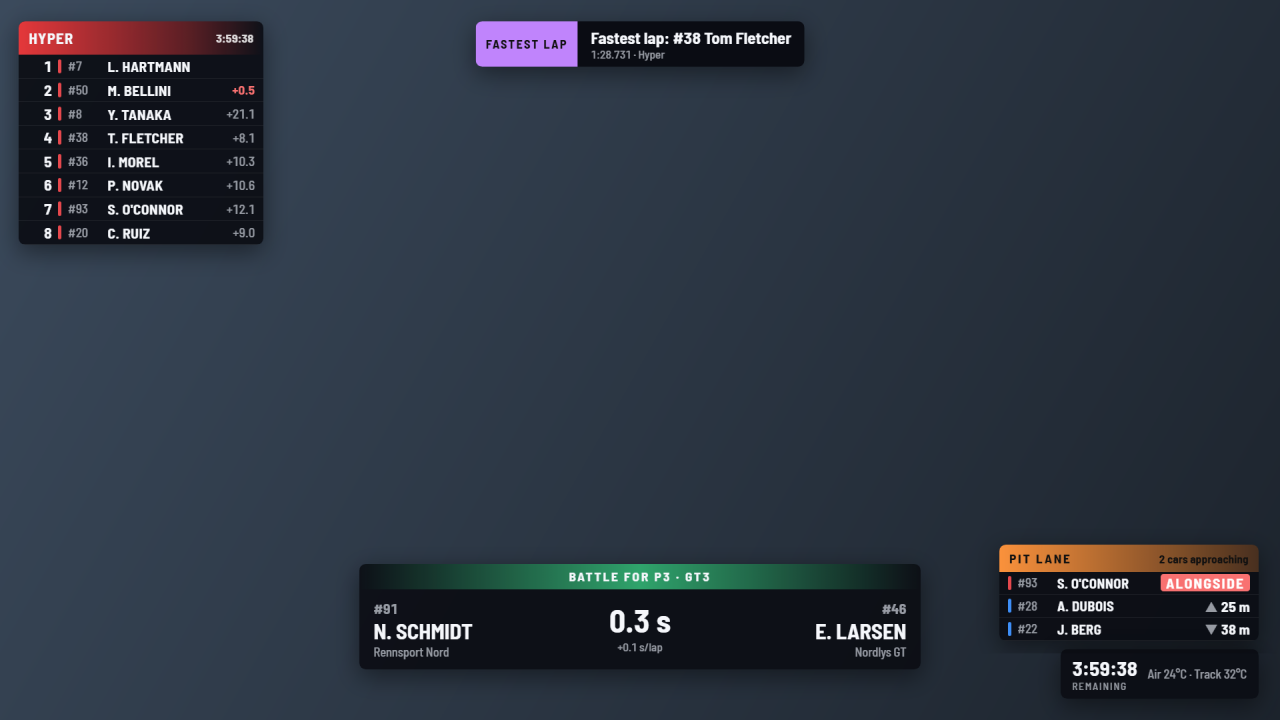
TV graphics made for the director, as one browser source (1920 x 1080) for OBS Studio, Streamlabs, XSplit or vMix. They are served by the stream overlay server: turn on stream overlays first (Tools > Stream Overlays, see Connections). The source is not listed with the other stream sources: click Graphics on the director page, then Copy Address, and add it as a browser source. It is fed by the director page only.
Graphics tab, each graphic on or off:
- Standings tower: overall, each class in turn, or the class of the car on air; gaps to the car ahead or to the leader, lap times shown a few seconds as each car completes a lap (purple for the fastest of its class), tyres, penalties, fastest lap tag, pit stops, classes apart in overall. Rows move on overtakes.
Cars shownsets its height (3 to 70 cars): with more cars, it slides up page after page every 10 seconds (carousel, a thin bar on the right tells which part of the field is shown), every page of a class before the next one withEach class in turn. - Driver card on each cut, with the car picture if you want, and the Driver Rank and Safety Rank (
DR S2,SR P3) of drivers whose ranks the game menu knows: you and your team members. - Battle card while a battle is on air, and battle train: up to 6 cars of a class following each other, kept 10 s after the train breaks up.
- Banners: fastest lap, penalties, flags, lead changes, heavy contacts. The most important first, the same news never twice in 30 seconds, 4 waiting at most.
- Replay mark during replays, and instant replay graphics: a contact replayed shows both cars, a flag or a stopped car shows the driver card all along the replay, and banners wait until 5 s after the replay.
- Session clock & weather.
- Pit radar of the car on air in the pit lane.
- Onboard: speed, gear, rpm, throttle and brake of the car on air, ten times a second (game on this computer, also as online spectator), energy left, shift lights and the car ahead with its gap, in three styles (
Dash,Cockpit,Helmet). - Qualifying lap outside races: the lap of the car on air with its time running, sectors colored, gap to the pole of its class at the last sector and its state (out lap, improving, in pits).
- Track map: the circuit of the game with every car in its class color, the car on air bigger with its number, the car of a yellow flag and sectors under yellow in gold, cars in the pit lane faded; rotation and dot size.
Hide Graphics hides them all at once (Show Graphics brings them back).
On demand
Graphics > On Demand: shown until clicked again, one at a time.
- Starting grid: pages of 8 cars with their qualifying lap and car picture.
- Event card: track, conditions, forecast, session length.
- Classification: captured when you click
Capture(gap to the leader, laps, best lap, pit stops, retired cars), shown until captured again. - Championship standings imported from a CSV file (
Import...): driver, points, and team, class and car number if you want, columns found by their title (comma, semicolon or tab separated). Several championships can be imported, shown for one class orAll Classes, with medals for the first three. - Message of race control or commentators as a lower third, and a countdown before the start.
Automatic (each one on or off): starting grid during the formation lap, event card for 20 s when a session starts, classification at the chequered flag (kept up to date while cars finish). Your own choice always wins.
Style & Layout
Graphics > Style & Layout:
- Panel opacity, and temperatures in °C or °F (or the app setting).
- League: accent color, event or league name, league logo (
Logo...), and sponsors pictures shown in turn (a folder of PNG, JPG, WEBP or SVG pictures). - Layout presets:
Default,Pre-race,RaceandPost-race, each with its own places. Switch the preset in use in one click or with thedirector_next_layouthotkey. - Edit Layout opens the graphics in your browser with sample data: drag a graphic to move it, mouse wheel to resize it, double click to put it back in its place, chips to show the graphics sharing a place. It snaps to the other graphics and to the middle with guides, arrows move by one pixel,
Ctrl+Zundoes, position and size are shown.Save: every graphics source of this computer follows at once.Reset Layoutputs them all back. - Source with some graphics only: a source address with
only=followed by graphic names (for exampleonly=tower,map) shows only these graphics, to split them over several OBS scenes or sources, each with its own layout preset. Names:tower,card,battle,train,banners,pitradar,replay,clock,onboard,quali,map,grid,event,results,champ,message,countdown,logo,sponsors.
Hotkeys
These commands can be bound on the Hotkey page and run from the remote control (Stream Deck, Companion...). Except the first two, they work while the page is open:
| Command | Effect |
|---|---|
director_toggle |
Director on or off (same as the switch of the page) |
director_next_car, director_previous_car |
Next / previous car on air. With the page closed, they move the game camera to the next / previous car. |
director_auto |
Automatic mode on or off |
director_take_best |
Cut to the best story now |
director_lock |
Lock or unlock the car on air |
director_starting_grid, director_event_card, director_championship |
Show or hide that on demand graphic |
director_classification |
Capture and show the classification, or hide it when shown |
director_hide_graphics |
Hide or show every graphic |
director_next_layout |
Next layout preset |
Good to know
- The page asks the game about once a second while it is open, also while you look at another page, so the director keeps working. It keeps one connection to the game open; an answer of the game costs about 3 ms of the interface (0.5 ms while the page is hidden).
- Laps, fuel and stats are only recorded while you drive, not while you direct a race you spectate.
Broadcasttook the place ofSpectatein the default navigation bar. TheSpectatepage is still in the command palette and the Home page quick access; add it back to the navigation bar withCustomize Navigation Bar...(right-click the bar).