Share with Friends - Inktomi93/OrbWeaver GitHub Wiki
Orbweaver runs on your computer, and a room can have more than one person in it. This gets your friends from "just me" to sitting in the same scene as you, live. Playing with friends is the whole point of this thing, so the page is long. Read Stay safe even if you skip the rest. You need [Install]] done and a model connected first. → [Connect a model
Why it starts as "just me"
A fresh install has no login and answers only on the computer it runs on. Friends need accounts, and accounts need a login, so sharing is something you switch on. Why that's the default is on Privacy and security under "What 'just me' protects".
What changes when friends join
- Your models do the work. In a room you host, every reply comes from your Chat model. Memory summaries run on your Utility model. Smart normally uses your Rerank model, which runs locally by default, or Utility when you choose Use the Utility model instead. Friends need no key of their own, and they can't pick a different model for your room. In your room their Next reply: line reads "the host's chat connection". → Connect a model
- Your computer has to stay on. Friends can only play while Orbweaver is running on your machine.
- Memory follows the host. In a shared room, your Remember earlier in long chats switch is the one that counts. → How memory works
- Memory is off until you switch it on, and it needs a Utility model. Turning it on tells you what it costs first. Without a Utility model, memory summaries stay paused for the whole room.
- A model server on your own computer may need admitting again. On an install where people sign in, the Allowed private endpoints list starts empty unless the owner already set it, so the owner admits the server again. → Connect a model
Turn on sign-in and sharing
Pick the path that matches how you installed Orbweaver. The one-launch shortcut starts the link by itself. The other paths end with a signed-in owner who can press Start sharing.
Not sure where you stand? Open Settings, go to Admin, then Multi-user, and read Who can sign in. It names the sign-in mode this install runs and where that came from: your .env file, a launcher flag or the environment. For every other mode it shows the exact lines to switch, with a copy button, the file they go in and how to restart.
From source, for one launch
Stop Orbweaver, then start it like this:
pnpm share
With the start scripts, that's ./start.sh --share (Linux, macOS) or start.cmd --share (Windows).
This run uses a password sign-in and prints a public link in the terminal. Your saved sign-in choice is not changed. On a "just me" install the server only answers on your own computer, so nothing opens up on your home network. Press Ctrl-C to stop it, and the next plain pnpm start runs as it did before.
If this is your first start, it asks its usual setup questions first. Either answer works for this run, but me and friends also opens the server to your network, as it does for good.
Open Orbweaver in the browser on the computer it runs on. On a fresh install it asks you to set the owner password. The link starts as soon as you have, and this shortcut also turns on Allow multiple humans and Discreet login for you.
From source, for good
Stop Orbweaver and run:
pnpm start --setup
With the start scripts, that's ./start.sh --setup or start.cmd --setup. Choose me and friends, then a password stored by orbweaver. Orbweaver starts when the questions are done. Open it in the browser on that computer and set the owner password when it asks. This also opens Orbweaver to other devices on your network, which the home network section covers. Then follow Start sharing, which the summary at the end of the questions also points you to.
In Docker
A container starts as "just me", so it needs three lines to switch to a password sign-in. Put them in docker/orbweaver.local.env, and copy docker/orbweaver.local.env.example to that name first if you don't have one. Who can sign in shows the same lines with a copy button.
AUTH_MODE=local
AUTH_FALLBACK=deny
AUTH_FALLBACK_TRUSTED_PEERS=
Then run docker compose -f docker-compose.yaml -f docker/compose.build.yaml up -d, which recreates the container with them. A plain restart keeps the old settings. If you start Orbweaver with the host-network overlay, docker/compose.host-network.yaml, its environment: lines set "just me" and win over that file: remove those lines there, or start without the overlay.
The first start in this mode makes a password for the owner and saves it to a file, not to the log. Read it with:
docker compose exec orbweaver cat /app/data/secrets/initial_password
Sign in with that handle and password at http://localhost:8788, then follow Start sharing. Keep the published port on this computer only; the link doesn't need it opened.
If you use single sign-on
Sharing through the link isn't offered when Orbweaver is set up with single sign-on or behind a login proxy. Single sign-on only sends people back to addresses registered with your identity provider, and a relay in front of a login proxy would let a visitor pose as any account. Friends reach your server at its own address, through your identity provider or proxy, with an invite link.
Start sharing
- Open Settings, go to Admin, then Multi-user, and find the Share over the internet card. Only the owner sees it.
- The card lists what has to be true before a link goes out: Sign-in mode, Owner password, Invites and a blank sign-in page, and Relay. Each row says Ready, Needs a fix, Waiting or Checked on start. If a row needs a fix, it tells you how. For the third row, its button turns on the settings it names once you confirm, and they stay on after you stop sharing.
- Press Start sharing.
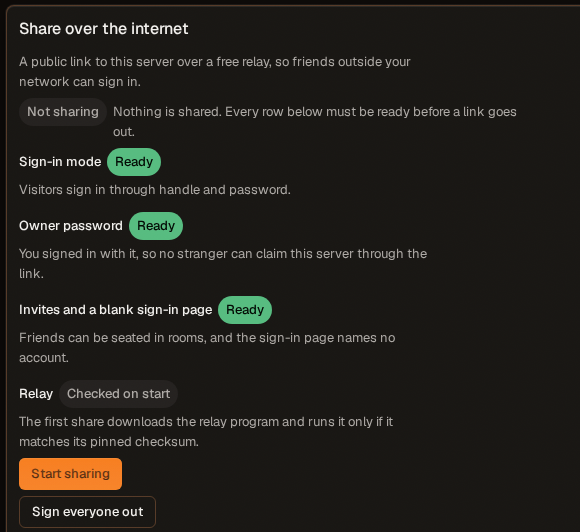
The first time, Orbweaver downloads a free Cloudflare quick-tunnel program, checks it against a fixed checksum, and runs it only if the check passes. The download needs internet access and goes into the cache folder inside your data folder, so later shares download nothing.
A few seconds later the card shows your link with a Copy button and a Public link warning. Send the link to your friends. It only takes them to the sign-in page, so they still need an account, which is the next step.
The link changes
The link is a random name, and a new one comes with every share. If the relay drops and restarts itself, the card shows Link changed. Send the new link, because the old one is dead and everyone signs in again at the new one. After five restarts in a row it gives up and offers Try again.
If you want an address that survives restarts, run a Tailscale Funnel or a named Cloudflare tunnel yourself. The Docker notes have the steps for both.
Invite friends
Only a room's host can invite people. Open the chat, go to its Members tab, and press Invite people under People. If you don't see it, Allow multiple humans is off. While you are sharing, a share link you make carries your public link on its own.

Let them make their own account
In the invite dialog, keep Share link selected and switch on Let people without an account sign up. It needs one to ten uses and an expiry of seven days or less, and only an admin sees the switch. Press Create link and copy it right away: the link is shown once.
Your friend opens it, sees which room they're joining, and picks a handle, a password of at least eight characters and a name for their persona. Create account and join puts them in your room.
Each sign-up creates an account, and its turns run on your models. Keep the number of uses small. You can revoke a link under Outstanding invites. You can remove anyone from the room later, and an admin can disable an account.
Make the account yourself
Open Settings, go to Admin, then Users, and press Create user. Give them a handle and a password of at least eight characters, and tell them both. On their first sign-in Orbweaver asks Who are you in the story? Then invite them to the room by their exact handle (Invite by handle), which lands in their notification bell even if they're offline, or send a share link. A friend who already has an account opens the link, signs in, and gets a Join a chat prompt.
With Discreet login on, the sign-in page is blank and doesn't suggest a handle, so tell your friends theirs.
Friends in the room
Once they join, your friends see the room's People and who is online. A room writes one reply at a time. → Rooms and group chats
- A new member can read the room's earlier messages by default. On a person's entry in People, Hide messages sent before (name) joined limits them to what comes after.
- Kick... removes someone. Their messages stay in the transcript.
- Hand off host... passes the room to someone, and they have to accept.
- A friend's own chats are theirs. There they are the host, so they need a connection of their own.
Only on your home network
If everyone is on the same Wi-Fi, you don't need a public link at all.
- From source: run
pnpm start --setup, choose me and friends, and read the addresses it prints. Friends open one of them, likehttp://192.168.1.20:8788. - In Docker: add the three lines from In Docker, then open the port to your network. The compose file's notes show the
ORB_BINDsetting. Orbweaver refuses to start with no login on an open port.
Then, as the owner, open Settings, go to Admin, then Multi-user, and switch on Allow multiple humans. Invite from a page you opened at your network address, not at localhost. A link made at localhost opens only on your computer, and the invite dialog says so.
A sign-in on your network is plain http, so the password travels unencrypted, and the sign-in page warns about it. That is fine on a network you own. For anything else, put HTTPS in front with a proxy like Caddy or nginx, or Tailscale. An IP address works as it is. Any other name people type, like nas.local, has to be added to the allowed host names, which pnpm start --setup asks about. Under WSL2, turn on mirrored networking so other devices can reach the app.
HTTPS at your public address
This one is for people who already have a public IP address and a router they control. In a password sign-in, the Share over the internet card also has an HTTPS at your public address block. Orbweaver gets a free Let's Encrypt certificate for your IP address and renews it by itself, so friends sign in over https with no relay.
- On your router, forward port 443 to the card's https port on this machine and port 80 to its Challenge port on this machine. The card suggests 8443 and 8080. Port 80 only answers Let's Encrypt's check, and only while a certificate is being issued.
- Enter the public address your router shows and press Get a certificate. Doing so accepts Let's Encrypt's Subscriber Agreement.
- When the card says https on, send friends the https address it shows.
It can't work for a home address (192.168.x.x, 10.x.x.x) or a carrier-shared one (100.64.x.x). If the check fails, the box keeps answering on plain http with a warning, and you can fix the forwarding and try again or press Turn off https. Orbweaver has to be reachable beyond your own computer, so it doesn't work with pnpm share on a "just me" install. If the link works for you, use the link.
Stay safe
- Never forward a router port to Orbweaver's own port. Your password would cross the internet in plain http. The link and the HTTPS option are the ways in. The HTTPS option forwards only to the two separate ports the card names.
- Anyone with the link reaches your sign-in page. Only an account gets past it, and sign-in attempts are throttled. Share the link with people you trust, and keep sign-up links short-lived.
- The link runs through Cloudflare's free quick tunnel, so your friends' traffic passes through Cloudflare on the way to your computer.
- Plain http gets a warning. The sign-in page tells people when their password isn't encrypted, as a warning on a private network and a stronger one on a public address.
- Don't put a proxy or tunnel in front of "just me". A relayed visitor is never the owner, so everything answers 401. Switch to a password sign-in first.
Stop sharing
Open Settings, go to Admin, then Multi-user, and press Stop sharing. The link stops working at once. Accounts stay signed in until their sessions expire, so press Sign everyone out as well if you want them out now. They can sign in again the next time you share, at the new link.
With pnpm share, press Ctrl-C. In Docker, a restart of the container ends the share too. Allow multiple humans and Discreet login stay on, and the accounts stay.
To go back to a plain "just me" install, run pnpm start --setup and choose just me.
If Start sharing is refused
- "The owner has no password yet." Open the address the message names on the computer Orbweaver runs on, set the owner password, then press Start sharing again.
- Single-user mode. The sign-in mode row says so. Use one of the paths under Turn on sign-in and sharing.
- The download failed or didn't match. Orbweaver needs internet access to fetch the relay program once. If the checksum doesn't match, it deletes the file and never runs it.
- No relay for this computer. Orbweaver names the platform it can't serve. The LAN and HTTPS options still work.