Rooms and Group Chats - Inktomi93/OrbWeaver GitHub Wiki
A room is just a chat. Put several characters in it and you have a group chat. Put several people in it and you have a shared room. The same controls cover both, and a room can be both at once. This is the feature I built the whole app around, so it has a lot of knobs. Setting up the sharing itself is on Share with friends.
Put several characters in a chat
Start with several. Press New in the Chats list (or type /new-chat in the message box), tick the characters you want, and press Start chat with N characters. Each character that has a greeting posts it to open the scene.
Add one later. You're the host of your own chats, so open the room's Members tab and press Add a character. The picker stays open so you can add several in a row. Only characters from your own library can join a room you host.
Take one out. Open the character's menu in the Members tab and choose Remove (name) from chat. Adding them again later seats them as a fresh arrival, with mute and talkativeness back at their starting values.
The Members tab lists Characters, and, once Orbweaver is set up for more than one person, People. Open any character's menu by clicking or tapping their row. That menu is where mute, talkativeness, speak next and remove live.
Controls that only make sense for a group, such as Group behavior, mute, talkativeness and speak next, appear once the room has two or more characters, and only for the host.
Choose how the characters reply
Open the room's This chat settings, then Host controls, then Group behavior. Press How the characters reply and pick one:
- Per-speaker is the default. Each character posts their own message, and you can swipe each one separately.
- Narrator posts one message that voices the whole scene. You can't swipe individual characters in it. A Narrator round is one model call for the whole scene, where Per-speaker is one call for each character who replies.
Switching between the two resets Label each speaker to that mode's usual setting: on for Narrator, off for Per-speaker.
In a Narrator room, mentioning one character by name (see below) or using Make (name) speak next still gets that character their own message for that round, and then the room goes back to narrating.
Two more switches live here, Label each speaker and Nudge the group to stay in character. Each one says under it what it does in the mode you picked. Under Advanced, with Per-speaker on, Each character sees only their own card is what lets every character keep a separate memory. → How memory works
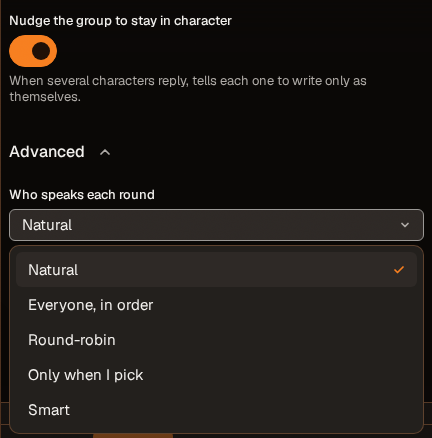
Choose who speaks each round
Under Advanced in Group behavior, Who speaks each round sets who answers each time you send a message: Natural (the default), Everyone, in order, Round-robin, Only when I pick or Smart. The line under the menu says what the one you picked does. Muted characters never get picked by any of these.
Under Natural, any character you name in your message replies, even the one who just spoke. Each other character replies by chance, set by their talkativeness, so a message usually gets one or two replies, not one from everyone. If nobody would reply, one character does. Names are matched as whole words, and small words like "the" or "my" in a name never count. Everyone, in order and Round-robin get a reply from every character who can speak, so a round with four characters is four replies from the host's model.
Smart uses the host's Rerank model by default. The built-in reranker runs locally without a paid model call. A character you name clearly always replies; an ambiguous name lets Smart pick which character you meant. With no running reranker, clear names still work, Natural makes the other picks, and you're told once per session. → Connect a model
For a model-based picker, switch on Use the Utility model instead under Smart. This adds a Utility call each time Smart needs to pick; the call is skipped when every character name in the last message is clear. If that model is missing, unavailable or can't decide, the same named-character and Natural fallback applies.
Smart is only for Per-speaker rooms. Switching to Narrator changes Smart to Natural, because one message voices everyone. Switching back does not restore Smart; choose it again if you want it.
Picking a speaker yourself
These work with any setting, and under Only when I pick with Per-speaker they're the only way to get a reply.
- Mention them. Type
@and the character's name in your message. The named characters answer instead of whatever the setting would have chosen. A muted character can't be mentioned into speaking. Under Natural, writing a character's name without the@also makes them reply, alongside anyone who replies by chance. - Make (name) speak next. In the character's menu (or the quick button that appears when you point at their row), the host can make that character reply right now, without sending anything. This works even for a muted character.
- Generate reply. In a group chat this button opens a menu, and anyone in the room can use it. Let the room pick gets one reply from whoever the room's Who speaks each round setting picks, so under Only when I pick it picks nobody. Or pick a character from the menu to ask that one for a reply, which works even if they're muted.
Mute a character, or make them chattier
In a character's menu, Mute (name) takes them out of the running: they won't be picked to speak. They're still in the room, and you can still call on them with Make (name) speak next. A Muted badge shows on their row. Unmute (name) brings them back. A mute button also appears when you point at their row.
Talkativeness... in the same menu sets a character's chance, as a percent, to reply under Natural without being named. At 0% they reply only when you name them. Smart uses it only when it can't decide.
Let the characters talk to each other
Switch on Let characters reply to each other under Advanced in Group behavior. After your message gets its replies, the characters keep going one at a time, with the setting you chose picking each next speaker. Max turns in a row and Delay between turns set how long the chain runs and how long they pause.
- It's off by default, and every extra turn is a full reply from the host's model. Under Smart, the extra picker call costs tokens only when Use the Utility model instead is on and Smart needs a model to pick.
- Let a character reply to itself (under Advanced, on any group room) decides whether whoever spoke last can answer again, in every round the app picks speakers for. Under Natural, a character you name can always answer.
- Under Round-robin, it cycles through everyone before repeating anyone. Under Everyone, in order it keeps handing the turn back and forth between the first two characters in the list, so pick Round-robin if you want every character to get a turn.
- Under Only when I pick, auto mode has nobody to hand the next turn to, so it does nothing.
- Press Stop generating to end the chain early.

Save characters as a roster
A roster is a saved group: the characters, how each one is set (muted or not, how talkative), the room's group behavior, and any automation rules switched on in the room. If the room is a game, you can also save it as a campaign that starts new chats as a game. → RPG mode
Save one. In the Members tab, press Saved rosters..., name the roster, and press Save this room's roster. A line in that dialog lists exactly which rules ride along.
Use one.
- Start a new chat with it. Press Start on a roster. Once you have a saved roster, you can also reach the list from the New chat picker (Start from a saved roster) or from All rosters on Home.
- Add it to a room you host. Press Add to chat on a roster. It adds the characters that aren't already there and never removes anyone, and it sets mute and talkativeness for every character on the roster, including ones already in the room. If the roster carries group behavior, that replaces the room's current group behavior. If it carries rules, they're switched on in the room. A message tells you what landed and anything it skipped.
Manage them. Open Rosters in Settings to rename a roster, describe it or start a chat from it. To change who's in one, set up the room the way you want it and save it again as a new roster. Delete a roster from the Saved rosters list; chats you started from it aren't affected.
Give each character their own memory
By default a group chat shares one memory. For a character who only remembers what happened while they were in the room, turn on all three:
- Remember earlier in long chats is on (Settings, Chat behavior) and a Utility model is set. Both are the host's. Memory is off until you switch it on.
- How the characters reply is Per-speaker.
- Each character sees only their own card is on. This also keeps the other characters' cards out of each speaker's prompt.
It goes by who was seated in the room, and it only filters recalled memories. The recent messages stay shared. → How memory works
Play with friends
What you need first
A fresh Orbweaver is "just me": no login, one person, and no Invite people button. To bring friends in you turn on sharing first. The steps are on Share with friends.
The host pays
Every reply in a room runs on the host's Chat model, including the ones your friends trigger. Memory summaries use the host's Utility model. Smart uses the host's Rerank model unless Use the Utility model instead is on. Friends don't need a model or a key of their own. If the host hasn't set a Chat model, friends see "The host has no chat connection set — ask them to choose one before sending." → Connect a model
Invite someone
Open the Members tab and press Invite people. You have two ways in:
- Share link. Press Create link, then send it. Orbweaver copies it for you, and it's shown only once, so make another if you lose it. Pick Expires and Max uses first; the form starts with a link that never expires and has no use limit. Make the link while sharing is on, so it carries your public address. A link made from a local address while sharing is off opens only on your own computer, and the dialog says so ("Only this computer").
- Invite by handle. Type the exact handle of someone who already has an account on your server and press Send invite. It arrives in their notification bell, and they accept or decline it there.
If a friend has no account yet, an admin can switch on Let people without an account sign up for a share link. Each use creates an account and seats that person in the room. Those links need a use limit and a short expiry. The switch isn't offered behind a login proxy or with no login.
The notification bell
The bell in the top bar is your inbox. A dot on it means something arrived since you last opened it; opening it clears the dot. Things wait there until you deal with them, so an invite sent while your friend is offline is there when they sign in.
- Invites have Accept and Decline right on the row. Accepting puts you in the room.
- Host handoffs ("You've been nominated to host a chat") have Accept and Dismiss. Accept first shows what taking over the room copies into your own library, and you confirm from there.
- Notices tell you when you were removed from a chat, when an AI reply couldn't run (the host hasn't allowed it, or the chat is gone), and when one of your plugins was disabled or is waiting for you to approve what it asks for.
The Outstanding invites list shows each invite, how many uses it has left and when it expires. Press Revoke on a pending one to cancel it.

What your friend sees
A friend who's already signed in opens the link and sees a preview with the room's name, the host, how many people are in it, and a plain-words line about how the room plays. They press Join chat or Not now. The preview shows no names of who's inside and none of the earlier messages. A friend using a sign-up link picks a handle and password and names their persona on the spot, then lands in the room.
In the People list, each person appears under the persona they're playing rather than their login handle.
Who the card's {{user}} is
A card's text ({{user}} in its description, scenario, greeting, examples and its own lore) names one person for everyone in the room, whoever is speaking: the pinned persona. With several humans in a room, the host picks which present player's persona that is, in This chat under Personas (who the card sees you as), and can re-pin it any time. Every player still plays as their own persona, and each present member's persona description goes into the shared prompt, so the characters know who everyone is. Your own lines keep the persona you wrote them as. The full rule is on How a turn is built under "Who {{user}} is".
See who's here
The People list shows a filled dot next to someone who's online and a hollow ring next to someone who isn't. No dot means Orbweaver doesn't know. The host wears a Host badge, and you wear a you badge.
What each role can do
Friends can chat, react, ask a character for a reply with Generate reply, read character cards at the level the host allows, and leave. Everything else is the host's: adding, removing and muting characters, group behavior, inviting, removing people, turning on game mode. → RPG mode
Only the person whose message started a round can stop it.
Choose what friends can read about the characters
Under Advanced in Group behavior, How much of each member the others see sets how much of a character's card a friend can open with View character: Name + avatar only, Character sheet, Sheet + lore or Full card. It starts at Character sheet, and the host always sees the full card. This setting appears once the room has two or more characters.
Hide the earlier story from a new arrival
By default a friend can read the whole chat from the start. In their row's menu, Hide messages sent before (name) joined limits them to what happened after they arrived, and a Limited history badge appears. Let (name) read all earlier messages undoes it. Either way it takes effect the next time they load the chat.
Hand the room to someone else
In a friend's row menu, choose Hand off host... and confirm. They get a notification and become the host when they accept; until then they wear a Nominated badge. You stay in the chat as a member, and their models pay from then on.
The characters belong to the host's library. When the new host accepts, any character they don't own is taken out of the room, unless you ticked Also give copies of your characters, world books, regex scripts & GM voice used in this room when you handed off. Their invitation lists exactly what the copies include.
Remove someone, or leave
- Kick... in a friend's row menu removes them. They lose access to the chat, their messages stay in the transcript, and they get a notification.
- Leave chat... in your own row takes you out. You lose access until someone invites you again, and your messages stay. If you're the host, leaving archives the chat for everyone, so hand it off first if the others should carry on.
When the host is away
If a friend sends a message while the host doesn't have Orbweaver open in a browser, the message lands and the characters' reply waits, even if the server is still running. It runs once the host opens Orbweaver again, on the host's model.
The deferred turn keeps the sender's reported timezone for time and date macros. It does not switch those macros to the returning host's timezone. A turn without a reported timezone uses UTC.
React to messages
Anyone can react to a message with an emoji using Add a reaction on the message. In a Narrator message with speaker labels on, you can react to one character's line instead of the whole message. Reactions show as small counts under the message, and clicking one toggles your own.
The host controls this in the room's This chat settings, under Host controls, then Reactions. Reactions is on by default and Characters can react is off by default. Your defaults for new rooms are in Settings, under Chat behavior.
Limits
- Group controls need two or more characters and a host. A room with one character has no group behavior to edit.
- Only one model answers a room, and it's the host's. There's no per-room model picker.
- Characters have to come from the host's own library, and a handoff takes the ones the new host doesn't own unless you copy them.
- In a Narrator room you can't swipe one character's lines on their own.
- Sharing needs setup the first time. A fresh install is "just me".
Next steps: Share with friends to get the link working, How memory works to see what each character remembers, and RPG mode to turn a shared scene into a game.