Edit Mode Edit Widgets - ArnoldSmith86/virtualtabletop GitHub Wiki
Edit Widgets is the top button of the Edit Mode Menu (right sidebar). It is the visual property editor: where a widget sits, what it shows, what it looks like and what it is linked to can all be set here without editing JSON directly. What the panel shows depends entirely on what is selected, so it is described below in that order — nothing selected, one widget selected, several widgets selected.
Three things apply everywhere in this tab:
- Everything is applied immediately. There is no "apply changes" button — as soon as you type a value, tick a box or pick a color, the widget in the room changes. Use History or
Ctrl+Zto undo. - The selection bar sits at the very top of the panel. Breadcrumbs, back and forward, the room tree, the list of the widgets under the pointer and the highlight switch are the same control the JSON editor carries, and it is how you get at a widget that lies underneath another one — see Selection bar.
- Almost every label has an ⓘ button. Hovering it peeks at an explanation of that property, clicking pins it, Escape closes it. That is usually faster than looking the property up in Widgets.
Nothing selected
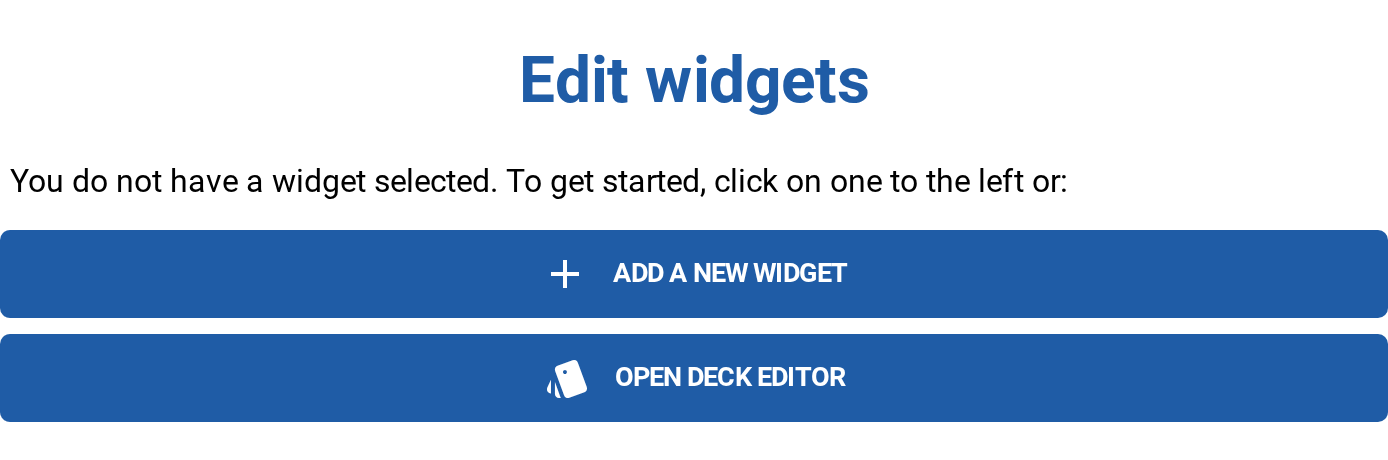
With no widget selected the panel is just a starting point: Add a new widget opens the same "Add widget" overlay as the + button of the top toolbar, and Open deck editor opens the Deck Editor on the most relevant deck of the game.
This is also the state Edit Mode starts in the first time you open it: the panel opens by itself so it is on screen without having to find the Menu button for it (see Editing JSON). Click a widget in the room to fill it, or close the panel by pressing its Edit Widgets button in the Menu again.
One widget selected
Select a widget (click it, or drag a selection rectangle around it) and the panel fills with an editor built for that widget's type. It always starts with the widget's type and its id — the id is editable here — and is then split into blue sections, some of which contain grey collapsible sub-sections.
Links to sections:
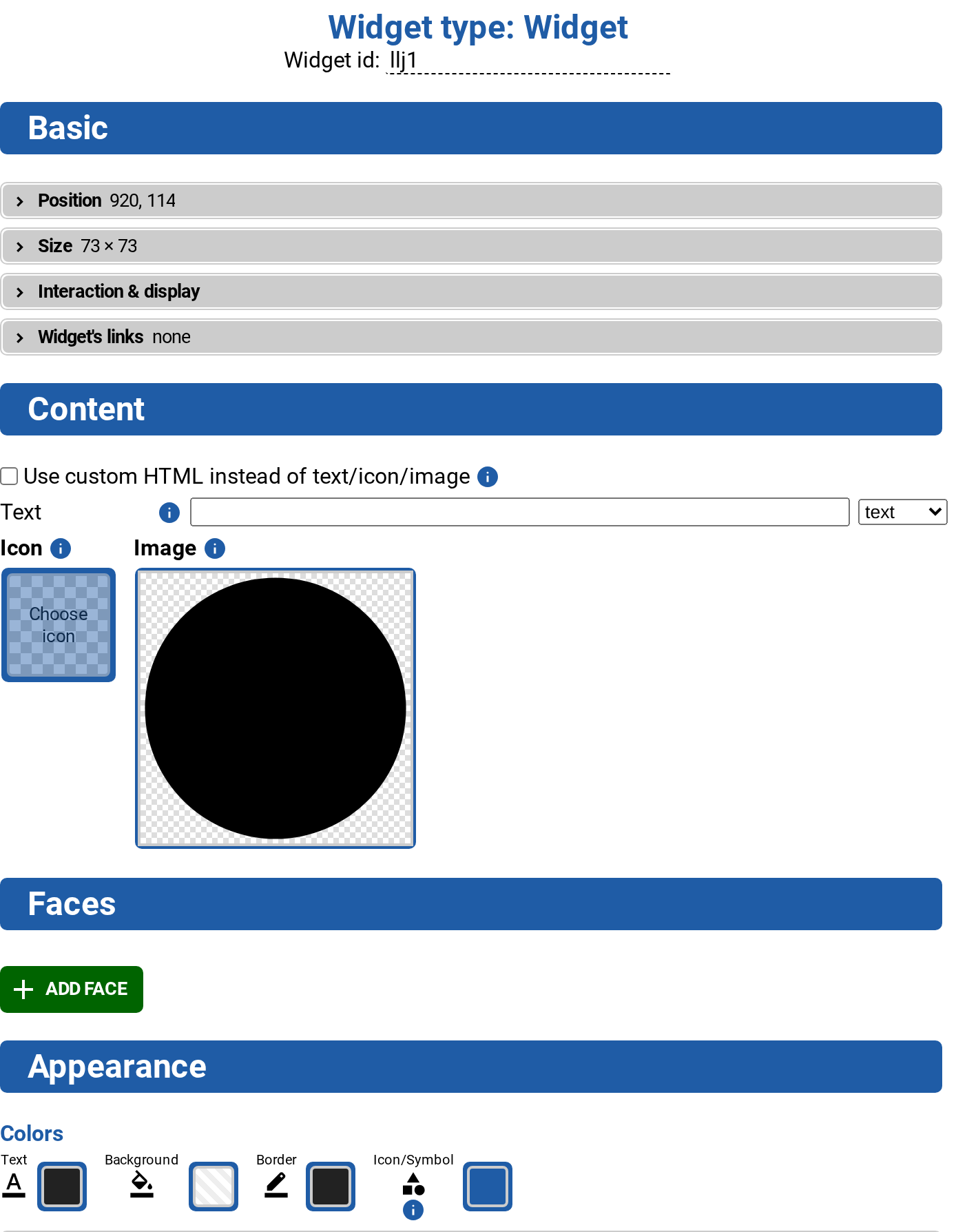
A collapsed sub-section previews its contents in its own header, so you can see what is set without opening it: Position 100, 200 · grid 50 × 50 · drag limited, Size 100 × 100 · ×2, Widget's links parent (w1) · seat (seat1), Interaction & display not clickable · enlarge ×2. A header that says none, off or nothing at all has nothing but defaults behind it. Fold states are remembered while you keep working on the same widget.
Basic
Present for every widget type. It holds the four things every widget has, each as its own collapsible sub-section.
Position
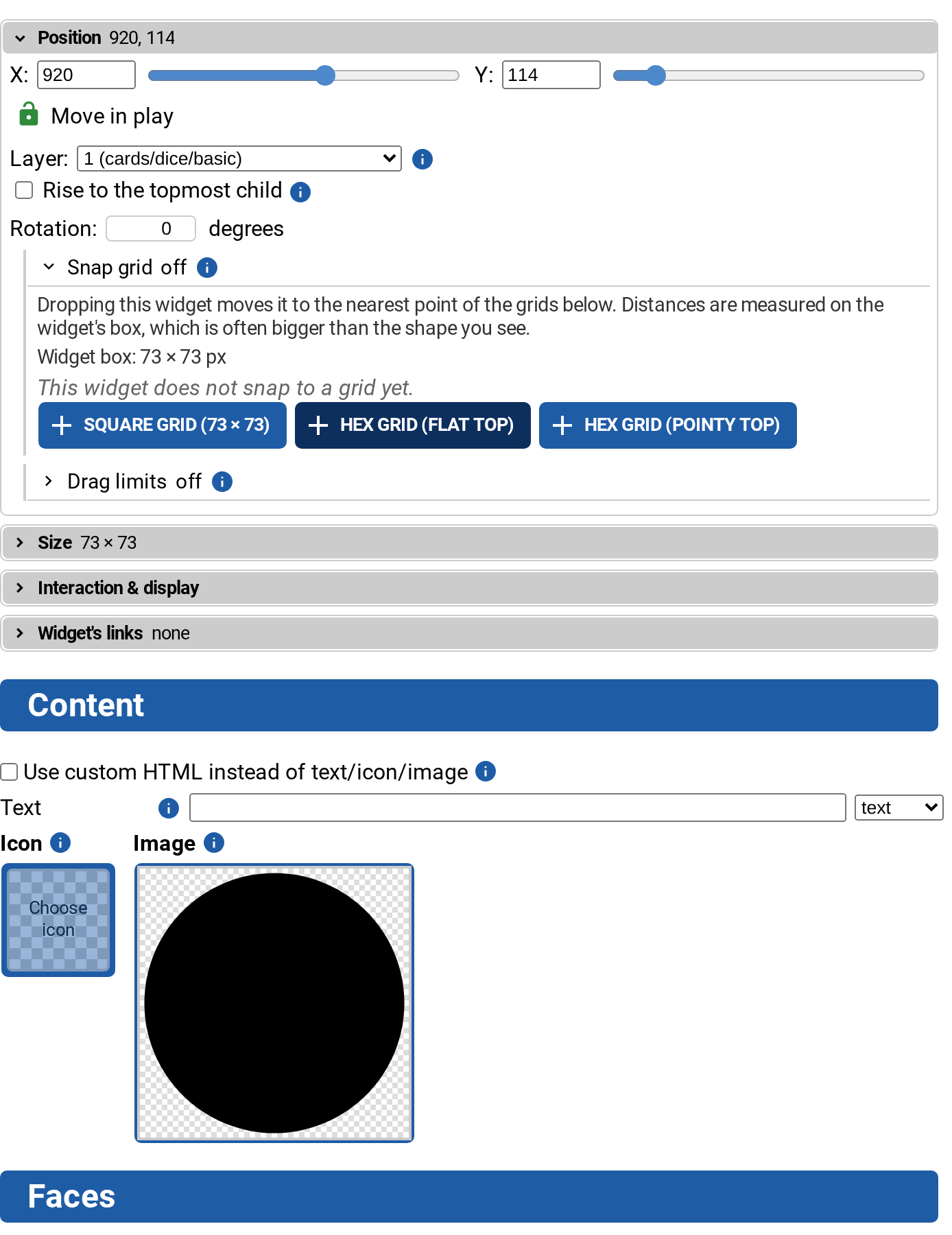
X and Y as numbers or sliders, the two lock toggles (Move in play, i.e. movable, and Lock in editor too, i.e. movableInEdit — both only affect mouse dragging, you can always type coordinates here), the Layer dropdown (z-ordering, with the conventional layer of each widget type spelled out in the options), Rise to the topmost child (inheritChildZ) and Rotation in degrees.
Because where a widget may end up is part of where it is, Position also contains two sub-sections of its own:
- Snap grid — a curated editor for the
gridproperty. Grids are measured on the widget's DOM box, which is often bigger than the shape you see drawn, so the section states that box and offers a button to adopt it as the spacing. With no grid set yet you get three ready-made presets computed from that box: Square grid, Hex grid (flat top) and Hex grid (pointy top). Each grid then has a spacing, a 3×3 Snap point picker (alignX/alignY), and under More options the offsets, the exact align fractions, an optional limit to part of the parent (minX/maxX/minY/maxY, with a Conditions (one per line) field under the X and Y rows for areas that are not rectangles — see grid) and any extra properties that should be written onto the widget when it snaps there. A Show on board checkbox draws the resulting lattice into the widget's parent while the section is open — a dot on every position the widget can land on — so you can see the grid rather than guess at it. A grid that is limited gets its rectangle, and the boundary of its conditions, drawn as a dashed line, and its dots only where it actually applies. - Drag limits — the area a widget stays inside while it is dragged (
dragLimit). One switch adds or removes all four sides at once, starting from the rectangle in which the widget stays fully inside its parent; each of the four sides can then be cleared individually to lift the limit on that side, or given an expression instead of a number. A Limited point picker (the same 3×3 picker the snap grid uses) says which point of the widget the area holds (alignX/alignY), and a Conditions field below takes one inequality per line for areas that are not rectangles — see dragLimit. A side or a condition that cannot be read is reported under the input as you type it, and conditions that together describe no area at all are reported under the fields. A Show on board switch shades the area the limited point can be dragged to, on by default while the section is open.
Size
W and H as numbers or sliders, a Size ratio lock that keeps the two in proportion, and Scale.
Interaction & display
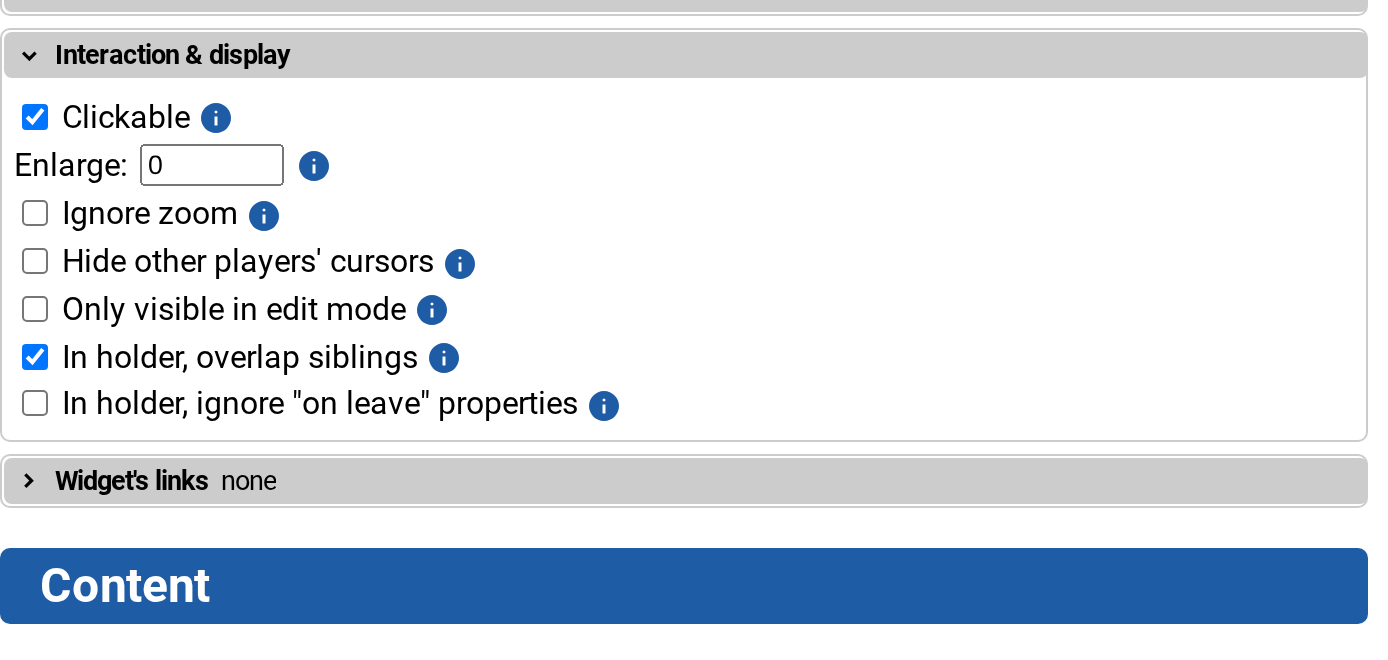
The switches that decide how the widget behaves under the mouse and whether it is visible at all: Clickable, Enlarge, Ignore zoom, Hide other players' cursors, Only visible in edit mode (this is display: false — for a widget that is part of the game's machinery rather than something players should see), In holder, overlap siblings and In holder, ignore "on leave" properties. Only the ones that differ from the default are named in the collapsed header.
Next to the Clickable switch — which decides whether it plays at all — sits the Click sound row (clickSound). It names the chosen sound next to a speaker chip and plays it back (▶/⏹); expanding it offers Sound library… (an overlay listing the sound effects that ship with VTT, grouped by pack, searchable by name and previewable before picking), Upload sound… and a plain url/path field, plus the usual Remove value. It works across a multi-selection, and the collapsed header names the sound.
Widget's links
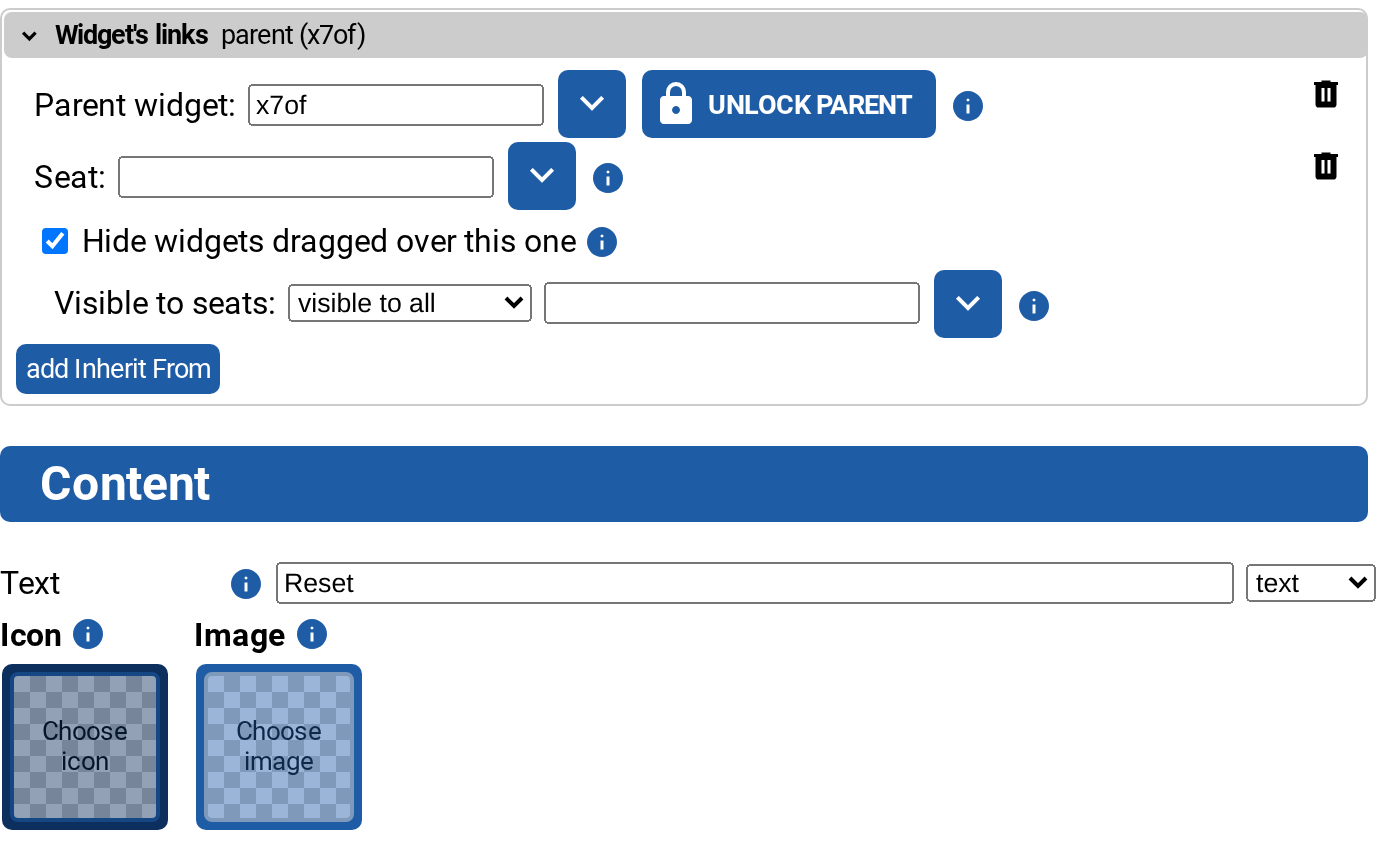
Everything that ties this widget to another one. The section starts as three buttons, and each opens the block it belongs to (with a trash button to remove it again):
- Add parent — the
parentwidget, with a picker listing the widgets in the room, and a Lock parent toggle (fixedParent) that stops the widget from being dragged out. - Add seat — the seat link, plus a change visibility block: visible to all, visible to seat or hidden from seat with a seat picker, and Hide widgets dragged over this one, which decides whether a widget dropped onto this one is only shown to the seats this one is visible to.
- add Inherit From — the
inheritFromsources. Each source is a row with the widget's id and type and a dropdown choosing copy all, copy selected or exclude selected; expanding a row gives a checkbox per property.
Content
What the widget actually shows. For basic widgets and buttons this is a Text field (with a text/symbol mode switch and a symbol picker), an Icon chip and an Image chip — the pickers open below the chips so nothing on the page jumps. Under the icon chip an Icon color & scale block appears once a single named icon is chosen; it writes the object form of the icon property, and clearing both options collapses it back to a plain icon name.
Basic widgets also have a Use custom HTML instead of text/icon/image checkbox at the top of the section, which swaps the text/icon/image inputs for a large html textarea (and back, keeping what you typed for the session).
Other types build their own Content section: dice get Dice type, Shape and Face type galleries, labels get the editable-by-players lock, spell check, tab index and their text content, and so on.
Faces
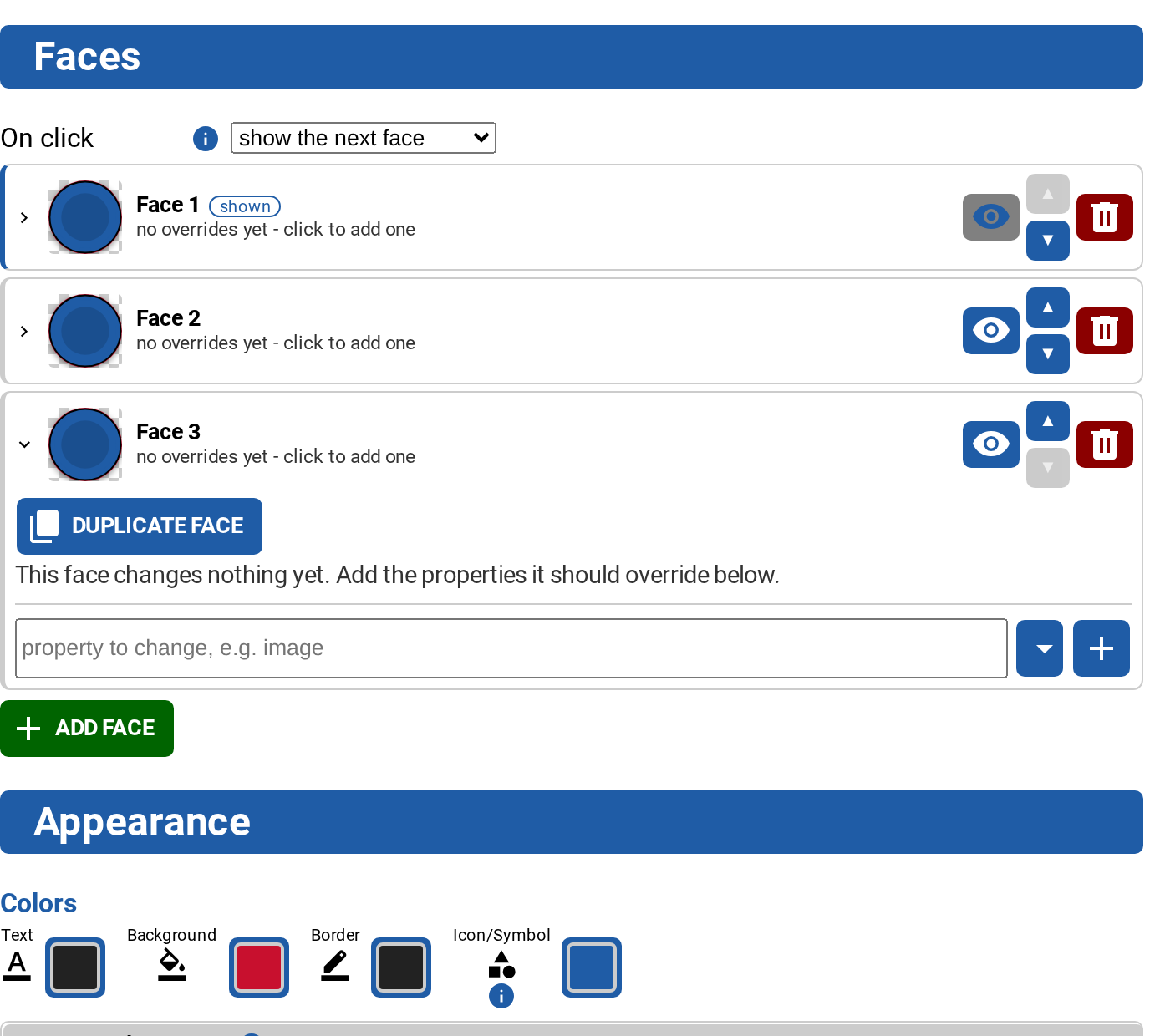
Basic widgets and dice can have several faces. A face is a set of property overrides that applies while that face is shown, so the section is a list of face rows — a live preview, a one-line summary of what the face changes, up/down buttons, a delete button, and an eye button plus a shown badge for the face currently on the table. One face is open at a time; the open face gets one input per property it overrides (with the proper color/icon/image picker where the property has one, and a textarea for css and for a per-face clickRoutine), a free-text field to override any other property, and a Duplicate face button.
An On click dropdown above the list curates faceCycle: show the next face, show the previous face or show a random face.
Dice have their own version of this: the face Type (pips, number/text, icon, image) converts the value when you switch it, and a Same for all faces block lets you lock background, pip and border color together or give each face its own.
Because the shown face overrides the widget's own properties, the section names which of the inputs above it currently affects.
Appearance
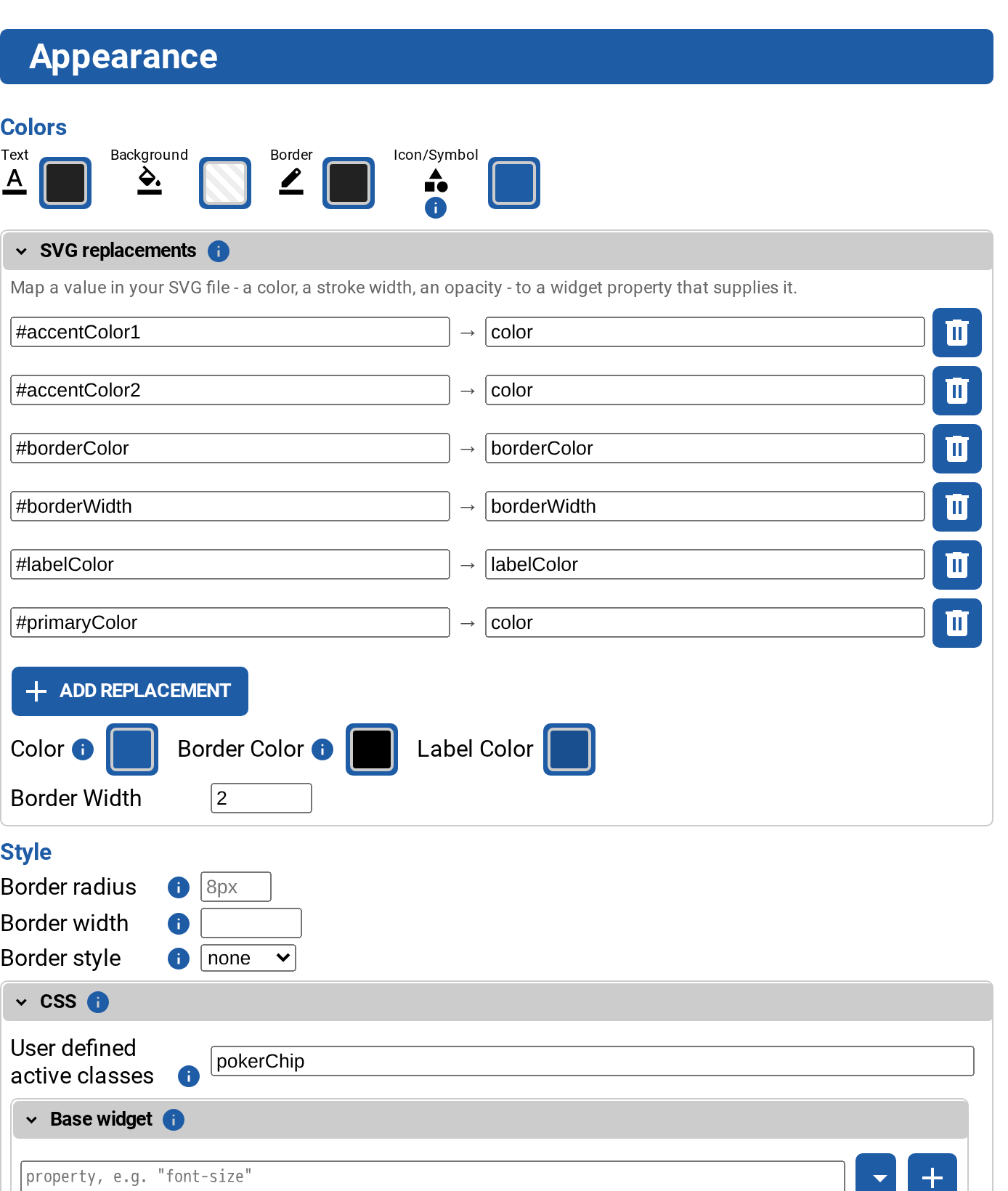
Up to four parts:
- Colors — a chip for each color property this widget type actually paints with (
color,background,borderColor, and on a basic widget the icon/symbol color, which is only offered when something on the widget really reads it). Buttons additionally get a Hover row, holders get rows for the droppable and drop-target states. - SVG replacements — a curated editor for
svgReplaces, the map that substitutes a value found inside an uploaded SVG with the value of a widget property. Each row is value in the SVG → widget property. Underneath, the editor reads the SVG and lists the values it actually contains (fills, strokes, stroke widths, opacities) as clickable suggestions, so you neither have to guess a hex value nor open the file; a suggestion whose value also occurs elsewhere in the file is marked ⚠, because the substitution is textual and would hit those places too. Below the map, every property the map points at gets an input matching what its value is: a color picker for a fill, a 0–1 number for an opacity, a plain number for a stroke width. - Style — Border radius, Border width and Border style, plus whatever else the type offers (a holder's drop shadow, for instance).
- CSS — see below.
CSS
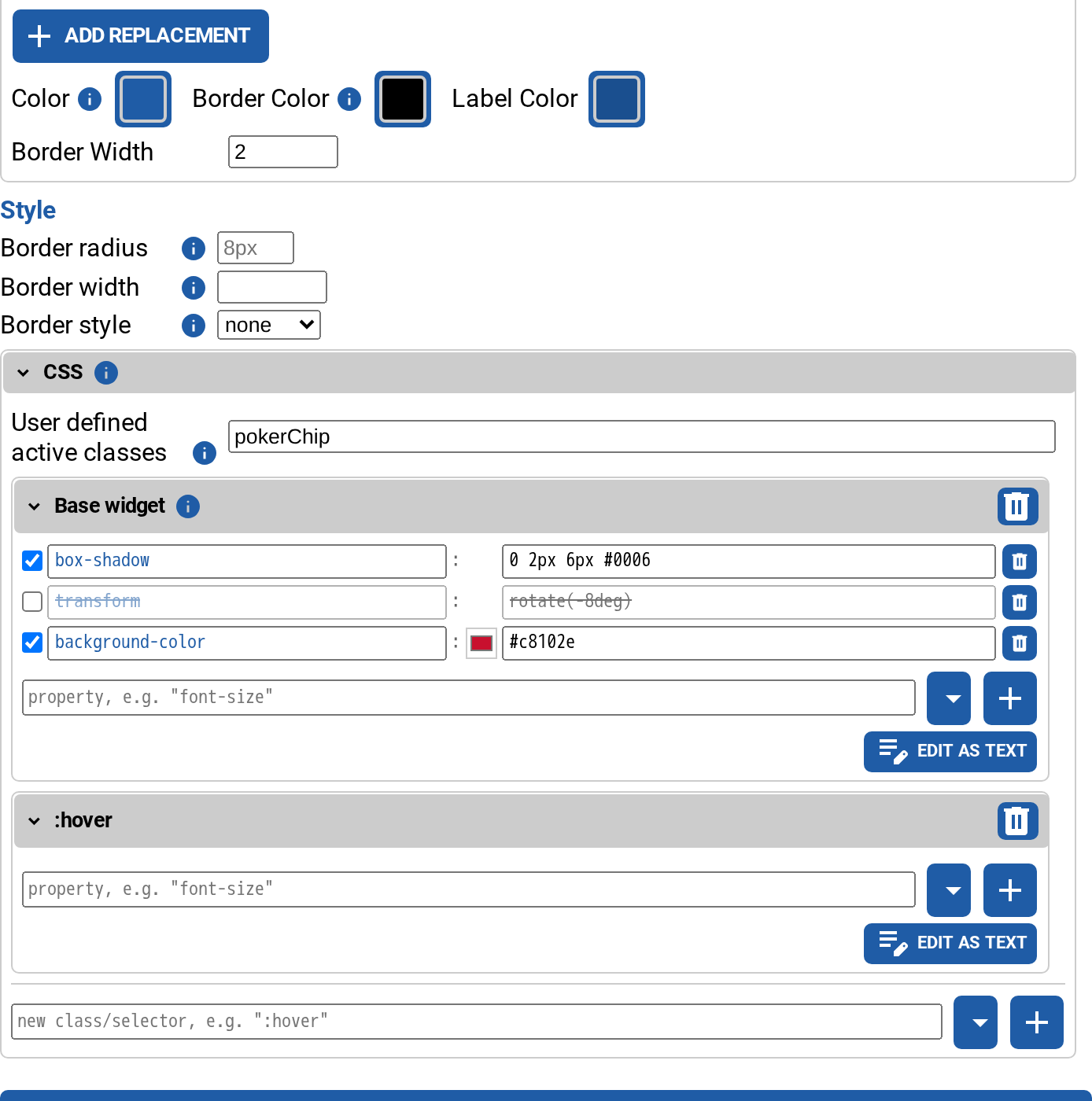
The CSS sub-section holds User defined active classes (the classes property) and then one editor per CSS-carrying property of the widget — usually just css, but a die also has faceCSS, a pile handleCSS, a spinner backgroundCSS, spinnerCSS and valueCSS. When a class is being switched on by another property (shape3d, showInactiveFaceToSeat, …), the section says so.
The editor works like the style pane of the browser devtools rather than as a single text field:
- one
property: valuerow at a time, with completion for property names (the common ones plus the CSS variables the widget type publishes) and for the values of keyword properties; - a checkbox per row that switches a declaration off without losing it — it stays in the list struck through and comes back where it was. This is a scratch state, kept only while the widget is selected, and never written into the game;
- a color swatch on rows whose value is a color;
- a ⚠ marker on declarations the browser does not understand, so a typo is visible instead of silently killing the whole rule;
- an add row that also accepts a whole pasted block of declarations and splits it into rows.
A class or selector gets its own folding section — type it into the new class/selector field at the bottom (:hover, ::before, > .widget, …). Any section can be switched to a plain textarea with Edit as text when you would rather rewrite or paste a whole block, and a value that cannot be split into rows (a data URI, typically) stays a text field automatically. See Using CSS for what to put in there.
Behavior
Only shown for the types that have behavior properties of their own: a die's roll and swap times, a holder's Align dropped widgets / Prevent piles / Children per owner, a pile's snap range and card stacking. A widget that takes other widgets in also has its drop limit here (for a holder or a line it sits with Target widgets instead), and a pile with a limit adds Show the limit on the handle, which makes the handle read "2/3" instead of "2".
Automations
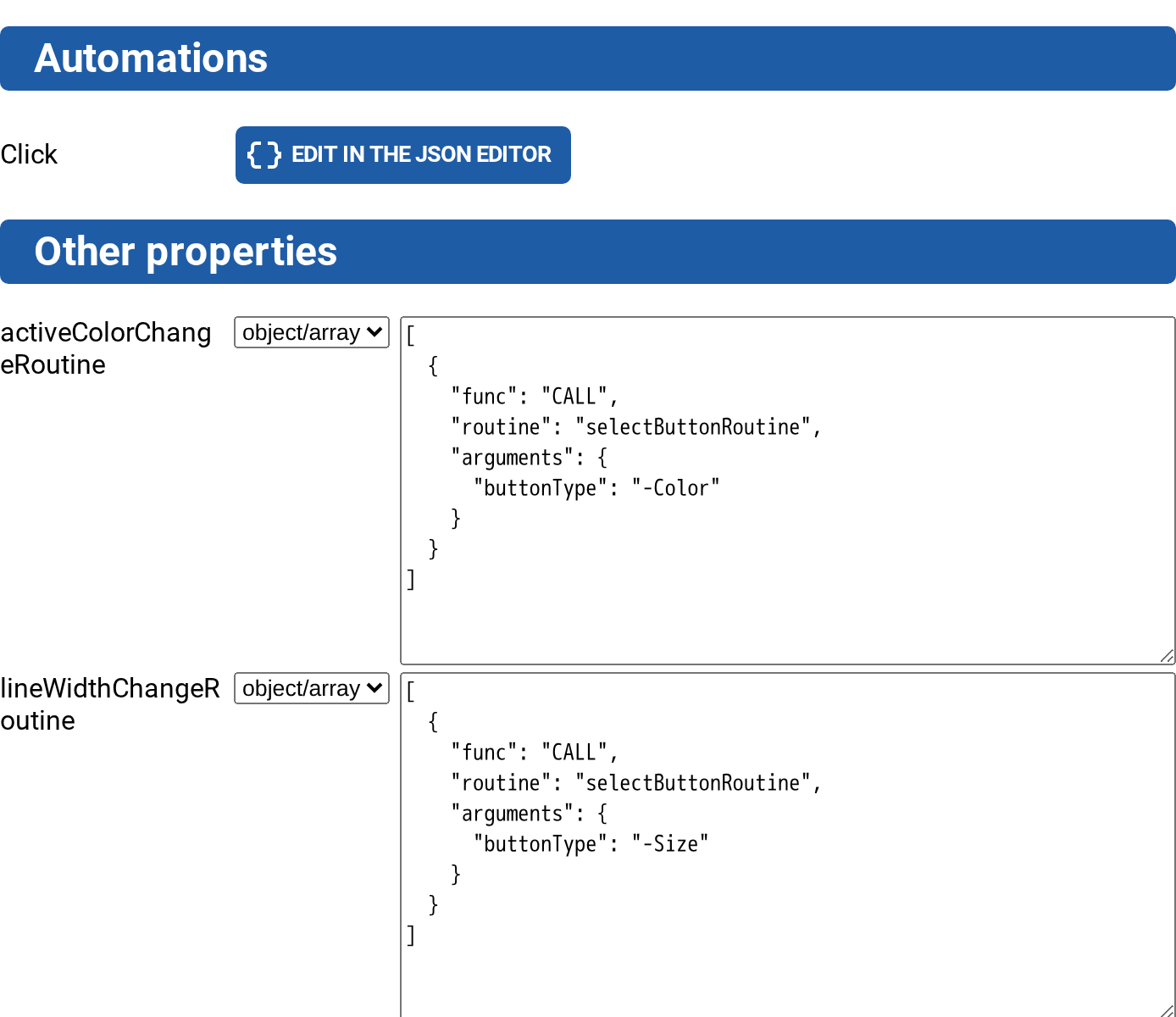
The routines of the widget — click, double-click, property changed, widget enters, widget leaves, game starts, any widget changed and any custom one — and the property sets that automate a widget without a routine (onEnter, onLeave, resetProperties). Each routine folds open into a visual editor in which every operation is a card reading as a sentence, and every row also has a button that switches the sidebar to the JSON editor with the caret already on that routine.
This section has its own page: see Automations for how to use it, and Functions for the routine language itself.
Other properties
Everything on the widget that no curated section covers, as a plain list: a label with the raw property name, a dropdown choosing its type (not set, text, number, NULL, false, true, object/array) and the matching editor — a JSON textarea for objects and arrays, which flags invalid JSON as you type. At the bottom, a new property field with suggestions from the widget type's own defaults lets you add a property that is not there yet.
Some types also have an Advanced sub-section for the rarely touched settings (a canvas's Artist, a holder's Show inactive face to seat, a scoreboard's column sizing).
Sections by widget type
Every type gets Basic, Automations and Other properties. On top of that:
| Type | Additional sections |
|---|---|
| Basic widget | Content (incl. custom HTML), Faces, Appearance |
| Button | Content, Appearance (with a Hover color row) |
| Canvas | Appearance, Canvas, Advanced |
| Card | Card type, Appearance |
| Deck | Open deck editor button only |
| Dice | Content, Faces, Appearance, Behavior |
| Holder | Content, Target widgets, Appearance, Behavior, Advanced |
| Label | Content, Appearance, Advanced |
| Line | Appearance, Stops, Connect points, Target widgets |
| Pile | Handle, Appearance, Behavior, Pile template |
| Scoreboard | Scoreboard, Appearance |
| Seat | Player, Appearance, Seat |
| Spinner | Spinner, Appearance |
| Timer | Appearance, Timer |
Holders and lines: Target widgets
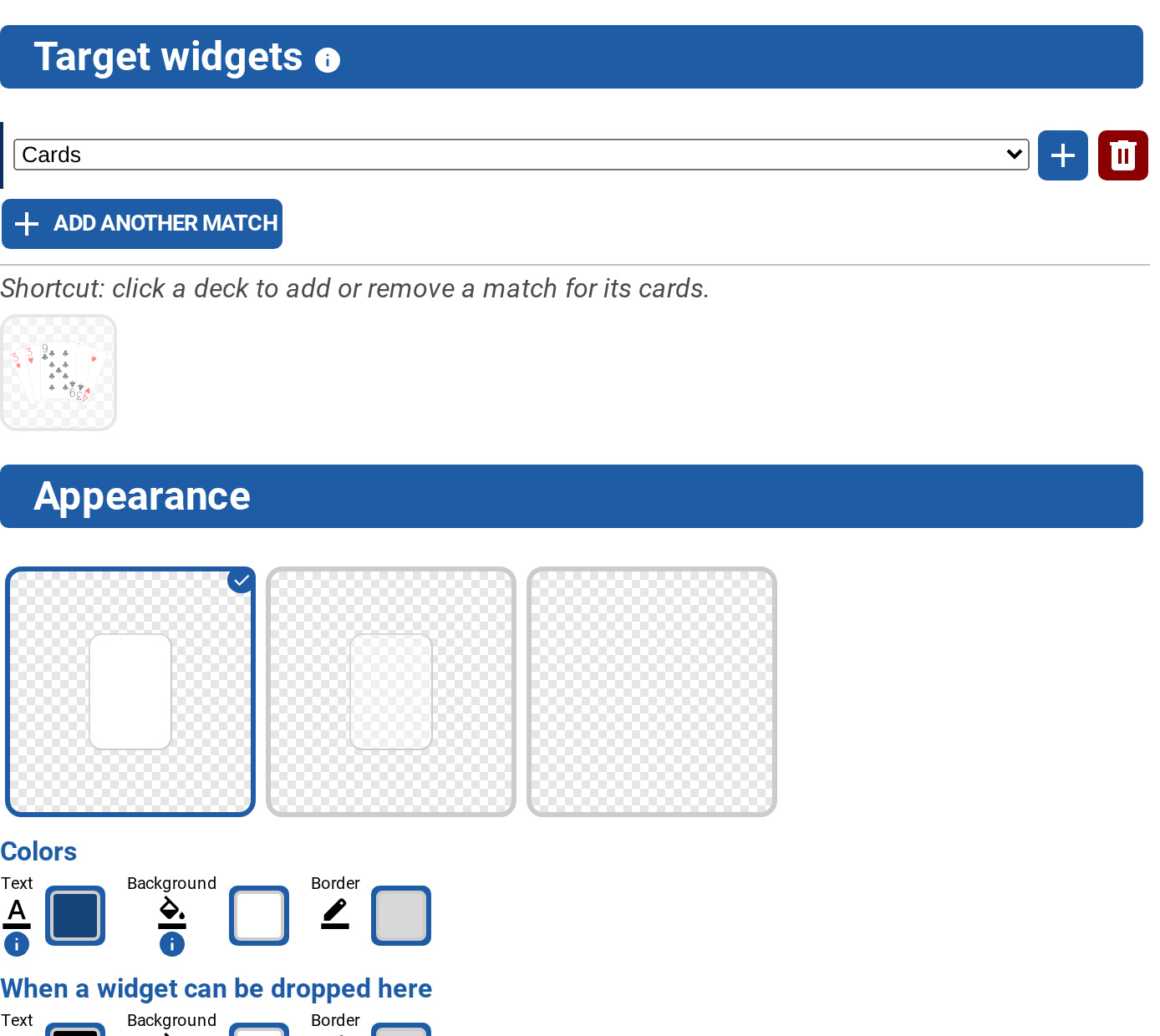
A holder's dropTarget is edited as a list of matches: a widget is let in when it matches any of them, and each match is a widget type (Any widget, or one of Cards, Dice, Holders, Piles, …) plus any number of property/value conditions added with the + button. That is exactly the shape the engine reads, so every dropTarget a holder can have is editable here; one the editor cannot express is left untouched and shown as Custom match (JSON editor).
Under the list, the decks of the game are shown as thumbnails: clicking one adds or removes the {"deck": "<id>"} match for its cards, which is the shortest way to say the most common thing, and a match typed into the list lights up its deck. Lines use the same editor for the widgets that become a stop when they are dropped onto them.
Cards, decks and piles
Selecting a card shows its card type and the other card types of its deck (so you can switch it), plus an Edit Cards and Deck button that opens the Deck Editor at that card type. A card whose deck is missing from the game says so instead of drawing half a section.
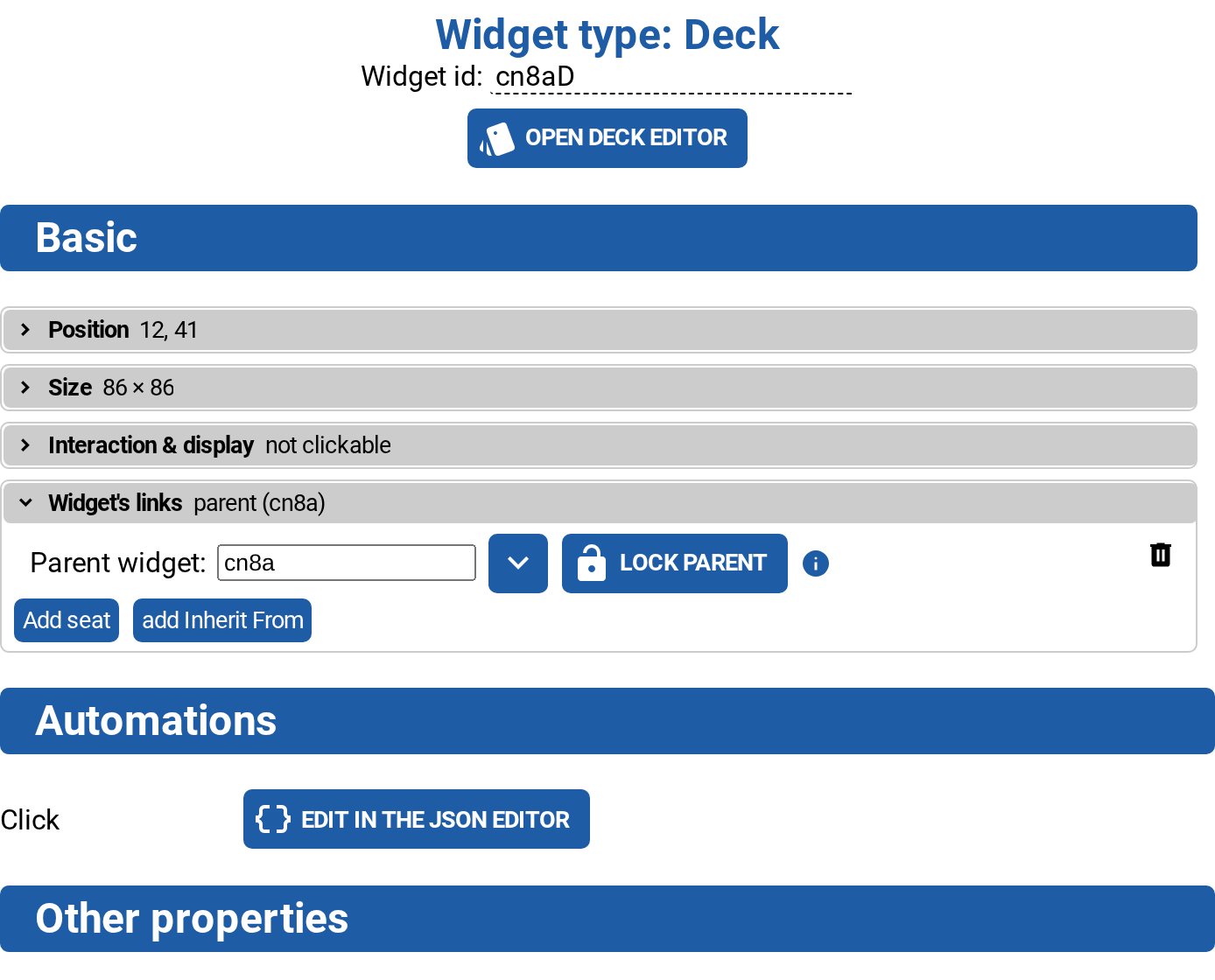
Selecting a deck gives you an Open deck editor button plus the usual Basic / Automations / Other properties. cardDefaults, cardTypes and faceTemplates are deliberately not listed — those are what the Deck Editor owns. Selecting a deck does not open the Deck Editor by itself.
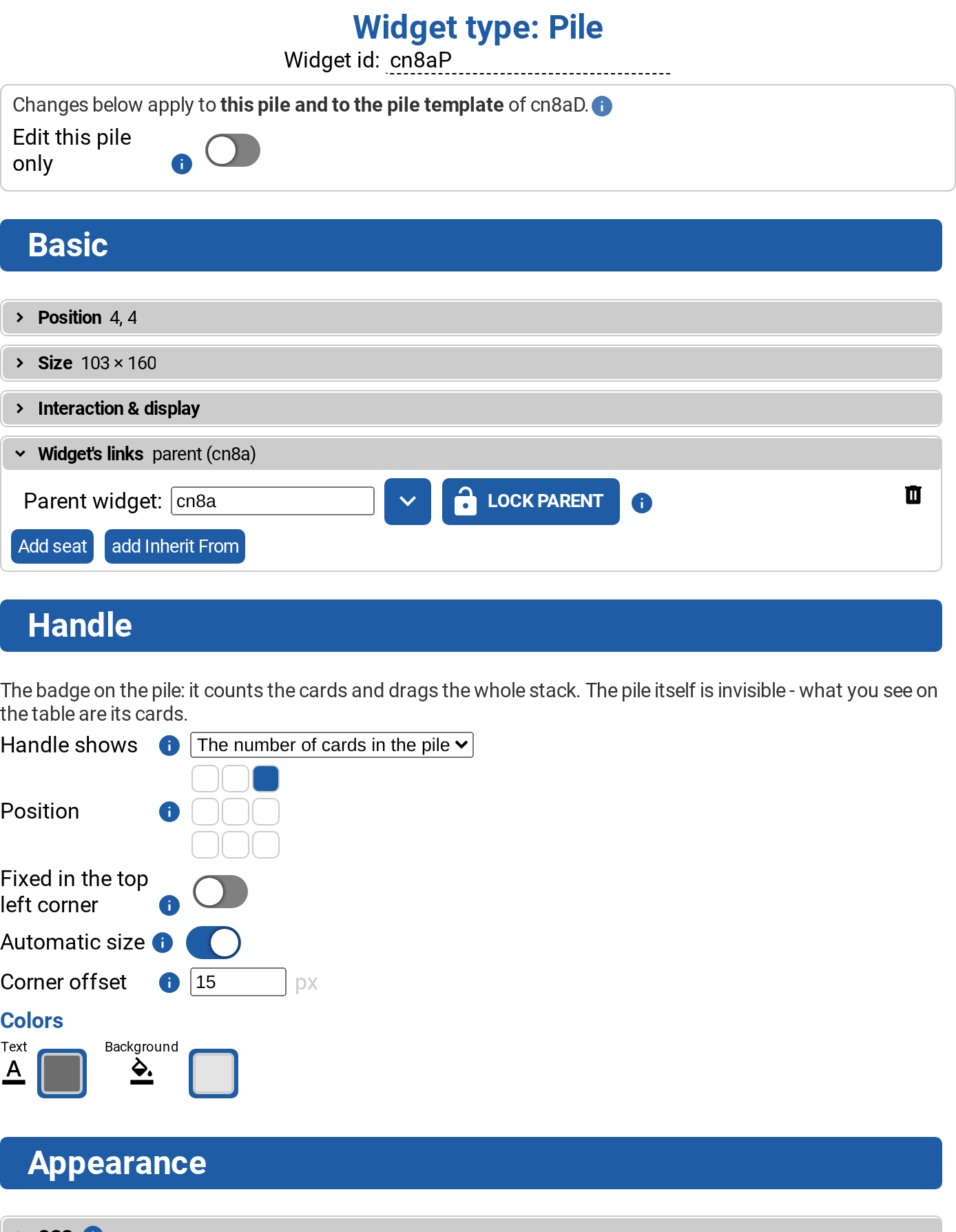
Selecting a pile — click its handle, the little badge with the card count — gets you a Handle section: what the handle shows (the number of cards in the pile, or a fixed text), a 3×3 position picker, Fixed in the top left corner, automatic or explicit size, the corner offset and the handle's colors.
A pile is temporary, though: it disappears as soon as it holds a single card, and the next one is built from the onPileCreation of its cards' deck. So by default every change you make to a pile is also written into that pile template, which is what the line above the Basic section says. Switch Edit this pile only on for a pile that is meant to look different from the others of its deck; a Pile template section then appears at the bottom with a button to copy the whole pile into the deck after all. What is never mirrored into the template is what describes this one pile — position, size, parent and owner — since a template holding those would drop every pile of that deck in the same spot at the same size. The pile's Automations buttons follow the same logic and open the routine in the deck's pile template rather than on the pile.
Several widgets selected
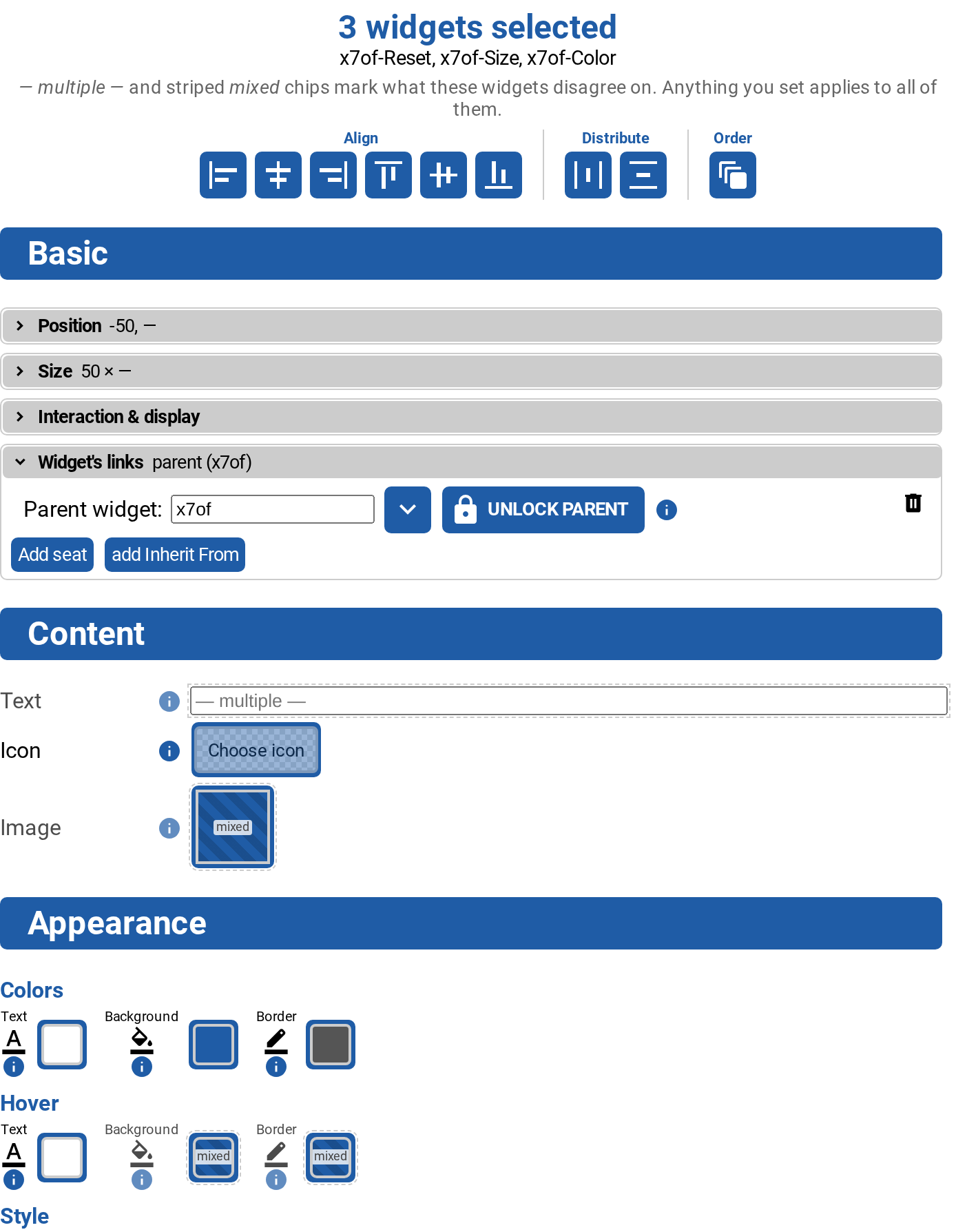
Drag a selection rectangle around several widgets (hold Shift while releasing to add to the current selection) and the panel edits all of them at once. It lists how many are selected and which they are, and then offers:
- the Align, Distribute and Order buttons — the same ones as on the edit mode toolbar, repeated here because they are the reason to select several widgets in the first place — and next to them a Circle button, which needs at least three widgets and says so in its title when fewer are selected. Pressing it spreads the selection evenly over a circle around the center of the selection right away, and only then opens its settings below the bar: a radius (a slider next to a number field, the slider's travel ending at the largest circle that still keeps every widget on the board) and a Rotate away from center switch, both of which rearrange the widgets as they are changed. Every rearrangement starts from where the widgets were when the button was pressed, so Undo circle puts them back where they came from, while Done just closes the settings and keeps the arrangement. Radius and rotation are settings of the tool rather than widget properties: they are remembered for the editing session and never land in the game;
- the Basic section, which applies to every selected widget (Snap grid and Drag limits are left out — they are per-widget);
- Content, Appearance and Behavior when every selected widget has the same type. With mixed types the panel says so, and only the common properties above can be edited.
Where the selected widgets currently disagree, a text or number field shows the placeholder — multiple —, a dropdown gains a — multiple — option, and a color/icon/image chip is drawn striped with a mixed label. Setting any of them applies that one value to all of them. Free-form CSS and the SVG replacement map are not offered for a multi-selection, since there is no safe way to merge per-widget strings.