Installation - 60plus/DeckyCache GitHub Wiki
Install DeckyCache
Before you start
| Requirement | Current bundle |
|---|---|
| Supported SteamOS channel | Stable only. Beta, Preview and Main are not supported. |
| Tested SteamOS | 3.8.28, build 20260922.1, on an NVIDIA x86-64 PC |
| Required kernel | 6.18.50-valve2-1-neptune-618-gc7289a96b14d |
| Library drives | Separate ext4 data partitions |
| Tested Decky Loader | 3.2.10 |
Check uname -r in Desktop Mode before installing. The kernel must match exactly.
The SteamOS version alone is not enough: an update may change the kernel.
This plugin does not rebuild or replace it; another kernel needs a matching module bundle.
Full compatibility and update information
You need SteamOS PC, a working Decky Loader installation and a supported kernel. Read Compatibility before preparing a drive. Installing the plugin alone does not format a disk or enable caching.
1. Download the plugin ZIP
Download the plugin ZIP from this repository's Releases.
Choose the attached DeckyCache plugin ZIP. Its filename starts with DeckyCache-.
Do not choose Source code (zip) or Source code (tar.gz); those are not installable Decky packages.
Save the ZIP somewhere accessible on the SteamOS PC, such as Downloads. Do not extract it.
If you download on another computer, copy the ZIP to the SteamOS PC first.
2. Enable Decky's Developer mode
Open the Steam quick-access menu, select Decky, then open its settings.
In General, scroll to Other and switch Developer mode on. This is Decky Loader's setting.
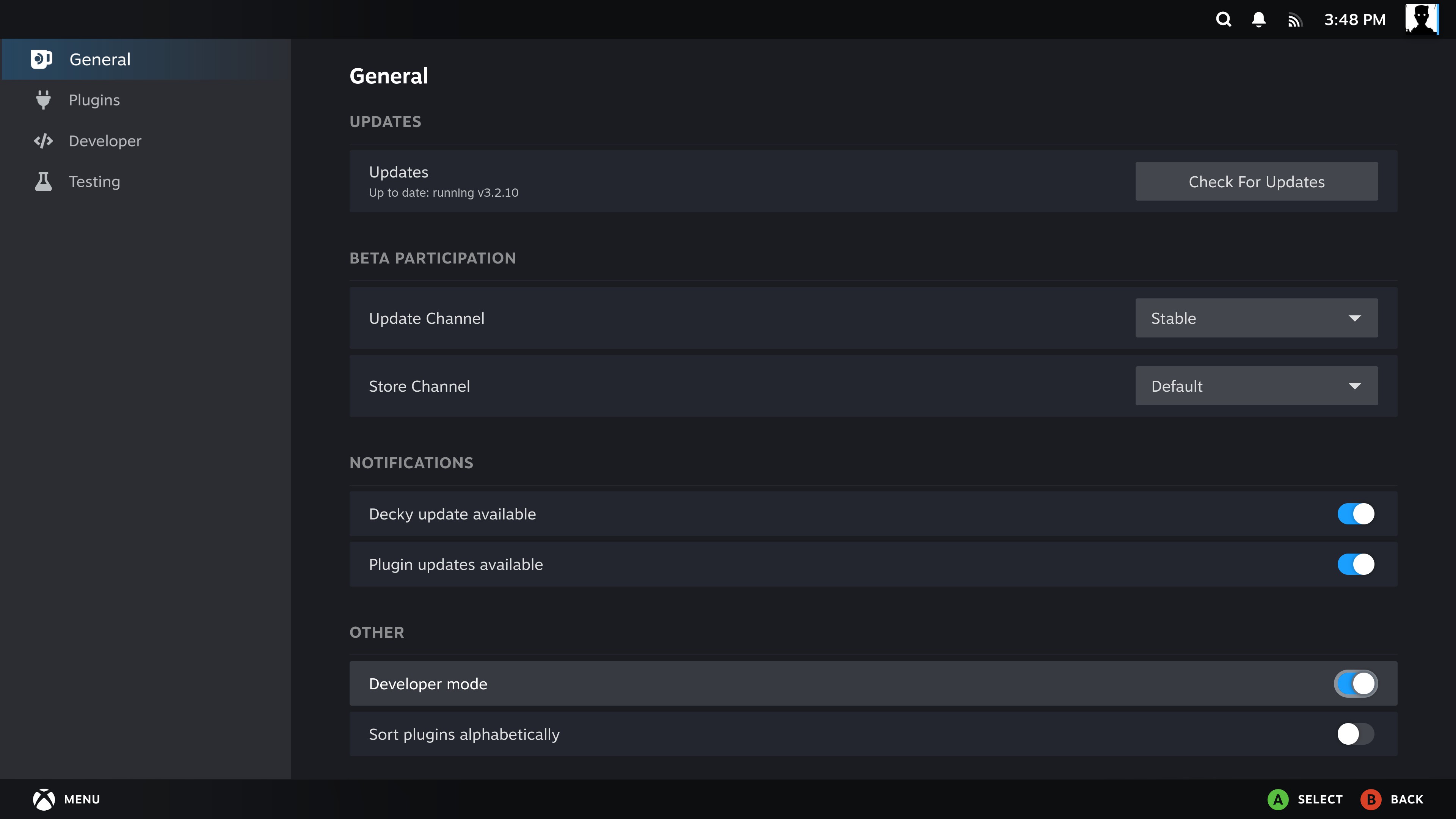
3. Install from a file or a link
Open Developer in Decky's settings sidebar.
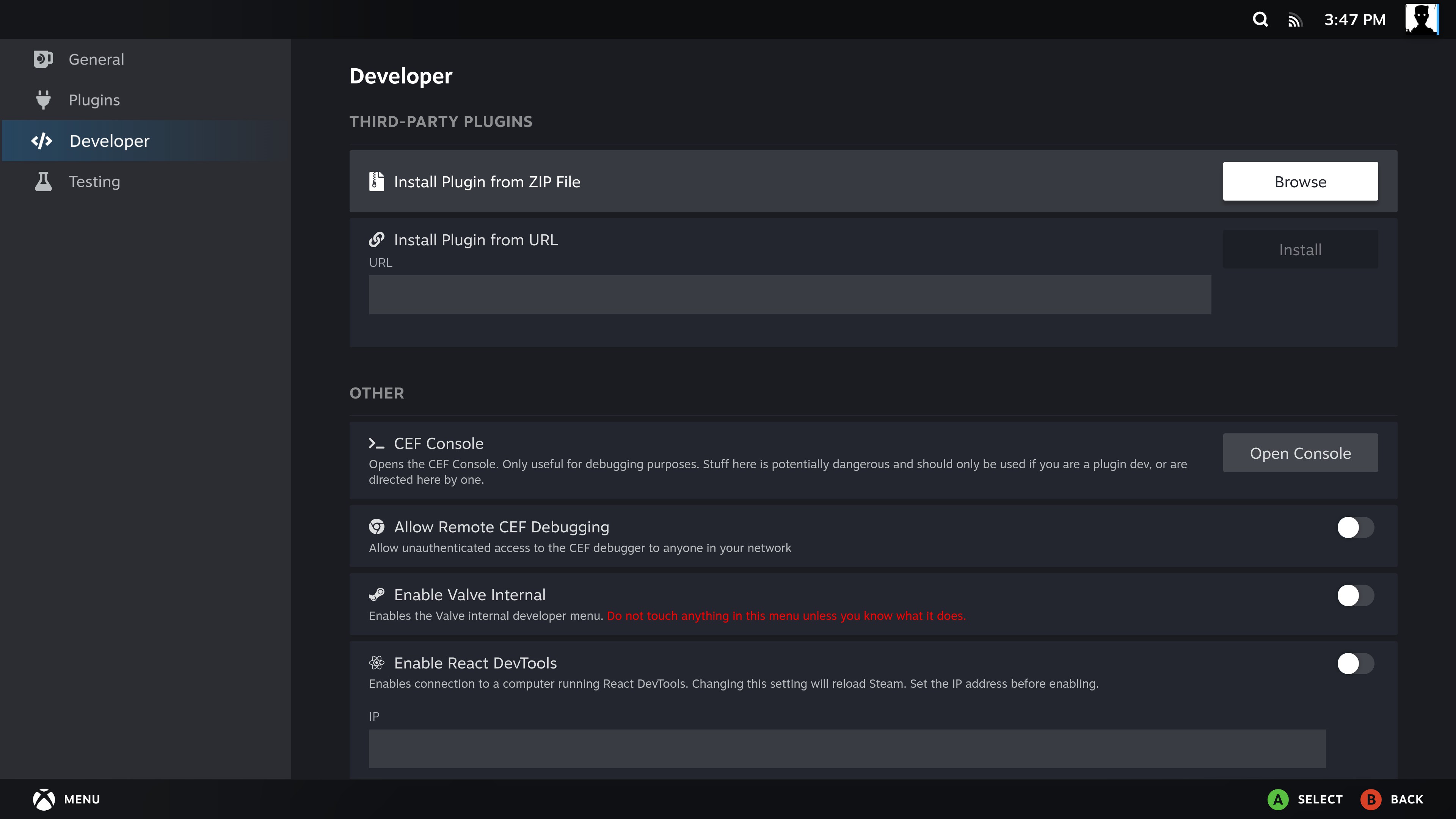
Option A: downloaded ZIP
- Under Install Plugin from ZIP File, select Browse.
- Find and select the downloaded DeckyCache ZIP.
- Accept Decky's installation prompt and wait for installation to finish.
Option B: direct ZIP download link
- In this repository's release, copy the download link for the attached plugin ZIP.
- Paste it into Install Plugin from URL.
- Select Install and accept the installation prompt.
Use the direct file link, not the release page or repository address. If the download requires a browser login, use Option A; Decky does not inherit that browser session.
4. Open the plugin
Return to the Decky menu and open DeckyCache. Continue with First setup to select the cache drive and library partitions.
Updating the plugin
- Close games and finish Steam downloads or updates.
- Open DeckyCache and select Check for updates.
- If a compatible release is available, select Update to the offered version.
- Confirm Decky's normal installation prompt. Decky replaces and reloads the plugin automatically; no PC restart is needed for the plugin update.
- Reopen DeckyCache. Your master switch, cached data and library connections are kept.
The updater selects stable releases from this project's GitHub repository containing a bundle for exactly the running kernel. It verifies the ZIP and bundled modules before preparing storage for installation. It does not compile modules or choose an incompatible release just because it is newer.
The built-in updater keeps the independent storage service and library mounts running while Decky replaces the plugin. A compatible update preserves cached blocks and Steam's installed-game list. Cancelling the installer leaves caching unchanged. Packages that change the active cache engine or cannot accept this handoff are refused before storage is changed.
This preservation requires the new updater on both sides. Updating from an older version that detaches cache, or replacing the ZIP manually through Decky, can still rebuild cache.
If your installed version has no update button, install a newer plugin ZIP once through the Developer screen. Manual ZIP installation remains available. Check its supported kernel before installing.