Setup - 60plus/DeckyCache GitHub Wiki
First setup
Close games and let Steam downloads and updates finish before changing drive selection.
Choose the cache SSD or NVMe
Open DeckyCache. If a cache drive is already selected, choose Drive settings.
- Select the dedicated drive in SSD / NVMe.
- Check the model, capacity and serial number.
- Choose one of the options below.
| Control | Use it when | What it does |
|---|---|---|
| Format and use | You want to prepare a dedicated cache drive. | Erases the selected drive and creates the cache filesystem. |
| Reuse existing cache | The drive was already prepared by DeckyCache. | Reuses the prepared filesystem without formatting it. Cached blocks are reused only when their saved state is valid. |
| Done | You have finished reviewing drive settings. | Returns to the compact main panel. |
Format and use erases all data on the selected cache drive, including its existing partitions. The plugin excludes detected system drives and selected library drives. Confirm the drive identity yourself before accepting Format this drive.
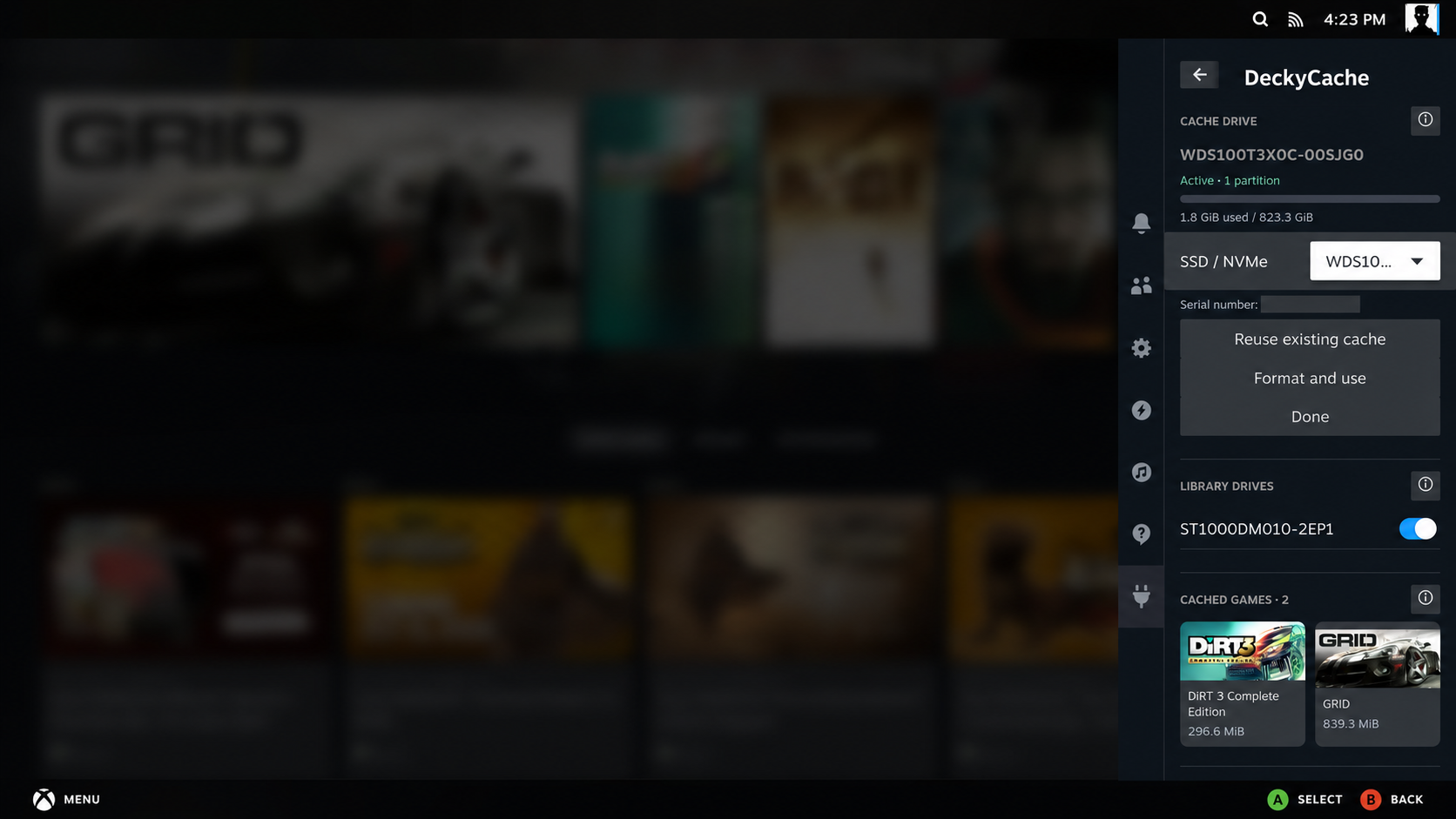
The serial number is hidden only in this documentation image. It remains visible in the plugin so you can identify the correct disk.
Select library drives
Under Library drives, enable each partition you want to cache. Multiple partitions can share the selected SSD/NVMe.
The current selector works with mounted ext4 data partitions on separate, non-system drives. Each switch connects the whole partition through Open CAS. The separate Cache scope control lets you decide which reads may populate cache.
The original HDD filesystem and library path stay in place. There is no need to move or reinstall games. Wait for Active before starting a game.
Changing the selected partitions redistributes cache space and rebuilds cached contents. The games on the HDD remain intact.
Choose cache scope
- Entire selected drives: reads anywhere on enabled library partitions may populate cache.
- Selected folders: use Add Steam library or Add folder... to choose folders on enabled drives. You can select several folders across several enabled drives. Select a folder row to remove it from the selection.
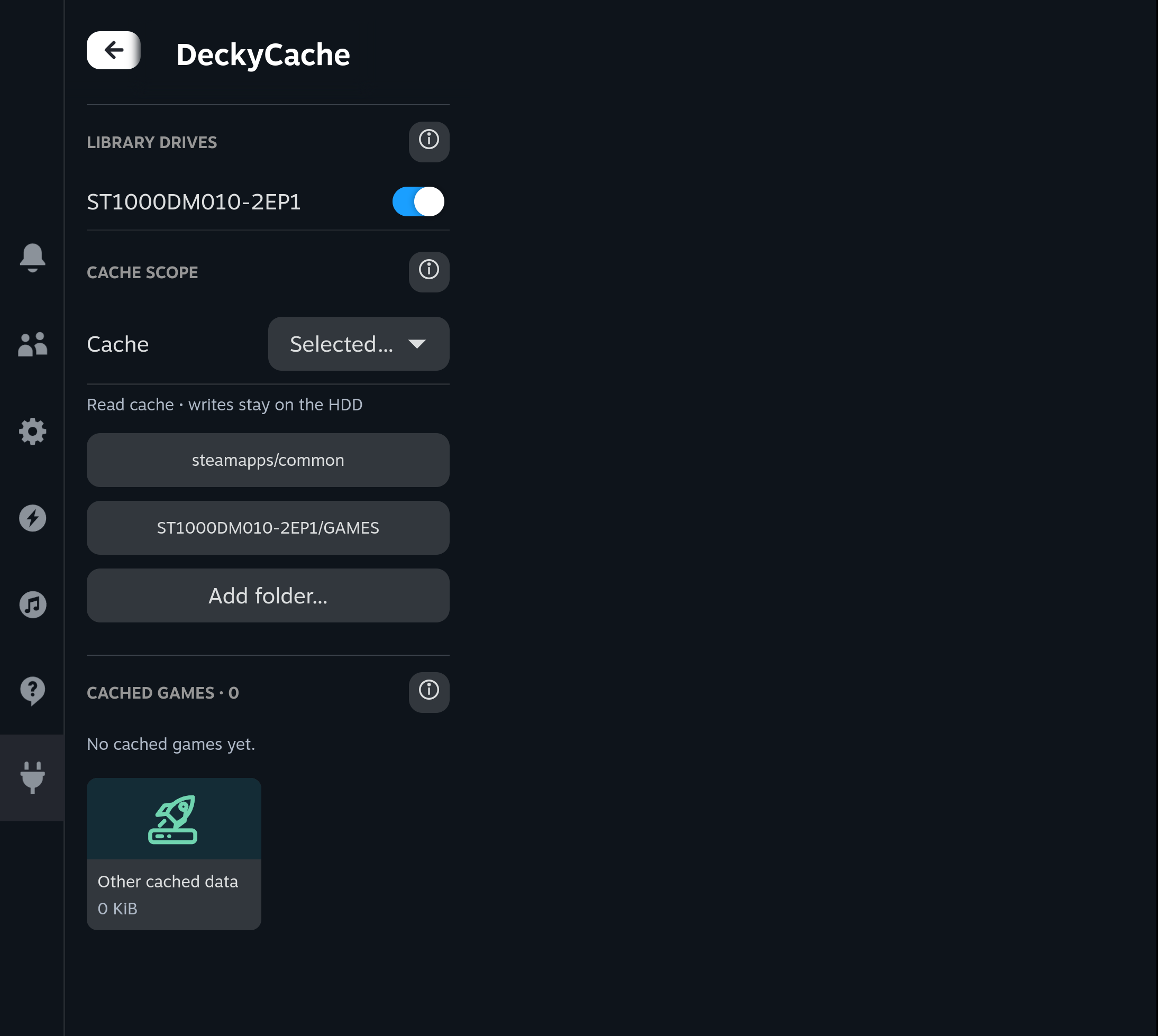
Folder changes apply without remounting libraries or clearing existing cached data. With no selected folders, folder mode admits no new data. Switch back to Entire selected drives to include all eligible reads again.
Both modes send writes to the HDD without allocating new cache blocks. Reading selected files for copying or verification can still fill cache. Folder mode does not depend on whether a game is running. See How it works for directory-rule limits.
Play
Cache fills as eligible data is read. The first read may come from the HDD; later reads can use NVMe. The plugin does not copy entire games in advance.
The usage bar shows actual occupied cache blocks, not the preallocated backing-file size. See Everyday use.