Finding Simulation Variables in Microsoft Flight Simulator - yury-sch/FsCopilot GitHub Wiki
(This documentation is still a work in progress and will be updated over time)
⚠️ Note: This guide is intended for power-users who wish to locate internal simulation variables (SimVars, LVars, and Events) associated with switches, knobs, gauges, and controls in Microsoft Flight Simulator. There’s no single, universal way to find the right variables — each aircraft developer implements their systems differently. However, there are several common methods and tools you can use to approximate and discover which variables are in use.
✈️ What Are SimVars, LVars & Events?
- A: SimVars — standardized variables published by the simulator which reflect aircraft, systems, weather, and control states.
👉 Official SimVar List - L: L-vars — local variables specific to the loaded aircraft or instrument, defined by the developer to track custom internal logic.
- Z: Z-vars — the same as L-vars, but has a different scope.
- K: Key Events — standardized simulator commands (e.g., “GEAR_UP”, “PARKING_BRAKE_SET”), used to change simulator state.
👉 Events Reference - H: HTML Events — events used by cockpit instruments/gauges (whose UI actually runs on html/js), triggered by UI actions or scripts.
- B: Behavior Events — model behavior events defined in
behavior.xml, control animations or logic, used to change aircraft state
🔍 How to find?
🧩 Method 1: Using Developer Mode (Behavior Tool)
- Launch Microsoft Flight Simulator and load your aircraft.
- Enable Developer Mode:
Settings → General → Advanced Options → Developer Mode. - In the Dev-mode top bar: Tools → Behaviors. You will see all the interactive elements of your aircraft. Otherwise, enable the display of interactive elements in the Debug → Interaction menu of the Behaviors window that opens.
- Hover the mouse over a cockpit switch or knob, then press Ctrl + G.
- The Behavior window will show the logic related to this element, bonded variables and events.
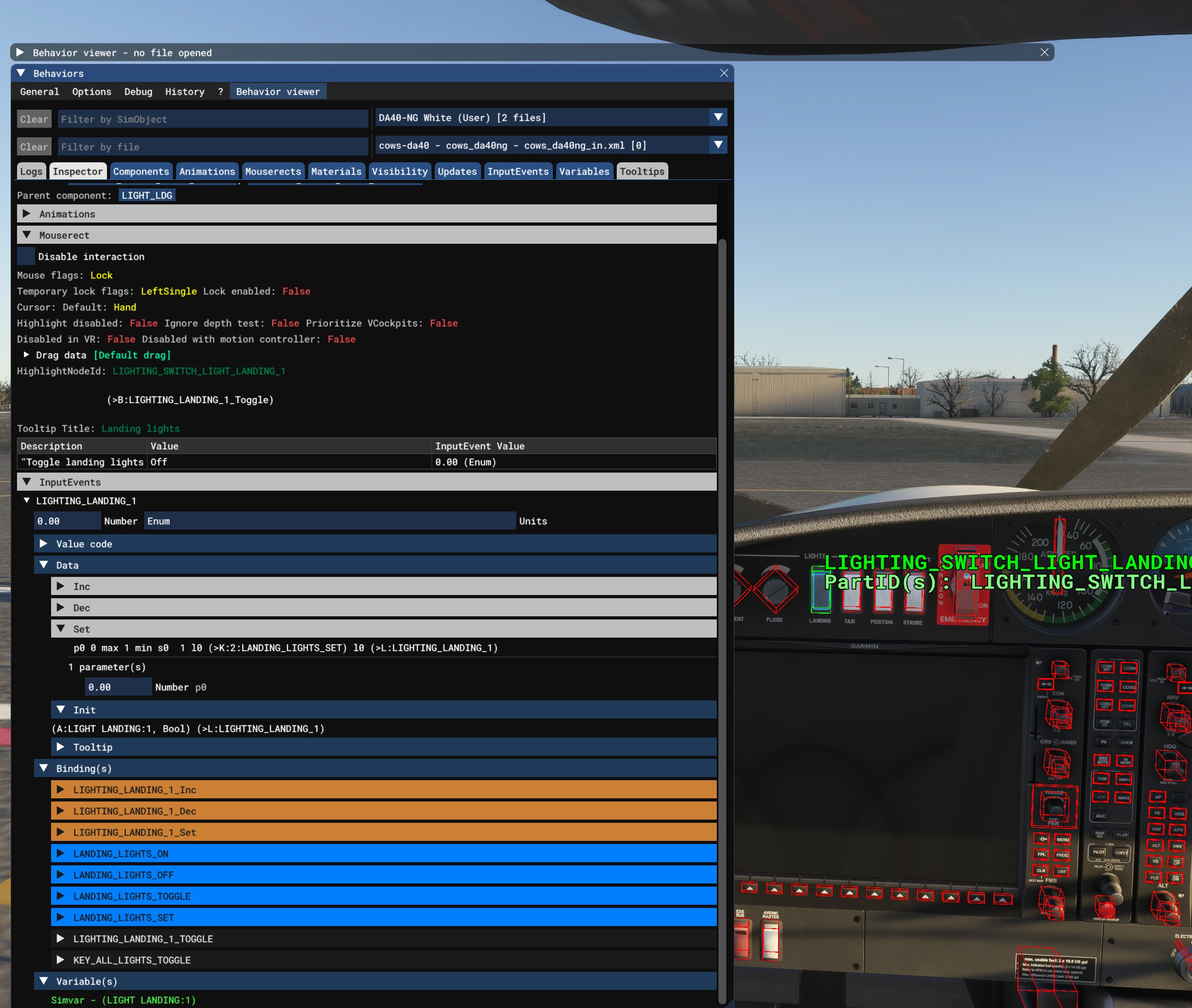
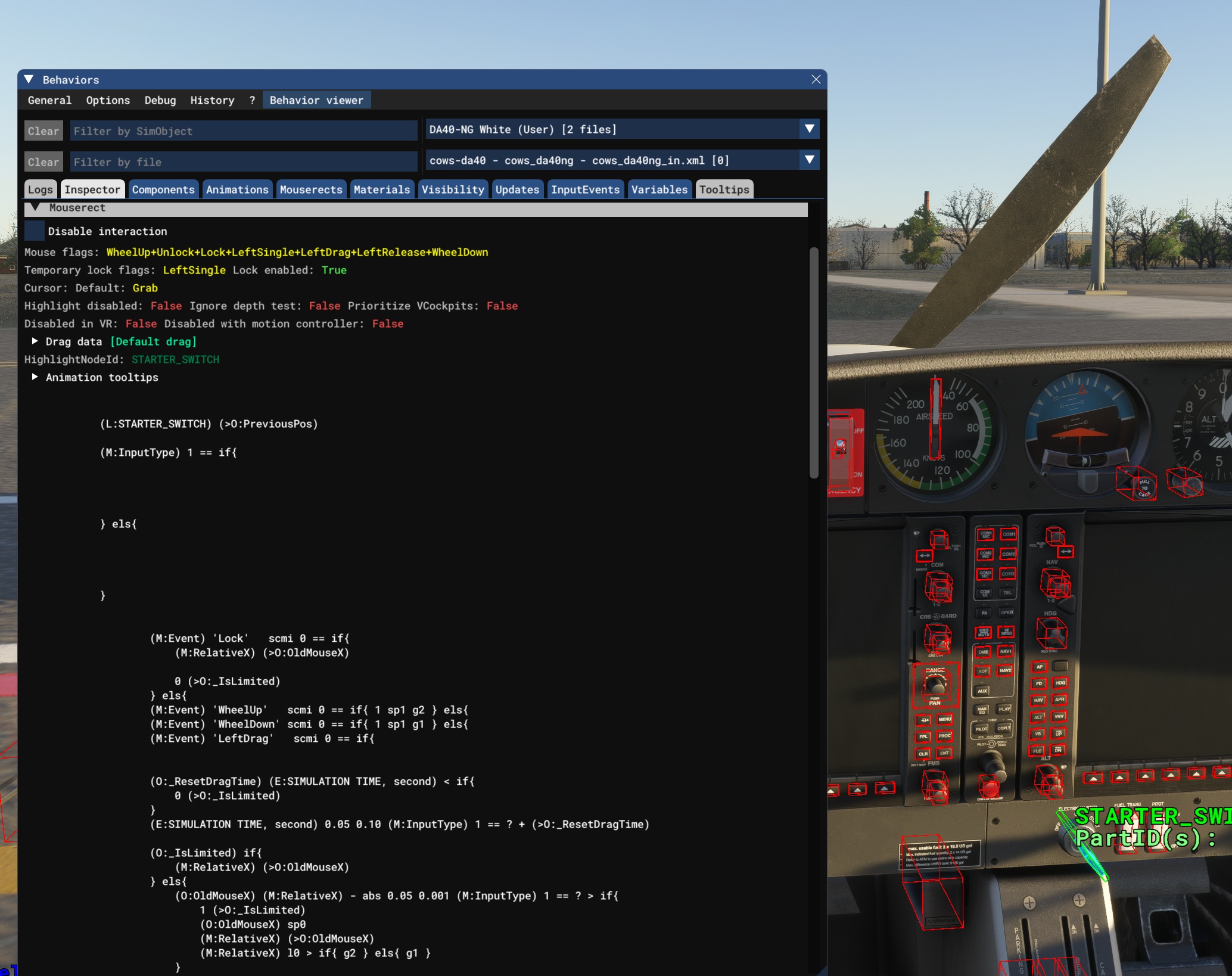
Sometimes an element doesn’t have a direct link to a variable or event, but you can still find the variables it uses in the code. You’ll need to know a bit of programming — or just count on your luck 🙂
The situation becomes more complicated when you’re trying to find variables used inside instruments — which are actually HTML/JS components embedded in the cockpit. In the Behaviors window, all you’ll typically see are the H events being used.
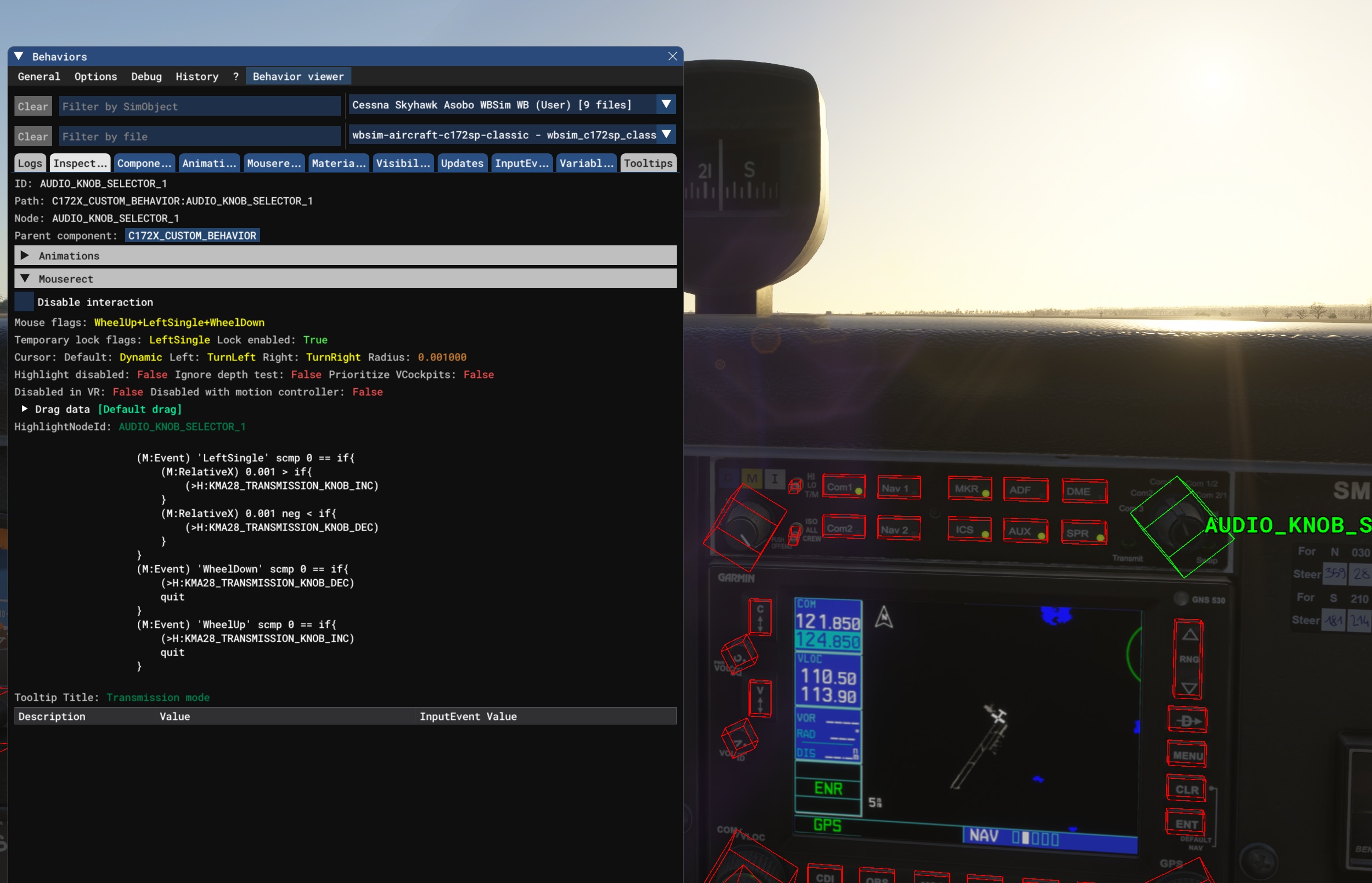
⚠️ H events are not a good source for synchronizing data between clients, because they don’t carry any values. They should only be used as a last resort when no better option exists.
In such cases, you’ll need to open the source code of the instrument itself. For example, the KMA28 panel in the Cessna 172 by WB-Sim is located at:
Community\wbsim-aircraft-c172sp-classic\html_ui\Pages\VCockpit\Instruments\172X\KMA2\KMA28.js
Its code is obfuscated to prevent tampering, but you can use an online JavaScript deobfuscator — for example: https://deobfuscate.io/.
(A code example cannot be provided here due to licensing restrictions.)
🧩 Method 2: Inspecting Aircraft Files
-
Navigate to your aircraft folder inside
Community\orOfficial\OneStore\. -
Open files like:
panel.xml,panel.cfgsystems\*.xml,model\*.xmlbehavior\*.xml
-
Search for strings such as
A:,L:,K:,B:. -
Example:
<simvar name="GENERAL ENG THROTTLE LEVER POSITION:1" unit="percent"/>
<input event="K:TOGGLE_GPS_DRIVES_NAV1"/>