A step by step guide to creating credentials of each cloud service provider - yunkon-kim/test-on-github-actions GitHub Wiki
Note - This article was edited on July 6th, 2021. You can freely improve this article whenever you want.
Credentials are unfamiliar for cloud beginners who use cloud management consoles for the first time 😓
I hope this article will be helpful to those who are having trouble creating credentials. 😎
This article was written based on poc-farmoni's README, and I would like to express my gratitude to the contributors, powerkimhub, seokho-son, and jihoon-seo.
Reference: Getting Started with the AWS SDK for Go
-
Sign In to the Console
-
Open the IAM console

-
Choose your IAM user name (not the check box). If the IAM user name doesn't exist, please add it.

-
Open the Security credentials tab, and then choose Create access key.

-
To see the new access key, choose Show. Your credentials resemble the following:
- Access key ID: AKIAIOSFODNN7EXAMPLE
- Secret access key: wJalrXUtnFEMI/K7MDENG/bPxRfiCYEXAMPLEKEY
- To download the key pair, choose Download .csv file. Store the keys

Reference: Launching a Google Compute Instance via the API
-
Sign In to the Console
-
Create a project

-
Create a new Account including the roles "Compute Admin" & "Service Account User"


-
Choose the created service account

-
Open the KEYS tab, choose ADD KEY, and choose to CREATE (The private key is automatically saved to your computer.)

Reference: Manage credentials in Azure Automation - Create a new credential asset
- Azure CLI 인증 키 설정
# curl -sL https://aka.ms/InstallAzureCLIDeb | sudo bash
# az login
# mkdir ~/.azure
# cd ~/.azure
# az ad sp create-for-rbac --sdk-auth > azure.auth- VM SSH 접속 키
# cp ~/.gcp/gce-vm-key ~/.azure/azure-vm-key
# cp ~/.gcp/gce-vm-key.pub ~/.azure/azure-vm-key.pub
# ssh -i “~/.azure/azure-vm-key" <username>@<VM IP addr>-
Sign In to the Portal
-
Open Azure Active Directory

-
Open App registrations

-
Create a New registration
NOTE - After creation, save the application (client) ID, Object ID, and Directory (tenant) ID
-
Open Certificates & secrets and create a New client secrets
NOTE - Save client secrets' key and value because you won't be able to see it later
-
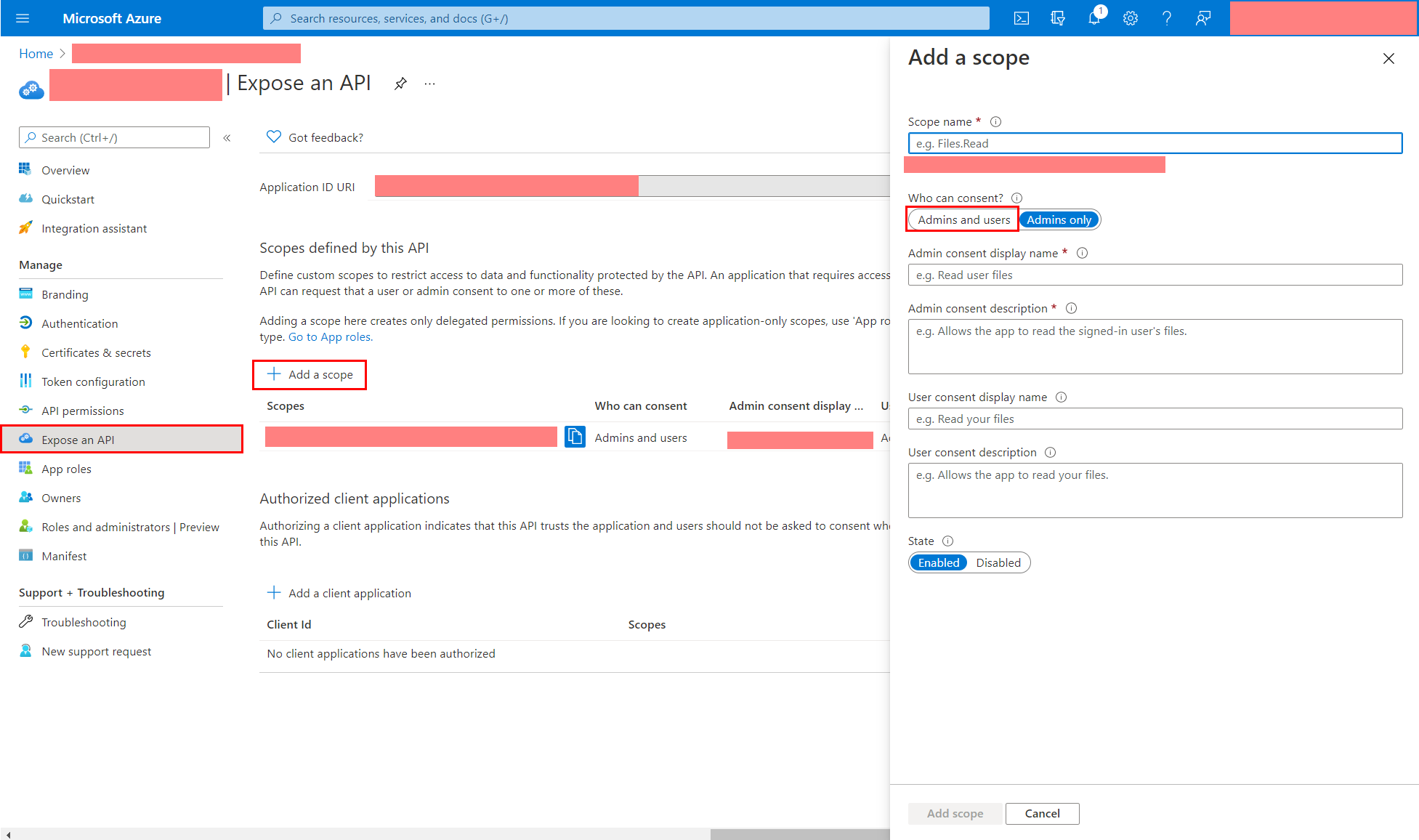
Expose an API by adding a scope
-
Open Subscriptions
NOTE - Save the subscription ID
-
Choose a subscription to allocate the app

-
Add role assignment on Access control (IAM)

The following will be needed for API calls.
- Client ID
- ClientSecret (Value)
- Tenant ID
- Subscription ID
Reference: Create an AccessKey pair for a RAM user
-
Sign In to the console

-
Open the RAM console
-
Choose Identities > Users and then choose Create User

-
Fill in the form

-
Click the username of the target RAM user in the User Logon Name/Display Name column

-
Click Create Access Key and download the Access Key
NOTE - Save client secrets' key and value because you won't be able to see it later
-
Setup permission (if needed)

The following will be needed for API calls.
- AccessKeyId
- AccessKeySecret