How to Execute en - yktsr/Text2Frame-MV GitHub Wiki
How to Execute
日本語 | English
Please follow the steps below to execute. The first time you use it, there are a few more steps, but from the second time onwards, it requires almost no effort, so please give it a try.
The procedure differs slightly depending on whether you are executing in RPG Maker MV or RPG Maker MZ.
Execution Method for RPG Maker MV
-
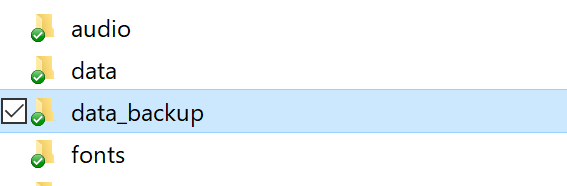
Back up the data folder. (Important)
-
Create a folder in the project's top-level folder (where data and img are located).
For first-time users, a folder named
textis recommended.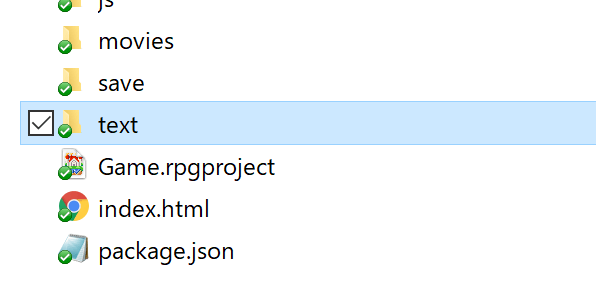
-
Save the text file you want to load in the created folder.
For first-time users, copy and paste the following text to create a file named
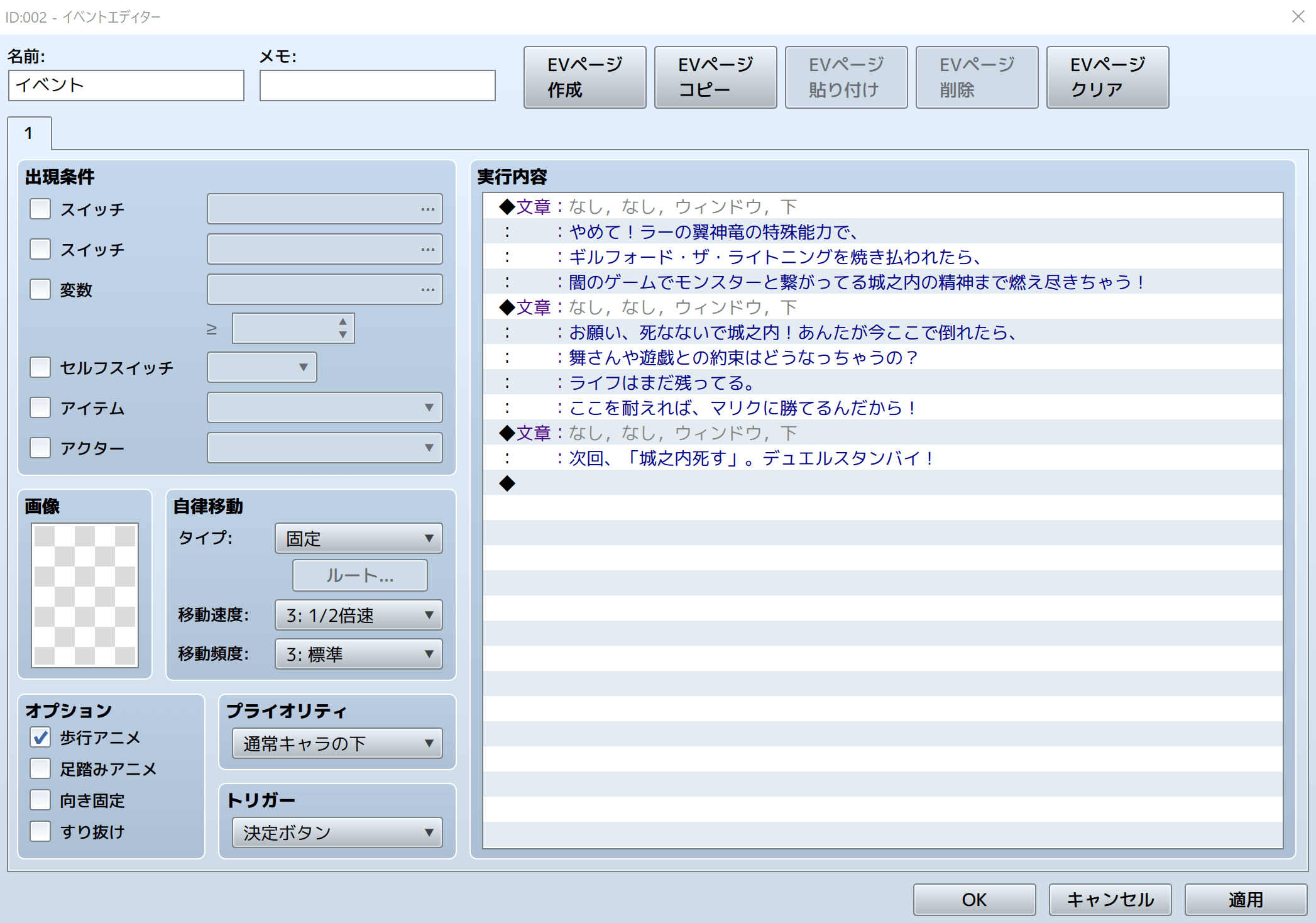
message.txt. After creating it, save it in the folder you created in step 2 (for example, thetextfolder). At this time, please save with UTF-8 character encoding.やめて!ラーの翼神竜の特殊能力で、 ギルフォード・ザ・ライトニングを焼き払われたら、 闇のゲームでモンスターと繋がってる城之内の精神まで燃え尽きちゃう! お願い、死なないで城之内!あんたが今ここで倒れたら、 舞さんや遊戯との約束はどうなっちゃうの? ライフはまだ残ってる。 ここを耐えれば、マリクに勝てるんだから! 次回、「城之内死す」。デュエルスタンバイ!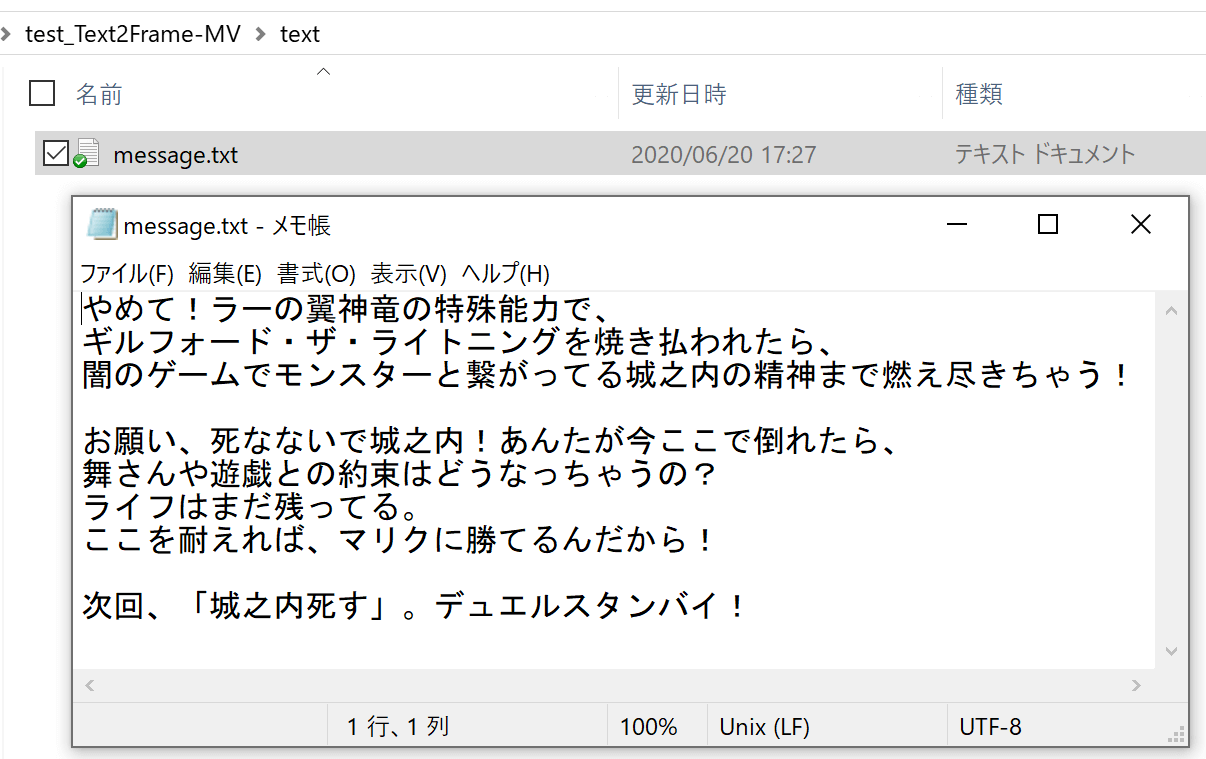
-
Create an empty event on any map and position.
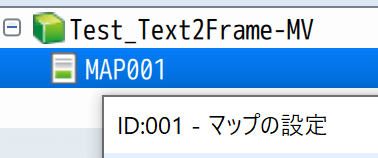
At this time, make a note of the map ID, event ID, and page ID. The map ID is listed in the upper left of the window that appears when you right-click a map on the left side of the screen and select "Edit".
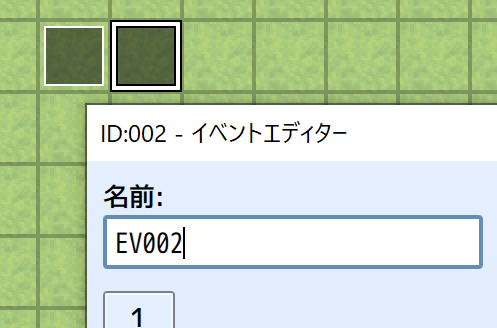
The event ID is listed in the upper left of the event editor that appears when you double-click an event.
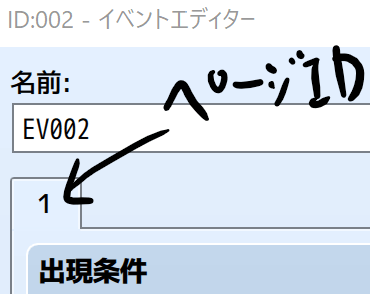
The page ID is listed below the event name in the event editor.
-
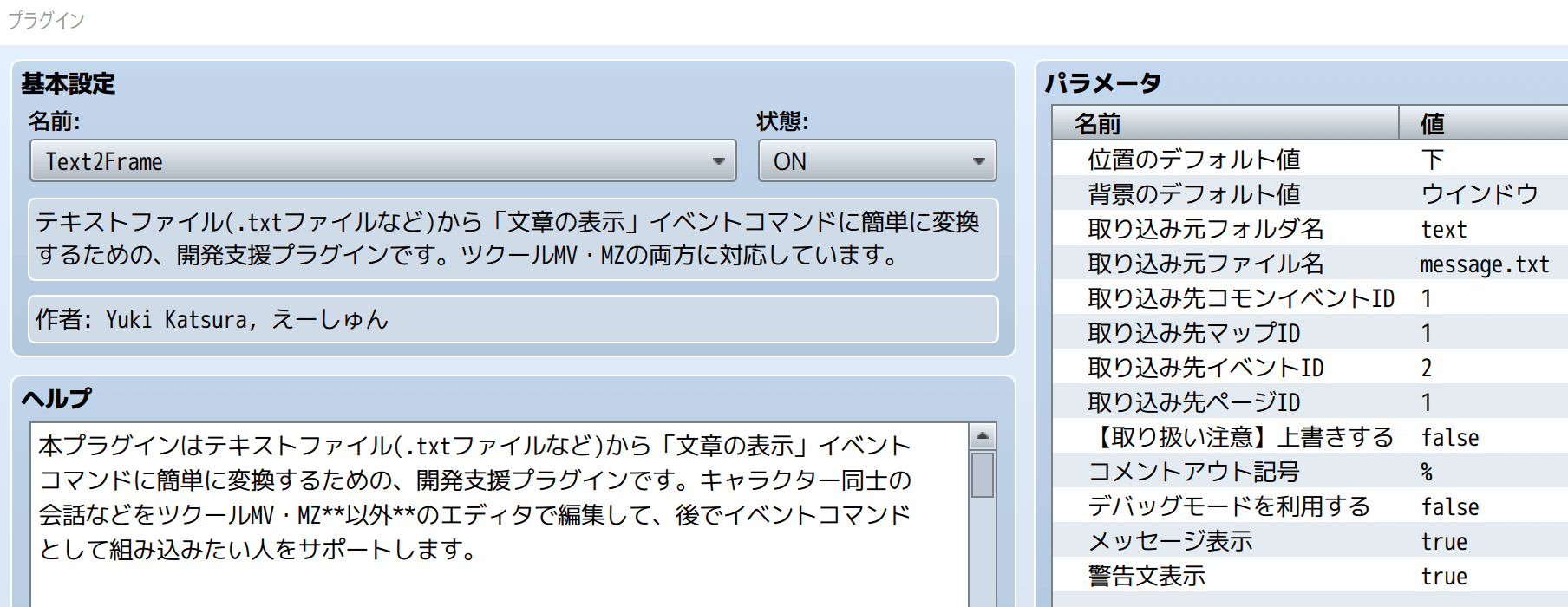
Edit the parameters of this plugin from the plugin management screen as follows:
- Enter the folder name you created in step 2 in "Import Source Folder Name". (Default is text)
- Enter the filename of the text file you saved in step 3 in "Import Source File Name". (Default is message.txt)
- Enter the map ID you noted in step 4 in "Import Destination Map ID". (Default is 1)
- Enter the event ID you noted in step 4 in "Import Destination Event ID". (Default is 2)
- Enter the page ID you noted in step 4 in "Import Destination Page ID". (Default is 1)
-
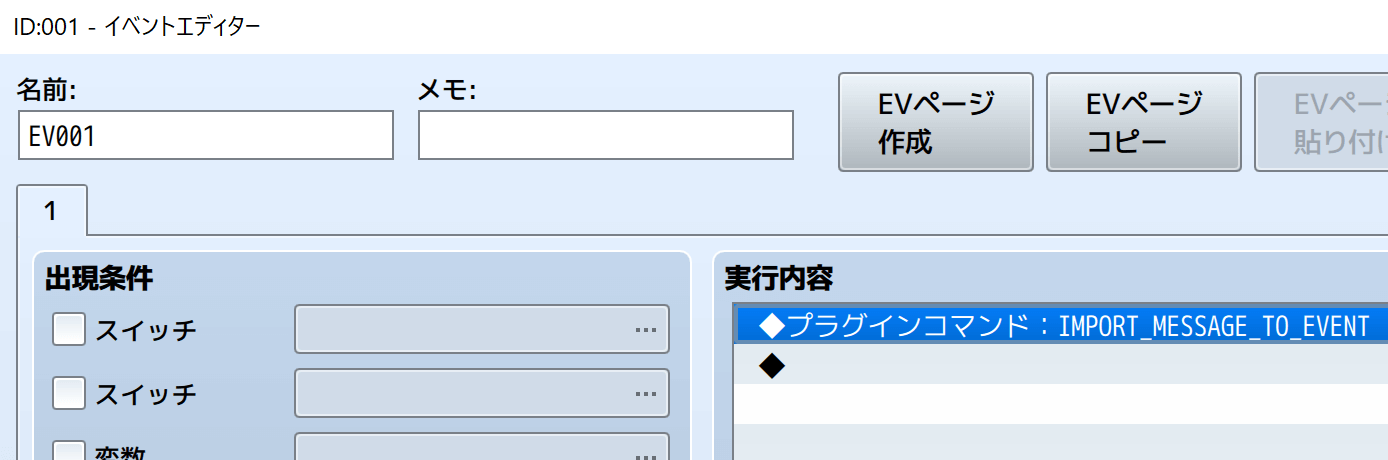
Create a plugin command with one of the following:
IMPORT_MESSAGE_TO_EVENTメッセージをイベントにインポート
These have exactly the same function, so you can use either one.
-
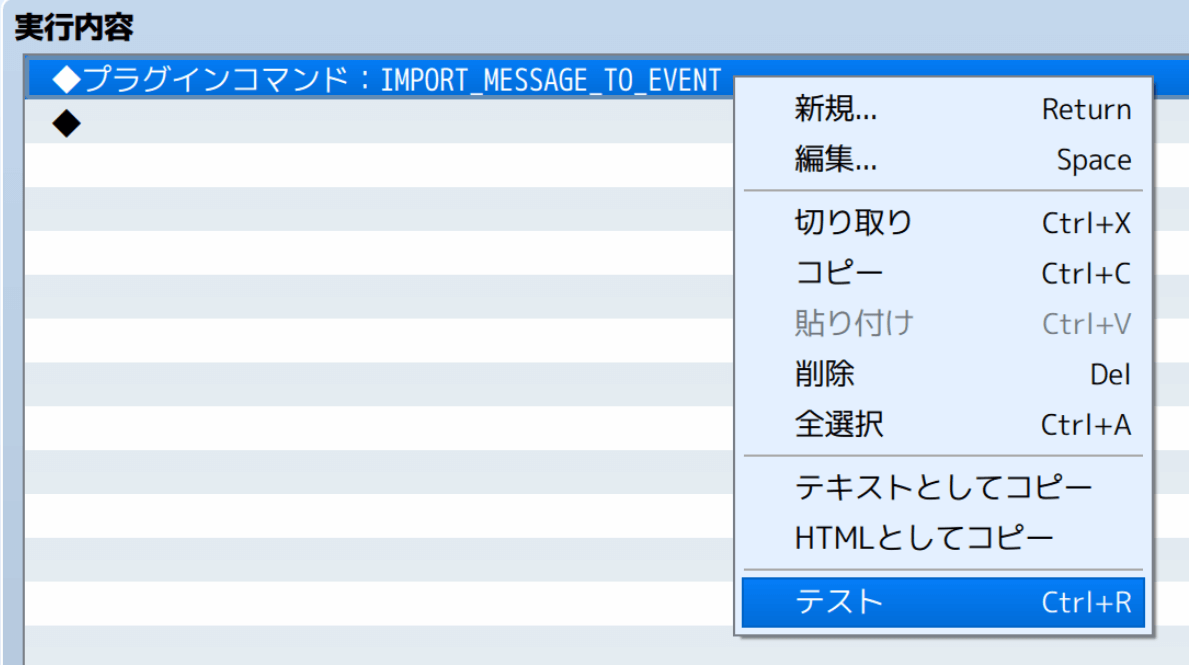
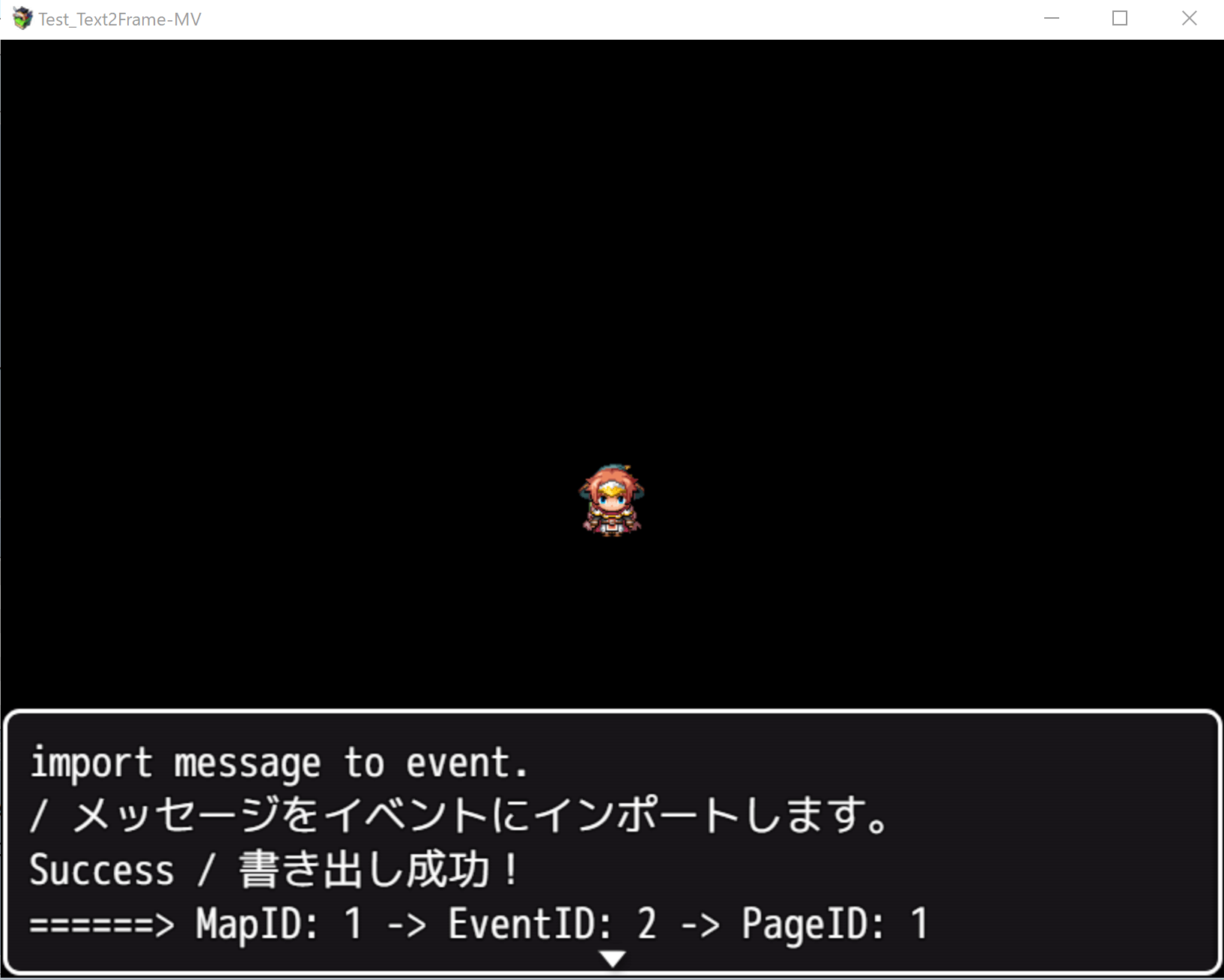
Execute the created event command via test play or event test.
Before executing, turn on this plugin from the management screen and execute "Save Project".
-
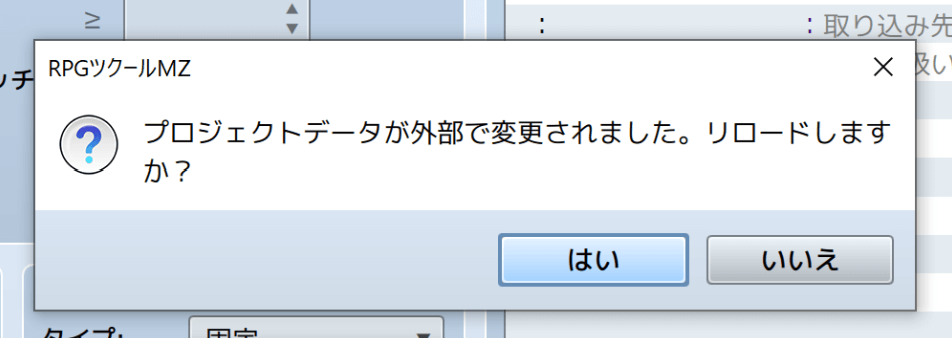
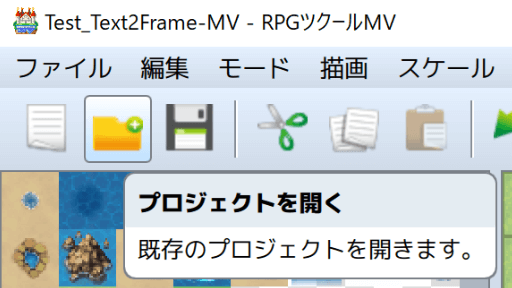
Reopen the project without saving.
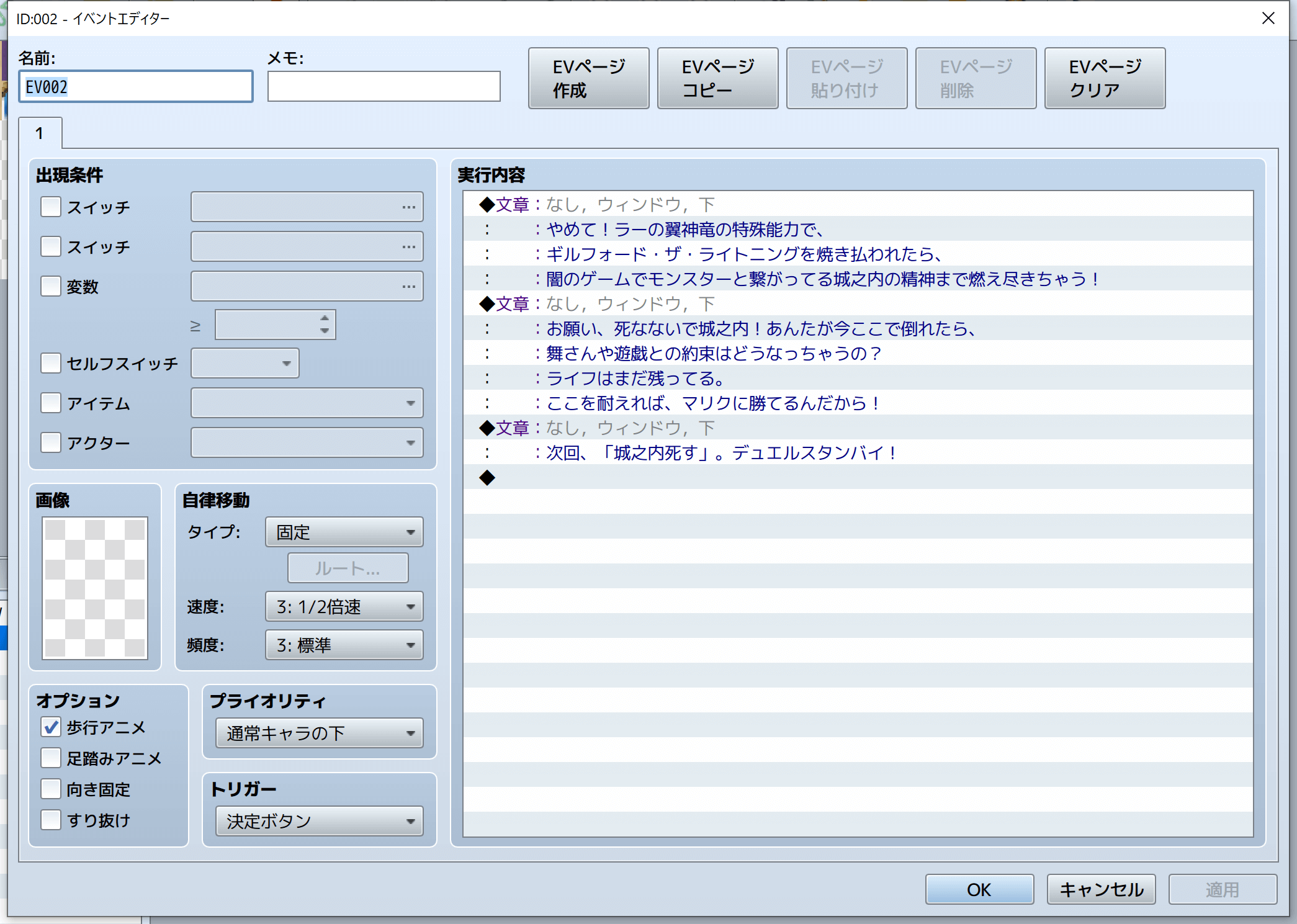
If successful, it will be exported as "Show Text" event commands in the event of the map you set in step 7. By default, the contents of message.txt in the text folder are exported to page ID 1 of event ID 2 on map ID 1.
Execution Method for RPG Maker MZ
-
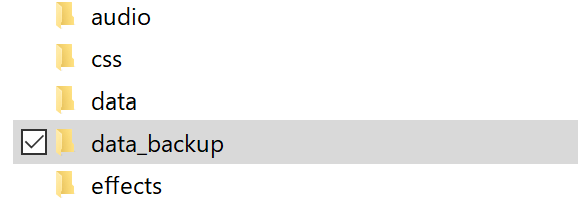
Back up the data folder. (Important)
-
Create a folder in the project's top-level folder (where data and img are located).
For first-time users, a folder named
textis recommended.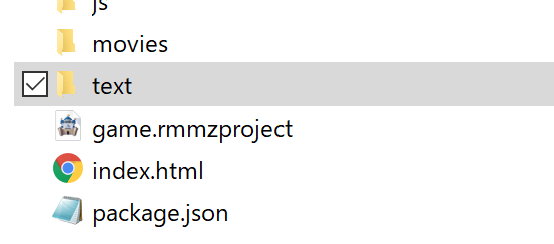
-
Save the text file you want to load in the created folder.
For first-time users, copy and paste the following text to create a file named
message.txt. After creating it, save it in the folder you created in step 2 (for example, thetextfolder). At this time, please save with UTF-8 character encoding.やめて!ラーの翼神竜の特殊能力で、 ギルフォード・ザ・ライトニングを焼き払われたら、 闇のゲームでモンスターと繋がってる城之内の精神まで燃え尽きちゃう! お願い、死なないで城之内!あんたが今ここで倒れたら、 舞さんや遊戯との約束はどうなっちゃうの? ライフはまだ残ってる。 ここを耐えれば、マリクに勝てるんだから! 次回、「城之内死す」。デュエルスタンバイ!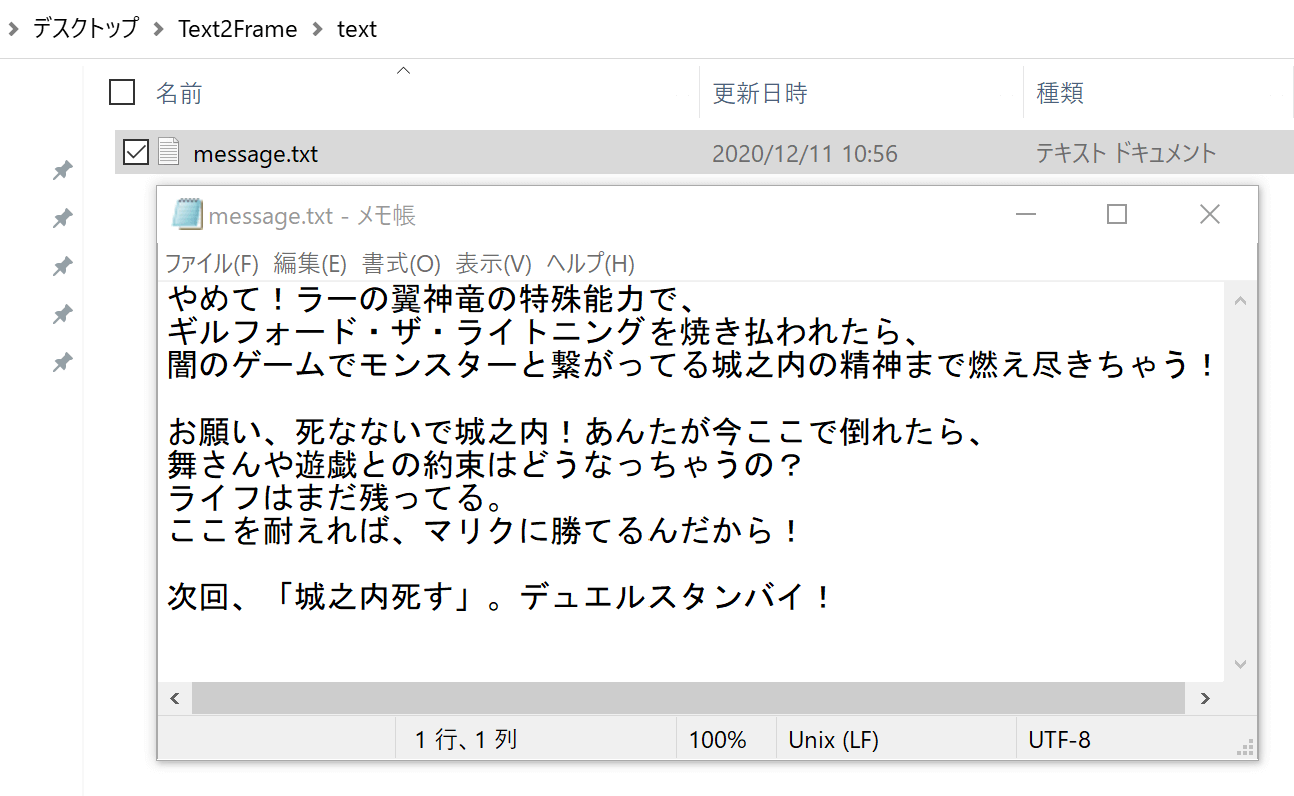
-
Create an empty event on any map and position.
At this time, make a note of the map ID, event ID, and page ID. The map ID is listed in the upper left of the window that appears when you right-click a map on the left side of the screen and select "Edit".

The event ID is listed in the upper left of the event editor that appears when you double-click an event.
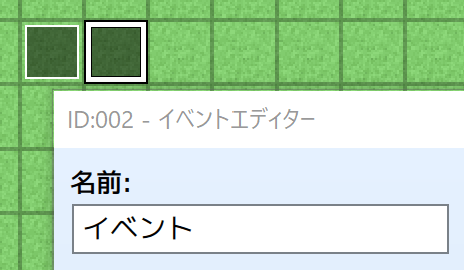
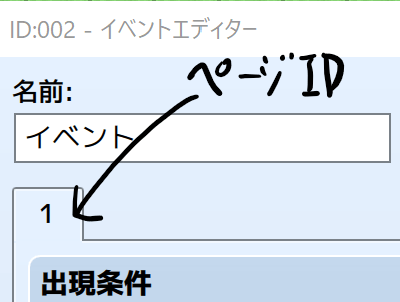
The page ID is listed below the event name in the event editor.
-
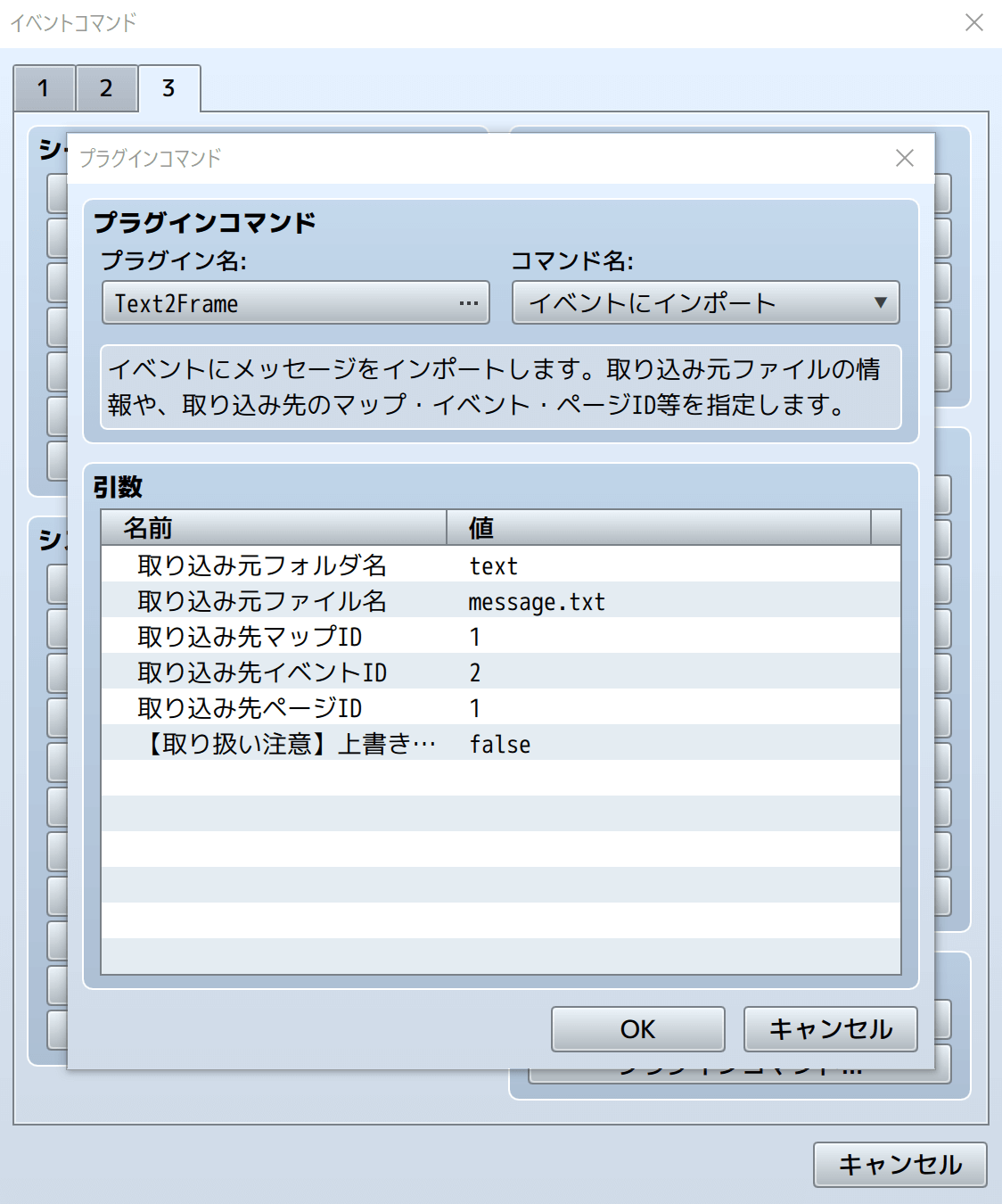
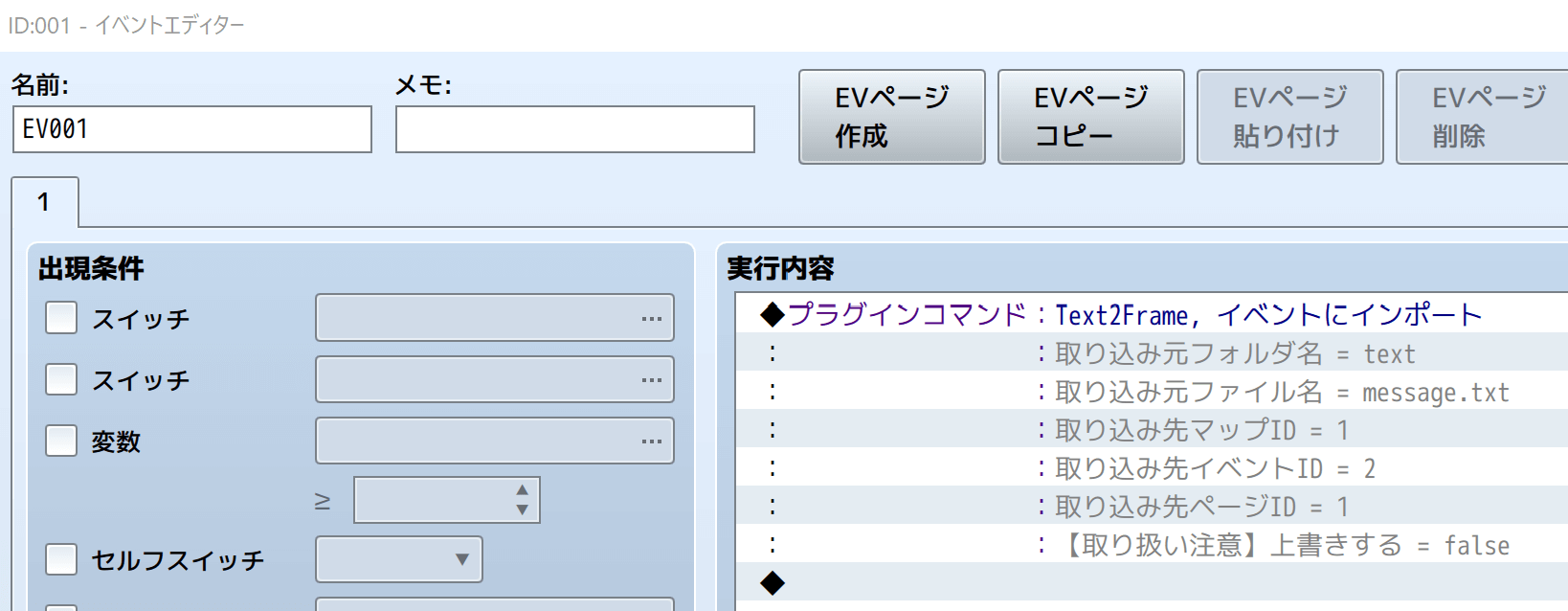
Create a plugin command using the following procedure: Select the command "Import to Event" from plugin name "Text2Frame" Set the arguments as follows:
- Enter the folder name you created in step 2 in "Import Source Folder Name". (Default is text)
- Enter the filename of the text file you saved in step 3 in "Import Source File Name". (Default is message.txt)
- Enter the map ID you noted in step 4 in "Import Destination Map ID". (Default is 1)
- Enter the event ID you noted in step 4 in "Import Destination Event ID". (Default is 2)
- Enter the page ID you noted in step 4 in "Import Destination Page ID". (Default is 1)
-
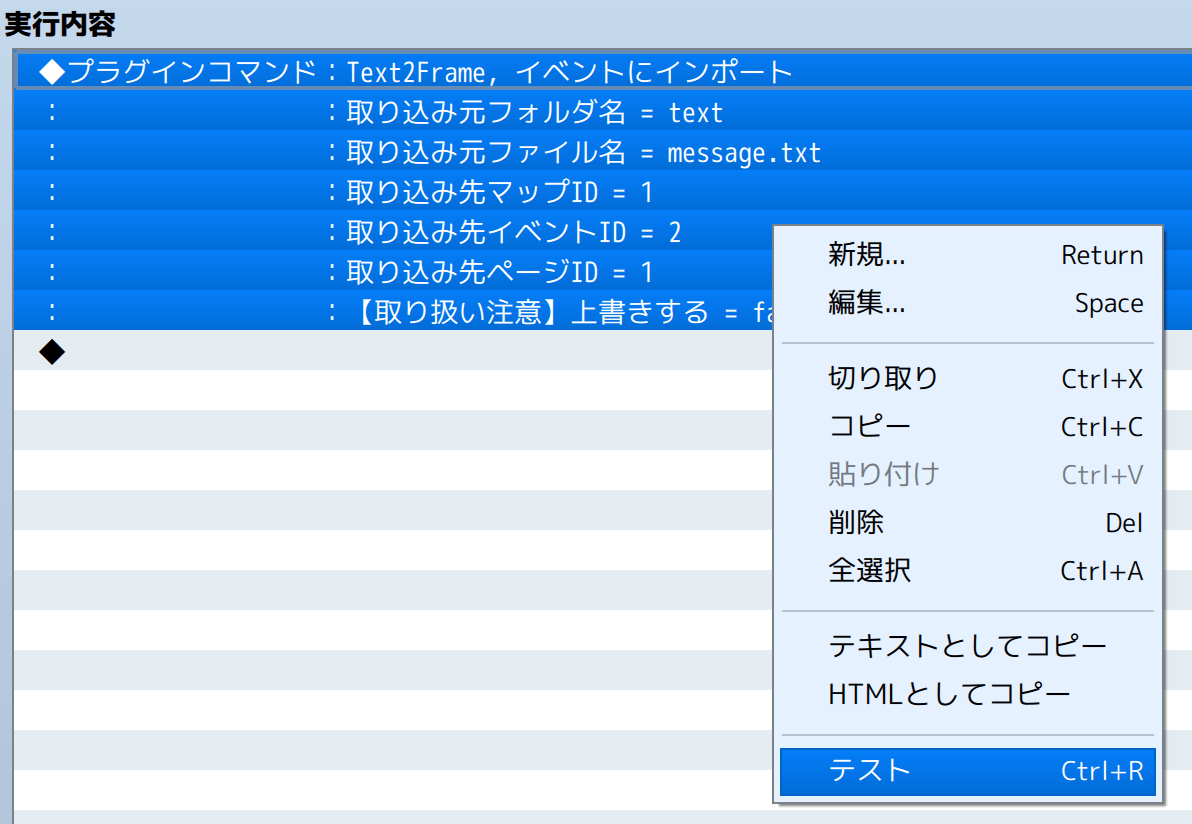
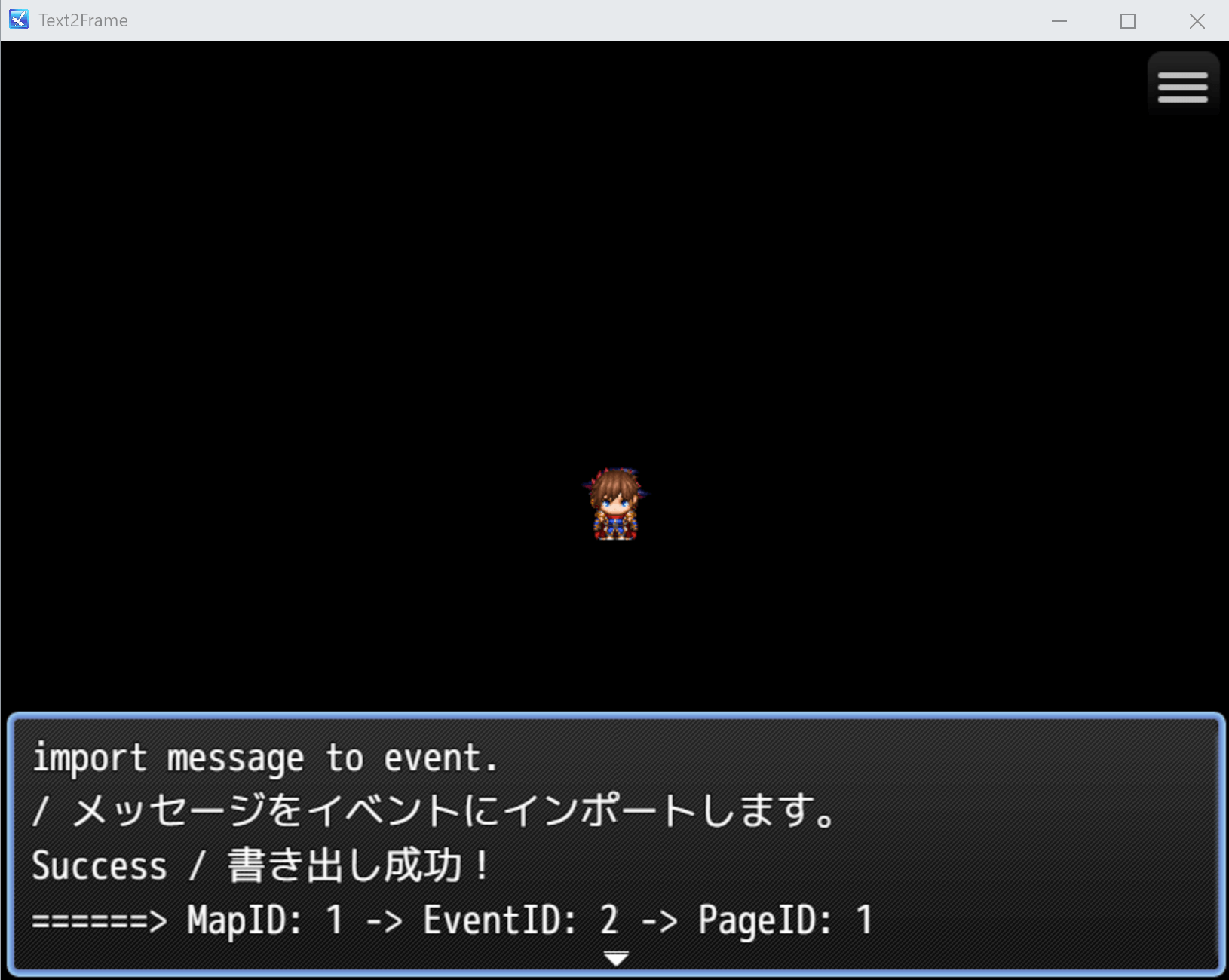
Execute the created event command via test play or event test.
Before executing, turn on this plugin from the management screen and execute "Save Project".
-
Reload or reopen the project without saving.
If successful, it will be exported as "Show Text" event commands in the event of the map you set in step 7. By default, the contents of message.txt in the text folder are exported to page ID 1 of event ID 2 on map ID 1.