iOS InApp Unity Documentation - yanivav/Test GitHub Wiki
Last SDK Version: 2.1.1
This document describes the basic procedure for integrating StartApp In-App Ads into your Unity applications for iOS.
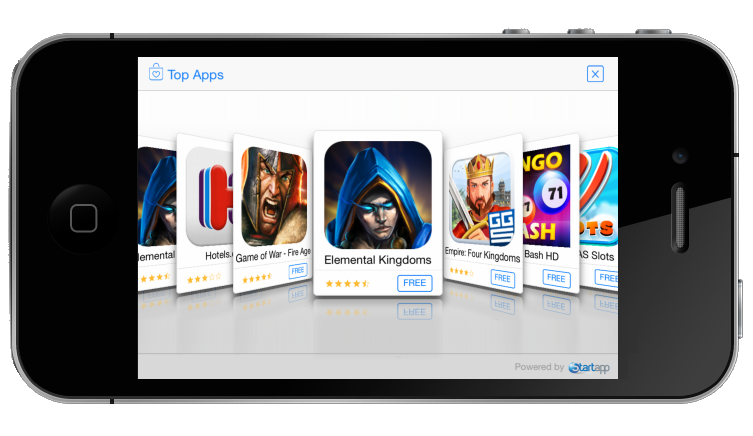
After this simple integration process, StartApp In-App Ads enables you to reap the benefits of StartApp's In-App monetization products, which maximize the revenue generated by your application. All this profit-making is achieved with minimal effort and minimal interference with your users’ experience.
NOTES:
- To build your app with StartApp SDK you must have XCode 4.4.1+
- The code samples in this document can be copy/pasted into your source code
- If you have any questions, contact us via [email protected]
##Step 1, Adding the SDK package to your Unity project
In order to add StartApp SDK to your application please follow the following steps:
1. Unzip the SDK files to a temporary folder
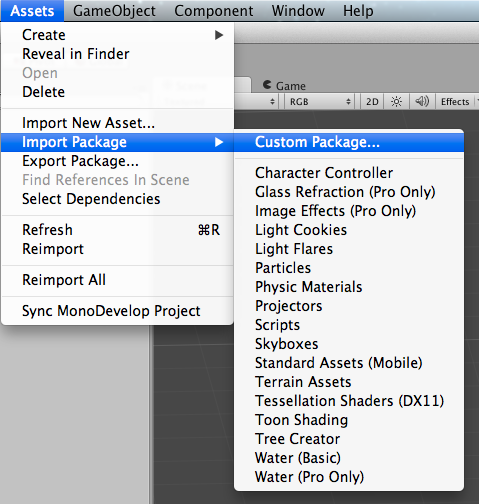
2. Import StartAppiOSUnitySDK-x.x.x.unitypackage as a Custom Package (or drag and drop it to your "Assets" folder under the "Project" Window)
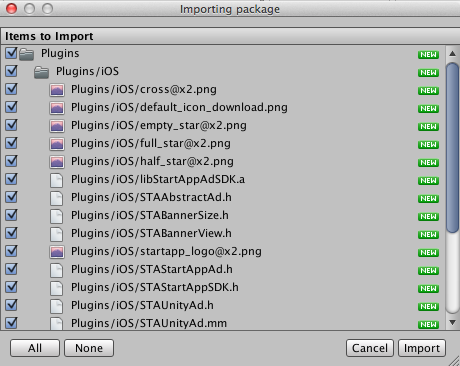
3. Import all the package's items by pressing "All" and then "Import"
##Step 2, Updating your StartApp data file
Update the StartAppDataiOS.txt_ (in the Assets/Resources folders) as follows:
1. Add your StartApp Developer ID after developerId=
2. Add your StartApp Application ID after applicationId=
You can find your Developer and Application IDs in the developers’ portal.
After logging in, your developer ID will be at the top right-hand corner of the page:

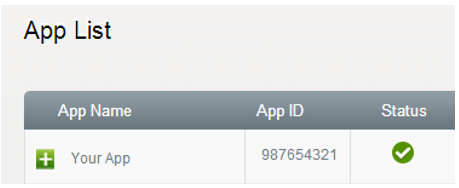
To find your application ID, click on the  at the top of the main screen and then choose the relevant ID from your app list:
##Showing Banners
To add a banner to your application add the following code to your Start() method:
void Start () {
        #if UNITY_IPHONE
        StartAppWrapperiOS.addBanner(StartAppWrapperiOS.BannerPosition.BOTTOM);
        #endif
    }
Parameters
BannerPosition - position of the banner. Can receive one of the following:
 StartAppWrapper.BannerPosition.BOTTOM
StartAppWrapper.BannerPosition.TOP
StartAppWrapper.BannerPosition.BOTTOM
StartAppWrapper.BannerPosition.TOP
You can change the banner position and size, as well as getting callbacks events. For detailed instructions please refer to the Advanced Usage.
You can choose to show an interstitial ad in several locations within your application. This could be upon entering (onCreate), between stages, while waiting for an action and more.
Add the following code to the appropriate place or places in which you would like to show the ad:
1. Load the ad
 void Start () {
        #if UNITY_IPHONE
        StartAppWrapperiOS.loadAd();
        #endif
    }
2. Show the ad
StartAppWrapperiOS.showAd();You can show a specific type of interstitial ad, as well as getting callbacks events. For detailed instructions please refer to the Advanced Usage.
##Step 5, Build Your Unity Project
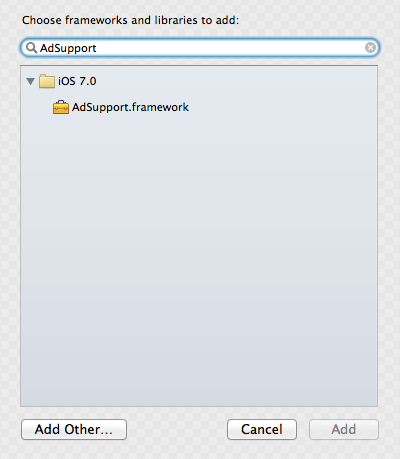
The first time you build your unity project with StartApp SDK, make sure to run a "Build" instead of "Build and Run". Once completed, load the created XCode project and follow the following steps to include additional necessary frameworks:
- Select your application project to bring up the project editor
- Select your application target to bring up the target editor
- Select the Build Phases tab and disclose the "Link Binary with Libraries" phase and click the plus button in that phase
- Add the following frameworks:
CoreTelephony.framework
StoreKit.framework
AdSupport.framework
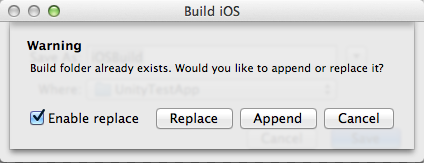
##Advanced Usage For advanced usage, please refer to the ["Advanced Usage"](unity-iOS-advanced-usage) section.NOTE: from now on you can use the "Build and Run" method, as long as you use the "Append" option instead of "Replace", so all the above changes will be kept.