iOS InApp Documentation - yanivav/Test GitHub Wiki
Last SDK Version: 2.2.0
For Swift documentation, please click here.
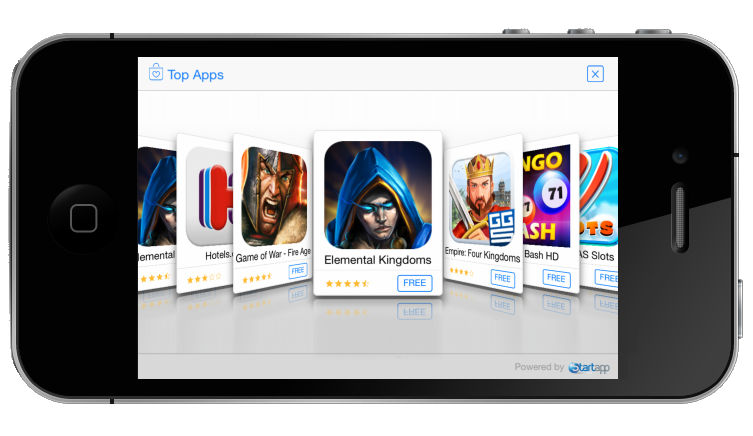
This document describes the basic procedure for integrating StartApp In-App Ads into your iOS applications.
After this simple integration process, StartApp In-App Ads enables you to reap the benefits of StartApp's In-App monetization products, which maximize the revenue generated by your application. All this profit-making is achieved with minimal effort and minimal interference with your users’ experience.
NOTES:
- The code samples in this document can be copy/paste into your source code
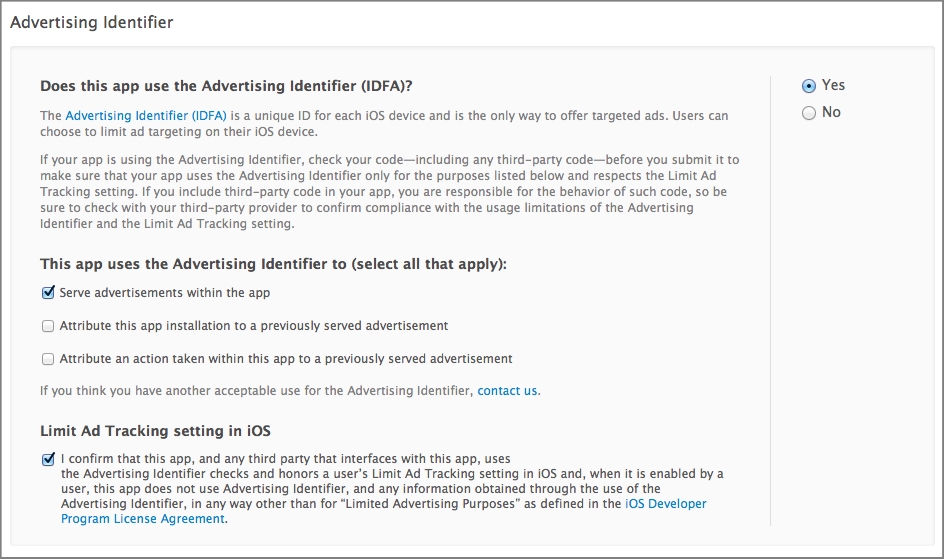
- When submitting your application to the App Store,do not forget to update your "IDFA Settings"
- Please notice that steps 1-3 are mandatory
- If you have any questions, contact us via [email protected]
##Step 1, Adding the StartApp SDK to your project
####Add the StartApp SDK files to your application project directory
- Right-click on you project and choose "Add Files to…"
- Right-click on you project and choose "Add Files to…"
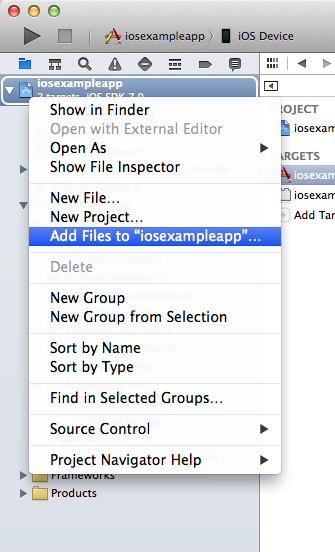
- Add the StartApp SDK files:
 StartApp.framework
StartApp.bundle
StartApp.framework
StartApp.bundle
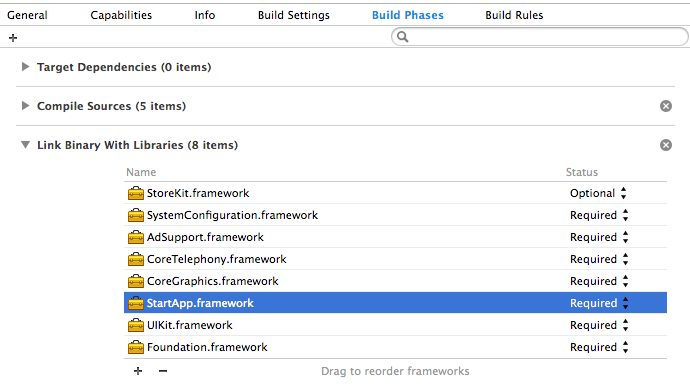
####Add the libStartApp.a to the Build Phases of the desired target
- Select your application project to bring up the project editor
- Select your application target to bring up the target editor
- Select the Build Phases tab
- Disclose the "Link Binary With Libraries" phase
- Make sure "StartApp.framework" exists. if not, click the plus button in that phase, then click "Add Other…" and select the "StartApp.framework" file
####Add the Bundle to the Build Phases of the desired target
- Select your application project to bring up the project editor
- Select your application target to bring up the target editor
- Select the Build Phases tab
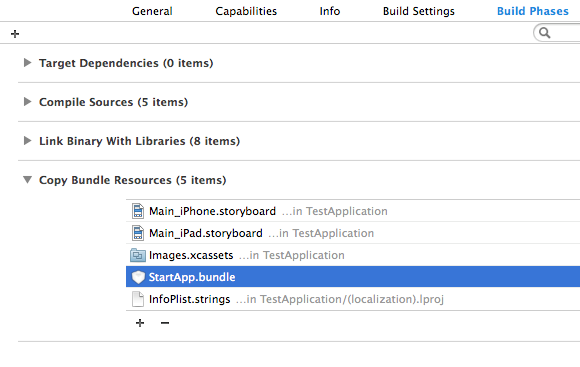
- Disclose the "Copy Bundle Resources" phase
- Make sure "StartApp.bundle" exists. if not, click the plus button in that phase, then click "Add Other…" and select the "StartApp.bundle" file
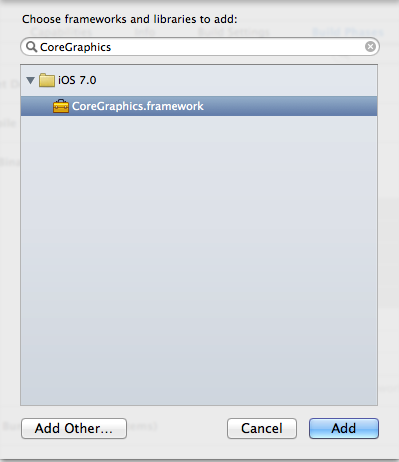
_CoreTelephony.framework_
_SystemConfiguration.framework_
_CoreGraphics.framework_
_StoreKit.framework_
_AdSupport.framework_
 ##Step 3, Initialization
In your application delegate class (_AppDelegate.m_), import the StartApp SDK and add the following line to your application's ``didFinishLaunchingWithOptions`` function:
##Step 3, Initialization
In your application delegate class (_AppDelegate.m_), import the StartApp SDK and add the following line to your application's ``didFinishLaunchingWithOptions`` function:
// AppDelegate.m

#import <StartApp/StartApp.h>

- (BOOL)application:(UIApplication *)application didFinishLaunchingWithOptions:(NSDictionary *)launchOptions
{
    // initialize the SDK with your appID and devID
    STAStartAppSDK* sdk = [STAStartAppSDK sharedInstance];
    sdk.appID = @"your app Id";
    sdk.devID = @"your developer id";

    return YES;
}
Replace "Your Developer Id" and "Your App ID" with your own values provided in the developers’ portal.
After logging in, your developer ID will be at the top right-hand corner of the page:

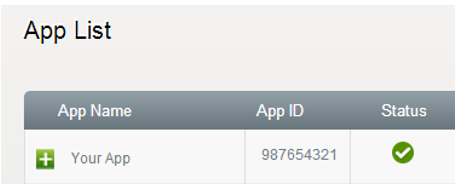
To find your application ID, click on the  at the top of the main screen and then choose the relevant ID from your app list:
First, import the StartApp SDK in your view controller and add the following lines to the header file for each view in which you would like to show an ad
// YourViewController.h

#import <StartApp/StartApp.h>

@interface YourViewController : UIViewController
{
    STAStartAppAd* startAppAd;    // ADD THIS LINE
}
In your view controller init STAStartAppAd within the viewDidLoad() method and load it within the viewDidAppear() method. Remember to release STAStatAppAd object in your dealloc() method in case you're not using ARC in your project.
// YourViewController.m

- (void)viewDidLoad {
    [super viewDidLoad];
    startAppAd = [[STAStartAppAd alloc] init];
}

- (void) viewDidAppear:(BOOL)animated {
    [super viewDidAppear:animated];
    [startAppAd loadAd];  // Add this line
}

- (void) dealloc {
    // Don't release startAppAd if you are using ARC in your project
    [startAppAd release];  // Add this line
    [super dealloc];
}
Finally, add the following lines where you want to show the ad
[startAppAd showAd];##Showing the Splash Ad A Splash Ad is a full-page ad that is displayed immediately after the application is launched. A Splash Ad first displays a full page splash screen that you define (as described below) followed by a full page ad.IMPORTANT
Loading an ad might take a few seconds so it's important to show the ad as late as you can. In case you callshowAd()while the ad hasn't been successfully loaded yet, nothing will be displayed. For example, if you'd like to show an ad after completing a game's level, the best practice would be to show the ad upon completing the level (for example in yourviewDidDisappear()function). On the other hand, loading and showing the ad together at the beginning of the next level might result with a failure – as the ad might not have enough time to load.
StartApp SDK provides two modes for displaying Splash screens:
| Splash Screen Mode | Description |
|---|---|
| User-Defined Mode (default) | Using your application's default splash image, with a loading animation |
| Template Mode | StartApp SDK provides a pre-defined template in which you can place your own creatives, such as application name, logo and loading animation. for more details, please refer to the "Advanced Manual" |
####Adding the Splash Screen
In your application delegate class (AppDelegate.m), after initializing the SDK, call the sdk showSplashAd method:
// AppDelegate.m

#import <StartApp/StartApp.h>

- (BOOL)application:(UIApplication *)application didFinishLaunchingWithOptions:(NSDictionary *)launchOptions
{
    // initialize the SDK with your appID and devID
    STAStartAppSDK* sdk = [STAStartAppSDK sharedInstance];
    sdk.appID = @"your app Id";
    sdk.devID = @"your developer id";

	[sdk showSplashAd];  // display the splash screen

    return YES;
}
If you wish to customize or use a different splash screen, please refer to the Advanced Usage.
##Return Ads The **Return Ad** is a new ad unit which is displayed once the user returns to your application after a certain period of time. To minimize the intrusiveness, short time periods are ignored. For example, the Return Ad won't be displayed if the user leaves your application to take a short phone call before returning.Return ads are enabled and activated by default. If you want to disable this feature, simply call [sdk disableReturnAd] as part of the initialization process, in your AppDelegate.m file:
// AppDelegate.m

#import <StartApp/StartApp.h>

- (BOOL)application:(UIApplication *)application didFinishLaunchingWithOptions:(NSDictionary *)launchOptions
{
   // initialize the SDK with your appID and devID
   STAStartAppSDK* sdk = [STAStartAppSDK sharedInstance];
   sdk.appID = @"your app Id";
   sdk.devID = @"your developer id";

   [sdk disableReturnAd];  // disable return ads

   return YES;
}1 In the header file of your view controller, import STABannerView.h and STABannerSize.h and declare an STABannerView instance variable
// YourViewController.h

#import <UIKit/UIKit.h>
#import <StartApp/StartApp.h>

@interface YourViewController : UIViewController
{
    STABannerView* bannerView;
}
2 Create and initialize the STABannerView and add it as a subView to the view where you want it to be displayed. Remember to release the bannerView object in your dealloc() function in case you're not using ARC in your project
// YourViewController.m

- (void) viewDidAppear:(BOOL)animated {
    [super viewDidAppear:animated];
     if (bannerView == nil) {
        bannerView = [[STABannerView alloc] initWithSize:STA_AutoAdSize autoOrigin:STAAdOrigin_Top
                                            withView:self.view withDelegate:nil];
        [self.view addSubview:bannerView];
    }
}

- (void) dealloc
{
    // Don't release bannerView if you are using ARC in your project
    [bannerView release];  // Add this line
    [super dealloc];
}
NOTE:
- You can find your "developerId" and "appId" the same way as in step 3 above
- This example shows the banner at the top of the root view controller (
self.view), but you can pass any other view where you want to show the banner
3 Finally, implement didRotateFromInterfaceOrientation in your view controller
// YourViewController.m

- (void) didRotateFromInterfaceOrientation:(UIInterfaceOrientation)fromInterfaceOrientation {
    [bannerView didRotateFromInterfaceOrientation:fromInterfaceOrientation];
    [super didRotateFromInterfaceOrientation:fromInterfaceOrientation];
}| Value | Position | Behavior |
|---|---|---|
STAAdOrigin_Top |
Auto Top | The banner will be centered and pinned to the top of the view. In case the view is a root view controller, the banner will be located under the status bar, if exists. |
STAAdOrigin_Bottom |
Auto Bottom | The banner will be centered and pinned to the bottom of the view. |
##Enjoy Higher eCPM with Demographic-Targeted Ads If you know your user's gender, age or location, StartApp can use it to serve better-targeted ads which can increase your eCPM and revenue significantly.NOTE
If you wish to use a fixed origin for the banner, please refer to the "Advanced Manual"
####Set Age and Gender Upon initialization, after providing your DevId and AppId, use the following line:
sdk.preferences = [STASDKPreferences prefrencesWithAge:<USER_AGE> andGender:<USER_GENDER>];- Replace <USER_AGE> with the user's real age
- Replace <USER_GENDER> with the user's real gender, using STAGender_Male or STAGender_Female.
Example
// AppDelegate.m

#import <StartApp/StartApp.h>

- (BOOL)application:(UIApplication *)application didFinishLaunchingWithOptions:(NSDictionary *)launchOptions
{
    // initialize the SDK with your appID and devID
    STAStartAppSDK* sdk = [STAStartAppSDK sharedInstance];
    sdk.appID = @"your app Id";
    sdk.devID = @"your developer id";

    sdk.preferences = [STASDKPreferences prefrencesWithAge:22 andGender:STAGender_Male];

    return YES;
}
####Set Location The location of the user is a dynamic property which is changed constantly. Hence, you should provide it every time you load a new Ad:
[startAppAd loadAdWithAdPreferences:[STAAdPreferences prefrencesWithLatitude:<Real_Longitude> andLongitude:<Real_Latitude>]];Example
- (void) viewDidAppear:(BOOL)animated {
    [super viewDidAppear:animated];

        [startAppAd loadAdWithAdPreferences:[STAAdPreferences prefrencesWithLatitude:37.3190383911 andLongitude:-121.96269989]];
}On the "Advertising Identifier" section:
1 Choose "Yes" on the right pane
2 Opt-in the "Serve advertisements within the app" checkbox
3 Opt-in the confirmation checkbox under "Limit Ad tracking setting in iOS"