Android InApp Documentation - yanivav/Test GitHub Wiki
NOTES:
- The code samples in this document can be copy/pasted into your source code
- Please notice that steps 1-3 are mandatory
- If you have any questions, contact us via [email protected]
##Step 1, Adding the SDK JAR to Your Eclipse Project
IMPORTANT: This is a mandatory step
Copy the SDK jar file from the SDK zip to the “libs” directory of your project.
##Step 2, Updating Your AndroidManifest.xml File > **IMPORTANT:** This is a mandatory stepUnder the main <manifest> element, add the following permissions:
<uses-permission android:name="android.permission.INTERNET"/>
<uses-permission android:name="android.permission.ACCESS_WIFI_STATE"/>
<uses-permission android:name="android.permission.ACCESS_NETWORK_STATE"/>
Under the <application> element, add your new activities:
<activity android:name="com.startapp.android.publish.list3d.List3DActivity"
          android:theme="@android:style/Theme" />

<activity android:name="com.startapp.android.publish.AppWallActivity"
          android:theme="@android:style/Theme.Translucent"
android:configChanges="orientation|keyboardHidden|screenSize" />In your main activity, go to the OnCreate method and before calling setContentView() call the static function:
StartAppSDK.init(this, "Your Developer Id", "Your App ID", true);Replace "Your Developer Id" and "Your App ID" with your own values provided in the developers’ portal.
After logging in, your developer ID will be at the top right-hand corner of the page:

To find your application ID, click on the  at the top of the main screen and then choose the relevant ID from your app list:
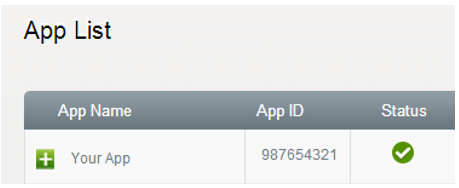
The last true parameter enables the "Return Ads" feature as explained in the next section. If you want to disable this feature, simply pass false instead.
Return ads are enabled and activated by default. If you want to disable this feature, simply pass "false" as the 4th parameter of the StartAppSDK.init method:
StartAppSDK.init(this, "Your Developer Id", "Your App ID", false);NOTE: This code places a View inside your Activity. You also have the option to add additional attributes for placing it in the desired location in your Activity.
If you wish to add a specific type of banner, please refer to the Advanced Usage.
##Showing Interstitial Ads Interstitial Ads are displayed before or after a certain content page or action, such as upon entering a stage, between stages, while waiting for an action, upon exiting the application and more.####Initializing the StartApp Ad Object 1. In your Activity, create a member variable, as follows:
private StartAppAd startAppAd = new StartAppAd(this);2. Override the onResume() method and add the method startAppAd.onResume() AFTER the method super.onResume():
@Override
public void onResume() {
    super.onResume();
    startAppAd.onResume();
}
3. Override the onPause() method and add the method startAppAd.onPause() AFTER the method super.onPause():
@Override
public void onPause() {
    super.onPause();
    startAppAd.onPause();
}
####Showing Exit Ads Add the following code to show an ad upon exiting your application.
To show an ad when pressing the 'Back' button, override the onBackPressed() method and add the method startAppAd.onBackPressed() BEFORE the method super.onBackPressed():
@Override
public void onBackPressed() {
    startAppAd.onBackPressed();
    super.onBackPressed();
}
####Showing Interstitials Add the following code to the appropriate place(s) in the activity in which you would like to show the Ad:
startAppAd.showAd(); // show the ad
startAppAd.loadAd(); // load the next ad
NOTE:
loadAd()must be called immediately aftershowAd(). This will load the next Ad.
The following is an example of showing an Interstitial Ad between Activities:
public void btnOpenActivity (View view){
    Intent nextActivity = new Intent(this, NextActivity.class);
    startActivity(nextActivity);
    startAppAd.showAd();
    startAppAd.loadAd();
}| Splash Screen Mode | Description |
|---|---|
| Template Mode | StartApp In-Ad provides a pre-defined template in which you can place your own creatives, such as application name, logo and loading animation. |
| User-Defined Mode | Please refer to the Advanced Usage |
####Adding the Splash Screen
In the OnCreate method of your Activity, after calling StartAppAd.init and before setContentView, call the following static function:
StartAppAd.showSplash(this, savedInstanceState);Apply the following parameters:
- this: The context (Activity)
-
savedInstanceState: The Bundle parameter passed to your
onCreate(Bundle savedInstanceState)method
If you wish to customize or use a different splash screen, please refer to the Advanced Usage.
##Integrating the Slider After calling ```setContentView()```, in the ```OnCreate()``` method of your main activity, call the static function: ```java StartAppAd.showSlider(this); ```If you would like the Slider to appear in additional activities, repeat this step in each one of the activities you would like it to show in. The Slider cannot be implemented in activities with a Dialog Theme: (android:theme="@android:style/Theme.Dialog")
##Obfuscation (Optional) Obfuscation protects an application from reverse-engineering or modification by making it harder for a third-party to access your source (decompiled) code.NOTE: for better user experience, and in order to avoid reload of the Slider when rotating the phone, it is recommended to go back to your manifest file and add the following attribute to any <activity> element that you added the Slider to:
android:configChanges="orientation|screenSize"
StartApp In-Ad is already obfuscated! Therefore, if you did not obfuscate your application using ProGuard™, then you can skip this step. If you have obfuscated your application using ProGuard, then use the following in the ProGuard configuration file:
-keep class com.startapp.** {
      *;
}

-keepattributes Exceptions, InnerClasses, Signature, Deprecated, SourceFile,
LineNumberTable, *Annotation*, EnclosingMethod
-dontwarn android.webkit.JavascriptInterface
-dontwarn com.startapp.**
For a full integration guide, please refer to the "Using Native Ads" section under the "Advanced Usage" page.
####Set Age and Gender Upon initialization, after providing your DevId and AppId, pass the SDKAdPreferences object with its data:
StartAppSDK.init(this,
                 "Your Developer Id",
                 "Your App ID",
                 new SDKAdPreferences()
                      .setAge(35)
                      .setGender(Gender.FEMALE));
}-
setAgecan take an integer. -
setGendercan take one of the following values: Gender.FEMALE or Gender.MALE.
####Set Location The location of the user is a dynamic property which is changed constantly. Hence, you should provide it every time you load a new Ad:
@Override
public void onResume() {
    super.onResume();
    startAppAd.loadAd(new AdPreferences()
                           .setLatitude(31.776719)
                           .setLongitude(35.234508));
    startAppAd.onResume();
}
In your onResume() method, use the AdPreferences object instead of just calling startAppAd.onResume() as described above. Do the same for each loadAd() call in your project.