Climate Explorer First Look - wtblock/ClimateSuite GitHub Wiki
Climate Explorer First Look
The Climate Explorer is highly customizable and the way my screen shots or videos look might appear to be a different program. The following is a screen shot of how Climate Explorer looks to me when I start it up:
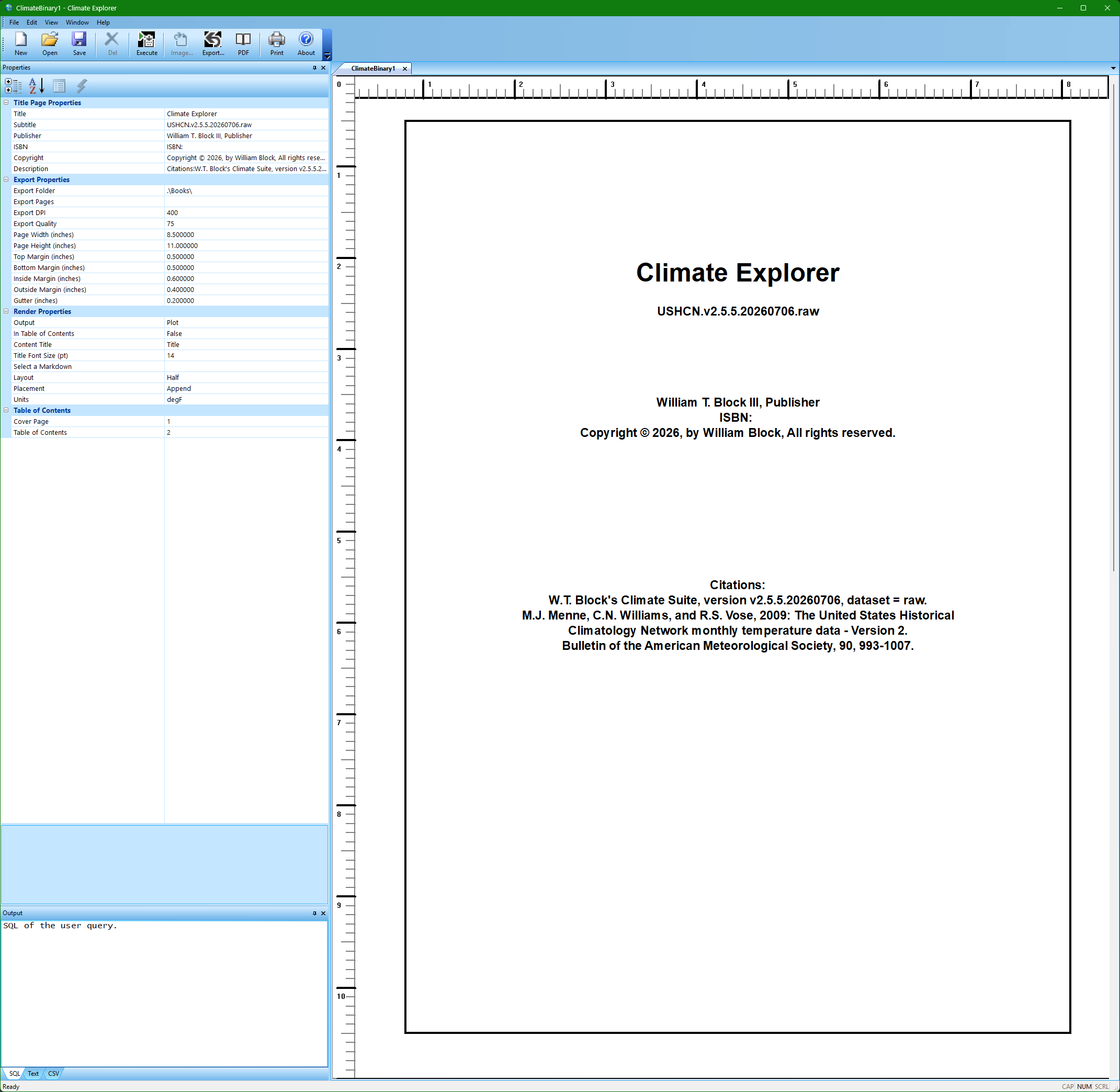
Note: The rulers are a recent addition and the Export Properties starting with
Page Width (inches)throughGutter (inches)were also recently added. These changes were made to make it easier to create Kindle books other than letter size paperback books.
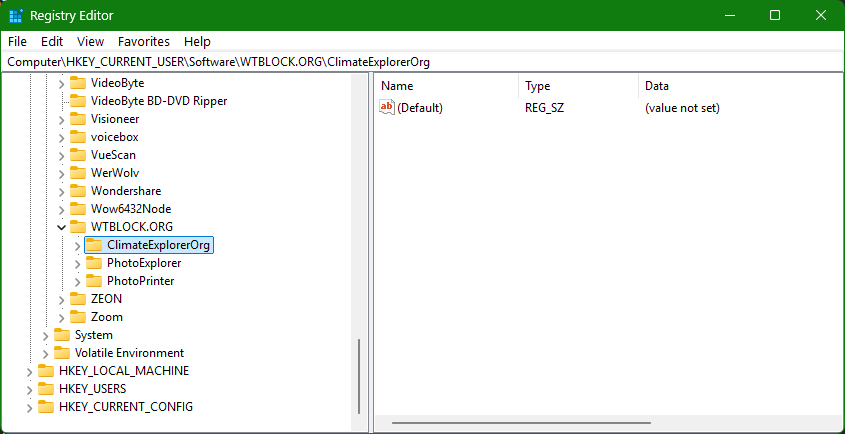
To return to the way Climate Explorer first looks, I went into the Windows Registry and renamed the ClimateExplorer entry to ClimateExplorerOrg which effectively removes all of my personal settings. If you are not familiar with the Windows Registry, I do not recommend doing this, my purpose here is strictly for demonstration purposes:
With the ClimateExplorer entry missing, Climate Explorer will launch like it is the first time:
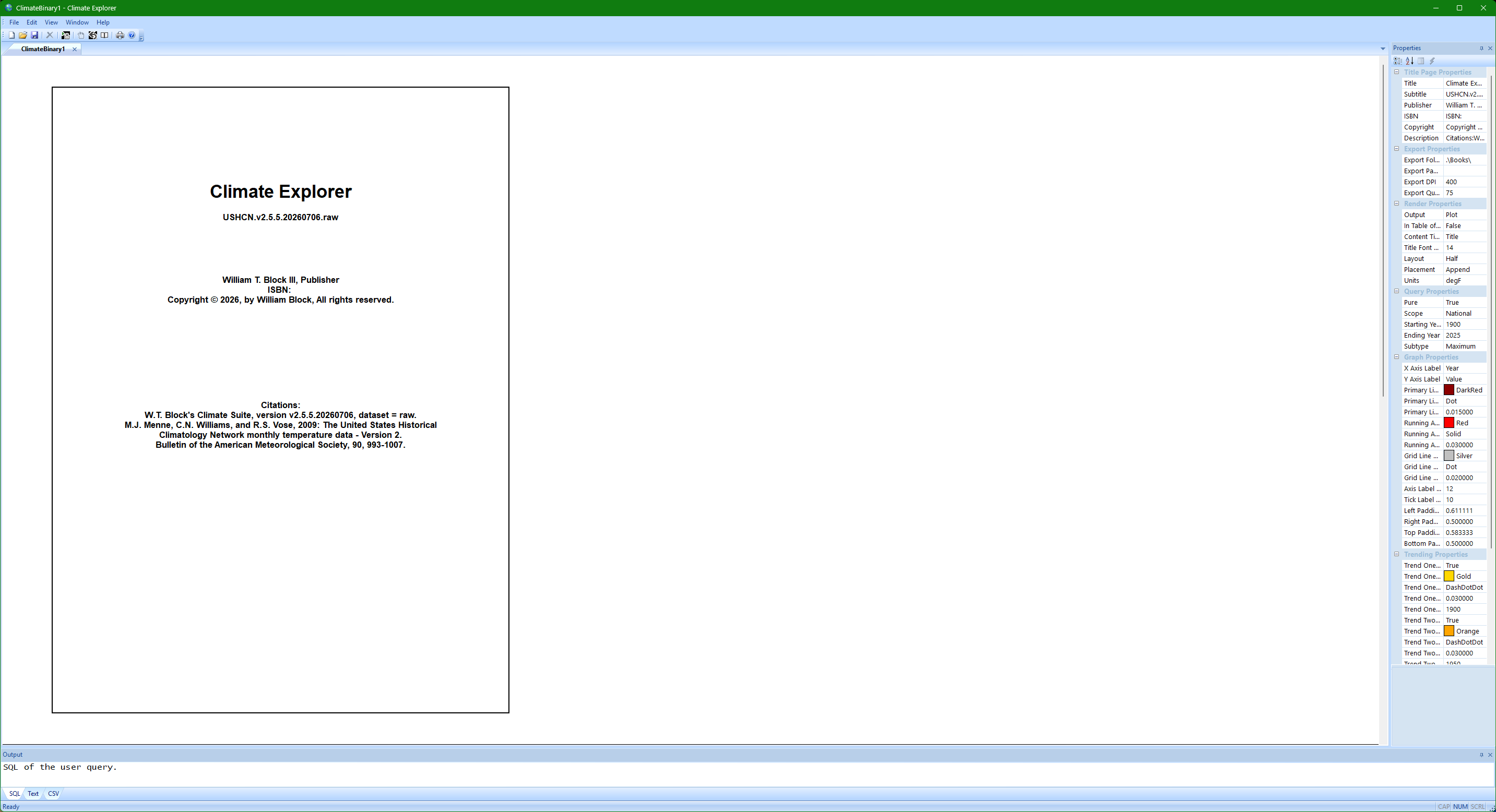
The application is highly customizable to the point of rearranging the toolbar and menus. In the spirit of keeping this simple, I will demonstrate how I got from the initial look to the current look.
Make the Toolbar Larger
I am running on a 4K monitor, so the toolbar looks tiny on my screen. To make it more readable, I add text labels and double the size of the icons. This is a zoom in on the initial toolbar:

When you click on the down arrow on the right edge of the toolbar, the Add or Remove Buttons menu item is displayed. If you click on that menu item's down arrow, a submenu pops up:
- Standard
- Customize...
If you click on Customize... the Customize Dialog is displayed:
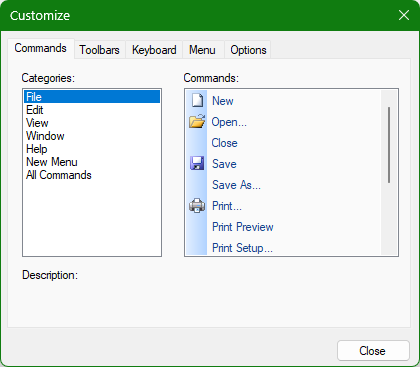
Since we are interested in modifying the toolbar, click on the Toolbars tab:
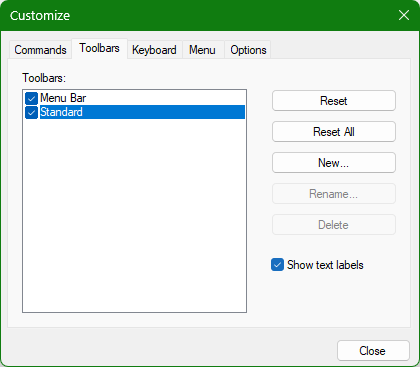
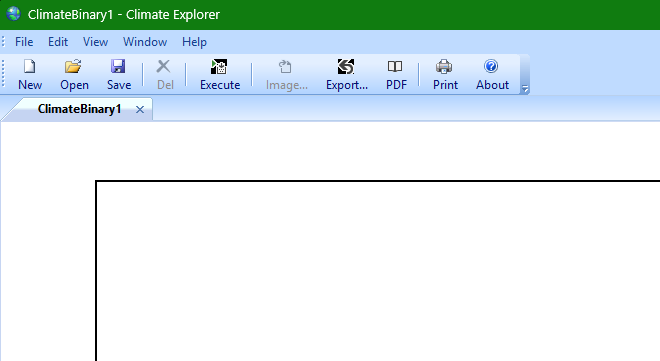
After selecting Standard and checking Show text labels, the toolbar looks like this:
That may be all you need, but if you would like the toolbar to be larger, click on the options tab to see this:
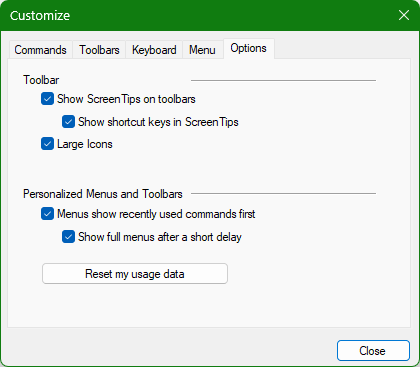
To double the size of the toolbar icons, check Large Icons and press the Close button to exit from the Customize dialog.
At this point the toolbar looks like my current toolbar:

One advantage of illustrating this is that the toolbar is a preview into what will be discussed in the following pages. The toolbar icons represent actions that will be described in those sections.
The Three Panels
Climate Explorer is divided into three major panels:
- Document / view.
- Properties
- Output
The document / view is the main window that shows the document. The Properties and Output panels can be dragged and docked to different locations around the document / view.
Moving Properties
To move the Properties panel:
- Click and hold the mouse button down on the
Propertiestitle bar. - Drag the panel to the desired location.
- As you are dragging the panel
arrowswill pop up that you can drag to. - Releasing on one of the
arrowswill dock the panel to the edge the arrow was pointing to.
Once the panel is docked, you can grab the inside edge of the panel with the mouse and resize the panel.
Moving Output
Moving the Output panel works the same as moving the Properties panel, but there are additional options with respect to the position in relation to the Properties panel. This image illustrates how the Output can be moved relative to the Properties panel:

There is a push pin in the upper right corner of the panels called the Auto Hide which when unpinned causes the panels to hide by collapsing into a tab on the edge of the window:
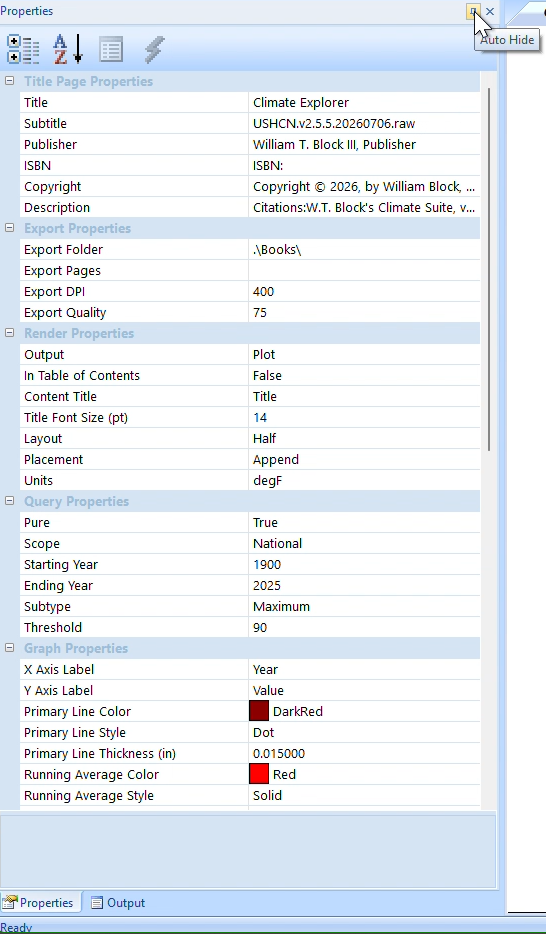
Autohiding the panels gives the document / view all of the window's space and when the panel is needed, the user hovers the mouse arrow over one of the tabs to unfold the panel:

Retro Application Looks
Under the View menu item on the menu bar is an Application Look menu item. Climate Explorer brings back some retro looks with this option and it is one of the other differences you may see in my screen shots or videos:
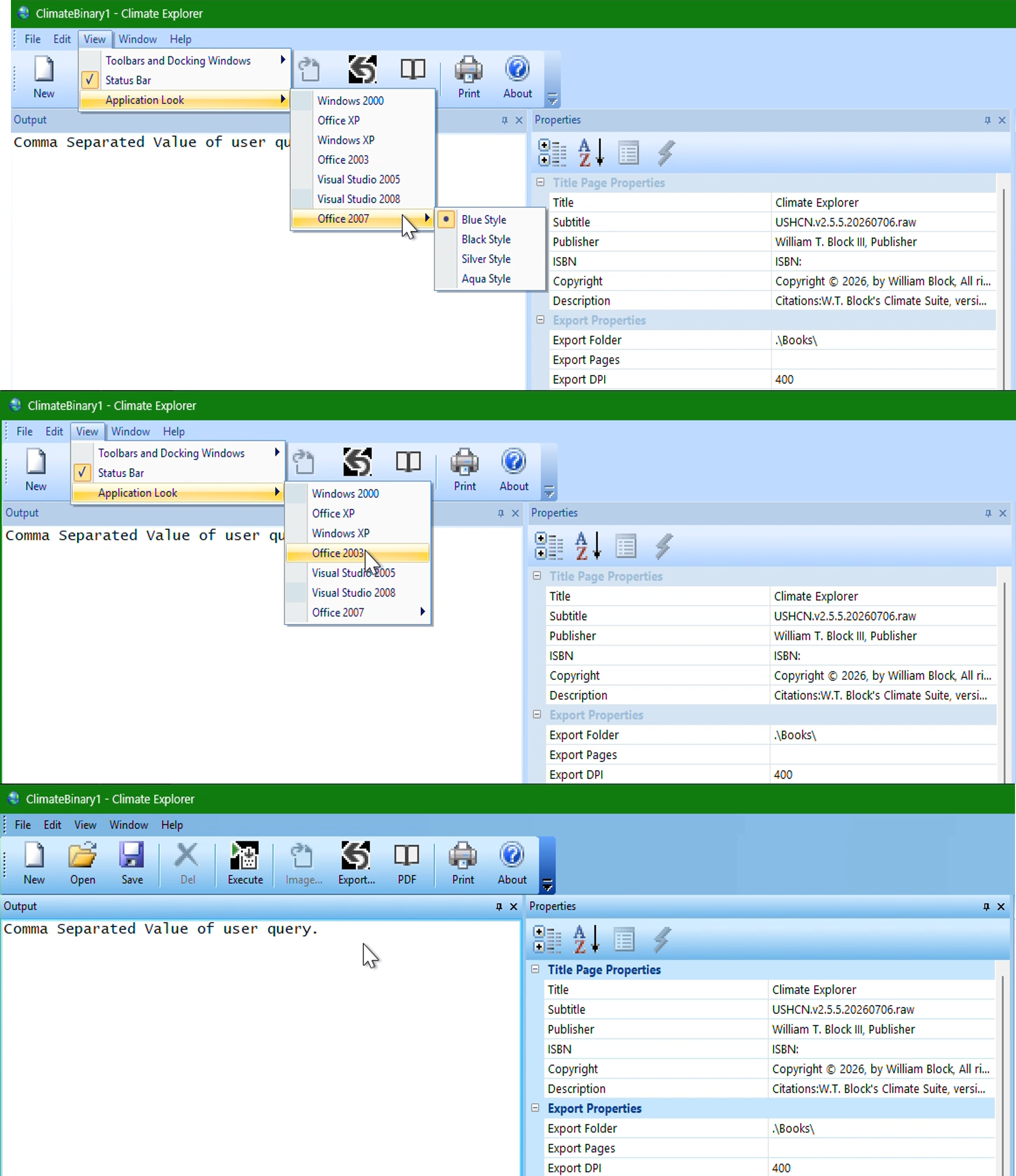
Video Demonstration
The following video demonstrates some of the items described above: