Importing bibliography records from Zotero into Srophe - usaybia/usaybia-data GitHub Wiki
Overview
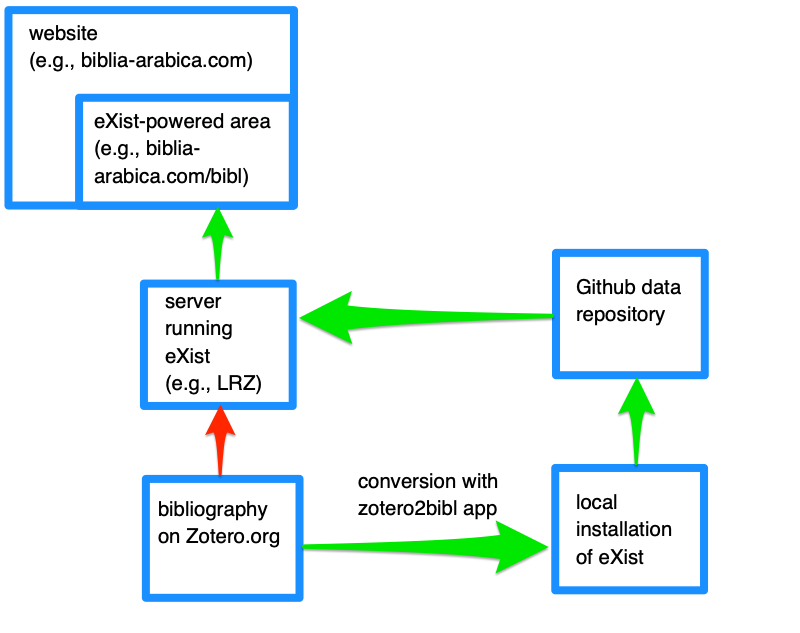
- Bibliography is entered and edited in Zotero.
- Bibliography entries have to be imported into Zotero by running the zotero2bibl Biblia Arabica version or zotero2bibl Usaybia.net version app in eXist.
- Running zotero2bibl can crash the eXist server (at least prior to eXist 5.0). Therefore, run the app in a local installation and update the files on Github.
Stuff to install if you're doing this the first time
You can skip this step if you've already installed the items below.
Install eXist locally
Download from http://exist-db.org/exist/apps/homepage/index.html. If you do not already have Java Runtime Environment installed, you will need to first download it here https://java.com/de/download/ and install it.
If you use Docker, you can install eXist with the command
docker run -it -d -p 8080:8080 -p 8443:8443 --name exist --restart unless-stopped existdb/existdb:release
Clone the data repository in Github
Create a Github account and download Github Desktop if you haven't already. Clone the data repository to your computer using Github Desktop. Usaybia.net data Biblia Arabica data. Request edit access to the repository from one of the administrators if you don't already have it.
After installing the above
Sync the data repository in Github
In your Github Desktop app, in the master branch of usaybia-data or biblia-arabica-data, press "Fetch origin" or "pull" to download the latest version of the data to your computer.
Install (or update) the zotero2bibl app in eXist
Even if you've already installed the zotero2bibl app, you'll need to make sure you have the latest version.
Download the latest build of the zotero2bibl app from the Biblia Arabica or Usaybia.net zotero2bibl repository. This will be a file ending in .xar.
Run eXist, go to the dashboard (this is usually at https://localhost:8443/exist/apps/dashboard/index.html - you will have to bypass the security warning), and log in as "admin". Open the package manager and drag the .xar file you downloaded into the dropzone to install the zotero2bibl app.
Convert Zotero Entries using zotero2bibl app
With eXist running on your computer, open the main page of the zotero2bibl app (https://localhost:8443/exist/apps/zotero2bibl/index.html - you will have to bypass the security warning. Note: These instructions use the https version with the port 8443 because on some systems the conversion does not work with http on port 8080).
If the app is using the correct configuration file, you should see something like this.
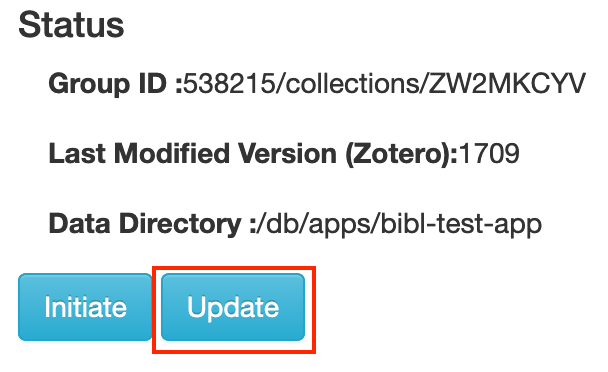
The "Group ID" should match the numbers you see when you go to the Zotero group online. The part after "/collection/" should match the folder (collection) key if you are only grabbing records from a particular folder. For example,
https://www.zotero.org/groups/GROUP/biblia_arabica/items/collectionKey/COLLECTION
https://www.zotero.org/groups/538215/biblia_arabica/items/collectionKey/ZW2MKCYV
If this is not correct on the zotero2bibl screen, then the configuration file needs to be changed. Please contact @nathangibson or @wsalesky.
If it is correct, click "Update." This may take a couple minutes, then it will tell you which records have been processed. Click "Next" and repeat until you get the message "Done."
Export the new records
Now you need to get the updated records out of eXist. One way is to go use the backup feature. Go back to the eXist dashboard and click "backup." (You must be logged in as admin.) Select "zip" > "Trigger backup" and click the arrow to download it once it completes. Unzip the file on your computer and find the folder under db/apps containing the new records. Select all the records and copy them.
Now find the folder where your Github repository is stored and navigate to data/bibl/tei. Paste the files here, overwriting any existing ones.
Alternatively, if you installed the data repository as an "app" in eXist, you can open exide from the dashboard, open one of the new files and select Application > Synchronize. Then select the folder of your Github repository.
Sync new files to Github
In Github, you should now see the changes you've made to the bibliography records. These need to be uploaded to the Github server. Click on some of the changed files to see whether the changes are the ones you expected. Especially check any deleted files (with red dots) to make sure they should be deleted. If everything looks correct, enter a commit message (e.g., "updating from Zotero") and press commit. Then press the "Push" button to upload your changes.
If you're uncertain whether your changes are correct, it is best to create a new branch (Branch > New branch) and commit to that instead of to the master branch. Then you can do a "Pull request" to have someone else check your changes before merging them into the master branch.
Updating the Server
If you've changed less than 50 records, Github might automatically update the website (usaybia.net or biblia-arabica.com).
Otherwise, the new files will also need to be loaded into the live eXist server running the website. Ask an administrator to do this.
If you are an administrator, increment the version number in expath-pkg.xml and package the latest version of the data using ant. Then log into the server as admin. (Due to a current bug, you must be logged in as 'admin' to upload the new files, not another account with admin privileges.) Back up the database and download the backup. Then install the package you just built using the package manager. Check the website to make sure the new and updated records are functioning correctly. If so, back up the database once more.