Creating a Microsoft Word document to compare downloaded transcription with HTR text - usaybia/usaybia-data GitHub Wiki
Introduction
If you will be using a Word document to correct the HTR text generated by Transkribus using a downloaded text, follow these instructions to create the Word document. Then use the procedure at Comparing downloaded text to HTR text in a Microsoft Word document to make your corrections. This is particularly useful for inserting the correct line breaks into the downloaded text. (As of November 2019, the T2I feature in Transkribus deletes lines.)
1. Run HTR on the relevant pages
After Cleaning up the layout of the pages you need, run HTR on them.
2. Correct page numbers
Check the HTR-detected page numbers in Transkribus to make sure they are correct.
3. Export the Transkribus pages as TXT
Go to Menu -> Document -> Export Document ... -> Client Export -> Simple TXT. Select the pages you need to export. (Do not use the DOCX export, because it reverses the Arabic characters.)
4. Remove extra line breaks
In the exported text, there will be extra line breaks between text regions. Use regex find/replace in an editor (such as Oxygen) to remove these: Replace \n{2,} with \n.
5. Create a text document with the corresponding section of downloaded text
Use find/replace on a few words to find the corresponding section of the downloaded transcription and save it as a new TXT document.
6. Format the downloaded text
For the Shamela transcription of Ibn Abī Uṣaybiʿa,
- Format poetic lines by finding regex
\((.*?)\n(.*?)\)and replacing with\1\u0020\*\u0020\2. (The unicode of the spaces has to be specified in Oxygen, since if you insert regular spaces it will add unwanted directional control characters.) - Remove diacritic dots on the final ya (ي) by finding regex
ي([\s\n])and replacing withى\1.
7. Load into the MS Word document compare feature
The "original document" should be the downloaded text. The "modified document" should be the one exported from Transkribus. For both documents, select "other encoding" --> UTF 8. In the advanced options dropdown, select the "character level" for comparing changes.
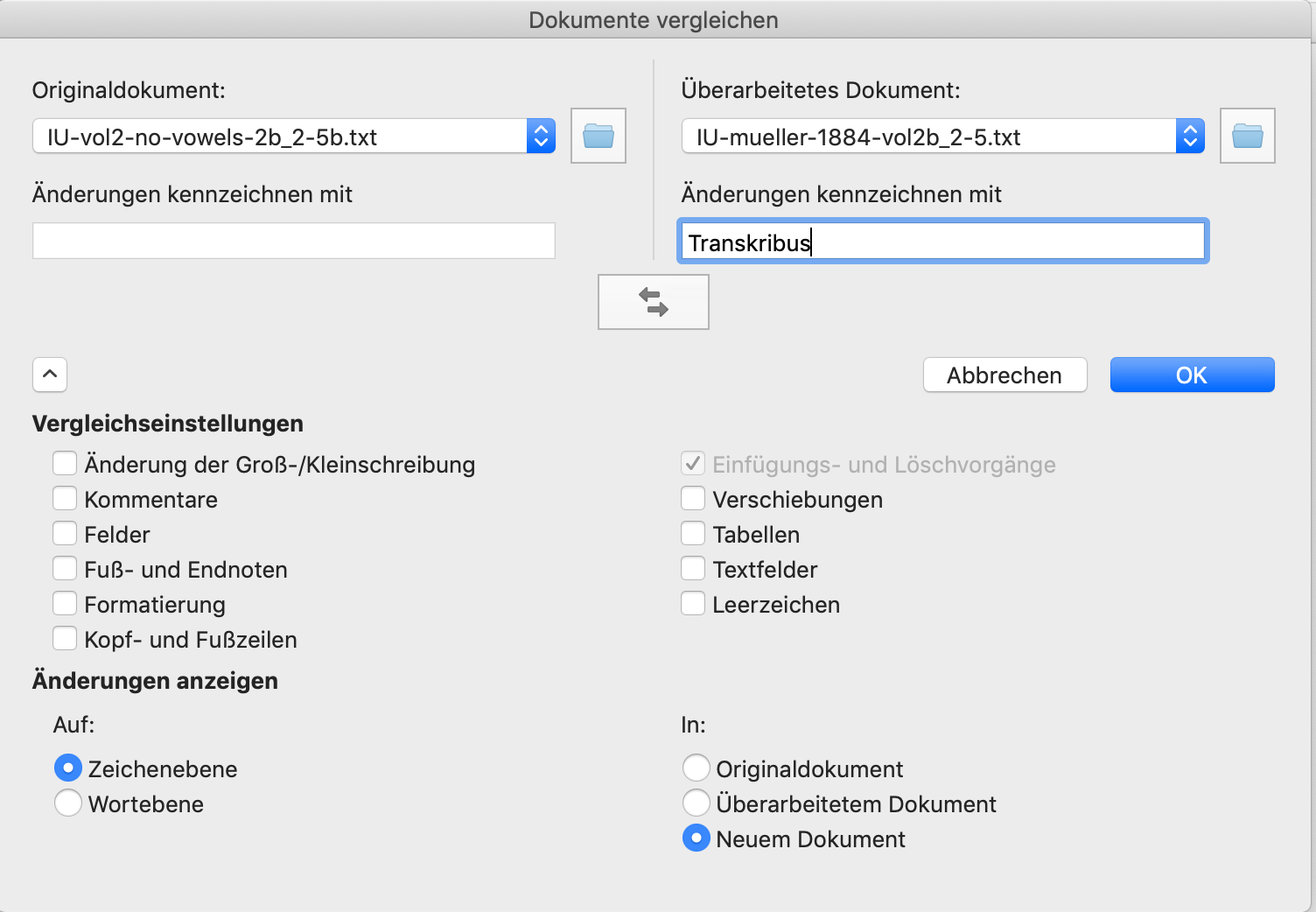
Save the document and follow the instructions at Comparing downloaded text to HTR text in a Microsoft Word document.