Comparing downloaded text to HTR text in a Microsoft Word document - usaybia/usaybia-data GitHub Wiki
Introduction
You should be starting with a Microsoft Word document in which the downloaded text is compared to the text produced in Transkribus by HTR (Handwritten Text Recognition). The "changes" are the differences between the downloaded text and the Transkribus text. (If you need to produce this document, see Creating a Microsoft Word document to compare downloaded transcription with HTR text.)
1. Show formatting
If you do not see blue paragraph marks (¶) for line breaks and dots for spaces, click the ¶ icon in in the Start or General tab of Word to "Show formatting characters."

2. Compare changes
In the Review/Überprüfen tab, click the Compare/Prüfen button. This will show all the changes in the left sidebar. (It is difficult to keep track of all the changes without this.) Each difference between the documents is shown as two changes, something deleted and something inserted.
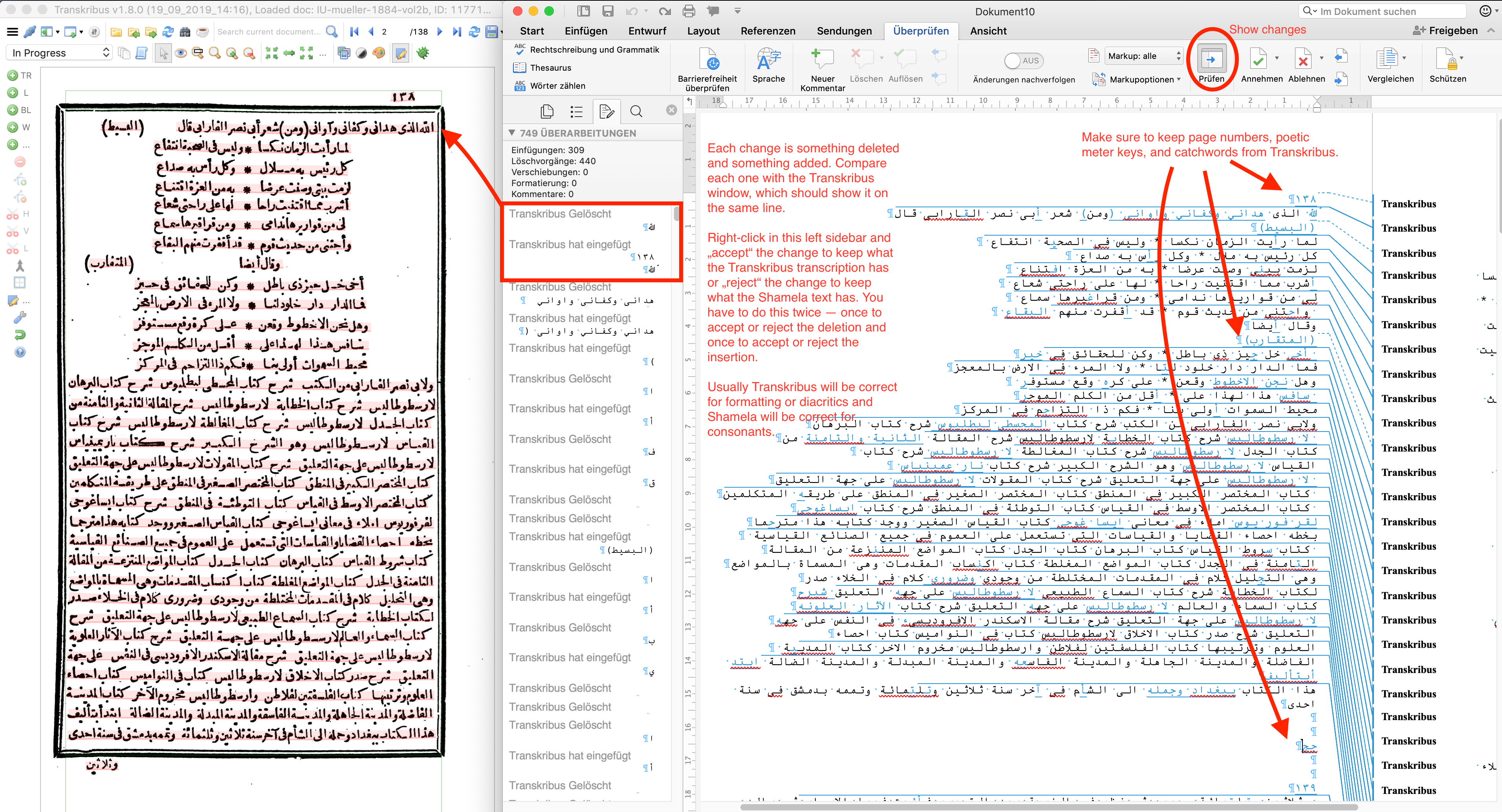
3. Open Transkribus
Open your document in Transkribus and arrange it so you can see the page image at the same time as your Word document. You can hide the transcription window and the left toolbar to make it more compact. Or if you don't have enough space on your screen to see both, you can print the relevant pages of the PDF from here https://github.com/usaybia/usaybia-data/tree/master/data/texts/pdf.
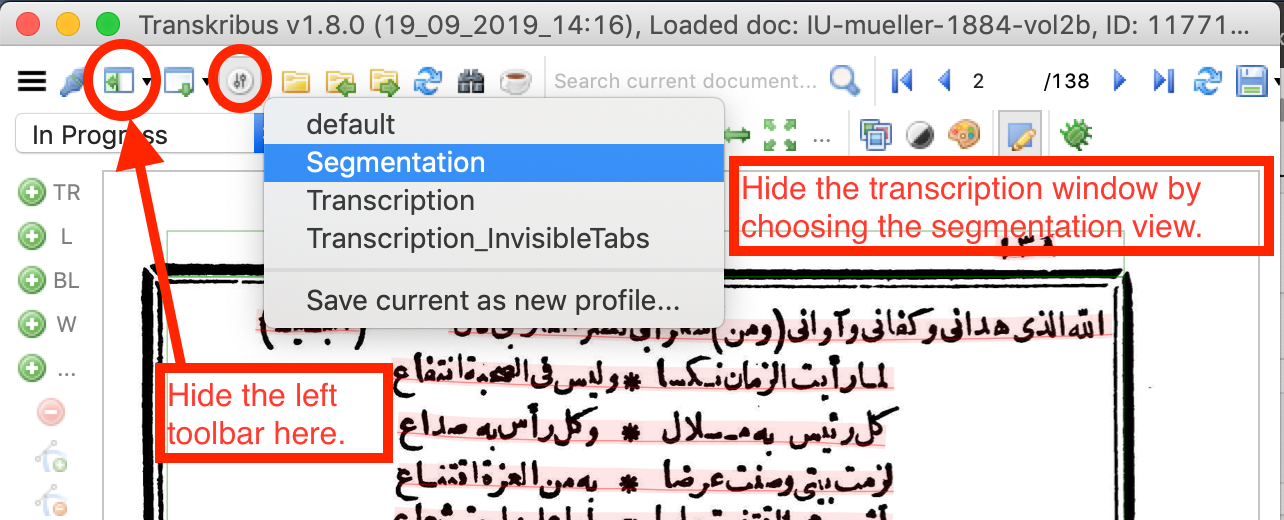
4. Accept/reject changes
For each change in the left sidebar, compare it to the Transkribus image to determine which version is correct. (It should appear on the same line in Word and Transkribus.)
Right-click on the change in the left sidebar to accept/annehmen or reject/ablehnen the change. (You will need to do this twice -- once for the deletion and once for the insertion.) Accept changes to keep the Transkribus version and reject changes to keep the downloaded text version.
In general, you will usually need to keep the Transkribus version for formatting and extra things like page numbers, headers, poetic meter keys, and catchwords. (But you should check these to make sure they were recognized correctly.) It is also more likely to have the correct diacritics (ي or ى, أ, ء, ئ, etc.).
The downloaded text is more likely to have the correct consonants.
5. Paste into Transkribus
Once you have dealt with all the changes for a page, copy the entire page from Word into Transkribus. You might need to delete some extra line breaks between text regions to make the transcription align correctly with the image.
Done!